

Ghalina user manual
Ghalina is an Android app that makes an elderly parent’s phone simple and safe, while the family looks after it from their own phones. This manual explains every feature, step by step, and what happens in each case.
- 23 chapters
- 291 topics
- 44 videos ready
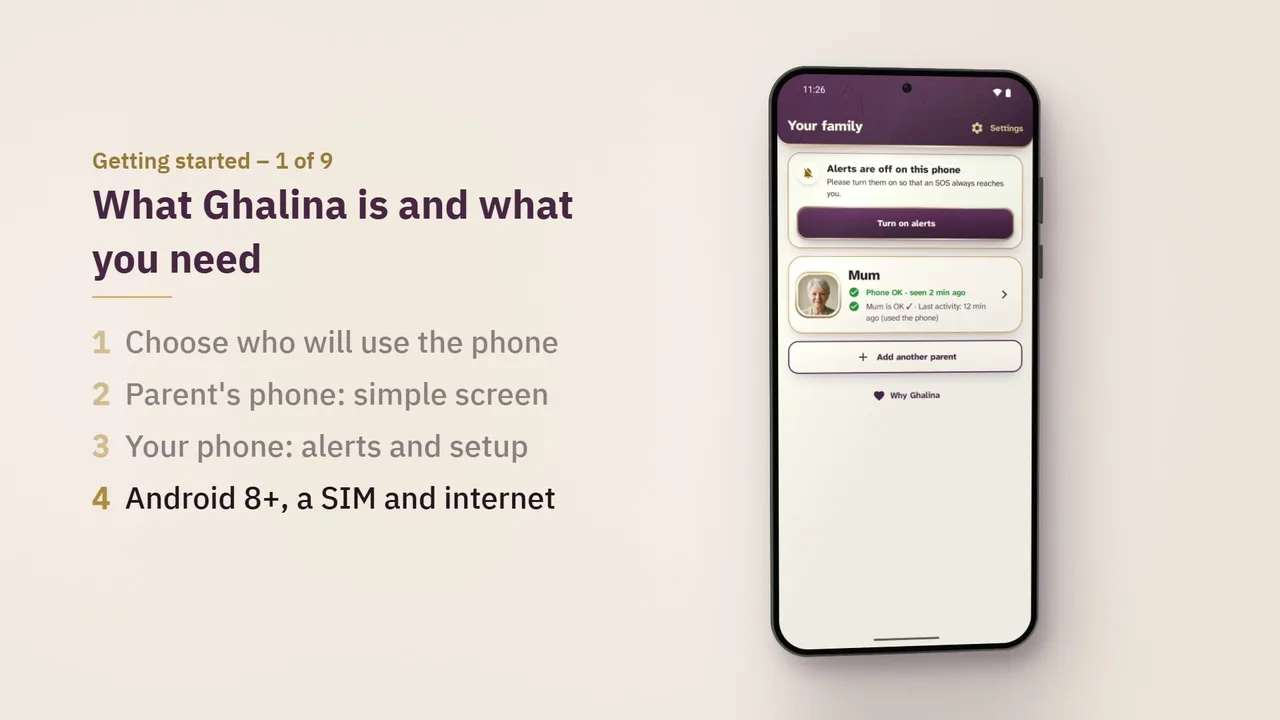
Now playing · Getting started
What Ghalina is and what you need
Steps
- One app with four modes, chosen the first time it opens:
- The parent’s phone never signs in. It uses a hidden technical account that only connects it to its family.
- Family members and helpers sign in with Google, so they keep everything when they change phones.
- English and Arabic. Each phone uses its own language.
- Ghalina is not an emergency service and not a medical device. It alerts and calls the family; nobody watches it around the clock.
Getting started
9 videosEvery day
10 videosSafety
9 videosFor the family
13 videosPlans and fixes
4 videosAssistant
Ask Ghalina’s assistant
Ask about any feature in your own words. The answer comes from the Ghalina user manual.
Answers are written by AI from the Ghalina manual and may contain mistakes, so please check the user manual or write to support@ghalina.com. Questions are processed by Google Gemini: please do not include personal or health details.
Still need help?
Write to us, or send a written or voice message from the app. A real person reads every message.
Everything in the manual
23 chapters and 291 topics. Open any of them.
1Getting started
What Ghalina is
- One app with four modes, chosen the first time it opens:
- “This phone is for a loved one we care for” (senior mode): the parent’s phone. Ghalina becomes its home screen and its phone app.
- “I care for a loved one” (family mode): the children’s app. Alerts, remote setup, medicines.
- “This phone is for me” (Personal use): a calm, big phone for the person who holds it, with no family. It has its own guide at ghalina.com/manual-solo.
- “I help look after someone (Caregiver)” (helper mode): for a home helper or nurse the family invites (Family plan). On the first page its tile says "For carers and helpers".
- The parent’s phone never signs in. It uses a hidden technical account that only connects it to its family.
- Family members and helpers sign in with Google, so they keep everything when they change phones.
- English and Arabic. Each phone uses its own language.
- Ghalina is not an emergency service and not a medical device. It alerts and calls the family; nobody watches it around the clock.
What you need
- Android 8.0 or newer on the parent’s phone and on each family phone.
- The family app is not available on iPhone yet. The parent’s SOS calls can still ring any number on the family list, including iPhones.
- A SIM card in the parent’s phone, so it can make calls (the SOS backup calls use the normal phone network).
- Internet (mobile data or Wi-Fi) on the parent’s phone for alerts to reach the family. Without internet, calls, SOS calls and reminders still work (see No internet).
- A Google account on each family phone.
Installing Ghalina (beta)
- The beta is on Google Play, by invitation.
- Go to ghalina.com/beta, enter the Gmail address of the Google account on your phone and tap Ask for an invitation.
- Right away you get a short email from support@ghalina.com, "We got your request", in the language of the page.
- We add your Gmail to the beta, and then send a second email, "You are in", with the Google Play link.
- We use your Gmail only to add you to the Google Play testers list and to send you these two emails. Google handles it under its own terms.
- Open that email on your Android phone, signed in with the same Google account, and tap the link. On the testers page tap Accept invite, then Download it on Google Play, and in the store tap Install, like any other app. There is no file to download and no phone setting to change.
- Install it on your own phone first and on your parent’s phone last. The parent’s phone needs its own request, with the Gmail address of the Google account on that phone.
- No email after 2 days? Look in Spam or Promotions.
First launch: language and mode
- Choose your language: English or Arabic. The app switches at once.
- Who will use this phone? Three big cards:
- “This phone is for a loved one we care for” → the parent’s setup (below). Any Google account signed in to Ghalina on that phone is signed out.
- “This phone is for me” → Personal use (see its own guide, ghalina.com/manual-solo).
- “I care for a loved one” → Continue with Google → your name (required: your parent sees it, for example “Sarah is on the way to help”), your phone number and photo (optional) → connect to your parent.
- “I help look after someone (Caregiver)” → see Home helper or nurse.
- A “Language” button at the top goes back to the language page.
- A small gold-rimmed ? next to the “Language” button opens the online user guide at this page. See The user guide and the “?” button.
- If the parent’s phone is replacing an old Ghalina phone, the setup asks first. See The parent gets a new phone.
Setting up the parent’s phone, page by page
- Do this with the parent’s phone in your hand. Each page asks for one thing and says why. Every page can be skipped with Later and done afterwards from the checklist, except Notifications and the family PIN, which the setup needs.
- The number of pages depends on the Android version: 14 on Android 14 and newer, 13 on Android 12–13, 12 on Android 8–11. The top bar shows “N of 14”.
- A page moves on by itself about a second after its item is done.
- Every setup page has a small gold-rimmed ? at the end of the “Setup: N of 15” row. One tap opens the user guide at the topic for that page.
- What do you call your parent? A family name such as Mother, Father, Grandma or Grandpa, or your own name for them (up to 20 letters). It is used in family messages, for example “SOS from Margaret”.
- Ghalina as the phone app: big call buttons, and family calls always ring. On the next screen, choose Ghalina.
- Notifications (required): the notice that shows the family is connected, SOS help, medicine reminders and family messages on screen. This page has no Later: the setup goes on once notifications are on. If no question appears, or Android will not ask again, tap Didn’t work? → Open settings → Notifications → turn on “Allow notifications” for Ghalina.
- Alerts on the locked screen (Android 14 and newer): calls, reminders and the fall check can show over the lock screen. Turn on the switch for Ghalina.
- Alarms & reminders (Android 12 and newer): reminders ring exactly on time. Turn on the switch for Ghalina.
- Location: only while the phone is used: the location for an SOS or a fall, “Take me home” (when the family is told), “Share once” and prayer times. Choose “While using the app” and keep “Precise” on. The setup never asks for “all the time”: that is asked only for the safe zone, after the family turns it on (see Safe zone). Then: Are you at your parent’s home now? Tap Save this place as home (for “Take me home” and the safe zone), Choose on a map when the phone is not at home now (search the address, move the map until the pin sits on the home, Use this place), or Skip. With Google Maps on the phone, an optional card offers to keep the map for use without internet.
- Calls in an emergency: lets the phone call the family by itself if nobody answers an SOS.
- Microphone: voice commands, only after a tap. An optional card offers “Voice without internet”.
- Camera: the magnifier.
- Contacts: shows callers’ names.
- Battery saving: so Android does not stop Ghalina to save battery (SOS, fall detection, reminders). Tap the button and allow. On Xiaomi, Redmi, POCO, Huawei, Honor, Samsung, Oppo, Realme and OnePlus, a “Tip for this phone” explains the maker’s extra setting.
- Do Not Disturb access: family calls ring even on silent.
- Family PIN, then connect a family phone: choose a family PIN (typed twice), then a QR code and a code appear for the family to scan. See Connecting the family.
- The home screen: Ghalina becomes the phone’s home screen. This comes last so the phone keeps its usual home screen during setup. On the next screen, choose Ghalina.
- The checklist (final page) shows each page as Done or Not done yet. It also asks:
- Turn on Muslim family features? Pre-selected “Yes” when the setup is in Arabic, “No” in English.
- Prayer times on the home (when the answer is yes).
- Scam call protection · Optional (see Scam-call warnings).
- Map without internet · Optional.
- Done – start using the phone finishes. The setup cannot finish without a family PIN or with notifications off (the final page then offers Turn on notifications).
- If no family phone is connected yet: “Until a family phone is connected, SOS alerts cannot reach anyone.” Tap Show the code again or Connect later. The home then shows “Not connected to family yet – tap to show the code” until someone joins.
- The parent agrees first: the setup shows “What your family will see” and asks for agreement. Afterwards a notification always says “Ghalina is looking after this phone”.
- To undo later: Ghalina Settings → Leave senior mode (family PIN), or Android Settings → Apps → Default apps → Home app.
The user guide and the “?” button
- A small gold-rimmed ? appears on the first page (“Who will use this phone?”, next to the language button), on every setup page (at the end of the “Setup: N of 15” row), on the parent’s Settings page and on the family app’s own Settings page (the last button in the top bar). It is not on the home screen or in the menus.
- One tap opens the online user guide at the topic for that page: a video and the written steps.
- It needs internet. Without it a short message says “You need internet to open the guide”.
- Settings also has a last row, User guide (“Videos and written steps for every page”), above the version line. It opens the whole guide.
- This is the same on the parent’s phone, on a Personal use phone and in the family app: its own Settings page has the ? in the top bar (it opens the family app chapter) and the User guide row above the version line.
If a permission is refused
- When Android will not ask again, the page says so and the button becomes Open settings: tap it, then Permissions, and turn it on there.
- Phone app refused: “Didn’t work?” shows Android’s steps (Default apps → Phone app → Ghalina).
- On Android 15 and newer, an app installed from a file (not from Google Play) may get “App was denied access to be default Phone app”. Open Ghalina’s App info → ⋮ (top right) → Allow restricted settings, then try again.
- Home screen refused: a button opens Android’s home-screen settings.
- Anything skipped stays in the checklist: Ghalina Settings → 🔒 Setup checklist.
Connecting the family
- On the parent’s phone, page 14 (or Settings → 🔒 Pairing code) shows a QR code and an 8-character code such as K7M2-9QXR.
- The code is valid for 30 minutes. While it is on screen, a new code replaces it one minute before it ends.
- On your phone: “I care for a loved one” → sign in with Google → your name → Scan the QR code, or type the code (capital letters or not, dash optional). Pasting the whole message also works.
- Your phone shows “Waiting for Margaret’s phone to say yes…”.
- The parent’s phone shows your photo, name and Google email: “Sarah wants to look after this phone. Is Sarah family?” with Yes, allow and No. The Back button does not answer.
- Yes, allow → “Sarah can now look after this phone ✓”. Your phone shows “You’re connected to Margaret ✓”.
- No → nothing changes. Your phone shows that the parent’s phone said no. That code cannot be used again; ask for a new one.
- No answer before the code ends (at least 10 minutes) → “The code expired, ask for a new one”.
- One code, one person: once someone uses a code, the parent’s phone shows a new one for the next person.
- The first person to join becomes the family admin. The 14-day trial starts at that first approved pairing.
- The other members get a notification: “James joined Margaret’s phone”.
Inviting brothers and sisters
- In the family app: Invite family → a sheet slides up over the page you were on → share the invitation (WhatsApp first, or any app). Drag the sheet up to see the invites sent from this phone and the family. Swipe down, tap outside it, or tap Close to close it. Any family member can invite.
- The invitation holds a link (ghalina.com/i/…) and a 12-character code such as K7M2-9QXR-4HTD.
- On a narrow screen or with large text, the code breaks only between its 4-character groups, never in the middle of a group.
- It works once and lasts 48 hours. Each member can make up to 20 a day.
- Your brother or sister installs Ghalina, chooses “I care for a loved one”, signs in and opens the link (or types the code). They can tick “Add my photo to the home screen” (this needs their phone number).
- The parent’s phone then asks: “James wants to join your family. Allow James to join your family?” → Allow or Don’t allow. The question waits up to 24 hours.
- A family has at most 6 members per parent. With Single only the buyer gets alerts; with Family up to 6 do.
- Cancel an invite you sent: on the Invite family sheet, tap Cancel invite next to an open invite → “Cancel this invite? The code will stop working.” → Cancel invite (or Keep it). The invite then says “Cancelled”, and anyone who tries the code sees “This invite was cancelled”. If the parent’s phone was already asking about that person, the question goes away and nobody joins.
- The family admin can also cancel an invite someone else sent while it waits for the parent’s phone: the parent’s page → Family members → Cancel invite next to the waiting person.
- An invite that was already answered (yes or no) or has ended cannot be cancelled.
The family PIN
- A 4- to 6-digit number that only the family knows. It protects the parent’s important settings from accidental changes.
- It is not the SIM card PIN and not the screen lock.
- It is chosen in the setup (typed twice) and is required to finish it.
- It is asked for: leaving senior mode, removing Ghalina, the setup checklist, Android settings, showing the pairing code, changing the PIN, the SOS hold time, Phone controls for the family, Ramadan times on the parent’s phone, and Scam call protection.
- Not asked for: colours, text size, language, “My home”, people’s photos, Arrange family, the Muslim family features switches, prayer settings, and feedback.
- After 5 wrong tries, entry pauses for 30 seconds. Once typed, the other locked rows open during that visit; after 2 minutes away it is asked again.
- Change it: on the parent’s phone, Settings → 🔒 Change the family PIN (needs the current PIN). From a family phone: the parent’s page → Home Screen → Family PIN → Set / Change (any family member, also without a plan) or Remove (needs Single, Family or the trial).
- Forgotten? Any family member sets a new one from their phone, also without a plan: Home Screen → Family PIN → Change PIN. The parent’s phone then shows who set it, for example “Sarah set a new family PIN on 10 October.” A home helper cannot. There is no other way to reset it.
2Safety
SOS: the red bar
- The red SOS bar is at the bottom of every screen of the parent’s phone: the full bar on the home screen, a slimmer one on the other screens (the Phone screen, More, the magnifier, voice, prayer, medicines and the rest). Nothing covers it. When the keyboard opens, the bar rides just above the keyboard, so help is always one hold away. The bar always says “Press and hold”, with no seconds, so it stays on one line at the same size with big text; how long to hold (2 to 5 seconds, 3 by default) is set in Settings and TalkBack reads it: “SOS. Press and hold for 3 seconds to call for help”.
- Hold it for 3 seconds (the family can choose 2, 3, 4 or 5). The phone ticks each second while it is held, so a quick touch never raises an alarm.
- Then a 5-second countdown starts: “Sending help in 5 seconds”, with a beep and a vibration each second (the beep plays even on silent). The screen lists up to 3 people who will be told. A giant Cancel stops everything; nothing is sent.
- After the countdown, the phone:
- finds its location (up to 10 seconds, else the last known one),
- sends an alert with the location and battery level to the family,
- shows “Finding where you are…” → “Sending help…” → “Your family has been told” → “Waiting for someone to answer…”.
- When a family member taps I’m on it, the phone shows and says: “Sarah is on the way to help. You will get a call now.” (silent during a call). The parent can then tap Call or Close.
- I am OK now cancels the alert and stops the calls. The family is told it was cancelled.
- Medical info on the help screen opens the medical card when the family has turned it on.
- Other ways to start an SOS: the voice command “Help”, “SOS”, “Emergency” and the same words in Arabic (see Voice commands).
- Only one SOS runs at a time. Pressing SOS again shows the one already running.
- Free, and never locked: SOS works without any plan.
Turning SOS off
Some families want only a big, simple launcher. In the family app open Safety → SOS on or off and turn off Red SOS button, or on the parent’s phone open Settings → SOS button → Red SOS button (family PIN). Ghalina asks once: “Turn off SOS?” Then the red bar disappears from every screen, the hold and “SOS over other apps” stop, and the screens use the space. Fall detection and the medical card are separate. Turn it on again the same way.
SOS on the lock screen
- The parent does not need to unlock the phone. On the lock screen, under the medical card, there is a red SOS row: “SOS – Tap, then hold to call for help” (the same word in Arabic on an Arabic phone, with “SOS” on the round badge). When the medical card is off, or not in the plan, the SOS row is there on its own. It is always free.
- Tap it: a screen opens over the lock screen, without the PIN: “Need help? Hold the red button. Your family gets an alert with your location.” with the same red SOS bar as on the home screen.
- Hold the bar for 3 seconds (or the hold time the family chose). A touch in a pocket never sends anything: the row must be tapped and then the bar held.
- Then everything is as usual: the 5-second countdown with Cancel, the alert with the location, the family’s answer, the backup calls and Medical info.
- Cancel, I am OK now or Close brings back the lock screen. The phone stays locked all the time.
- What the family sees: exactly the same SOS alert as from the home screen (“SOS from Margaret – Margaret needs help”), with the location.
- The row needs Ghalina’s notifications to be allowed and the lock screen to show notifications. If the lock screen is set to hide notifications, the row is hidden too; the SOS bar on the home screen and the voice command “Help” still work.
SOS over other apps
- A small round red SOS button can float over the parent’s other apps (WhatsApp, YouTube, the browser…), so help is one hold away without going back to the home screen. It needs a plan for the parent (Single, Family or the 14-day trial; the SOS bar on the home screen is always free). With a plan it is on by default; without one it does not show, and in the family app the section says “Unlock with Single or Family”.
- Hold it for 3 seconds (or the hold time the family chose): a gold ring fills and “Keep holding…” shows beside it. Then everything is as usual: the 5-second countdown with Cancel, the alert with the location, the family’s answer and the backup calls. Cancel goes back to the app the parent was in.
- A quick tap only shows “Hold for 3 seconds to call for help” for 2 seconds. Nothing is sent.
- Move it: drag it with a finger; let go and it glides to the nearest side of the screen. The phone remembers the place.
- Where it never shows: inside Ghalina, during a phone or WhatsApp call, while an SOS or fall alert is open, and over an app the family turned off. In video apps (YouTube, Shahid…) it sits low at the edge, so it never covers the picture.
- Allow it once: Android asks for “Display over other apps”. During the setup (page “SOS over other apps”) or later in Settings → SOS button → SOS over other apps: tap Open settings, choose “Ghalina”, turn on “Allow display over other apps”. Not now leaves it for later.
- Turn it off: the parent, in Settings → SOS button → SOS over other apps (no PIN); the family, in Safety → SOS over other apps (also the list of apps it floats over). Each page shows a live example first. If the parent turned it off, the family app says so and cannot turn it back on.
- It only draws itself: it reads nothing on the screen or in other apps and sends nothing until it is held. It knows which app is open only when that app was opened from Ghalina.
SOS backup calls
- If nobody taps I’m on it within 60 seconds (the family can choose 30 s, 1, 2 or 5 minutes), the parent’s phone starts calling the family by itself, on speaker.
- The family’s choice always counts. If it reaches the parent’s phone while an SOS is waiting (for example right after the phone was switched on), the countdown on the SOS screen moves to it; a shorter time that has already passed starts the calls at once. The parent's phone remembers the family's last choice, so an SOS pressed before the settings load still uses it; on a phone that has never received it, the screen says "the phone calls Sarah soon" (no number) until it arrives.
- Order: the people the family marked for SOS, in their order; if none is marked, everyone on the home screen with a number, in list order; if there is nobody, the family members with a phone number.
- It calls one person at a time and waits for each call to end. A call that does not start ringing within 15 seconds counts as failed. There are 4 seconds between people.
- It goes through the list twice, with 30 seconds between the two rounds.
- It never interrupts a call in progress, and never hangs up a call.
- The calls stop as soon as someone taps I’m on it, the parent taps I am OK now, or the family closes the alert.
- After both rounds: “Nobody answered yet.” and a big Call my family again.
- Ghalina never calls an emergency number and sends no SMS.
- Without the “Calls in an emergency” permission, the screen shows big buttons to call each person instead.
SOS without internet
- The phone starts the backup calls at once (no 60-second wait): “No internet – calling Sarah now”.
- Calls go over the normal phone network, so they need a SIM and signal, not internet.
- The alert, with the location, is saved on the phone and reaches the family as soon as the internet is back.
- The family does not get an app alert while the phone has no internet.
What the family sees during an SOS
- A loud alarm that repeats until someone acts, with a full screen over the lock screen: “SOS from Margaret – Margaret needs help. Tap to respond.”
- SOS and fall alarms ring out loud even when your phone is on silent or vibrate. Ghalina plays the phone’s alarm sound itself, like an alarm clock, starting gently and getting louder over a few seconds. If your alarm volume is low, Ghalina turns it up to at least 60% while the alarm rings and puts your own volume back afterwards. During a phone call it plays quietly, and loud again when the call ends. With Do Not Disturb access it also passes Do Not Disturb.
- While it rings, a quiet note “The alarm is ringing. Tap to open it.” shows in your notifications.
- Buttons: I’m on it, Call (calls and also counts as “I’m on it”), Open map (the SOS location), then Resolved. Remind me in 2 minutes closes the alarm, shows the app’s home, and the alarm comes back after exactly 2 minutes, with its red screen even while you are using Ghalina, and on time even if you swipe Ghalina away or the screen is off (a quiet “Reminding you at 11:17” notification shows meanwhile; it stops if someone else took it or it was closed). Tapping I’m on it in the notification opens the red response screen.
- No location with the alert yet? The card says No location yet with a clear button Ask for the location. Their phone then asks them “Share once” or “Don’t share”, and the card shows Asking… waiting for Margaret’s phone. When they share, Open map appears. If they choose not to, you see Margaret chose not to share; if nobody answers within 10 minutes, No answer yet, each with Ask again. This works during an open SOS or fall even without a plan: SOS help is never locked. The same button is on the SOS card in Alerts. The location now sits in its own box headed Margaret’s location, with the state and its one button inside. If Margaret’s phone last reported being inside the safe zone, the box says Margaret is at home (inside the safe zone), Open map opens the home, and there is no ask button. If that report is older than about 30 minutes it also says Last known with the time, and a small Ask for the location button stays. Outside the zone, or with the safe zone off or unknown, you get the Ask Margaret for the location button as before.
- When one person taps I’m on it, the others’ alarms stop and show “Sarah is handling it.”
- When the parent cancels or someone resolves it, every alarm stops and a quiet “All is well” note appears.
- “I’m on it” tapped without internet is saved and sent once you are back online.
- The alert is sent once. The server never repeats an SOS; the parent’s phone calls instead.
- Quiet hours never hold back an SOS or a fall.
- Without a plan, only the primary family member gets SOS alerts (fall alerts need Single, Family or the trial). If that person cannot be reached, Ghalina makes sure at least one family member with the app gets it.
Fall detection
- Off until the family turns it on: the parent’s page → Safety → Fall detection. Changing it from a family phone needs Single, Family or the trial (as do all Safety settings); fall detection stops on the parent’s phone when the trial ends without a plan.
- While on, a quiet notification says “Fall detection is on”. It works with the screen off and in a pocket or bag.
- What counts as a fall: a short free fall, then a hard impact within a second, then the phone lying still for about 5 seconds.
- What does not: a phone that slips onto a table or the floor and lies flat is ignored. There is no sensitivity setting.
- When a fall is detected, the parent’s phone shows over the lock screen “Did you fall? Are you OK?”, plays a chime at full alarm volume, vibrates and says the question aloud, with a countdown: “If you do not answer, your family is alerted in 30 seconds.” (the family can choose 15, 30 or 60).
- I’m OK → nothing is sent. This is how a false alarm ends.
- Get help, or no answer → a fall alert with the location goes to the family, exactly like an SOS, with backup calls.
- The family sees “Possible fall: Margaret – The phone detected a fall and no one answered. Tap to respond.”
- After a detection, a new one cannot start for 30 seconds. Detection pauses while an SOS or a fall check is running.
- The phone must be on the parent (pocket, bag). It may not detect every fall.
Take me home
- A Take me home button on the parent’s home. It stays hidden until a home is saved; the parent can show or hide it in Settings → My home.
- Tap it: “Let’s go home”, the home address, big Walking and By car buttons that open Google Maps turn by turn, a small Show the arrow instead, and a big button to call the first person in the SOS order. There is no map inside Ghalina.
- If location is off, Android’s one-tap “Turn on location?” appears once, and a big Turn on location button stays on screen.
- The family is told only by choice. Opening the page sends nothing. Under the call button the page shows one of two things:
- Nobody on the family asked to be told by themselves → a big button, “Tell my family: I may need help, I’m going home”. When the parent presses it, the family gets “Margaret asked for directions home” with the phone’s location at that moment (kept 24 hours), Call Margaret and Map, as before, at most once every 10 minutes. It goes to the members who normally get alerts on the plan.
- At least one member switched on “Always tell me when Margaret asks for directions home” (default off; Safety → Margaret’s home, see below) → no button. The alert goes out by itself, only to those members, and the page names every one of them in full, for example “Sarah, James and Lily asked the app to always tell them when you ask for directions home.” (never “and 3 others”). When everyone switches it off, the button comes back.
- “Your family has been told.” appears only when the server has confirmed the alert. Without internet the page says “Your family will be informed once the internet is back.” and changes to “told” by itself after the phone syncs; while it is on its way it says “Telling your family…”. If the server refuses the alert, the page says the family could not be told and asks the parent to call them.
- The family’s switch (each member’s own): Safety → Margaret’s home → Always tell me when Margaret asks for directions home (off by default, with the line “Margaret’s phone will show that you turned this on.”). It needs Single, Family or the trial for that member, like the alert itself; switching it off is always allowed. Only the member who owns the switch changes it.
- The same box (button or names and status) is on the arrow page without internet.
- This alert passes quiet hours. Take me home (the button, the directions, the arrow and this alert) needs Single, Family or the trial. Without a plan the button is simply not shown on the parent’s phone, and it comes back with a purchase.
- No home saved yet: “Your family can set your home from their phones.” and the call button.
- Setting the home:
- on the parent’s phone: Settings → My home → Save this place as my home → “Is this your home?” → Yes, this is my home (no PIN);
- or, on either phone, Choose on a map: search the address or place, move the pin onto the home, Use this place;
- in the setup (page 6);
- from a family phone: Safety → Margaret’s home → Use where Margaret’s phone is now (the parent is asked to share once) or type the address.
- Removing the home (family phone, Single or Family): Safety → Margaret’s home → Remove home (a small link under the address, shown only when a home is set) → “Remove Margaret’s home?” → Remove home or Keep the home. Take me home hides on the parent’s phone and the safe zone pauses (no alerts) until a new home is set; the zone’s switch, size and name stay, so both come back with the next home.
Take me home without internet: the arrow
- Without internet (or when the map does not open, or after Show the arrow instead), the screen shows a very big arrow towards home and the distance: “Home is 1.2 km that way. Walk where the arrow points.”
- It uses GPS and the phone’s compass. GPS works without internet. Nothing is sent; the location stays on the phone.
- Within 50 metres: “You’re almost home.”
- If the compass is not reliable, it shows the direction in words (“Home is to the north-east, 1.2 km”) and “To fix the arrow, wave the phone in a figure 8.”
- If the phone is tilted, a message asks you to hold it flat (“Hold the phone flat for a better direction.”). It shows when the phone is tilted more than about 32 degrees from flat and goes away below about 22 degrees. The arrow keeps working meanwhile.
- If location is off: Turn on location. If the phone cannot tell where it is: “Call your family.”
- The arrow stays on screen when the internet comes back; Walking or by car with the map returns to the map.
- Optional: Google Maps’ own offline map (Settings → My home, or the setup) lets Maps also guide by car without internet. Walking directions need internet in Google Maps.
- The arrow runs only while it is on screen, so it does not drain the battery.
Safe zone
- Set by the family: the parent’s page → Safety → Safe zone. Its centre is the parent’s home; the radius is 300 metres by default (100 to 1,000, in steps of 50); it has a name and can be switched off. It needs Single, Family or the trial.
- Setting it with Use Margaret’s current location as home asks the parent’s phone to share its location once.
- When the phone leaves the zone, the family gets “Margaret has left the safe zone” with the time. No location is in this alert: no map, no coordinates.
- One alert per trip outside. When the phone comes back, that alert closes by itself and shows “Back inside the safe zone” with the time.
- Without location (permission refused or location off), the zone cannot be watched and the Place card shows “Not known yet”.
- Between alerts the family sees only a Place card: Inside the safe zone, Outside the safe zone, Safe zone off, or Not known yet.
- It needs “Allow all the time” on the parent’s phone, and only the safe zone uses it. When the family turns the zone on, the parent’s phone shows a notification and a card on the home: Your family turned on the safe zone. One more step. A tap opens a page that explains it (Ghalina only checks whether the phone leaves the zone or comes back, never sends the location with this alert), then Continue opens Android’s choice: pick Allow all the time. Not now keeps the card; the zone then works only while Ghalina is on screen.
- Until it is allowed, the family sees under the switch: Finish on Margaret’s phone: tap “Allow all the time”. Turning the zone off never asks anything.
- Android checks the zone edge with a delay of up to about 2 minutes.
- The parent sees nothing when leaving the zone.
Medical card on the lock screen
- Off until the family turns it on: Safety → Medical info for emergencies.
- The family fills in: the parent’s full name (shown instead of the family nickname such as “Margaret”) and date of birth or age, an “In an emergency call” number (typed, or chosen from the family with one tap), allergies, medical conditions, important notes (choices or own words), More details for paramedics (up to 8 rows of their own, a label and details, e.g. “Speaks: Arabic only”), blood type, the doctor’s name and number, and Include Margaret’s medicines (on by default).
- On the parent’s phone a quiet lock-screen notification says “Medical info for emergencies – tap to read”. Pulled down, the notification already shows the name, blood type, allergies and the first number to call. A tap opens the card over the lock screen without unlocking, on one screen without scrolling: the full name, date of birth and age, and the blood type at the top; then In an emergency call with two people, their numbers big (a tap on a row calls them); then allergies, conditions, medicines, notes with the family’s own rows, the doctor (a tap calls) and the rest of the family. With more information the card uses smaller, still clear text; only a very long card scrolls.
- On an Arabic phone each heading also shows its English words (e.g. ALLERGIES next to the Arabic word for allergies), for paramedics who do not read Arabic.
- Nothing else of the phone can be opened from the card. Close returns to the lock screen.
- It also opens from Medical info on the SOS and fall screens.
- It works without internet: the phone keeps its own copy.
- While it is on, anyone holding the phone can read it. That is its purpose.
- It is not Android’s own “Emergency information”, and nobody guarantees that paramedics will read it.
- Showing it on the lock screen and filling it in from a family phone need Single, Family or the trial. Without a plan the data stays stored but the card is not shown.
- The red SOS row under the card is free and stays even when the card is not shown (see SOS on the lock screen).
Scam-call warnings
- Only for incoming calls from numbers the phone does not know (not the family, not the phone’s contacts, never calls the parent makes).
- On such a call, the call screen says “Unknown number – never give anyone a code or PIN” and the caller card says “Not in your contacts – be careful”. During the call a calm line says “Never share a code from a message. Banks never ask.”
- Scam call protection (optional, set up on the parent’s phone with the family PIN, using Android’s “Notification access”): if a code text (SMS) arrives during such a call, a red banner says “A code just arrived – do NOT read it to the caller”, and with the phone at the ear a short voice says “Don’t read this code to anyone.” in the earpiece only.
- Ghalina looks only at the notifications of the phone’s SMS app, only during such a call, and only to notice that a code arrived. It never reads WhatsApp or other chats, never keeps the message and never sends it.
- Ghalina may pause this protection remotely if needed (for every phone at once). While it is paused, the parent’s phone does not look at code texts at all, the family’s Safety screen says “Paused by Ghalina”, and the long-call and install heads-ups keep working.
- The family’s “Scam heads-up” (on by default; Safety → Scam heads-up). It is sent, without the number or the code, when:
- a code arrived during the call and the call reached 3 minutes (the family can choose 1–10),
- a call alone reached 12 minutes (5–30, or off),
- something was installed during the call or up to 10 minutes after a call of 3 minutes or more,
- a remote-control app (AnyDesk, TeamViewer QuickSupport…) was installed: at once.
- At most one heads-up per call and two a day (a remote-control app always).
- It reads, for example: “Heads-up about Margaret’s call – Margaret received a verification code during a call from an unknown number, and the call is still going (9 min).” with Call Margaret.
- Ghalina warns; it never blocks a call or a code, and it cannot see a code that arrives by WhatsApp.
- Plan: the warnings on the parent’s phone and the heads-up need Single, Family or the trial. Without a plan the parent’s phone shows none of them (except the amber “Not in your contacts – be careful”), and shows no sales message.
New apps and remote-control apps
- When an app is installed on the parent’s phone, the family gets “AnyDesk was installed on Margaret’s phone” (or “3 new apps on Margaret’s phone”).
- Remote-control apps (that let someone see and control the phone from far away) get a strong warning: “Give Margaret a call now.” This warning also passes quiet hours.
- Apps installed from outside an app store (a file or a link) are marked so.
- One alert per report, listing up to 10 apps. App updates, Ghalina itself and the apps already there when the phone was connected never cause an alert.
- A new app stays hidden from the parent’s “All apps” until the family taps Show in Margaret’s apps (Single, Family or the trial). Hide from Margaret’s apps is always free.
- The alert needs Single, Family or the trial. New apps stay hidden on the phone also without a plan.
3Medicines, prayer times and Ramadan
Adding a medicine
- From a family phone: the parent’s page → Medicines → add (needs Single, Family or the trial). The first time, a note says “Ghalina is a reminder tool, not medical advice.”
- Fill in: a photo of the pill (camera or gallery, cropped square), name, dose, form, instruction (for example “after breakfast”) or your own words.
- Form (tablet, capsule, liquid, drops, inhaler, injection, other) and when to take it (any time, before, with or after food).
- Times: Morning 8:00, Noon 13:00, Evening 19:00, Bedtime 22:00, or your own times (up to 8 a day). Days of the week or every day. Start and end dates.
- Stock (Single or Family): pills left, pills per dose, and when to warn (5 days before by default).
- Voice reminder (Single or Family): record up to 15 seconds in your own voice.
- A medicine can be paused and resumed, or deleted.
- The parent’s phone gets the change within seconds and keeps a copy, so reminders ring also without internet.
- A medicine added after one of today’s times is not reminded for that time.
The reminder on the parent’s phone
- At the time, a big screen opens (also over the lock screen) with the pill photo, the name, the dose and the instruction.
- A gentle chime on the alarm stream, then the family’s recorded voice, or the phone reads it aloud: “Time for your medicine. Blood pressure, 1 tablet, after breakfast.”
- Buttons: I took it ✓, Remind me in 10 min (up to 3 times; the family can choose 5, 10 or 15 minutes), Listen again. Several medicines due: one card each and I took them all ✓.
- No answer: a second reminder after 10 minutes (the family can choose 5, 10, 15 or 20). There are no more automatic rings after it.
- During a call nothing covers the call screen: only a small notification. The next ring opens the screen as usual.
- If the parent is using another app, a notification and chime appear instead of the full screen.
- Each I took it ✓ lowers the stock by one dose.
- Without “Alarms & reminders” allowed, reminders can be a few minutes late, and a notification says so once a day.
- The family can change the second reminder, the missed time and the snooze in the medicines’ reminder settings.
Missed doses
- A dose not confirmed 30 minutes after its time (the family can choose 15, 30, 45, 60 or 90 minutes) becomes missed.
- The family gets a missed-dose alert (Single, Family or the trial). The server checks this too, so the alert is sent even if the parent’s phone is switched off or offline.
- The dose stays on the parent’s screen for 1 more hour, so it can still be confirmed late. A late “I took it” closes the family’s alert (“Taken late”).
- The family can tap Mark as taken for a dose given in person. It ends the reminder on the parent’s phone.
Running low (refill)
- With the stock filled in, Ghalina counts days left: pills left ÷ pills per day.
- When the days left reach the warning level (5 days by default), the family gets a refill alert and the list shows “12 left · enough for 6 days” and “Refill soon”.
- Needs Single, Family or the trial.
History and weekly report
- History (Single, Family or the trial): the last 7 or 30 days, the percentage taken, per day and per medicine, missed and late doses. Share weekly report makes a picture to send.
- Weekly report: every Friday at 18:00 (your own time zone) a notification: “Weekly medicine report for Margaret – 26 of 28 doses taken (93%)”, with the missed doses.
Ramadan schedule and Ramadan times
- Ramadan schedule (free): a switch on the Ramadan card in Medicines. The medicines’ Ramadan times replace their usual times; a medicine without Ramadan times keeps its usual times. Suhoor is 30 minutes before Fajr and iftar is at Maghrib by default (the family can move both). They follow the official prayer times of the parent’s phone, also without internet.
- Ramadan times (a plan feature: Single, Family or the trial; the first Ramadan with Ghalina is a gift, see below): Ghalina suggests a Ramadan time for each medicine from its food rule and how often it is taken:
- once a day → at iftar; twice → suhoor and iftar; three times or more → suhoor, iftar and one between them, marked “Ask Margaret’s doctor”;
- before food = at the meal itself; with food about 15 minutes later; after food about 30 minutes later;
- a suhoor dose is never later than 10 minutes before Fajr.
- The screen: How the times are set (the explanation, one tap away); the Ramadan schedule switch in an ivory box; today’s Fajr and Maghrib in two plum chips with where the times come from; then each medicine under a plum band with its name, dose and a pencil. Each dose is a row: moon or sunset, Suhoor or Iftar, a small food-rule pill (for example “Before food”) and the time in big type. The pencil opens all of that medicine’s doses in one sheet (Suhoor or Iftar, Earlier / Later).
- Review the times, change any dose, then tap Looks good ✓. Where the family set other Ramadan times before, a short line shows Ghalina’s suggestion next to them (Keep these / Use the suggestion).
- The first Ramadan is a gift (family app only): in your family’s first Ramadan with Ghalina, Ramadan times for all the medicines already set are free from the first day of Ramadan in your parent’s country until Eid, even without a plan. If you pair during Ramadan, the gift starts then, if 3 or more days of Ramadan are left. It counts as used only when you save the first Ramadan time; a family that never does keeps its gift for a later Ramadan. Tap the Ramadan gift from Ghalina 🌙 note to see how it works: at Eid the usual times come back by themselves, and your Ramadan times are kept silently for next year. Adding or changing medicines still needs a plan.
- Next Ramadan with a plan: the screen shows last year’s times next to Ghalina’s suggestion for today’s medicines. For each medicine keep, change or Delete last year’s.
- Next Ramadan without a plan: the Ramadan card shows 🔒 Ramadan times · Single or Family, last year’s times are removed when Ramadan starts, and the medicines ring at their usual times, even in fasting hours. About two weeks before Ramadan the family gets one notice (“Ramadan is about 2 weeks away”) with See the plans / Not now. Stopping a medicine is always free (Delete medicine).
- The Ramadan entries ring only when the schedule is on, it is a Ramadan day in the family’s country, and there is a plan or the gift; from the first day after Eid the normal times ring again. Margaret’s phone never shows the gift or any payment.
- Available in the family app (Medicines → Ramadan card → Ramadan times) and on the parent’s phone (Settings → Medicines → 🔒 Ramadan times, family PIN).
- Always: “Check with Margaret’s doctor – Ghalina is a reminder, not medical advice.”
- Without prayer times available, the usual times are used, so no dose is skipped.
Suhoor wake-up
- Off until the family turns it on: Medicines → Suhoor wake-up → “Wake Margaret for suhoor”. Only on Ramadan days.
- It rings 45 minutes before Fajr by default (the family chooses 15–90 minutes), never later than 5 minutes before Fajr.
- It rings like an alarm clock, also on silent and in Do Not Disturb, and without internet.
- Each family member can record their own message of up to 15 seconds (Single or Family). With several messages, a different voice plays each day. Without a message: a soft chime and the words “Suhoor time”.
- On the parent’s phone: a full screen over the lock screen with the photo and name of who recorded the message, the minutes until Fajr, the suhoor medicines, I’m up ✓, Snooze 10 minutes (at most twice) and Listen again.
- During a call, or when Do Not Disturb silences alarms too, only a quiet note with I’m up ✓ appears. It never rings during an SOS or a fall check.
- The family sees today’s result on the parent’s card: “Margaret woke up for suhoor at 4:05 AM ✓” or “No answer from Margaret to the suhoor wake-up (3:50 AM)”. Each member can switch on Tell me if there is no answer (off by default).
- Each ring lasts up to 3 minutes. Ramadan days follow the Umm al-Qura calendar; the family can move it by one day.
- The wake-up itself needs Single, Family or the trial. Without a plan the phone simply does not ring (no sales message).
Muslim family features: on or off
- One main switch, “Muslim family features”, shows or hides all of them: prayer times, the qibla, the adhan, the Ramadan times and the suhoor wake-up.
- While it is on, two smaller switches under it: Prayer times (the times, the Prayer button, the adhan, the reminders and the prayer settings) and Ramadan features (the Ramadan medicine times and suggested times, the suhoor wake-up, iftar and suhoor on the Prayer button, and the Ramadan days). Ramadan features need Prayer times on.
- The Qibla has no switch of its own: it shows in its places (the More list, the prayer screen) while the main switch is on.
- On when the phone was set up in Arabic, off when it was set up in English. Changing the language later never changes it.
- One tap turns it on or off: on the parent’s phone (Settings → Prayer, qibla and Ramadan → Muslim family features, no PIN), in the family app (Margaret’s home screen), or in the setup’s last page. Off hides everything Muslim-related everywhere; all settings are kept and come back when it is switched on again.
- Free.
Prayer times and the adhan
- An optional Prayer tile on the home shows the next prayer big (“3:30 pm” above “Asr”). In the last hour before every prayer, all year, it counts down instead (“in 25 min” above “Asr”). In Ramadan it shows iftar and suhoor with the same countdown in the last hour. A tap opens the prayer screen, dark leather in every theme: a gold sun path over the day with the five prayers and sunrise in order (passed ones ticked, the next one a glowing sun) and the next prayer big in the middle (“Asr 3:20 pm”), the countdown in a gold pill (“in 25 minutes”; in Ramadan “Iftar in 25 minutes” or “Suhoor ends in …”), the six times as tiles (passed ones ticked, the next one in plum leather), and two big buttons with gold marks: Qibla and Adhan sound.
- The times are those of the country’s official authority (for example the UAE’s Awqaf, Saudi Arabia’s Umm al-Qura, Egypt, Kuwait, Qatar, Bahrain, Oman, Jordan, Morocco, Turkey, Pakistan, Malaysia, Singapore, Indonesia, North America), chosen automatically; elsewhere the Muslim World League’s. Checked against official timetables: within one minute.
- The family can choose another method, the city, and match the local mosque (up to 30 minutes earlier or later per prayer).
- They are worked out on the phone, also without internet. The phone’s location for them never leaves the phone.
- The adhan: off by default. The family chooses: never, at every prayer, or at the prayers I choose (tick any of Fajr, Dhuhr, Asr, Maghrib and Isha; the first time, Fajr and Maghrib are ticked). It plays once, full screen, with Stop the adhan. A family that had chosen “only Maghrib in Ramadan” before now has the adhan at every Maghrib (the choice was removed).
- Reminder before the prayer (off by default, for every family): a soft chime on the parent’s phone 10, 15, 20 or 30 minutes before every prayer or only the prayers you tick, with a spoken line if you like (“Dhuhr is in 15 minutes.”). A calm card shows over the top of the parent’s screen with the prayer, “in 15 minutes”, the time and one OK; the SOS bar stays visible, it is never full screen. It goes by itself at the prayer time. Outside Ghalina a notification shows the same words. Preview plays it on your phone.
- The reminder plays once, never during a call or an SOS (it waits and shows after, if the prayer has not come yet), and stays silent in Do Not Disturb or on silent (the card still shows). It works without internet and after a restart, like the adhan.
- Reminder after the adhan (a second reminder, off by default, for every family): a soft chime 5, 10, 15 or 20 minutes after the prayer time (10 when you switch it on), for every prayer or only the prayers you tick, with a spoken line if you like (“It is time to pray Asr.”). It counts from the prayer time with any correction, and it comes also when the adhan is off. The calm card says “Time to pray Asr · The adhan was 10 minutes ago” with one OK; the SOS bar stays visible. It never comes during a call, an SOS or a fall check (it waits and shows after, only within 30 minutes of the prayer), stays silent in Do Not Disturb or on silent (the card still shows), and goes by itself 30 minutes after the prayer. It works without internet and after a restart. The family sets it in Prayer times (the card after “Reminder before the prayer”); both reminders can be on together.
- The parent’s prayer screen shows one quiet line, “Official times, even without internet.”; TalkBack also reads where the times come from, where the adhan plays and when the reminders come.
- The recording is the opening of the adhan of the Grand Mosque in Makkah. The parent can choose the adhan’s voice with Adhan sound on their prayer screen or in Prayer settings (no PIN), with a preview. Only the first part is included today.
- The adhan never plays during a call, an SOS or a fall check. During a call, in Do Not Disturb or on a muted phone, only a quiet notification shows. More than 10 minutes late, it is skipped.
- Free.
Prayer settings on the parent’s phone
- The parent can change their own prayer settings, no PIN: the small gold Prayer settings pill at the bottom of their prayer screen, or Settings → Prayer, qibla and Ramadan → Prayer settings (“The adhan, reminders, correct a time”, shown while Prayer times are on).
- Five rows, each saying in one line what is set now:
- Adhan: No adhan, At every prayer, or At the prayers I choose (five buttons, one per prayer).
- Adhan sound: the adhan’s voice, with a preview.
- Before the prayer: No reminder, or 10, 15, 20 or 30 minutes before.
- After the adhan: No reminder, or 5, 10, 15 or 20 minutes after.
- Correct a time: each of the five prayers one minute earlier or later per tap, up to 30 minutes; the new time shows at once. Back to the official times asks once.
- On Before and After, the row Prayers and sound chooses every prayer or the prayers they pick, and a soft chime or a chime and a spoken line.
- Nothing changes until they tap Save; Back changes nothing.
- Under a row, “Changed by Sarah · today” shows when a family member changed it in the last 7 days. At the bottom: “Your family can also change these from their phones.”
- Correct a time uses the same numbers as the family’s Match the local mosque: both phones read and change the same values, and the last save counts. So the parent can fix a wrong time themselves without calling anyone.
- The method, the city and the Ramadan days stay on the family phone; sunrise is corrected only there.
- Free on every plan.
What the family sees when the parent changes a prayer setting
- In Prayer times, under each card the parent changed: “Changed on Margaret’s phone · today, 6:12 pm” with Undo, for 7 days. No notification is sent.
- Undo puts back what the family had set before, for that card.
- Reset prayer settings (a quiet button at the bottom of Prayer times, shown only while something was changed on Margaret’s phone): after a short confirm (“Reset prayer settings?” — “Everything changed on Margaret’s phone in prayer settings goes back to what the family set before.”) it puts back every prayer setting they changed, in one tap. Once everyone in the family has the latest app, the button sits in the same quiet block as Reset look: it lists what differs from your setup, and the confirm names what comes back. Margaret’s phone then shows “Changed by Sarah”, and Undo under a card still goes one step back.
- The parent never sees an Undo. Her phone uses a new value at once, also without internet.
Qibla
- The Qibla button shows a big arrow towards the Kaaba, using the phone’s compass and its own location, also without internet.
- It is accurate even around the Haram in Makkah: the direction and the distance are worked out to the exact coordinates of the Kaaba itself, not to the city of Makkah. Near the Haram the distance shows in metres, and at the Kaaba the app says “You are at the Kaaba”.
- The arrow turns smoothly, without jitter.
- “You are facing the qibla” when the phone points within about 5 degrees.
- If the compass is not reliable, the direction is given in words with “wave the phone in a figure 8”.
- If the phone is tilted, a message asks you to hold it flat (“Hold the phone flat for a better direction.”). It shows when the phone is tilted more than about 32 degrees from flat and goes away below about 22 degrees. The arrow keeps working meanwhile.
- Free.
Quran radio
- The Quran radio button (in More, next to the Qibla; it can be put on the home with “Her home buttons”) opens a big, simple player. It shows with “Muslim family features”, like the Qibla.
- A dark card at the top with a gold Quran medallion, the station’s name and one line saying what is happening (“Press Play to listen”, “Connecting…”, “Playing now”, “Paused”, “Can’t connect. Check the internet.”). Under the medallion, one big round gold Play / Pause button (its word and icon are dark on the gold, in every colour theme, also at night).
- There is no volume button on this screen: use the phone’s side volume keys, they open Ghalina’s own volume panel.
- Reciters: under the heading “Reciters”, six big ivory rows, each with a gold medallion beside the name; the chosen one has a check mark. All recitations (Mishary Alafasy, Abdulbasit Abdulsamad, Saud Al-Shuraim, Maher Al-Muaiqly, Saad Al-Ghamdi and a mix of beautiful recitations). Tap one and it plays at once. Big text wraps, never cut.
- Sleep timer: three buttons beside the Play button, Off, 30 and 60 minutes; while it runs the screen says “Stops in 27 minutes”, and the sound fades out before it stops.
- It keeps playing with the screen off and when your parent opens another app. The lock screen and the notification show the station with Pause and Stop. A phone call or the adhan pauses it and it carries on afterwards; music or a video from another app stops it. A paused radio ends by itself after 15 minutes.
- It needs the internet. The streams are free and public (MP3Quran.net); Ghalina only plays them and saves nothing.
- In the family app, under Margaret’s home screen → Quran radio, you choose the station it starts on (free on every plan). Your parent can still pick another station on their own screen.
- The red SOS bar stays at the bottom of the screen. Free.
4The parent’s easy phone
The home screen that is always there
- Ghalina is the parent’s home screen. The Home button always brings them back to it.
- The top shows the name you chose with the Settings pill at the end and the battery in words in a solid pill right under it (green when good, amber when low), then the day and date on one line (“Tuesday, October 6”) and a big clock. The date stays even when the battery is low. The clock shows a plain zero (10:20, not 10:2/0).
- Below: the family in one row of big photo cards to swipe sideways: the photo fills the whole card inside a thin gold rim, the name is written on the photo (the same size on every card) and a small green call badge sits in the top corner. Three cards show, with the edge of the next one peeking in (two bigger cards at big text sizes); dots under the row show there is more. Then six big buttons in two rows (on a new phone Photos, Camera, Meds / Phone, Magnify, More; More is always last, see The home buttons and More), and the red SOS bar.
- The optional Prayer tile shows the next prayer’s time; in the last hour before it, a countdown (“in 25 min”). See Prayer times and the adhan.
- Everything is big on purpose: large text, large photos and large buttons for weak eyes and hands. The family can change the text size (85–160%) and the buttons.
- All apps shows only the apps the family allowed, in big rows.
- A Settings pill at the top opens the parent’s settings. The title and date take one row each, in English and in Arabic: at 100% text they shrink instead of wrapping. From 130% text the English date becomes short (“Tue, Oct 6”) and the title keeps “Margaret’s phone ❤️”, which may wrap to two tight lines inside the same rows (the card is not taller). At 130% and up the Shared with family line leaves the top of the home, so the photos under it are bigger; at 100% it stays. TalkBack still reads the full date. From 150% they wrap again. The Settings and battery buttons sit in the same mirrored place in both languages and never move.
- Shared with your family: once a family phone is connected, a calm block at the foot of the top (under the date) always shows who the phone is shared with as one short line, Shared with family; the names are on the page behind the tap. Tap it to see who can see what: alerts such as SOS or a possible fall; the location only with an SOS or fall alert, “Take me home” or “Share once”, never all the time; the medicines taken; the battery and when the phone was last used. It also says how to stop: the family removes a phone in their app, or Settings → Leave senior mode (family PIN).
- If another home app takes over, a notification says “Tap to restore the simple home screen” (at most every 12 hours).
The home buttons and More
- Under the photos there are always six big buttons in two rows. On a new phone they are Photos, Camera, Meds / Phone, Magnify, More; More is always the last one.
- Phone shows a small "2 missed calls" when calls were missed (strangers too) and opens the Phone screen on the Keypad (below). The Phone button is fixed: the family cannot remove it or swap it for another button, but can move it to another place. Photos opens what the family chose in Photos button (the family’s photos, the phone’s gallery, or both as two big buttons). Meds shows the time of the next dose.
- The family can put any approved app (WhatsApp, Instagram, YouTube, Gmail …) or one of Ghalina’s own buttons on any of the five places. An app shows its own icon inside the gold circle.
- More opens a page of big icons, six per page (two columns; one column with very big text), with big "Back" / "More" buttons and the red SOS bar. It holds every other button and approved app in the family’s order: WhatsApp first on a new phone, then Messages (opens the phone’s own messages app), Take me home, Qibla (only while Muslim family features are on), Speak, YouTube (only when installed) and the approved apps. "All apps" is part of More now.
- In the family app: the parent’s home screen → [name]’s home buttons. Hold a button and drag it to change the order (always free). Tap a button to swap it: pick an approved app or one of our buttons; the old one moves to More. The Phone button has no swap: it says "Fixed: always on the home, you can only move it". Swapping needs Single or Family after the trial.
- Below it, [name]’s More page sets the order of the big icons (hold and drag, or the arrows; always free). The switch next to one of our buttons shows or hides it.
- A button that cannot show (an app that is not installed, Take me home waiting for a home) leaves its place to the next button, so the home always has its six buttons.
- With big text (130 %) on a small phone, the home still fits on one screen without scrolling: the buttons and the photo cards become a little shorter, and no word is ever cut.
Calls by photo
- Each person is a big photo with a short name the parent knows (“Sarah”, “Abu Ahmed”, up to 20 letters).
- Hold a photo for 3 seconds to call (the family can choose 1–5 seconds): the name is spoken, a ring fills around the photo and the phone ticks each second, so there are no calls by accident. Letting go early cancels.
- Shaky hands are fine: once the name is spoken, the finger can slide or shake as much as it likes; the call still starts after the 3 seconds, and the row does not move. Only lifting the finger stops it (lifting within about a second opens the person’s card; lifting later shows “To call, keep holding the photo for 3 seconds”).
- To see more people, swipe the row quickly (a quick flick, before the name is spoken). A swipe never calls anybody.
- A short tap opens the person’s card: Call, Video (WhatsApp video) and WhatsApp message.
- Up to 12 people on the home screen.
- Order: “Most called first (automatic)”, updated once a day from the calls on the phone, or “As I arrange” by the family.
- Arrange family on the parent’s phone: Settings → Arrange family (no PIN). Each person shows with a big up arrow and a big down arrow; tap them to move the person, then the big green Done. There is no dragging on the parent’s phone, and holding a photo on the home screen still calls. The family always comes first and Everyone else stays right after the last family member. The new order also shows in the family app (“As I arrange”).
- A keypad tile can dial any number.
Everyone else: calling people beyond the family
- The names saved on the parent’s own phone are on the People tab of the Phone screen, in big letters (there is no separate "All contacts" card on the home any more: its place is the third family photo). In the family app the switch is still called Everyone else. It is free on every plan.
- The first time, Ghalina asks kindly to read the phone’s contacts: “The names stay on this phone. Your family never sees them.” Tap Allow. If it was refused, the page shows a friendly Allow button.
- Picked by your family comes first: the names the family pinned (for example the doctor or the neighbour). Then Names on your phone, A to Z, each with the contact’s own photo or the first letter in gold.
- Say a name: tap the big button and say the name in Arabic or English; Ghalina finds it, even with small spelling differences. The letter strip on the side jumps to a letter.
- One tap never calls at once. It asks Call Andrew? with a big green Yes, call and Cancel. After the call starts, the parent is back on the home screen.
- Back to family returns to the home; after 1 minute without a touch it returns by itself.
- Private: the parent’s contacts are read on their phone only. They are never uploaded and the family never sees them.
The Phone screen: calls, keypad and people
- The Phone button opens one big screen with three tabs: Calls, Keypad and People, and the red SOS bar at the bottom as on every screen. The Phone button opens it on the Keypad first.
- Calls shows every call the phone has seen since Ghalina became its phone app: missed, answered, made and declined, family and strangers, newest first. Each row has the photo or the first letter, the name, what happened and when (“Missed 2× · 10:05 am”, “Answered · Yesterday”), and a big green call button. One tap calls straight away.
- A number that is not family and not in the phone’s contacts has a copper border and “Not in your contacts. Be careful”. A hidden number shows “Hidden number” and cannot be called back.
- While another tab is open, the number of new missed calls sits on the Calls tab (the home’s Phone button shows “2 missed calls”). Opening Calls marks them as seen.
- Keypad: big ivory keys, the number in huge digits, the person’s name when the number is known, or “Not in your contacts” when it is not. Delete removes one digit (hold it to clear all), Call calls, hold 0 for +.
- People: the names saved on the parent’s phone (see Everyone else above), with Say a name and the letters.
- Private: the call list stays on the parent’s phone only. It is never uploaded and the family never sees it. Calls from before Ghalina became the phone app are not in it. It keeps the last 60 days (up to 200 calls).
Unknown callers ring quietly (family setting)
- In the family app: the parent’s page → Home Screen → Calls → Unknown callers ring quietly (off by default; part of remote setup after the trial).
- When it is on, calls from numbers that are not family and not in the parent’s contacts come in without sound or vibration. They are never blocked: the call screen still shows, the parent can still answer, and the call stays in Calls as “Rang quietly”.
- Family, the parent’s contacts and a number that calls again within 5 minutes always ring (doctors and deliveries often call twice).
The call screen
- Incoming calls fill the screen: the caller’s photo and name, a huge green Answer and a dark Not now.
- Unknown numbers: “Unknown number” and the amber “Not in your contacts – be careful”.
- During a call: big name, timer, Speaker, Keypad, Quieter / Louder (“Volume 4 of 6”), Hang up.
- The family can set, per person, Answer automatically after 10 seconds (5, 10, 15, 20 or 30) on speaker. Only when exactly one call rings and no other call is on.
- The speaker turns on by itself at the start of each call (the family can switch this off), unless a headset or hearing aid is connected.
- A missed call shows “Missed call from Sarah – tap to call back”.
- Emergency numbers typed on the keypad are handed to Android’s own emergency calling.
Ring guard (silent mode)
- On by default. Family calls always ring, even when the phone is on silent or vibrate: Ghalina raises the ring volume to at least the family’s lowest volume (80% by default; the family chooses 30–100%).
- “Family” means the people on the home screen and the connected family members.
- With ring guard on, Ghalina also takes the phone off silent or vibrate and raises the ring volume each time the home screen shows and with each status report. It only ever raises the volume.
- If the ringer cannot be made loud (silent without Do Not Disturb access, or Do Not Disturb blocks calls), the family call rings through the alarm sound instead.
- Other callers follow the phone’s own silent and Do Not Disturb settings.
- On Android 15 and newer, an app can no longer switch Do Not Disturb off; family calls still ring through the alarm sound.
- The family can turn ring guard off and set the lowest volume (Home Screen → calls; Single, Family or the trial).
- The family gets a “Phone on silent” alert when the phone is on silent or vibrate, or the ring volume is 0 (see Phone readiness).
Magnifier
- Tile Magnifier (or say “Magnifier”): the back camera makes small print big. Starts at 2×; Bigger / Smaller (or the gold slider between them) from 1× to 10× (as far as the camera allows); Turn on light switches on the torch when the phone has one. The screen stays on.
- Freeze holds the picture to read it calmly: zoom, move with arrows, and Change colours (white on black, yellow on black). Continue returns to the camera.
- Works without internet. Nothing is saved or sent.
Torch and Brightness
- Two buttons in More (the family can also put them on the home screen). The Torch button shows only on phones that have a flash.
- Torch: one big button switches the torch on or off, and the screen says ON or OFF. Where the phone allows it, Low / Medium / High change how strong the light is. The torch goes off when the screen closes.
- Brightness: + Brighter and – Dimmer change the screen in seven steps, from Very dim to Brightest, and a word says where it is. It never goes fully dark.
- Brightness changes Ghalina at once. For the whole phone, the family allows Brightness for all apps once in Settings → Phone controls for the family (family PIN). The parent is never sent to Android’s settings.
Voice commands
- Tap Speak (in More, or on the home screen if the family put it there), then speak in Arabic or English:
- “Call Sarah”, “Call my daughter” (or the same in Arabic) → shows the photo and calls after 2 seconds (Don’t call stops it).
- “Help”, “SOS”, “Emergency”, “I fell” (or the same words in Arabic) → opens the SOS countdown.
- “Call 999” (or 911, 112, 998…) → opens the SOS countdown instead of dialling.
- “Medicines”, “Magnifier”, “Photos” → opens that screen.
- “What time is it?”, “Battery” → the answer is shown big and spoken.
- Several close names → “Who do you want to call?” with up to 4 big photos.
- There is no wake word: the parent always taps Speak first. The voice screen says “Tap and speak”.
- Without internet it works only on phones that have the language’s offline voice pack (Settings → Voice works without internet). Arabic offline depends on the phone.
Alarms & appointments
- The family adds them from the family app: on your parent’s page tap Reminders, then Add an alarm or Add an appointment (a plan is needed to add or change; the parent’s phone keeps everything already added). The form is in three grouped cards: What (what the alarm says, or who or what the appointment is, and where), When (the date and the time, or Every day for an alarm) and an On switch.
- Times are the parent’s local time. A note on the page says so.
- On the parent’s phone, Alarms & appointments is a big button in More (the family can move it to the home screen in “Her home buttons”). The list shows each item as a card: Today, Tomorrow or the date, Every day, and the time in big numbers.
- When one is due, a big full-screen alert opens over the lock screen with a chime: the words, the time and the place. OK closes it, and Remind me in 10 min brings it back. The red SOS bar stays at the bottom.
- It rings on time even with the screen off or without internet. Without “Alarms & reminders” allowed, it can be a few minutes late and a notification says so.
- The family can change or delete an item any time (Delete this alarm / Delete this appointment at the bottom of the form).
Birthdays
- The family adds a birthday under Reminders → Add a birthday: Who (name, and a phone number if you want a one-tap Call button), When (day and month; you can include the birth year to show the age, “Turning 76”) and Remind: on the day, the day before, or both days. It repeats every year with the same settings.
- Birthdays saved in the parent’s own contacts show on the phone as well. Add the ones that are missing.
- On the parent’s phone, Birthdays is a button in More. The top card is Next, with the person, the day and “In 3 days”; below are all birthdays, each with its date in a small box and Call when there is a number.
- On the day (and the day before, if chosen) a big alert says “It’s Sarah’s birthday today”, with Call Sarah and OK.
- The parent can delete a birthday the family added: a small Delete on its card, then a big question, “Delete Sarah’s birthday?”, with Yes, delete and No, keep it. It is removed for the family too. Birthdays that come from the contacts have no Delete (they are changed in Contacts).
- Free to see on the parent’s phone; adding and changing come with Single or Family.
Photos from the family
- Family members send photos with a caption of up to 140 characters (Send photo; Single, Family or the trial).
- The parent gets “Sarah sent you a photo”. Photos show big, newest first, with “From Sarah” and the date in words; Read aloud reads the caption.
- The family sees “Seen ✓” or “Not seen yet”.
- Photos are end-to-end encrypted: not even Ghalina can see them.
- No WhatsApp is needed. Why it suits a parent better than WhatsApp: only the family can send photos (no strangers, groups, forwarded rumours or scam links); a new photo comes as “Sarah sent you a photo” and one tap shows it big with the sender’s name, and the Photos button shows a badge until it is seen; everything stays on one simple screen, with nothing to download, search for or learn.
- The app has no button to delete a single photo. All photos are deleted when an admin deletes all of the parent’s data.
- What the Photos button opens (family app: Margaret’s home screen → Photos button, free on every plan): Let them choose (recommended, the default): two big buttons, Photos from the family (their newest photos and “3 new photos”) and All my photos (the phone’s own gallery: camera and phone). Ghalina photos only: straight to the family’s photos. Phone gallery only: straight to the phone’s gallery. A phone without a gallery app always shows the family’s photos.
- Home background on your parent’s own phone (Settings → Look → Home background, no PIN): *My colours*, *Sea*, *Dunes* or *My own photo* (a photo from their gallery), plus the darkening. Whoever changed it last wins, your parent or the family. The own photo is free on every plan (the family app shows an “Always free” label).
- Home background (family app: Margaret’s home screen → Home background, free on every plan): two options, each on its own page. Choose a theme is the default and keeps the colour themes as they are. Your photo puts a calm picture behind the buttons: the sea, the dunes, or your own photo from the gallery of your phone (sending your own photo needs Single or Family). Pick Light, Medium or Strong darkening; the buttons turn into frosted ivory over the picture, so every word stays easy to read. The top band with the name, date and time does not change. Only the family can change it; Margaret’s phone just shows it.
People’s photos changed by the parent
- Settings → People’s photos → Change a photo (no PIN): take a new photo or choose one, then move and zoom with big buttons.
- The family sees the new photo too (“Photo changed on Margaret’s phone”), end-to-end encrypted.
Look: text size, colours, language
- Settings → Connections (first section, no PIN): Wi-Fi and Bluetooth as two big buttons side by side, each showing On or Off in big text. Tap one and Android's own small panel opens (Android does not let any app switch them directly); switch it there and come back, and the button shows the new state. Without Bluetooth permission the button just says “Tap to open”.
- Settings → Look (no PIN): six colour themes (Plum & Champagne by default, Evergreen & Sunlight, Desert Sand & Deep Teal, Midnight Navy & Mint, Sky & Cloud, and Night: black & gold with extra-high contrast); text size (Smaller / Bigger, 85% to 160%, and Back to normal text size in one tap; if Android’s own text size is also bigger, a hint with Open Android settings appears, because only Android can change that one; the family app’s text-size control has the same reset button); language (the phone’s, English or Arabic).
- A tap on a theme only previews it; Use these colours applies it. A language change asks first.
- The family can change the same from their phones (Single, Family or the trial). The last change wins.
- Going back: Back (or the Back swipe) slides the page away at once, towards the side it came from (to the left in Arabic), and the page behind it rises into place, like a card lifted off a small stack. On Android 14 or newer the Back swipe moves the page with your finger: let go to go back, or move the finger back to stay. With Android’s Remove animations setting, pages simply fade.
- Large text on the family phone: when the phone's own font size is set large, Ghalina's pages make room instead of cutting words. Long titles wrap onto two lines, buttons that sat side by side stack one above the other, and choices move onto a second row. From 150% text size, on Margaret's home the “Missed call” ribbon moves from over the photo to a slim one-line strip under it, and the “No internet” pill drops its icon so both words show whole on two lines. The small time under “Meds” (for example “11:20 am”) sits clear of the tile's bottom edge.
Back to your setup: when something changed on the parent’s phone
- Ghalina remembers your setup: the text size, colours, language, the “Take me home” button, the home address and the prayer settings the family chose last.
- If the parent changes one of them on their phone, Margaret’s page shows a calm card under their status: “Changed on Margaret’s phone”, one line each (for example “Text size 85% · you set 130%”). The family home shows one quiet line in their row. No badge, no sound.
- Back to your setup lists exactly what comes back and asks once (Yes, put it back). Keep Margaret’s choices hides the card on your phone until the next change on theirs.
- Each section has its own quiet button while it differs: Reset look (Home Screen) and Reset Margaret’s home (Safety; the safe zone moves back with the home). Prayer settings get their own Reset prayer settings.
- Free on every plan: it only puts your own values back. Never changed: SOS, medicines, contacts, the medical card, the family PIN, Ramadan times.
- The parent’s phone shows one gentle card once, without sound: “Sarah set your phone back · Bigger text and your usual colours” · OK.
- The card appears only when every family member has the latest app (beta notes: update every family phone).
No internet on the parent’s phone
- After about 45 seconds without internet, the header says “No internet – Calls and SOS calls still work”. Tap it to see what works and what waits.
- Still working: calls, SOS calls to the family, medicine reminders (with Ramadan times), prayer times, the Take me home arrow, the magnifier, the medical card, and voice commands on phones with the offline voice pack.
- Waiting for internet: alerts to the family (with the location), new photos, “I took it” for the family’s list. They go through by themselves later.
- When the internet has stopped for about 2½ minutes while the parent is away from home (more than 500 m), the phone asks once: “Turn on mobile data so your family can reach you?” → Yes opens Android’s panel; the parent switches it on. Ghalina cannot turn data on by itself. The family can switch this question off (Safety → When the internet stops).
Pressing Home many times
- If the Home button is pressed 7 times within about 6 seconds, a calm note appears: “Want to stop using Ghalina?” with how to leave (Settings → Leave senior mode, with the family PIN).
- It has no buttons, goes away after 4 seconds or with a tap, and appears at most once every 10 minutes.
The volume panel: Ghalina's own big sound panel
- When the parent presses the phone's volume keys while Ghalina is open, a big panel fades in instead of Android's small one: Sound with four sounds (Ringer, Notifications, Calls & media, Alarm). Each shows its level in words (Off, Quiet, Medium, Loud, Max) and big – and + buttons. With nothing playing, the keys change the ringer; while music or a video plays, they change Calls & media. It goes away by itself after a few seconds, or with Close.
- The default look (Light pills) shows four tall columns per sound, filled from the bottom with a light purple taken from the theme; tap a column to jump to that level. It never covers the red SOS bar: it stops above it, also with big text.
- Test sound: a small button in the panel (every look) plays a short ring for about two seconds at the ringer's current level, so the parent hears how loud the phone is. It stays quiet while the phone is silent.
- Silent – no vibration: a big button that is always shown and always works, with no permission from the family. While the phone is silent the button turns green and says Sound on. The ring guard (Ring guard) leaves a silence the parent chose alone until Sound on, or until the phone's own ringer switch is used. If a phone will not go completely silent, the panel says so.
- If the family has the ring guard on, the ringer in the panel never goes below its minimum, and the panel says so (“Ringer never below Loud”).
- Choose the look: Settings → Volume panel → Volume panel style (a locked row: the family PIN first): two small previews to tap — Light pills (default: four tall columns filled with a light purple from the theme; tap a column to jump) and Four words (Off, Low, Medium, High; the chosen word is highlighted in the same light purple as the Light pills). An older choice (Round or Speakers) simply shows as Light pills. The family can set it too, free on every plan.
- The limit: the panel shows only while Ghalina is in front (it is the home screen, so most of the time). In other apps Android's own volume panel shows, because Ghalina does not use an accessibility service and asks for no extra permission.
My home screen: big buttons that fill the screen (Solo)
Using Ghalina for yourself? There is a separate manual just for you: Ghalina for my own use.
- When you use Ghalina for yourself, your buttons fill the whole screen under the clock: three buttons in a row, three rows (your people at the top, then eight buttons and More).
- Settings → My home screen → Show people row: switch it off and your buttons use that space too.
- With the people row switched off and 3 per row, the home shows four rows of three (twelve places on a page, More is the last one), so the buttons do not stretch tall and thin and the icons keep a good shape. With the people row on, it stays three rows; 2 per row is unchanged.
- The Solo home never shows a blank row: when the page has more places than your chosen buttons, the empty places before More are filled with the next buttons from the More list, in its order (display only, they are not added to your buttons, and More still lists everything). If there are not enough extra buttons, the grid simply has fewer rows. Phone stays first and More last.
- Buttons per row: choose 3 per row (more buttons on one screen) or 2 per row (bigger, taller buttons with the same big gold icons).
- If you have more buttons than fit, swipe the buttons sideways to the next page. The dots show which page you are on, and More is always the last button on every page.
- No empty gap: the buttons start right under the clock (or the people row) and grow taller on a tall phone, with SOS on or off, three or two per row.
- Big text never cuts a button: the page stays whole and the labels stay readable.
- Choosing Personal use: on the very first screen tap This phone is for me. The setup then asks only what your own phone needs (no family code, no family PIN). SOS starts off. To use it, open Settings → SOS button and turn on Red SOS button; the hold-time and floating-SOS rows appear only while it is on.
- Add a button: Settings → My home screen → Add a button. Tap any button or any app on your phone; it goes at the end of your home, before More.
- Arrange my buttons: hold a button and drag it to its new place (the others slide out of the way; a small tap of the phone when you pick it up and drop it; TalkBack has Move up / Move down). Remove takes a button off the home (it stays in More). The Phone button always stays where it is: it cannot be picked up and nothing can be dropped on its place.
- Your people at the top are the favourites in your phone's contacts (or your first contacts when you have no favourites). No contacts = no people row.
- On a Personal use phone nothing asks for a family PIN: every setting is yours.
- The Solo setup speaks to you ("your home", never a parent or the family). If the phone has no internet at the end of the setup, Ghalina registers it by itself as soon as it is online, so your colours, text size and SOS choice are saved.
5Phone readiness: battery, silent, offline
Battery
- On the parent’s phone: below 20% and not charging, the header's battery pill says “Battery low” (the Arabic pill says “Charge the phone”) with a small battery icon on bronze (same size, one line, as “Battery good”; the header and the photo cards never change size, and at big text the pill keeps the same gap under Settings and beside the date). TalkBack still says “Battery low. Please charge the phone”. Below 10% it turns deep red and pulses gently.
- On the family’s dashboard: below 20% and not charging, “Battery low (12%)”, with a 24-hour battery trend.
- Low-battery alert to the family: sent when the battery is below 20% and not charging (Single, Family or the trial), the same rule as the parent’s home. The parent’s phone reports it within seconds of crossing 20% or being unplugged. While it stays low, a reminder comes at most every 6 hours. It closes by itself when the phone charges or the battery recovers.
- Alerts that wait in quiet hours arrive when they end.
Phone on silent
- The family gets “Phone on silent” when the parent’s phone is on silent or vibrate, or its ring volume is 0. Reminders at most every 6 hours while it lasts; it closes when the sound is back.
- Needs Single, Family or the trial.
Make sure they hear calls (family)
- On the parent’s page in the family app, Make sure [name] hears is free on every plan. It raises the ring volume (never lowers it) and takes the phone off silent or vibrate, so the next call rings.
- It works only when Family can control the sound is on. Switch it on at the parent’s phone: Settings → 🔒 Phone controls for the family → Family can control the sound (family PIN). The same page has the one extra step, Do Not Disturb access, for when the phone is on Do Not Disturb.
- The card says what happened: waiting, done, the Do Not Disturb step is missing on that phone, the phone could not change the sound, no answer (the phone may be off or offline), or the switch is off on that phone.
- Limits: one request at a time, at most 6 an hour and 20 a day for each parent, all family members together. The parent sees nothing on the screen.
Ring my phone (family)
- On the parent’s page in the family app, Ring [name]’s phone (under Make sure [name] hears) is free on every plan. It makes the parent’s phone ring loudly for one minute, also on silent or vibrate, so it can be found.
- It does not need Family can control the sound: finding a lost phone always works.
- On the parent’s phone, over the lock screen: Your family is looking for this phone, a huge I found it button that stops the ring and tells the family, and the SOS bar. After 60 seconds it stops by itself.
- The card says what happened: ringing now, Rang loudly · 2 min ago, the phone could not ring (for example Do Not Disturb is on total silence and Ghalina has no access: Settings → 🔒 Phone controls for the family → Do Not Disturb access), no answer (the phone may be off or offline), or the phone cannot be reached.
- Limits: the same as Make sure [name] hears (one request at a time, 6 an hour and 20 a day for each parent).
Phone offline
- The parent’s phone reports about every 15 minutes.
- When nothing has reached the server for 3 hours (phone off, battery empty, no internet), the family gets a phone offline alert, once per outage, and the dashboard shows “Phone offline · last seen 4 hours ago”.
- It closes by itself with the next report.
- Needs Single, Family or the trial.
“Margaret is OK”: last activity
- The family’s card shows the parent’s last activity: the phone unlocked or used in Ghalina, the phone moved (not while charging), a call made or answered, a medicine taken.
- “Margaret is OK ✓” when the last activity was within 3 hours (the family chooses 2, 3, 4 or 6), outside the sleeping time (23:00–07:00 by default).
- Otherwise it shows the time, for example “Last activity: 9:10 AM (5 hours ago)”. During an open SOS or fall it never says OK.
- It is not a notification and not an alert: you see it when you open the app. It is not a health check and never shows where the parent is.
- Sent at most every 15 minutes. Needs Single, Family or the trial.
6Home helper or nurse
Home helper or nurse
- A home helper or nurse can give the medicines and confirm them on her own phone. Family plan (or the trial) only, up to 2 per parent.
- Adding her: the parent’s page → Family members → Add a home helper or nurse → send her the invitation. She installs Ghalina, chooses “I help look after someone (Caregiver)”, signs in with Google and opens the link.
- The parent’s phone asks: “Maria wants to help with your medicines. Is Maria your home helper or nurse?” → yes or no. Her request waits up to 1 hour.
- She sees: the parent’s name and number, today’s medicines with pill photos, doses and times, whether each dose was given, and the family’s names and numbers.
- She can: get medicine reminders, tap Given ✓ (the family sees “✓ Given by Maria 8:05”), call the parent and the family, and, only if the family allows it, get SOS and fall alarms without the location.
- She never sees: the family’s photos and voice messages, the location, the safe zone, phone status, last activity, settings, installed apps, scam heads-ups, the medical card or the alert history.
- Any family member can remove her at any time, or switch her SOS / medicine alerts off. She can leave with Stop helping ….
- With Single or without a plan (after the trial), her role is paused: her app shows only calls.
7The family app
Your parent’s page (dashboard)
- The family home lists each parent with a status line (“Phone OK · seen 2 min ago”) and the “Margaret is OK” line.
- The parent’s page, in order:
- a red Respond note while an SOS or fall is open;
- the parent’s card: photo, name, phone status, “Margaret is OK”, in Ramadan the suhoor result, and Call Margaret;
- Manage Margaret’s phone: Home Screen, Contacts, Medicines, Safety, Send photo, Family members; each name is written one word per line, and the icons in a row line up;
- Margaret’s phone now with Refresh status: battery, ringer, internet, last seen, phone setup, fall detection, Place (inside or outside the safe zone; never a map);
- medicines today and recent alerts;
- Family: Invite family, Who gets which alerts, the plan;
- Family admin (admins only): New phone for Margaret, Delete all of Margaret’s data.
- Live preview (Home Screen, Contacts): a picture of Margaret’s real home screen, with the same people per page and page dots as their phone, and their battery as their phone last reported it (“Battery low” when low). While their battery is not known yet, no battery is shown.
Everyone else on Margaret’s phone: the switch and pinned names
- On Margaret’s page, People on Margaret’s phone has a card Everyone else on Margaret’s phone. It is free on every plan.
- The switch is on by default. Turn it off if the list would confuse them, for example with memory loss: the card then disappears from their home.
- Pinned names: add up to 5 names with their numbers (for example the doctor, the neighbour). They appear at the top of their list as “Picked by your family”.
- You never see the names saved on Margaret’s phone: they are read on their phone only. Only the switch and the pinned names you type are synced.
Alerts and “I’m on it”
- SOS and fall: a full-screen alarm (see What the family sees).
- Every other alert: a high-priority notification with I’m on it (and Map when it has a location).
- The alerts list shows each alert with its time, details and state, I’m on it and Resolved.
- Without a plan, older closed alerts are behind the plan card.
Who gets which alerts, and quiet hours
- Each member chooses their own alerts: SOS, fall, Take me home, new apps, scam heads-up, missed dose, refill, low battery, phone on silent, phone offline, safe zone, weekly report. All are on until switched off.
- At least one person must keep SOS and fall alerts on. The app blocks switching off the last one.
- Quiet hours (for example 22:00–07:00): other alerts wait until they end. SOS, fall, Take me home and remote-control-app warnings always come through.
- The family admin sees a table of everyone’s choices and can change anyone’s.
- Plan: without a plan only the primary member gets alerts, and only SOS. With Single, only the buyer gets alerts (all types). With Family or in the trial, up to 6 members get them.
Roles: admin and member
- The first person who connected is the family admin; everyone after is a member.
- Every member can set up the parent’s phone, invite, and choose their own alerts.
- Only an admin can remove someone, move the parent to a new phone, delete all of the parent’s data, and change others’ alert choices or roles.
- The only admin cannot be removed. If the admin leaves, the earliest remaining member becomes admin.
Removing a family member
- The parent’s page → Family members → Remove (admins only, never themselves) → “Remove James from Margaret’s phone?”.
- Their alerts and access end at once. Their photo stays on the parent’s home until deleted in Contacts. They can be invited again.
- The others are told: “Sarah removed James from Margaret’s phone”.
- The family’s encryption key is replaced, so a removed person cannot open new photos.
Looking after two parents
- In the family app: + Add another parent, then pair with the second phone the same way.
- Family covers both parents (2 phones). Single covers one parent. A second parent can always be paired; “Pair without a plan” is offered. Without Family (and after the trial) that phone keeps the free features: the SOS alert reaches one family member.
8Plans and prices
The 14-day trial
- 14 days of everything, free, as if you had Family. It starts at the first approved pairing.
- It is given once per family member and once per parent’s phone.
- The family is told on their phone on day 11 (3 days left), day 13 (ends tomorrow) and day 14 (the trial has ended). Each message lists what stops on the parent’s phone and what stays free, and one tap opens the plans. The last 3 days also show a banner on the family dashboard.
- When it ends: “Your free trial has ended. SOS alerts still work.”
Without buying (after the trial)
- Always free on the parent’s phone: the home screen, photo contacts, hold to call, the call screen and ring guard, text size and themes, the SOS button with backup calls (also without internet; it still rings on silent or in Do Not Disturb), “Everyone else” calling, undoing the parent’s changes in one tap, asking Margaret for their location during an SOS or a fall, the magnifier, prayer times, the adhan and the qibla, the medicine reminders that are already set (they keep ringing, with the Ramadan times they already have; deleting a medicine is free), feedback.
- Stops on the parent’s phone: fall detection, the medical card on the lock screen (the data stays stored, it is just not shown), voice commands, Take me home, the SOS button over other apps (the SOS bar on the home screen stays free), photos, the scam-call warnings and the suhoor wake-up. No sales message is shown on the phone. Where a tile used to be, a calm “Ask your family” note may appear, with no prices.
- New or changed medicines (from the family phone or the parent’s phone), including their Ramadan, suhoor and iftar times, need Single, Family or the trial (your family’s first Ramadan is a gift: Ramadan times for the medicines already set). The ones already set keep ringing.
- One family member (the primary member) still gets SOS alerts only. SOS is never locked. Every other alert (missed medicine, battery, silent, offline, safe zone, new apps, scam heads-up) needs a plan.
- Setting a new family PIN (for a forgotten one) stays free from the family phone.
- Everything else on the family side shows “Unlock with Single or Family”.
Single (USD 7.99, once)
- The parent’s phone and one family member (the buyer) with everything: every alert, full remote setup, “Margaret is OK”, medicine history, weekly report, refill countdown, voice reminders and the suhoor message, unlimited photos, the full alert history.
- One parent. No home helper or nurse. Other family members get no alerts.
Family (USD 11.99, once)
- Everything in Single for up to 6 family members, both parents (2 phones), and a home helper or nurse (up to 2 per parent). “Best value”.
- Upgrade from Single to Family: pay the difference, USD 4.00.
- No monthly subscription and no ads in any plan. Google Play shows the local price; prices differ by country.
When another family member already has the Single
- A parent has one Single. When Sarah bought it and James opens the plans screen, he sees “Margaret has a Single plan Sarah bought” and three choices instead of a second Single:
- I’ll pay the upgrade (recommended, the cheapest): James pays the difference, USD 4.00. Margaret’s plan becomes Family for everyone. Sarah keeps her purchase and gets a note: “James upgraded Margaret’s plan to Family”.
- Ask Sarah to upgrade: Sarah gets a notification that opens the upgrade on her phone. James sees “Waiting for Sarah”. Nothing is charged until Sarah buys.
- Buy it in my name: Sarah is asked first: “James would like to buy the Family plan for Margaret. If you agree, we refund your Single.” Only after her yes can James buy Family. Once Google Play confirms James’s payment, Sarah’s Single is refunded through Google Play and Family is James’s.
- A request waits 48 hours, and a yes is valid for 48 hours. Sarah can say no; James can cancel. Nothing is ever refunded unless James’s payment went through.
Buying, restoring and refunds
- Buy from the plans screen in the family app. Payment goes through Google Play; Ghalina never sees card details.
- A Single bought during the trial: everything until the trial ends, then Single.
- Restore purchase on a new phone or after reinstalling: same Google account → “Your purchase is restored.” or “We found no earlier purchase on this Google account.”
- Refunds: a refunded order stops unlocking within about a day. A refunded upgrade goes back to Single; a refunded plan goes back to the trial (if still running) or no plan. SOS alerts keep working.
- Family plan as a gift: the Ghalina team may give some testers a lifetime Family plan as a thank-you. It works exactly like a bought Family plan and shows as “Family plan”; only one line in the family app’s Settings → About says it was a gift.
9Privacy and security
Privacy in plain words
- The parent agrees first, during setup. A notification always shows that Ghalina is on.
- Location only when it matters: in an SOS or fall alert, when the family is told from “Take me home” (the parent’s button, or by itself for the members who asked), once when the home or safe zone is set up, and when the parent chooses Share once. Never in the safe-zone alert. No tracking.
- Last activity sends only the time and kind of the latest activity, never which apps, what was said or where.
- End-to-end encrypted (not even Ghalina can see them): the photos the family sends, pictures on contact cards and medicines, voice reminders, suhoor messages, captions, and the medical card’s details.
- Not end-to-end encrypted (encrypted in transit and at rest, readable only by your family through Ghalina): location, medicines and their history, alerts, phone status, installed apps, contact names and numbers.
- Calls, call history, the address book, voice commands and the magnifier picture stay on the phone.
- Stored on Google Cloud in Belgium (EU). No ads, nothing sold.
- If every family phone and the parent’s phone are lost, nobody can open the encrypted photos and voice messages any more, not even us. The medical card is then simply written again.
Who can see what
- The family members connected to that parent (up to 6) and the parent’s phone.
- On the parent’s phone, the line Shared with your family on the home shows their names; a tap lists what they can see and how to stop sharing.
- A home helper or nurse sees only what is listed in Home helper or nurse.
- Nobody else, unless the law requires it.
Deleting your data
- A family member: Settings → Account → Delete my account. It removes you from every family at once. If you were the admin, the next member becomes admin. If you are the only one, the app offers to delete the parent’s data too.
- The family admin: the parent’s page → Delete all of Margaret’s data → type the parent’s name → Delete everything. The parent’s phone returns to its usual home screen and says why. The purchase record is kept.
- The parent’s phone: Settings → 🔒 Leave senior mode, or uninstall.
- Without the app: email privacy@ghalina.com with the subject “Delete my Ghalina account”. Done within 30 days.
10Feedback
Send us your feedback
- On every phone: Settings → Send us your feedback (on the parent’s phone no PIN is needed).
- Choose Suggestion, Something is wrong or Praise. Write (up to 2,000 characters) and/or record your voice (up to 1 minute).
- Up to 5 messages per person a day. A golden envelope flies away when it is sent.
- Add an email address if you want an answer (optional).
- The app details (Ghalina and Android versions, phone model, colours, text size, language) are sent unless you switch them off. Never a name, number or location.
- It reaches the Ghalina team by email and is not kept on Ghalina’s servers. Without internet it waits on the phone and is sent later.
- Or write to support@ghalina.com.
Founding journal (founding families only)
- Only for the first families the Ghalina team invited to the Founding families programme. It is in the family app: Settings → Founding family → Founding journal. Nothing changes on the parent’s phone.
- 14 active days within 30 days. A day counts by itself when you open the family app that day. The days do not need to follow each other. Need more time, for travel or illness? Write to us and we extend your 30 days.
- Report a problem or Share an idea: choose where it happened (on the parent’s phone or in my app), write or record your voice, and add a screenshot if it helps. The screenshot is blurred by default so names, numbers and photos cannot be read; you can switch the blur off when the words matter. The details of both phones (app version and phone model, no names or numbers) can be switched off.
- Check-ins after the 3rd, 7th and 14th active day: three questions, under a minute. A final short survey (5 questions) opens on the 14th active day.
- Gentle reminders at 7 pm on the family phone, at most one a day; you can switch them off (days still count). Keep testing longer is optional.
- Reports, voice notes, screenshots and answers reach the Ghalina team by email and are not kept on Ghalina’s servers. The server keeps only counts: active days, check-ins and how many notes were sent.
- If the 30 days end before 14 active days, the seat goes to a family on the waiting list and your free trial stays as it is.
- After the programme the Ghalina team may thank the family with a lifetime Family plan: one notification, a Founding family seal in Settings → About and “Plan: Family · lifetime”.
11Troubleshooting: what if…
The parent’s phone is off or has no signal
- SOS cannot call while the phone is off. With no signal, backup calls cannot connect.
- After 3 hours without a report, the family gets a phone offline alert (Single, Family or the trial).
- Missed-dose alerts are still sent by the server.
- When the phone comes back, waiting alerts and “I took it” are sent.
The battery is dead
- The parent’s phone stops everything. The family sees the low-battery alert first (below 20%), then the phone offline alert after 3 hours.
- After charging and restarting, reminders and fall detection start again by themselves once the phone is unlocked the first time.
The parent gets a new phone
- On the new phone: install Ghalina → “This phone is for a loved one we care for” → “Is this phone replacing an old Ghalina phone?” → Yes, it replaces the old phone. A QR code and an 8-character code appear (valid 30 minutes).
- A family admin: the parent’s page → Family admin → New phone for Margaret → scan or type the code → Yes, move.
- Contacts, photos, medicines, settings, members, the plan and the trial all stay. The new phone then finishes its permission pages.
- The old phone loses access at once and shows “Ghalina moved to a new phone”, then returns to its usual home screen.
- Up to 5 moves per parent a day.
A family member changes phone
- Install Ghalina, choose “I care for a loved one” and sign in with the same Google account. You are back with your parent: no new code, nothing lost.
- Your alerts move to the new phone and stop on the old one: alerts go to one phone per family member, the one you signed in on most recently.
- If you bought the plan, use Restore purchase if needed.
The parent’s phone is lost or stolen
- An admin can move Ghalina to a new phone (above); the lost phone loses access at once.
- To stop everything, an admin can delete all of the parent’s data.
- The medical card stays readable on the lost phone’s lock screen while it is on; the family can turn it off from Safety (Single, Family or the trial).
Someone leaves the family
- A member who deletes their account leaves every family at once. An admin can remove a member.
- The family app has no separate “leave this family” button.
- A helper can tap Stop helping ….
- Questions now slide up as a sheet from the bottom instead of a centred box (resolve an alert, remove a home, remove a member or helper, cancel an invite, reset, delete a contact or a medicine, remove the PIN, sign out, stop helping, delete an account): the page stays in view behind it; swipe down, tap outside it or press Back to close it. The helper’s Sign out now asks “Sign out of Ghalina?” first.
Ghalina is uninstalled from the parent’s phone
- The usual home screen and phone app come back.
- The family gets no more alerts or status from that phone; after 3 hours it shows as offline.
- The data stays for the family until an admin deletes it. Reinstall and connect again, or use the new-phone steps.
- The proper way: Settings → 🔒 Remove Ghalina from this phone (family PIN).
The Google Play link does not show Ghalina
- Open the link on the phone, signed in with the same Google account whose Gmail address you gave us. Another account will not see the beta.
- Still nothing? Write to support@ghalina.com with the Gmail address and we will check the beta list.
Notifications or alarms do not arrive on a family phone
- Allow notifications for Ghalina. The family home shows a banner when notifications or full-screen alarms are not allowed.
- On Android 14 and newer, allow “full-screen alerts” for Ghalina so the SOS alarm can fill the screen.
- SOS rings even in Do Not Disturb: allow “Do Not Disturb access” for Ghalina (Android 16 calls it “Modes access”; the family home shows “Let SOS ring even in Do Not Disturb”, and Settings → Alerts has the row SOS in Do Not Disturb). Then only the SOS and fall alarm rings through Do Not Disturb; every other Ghalina notification stays quiet. Without it, an SOS gets through only if your Do Not Disturb allows alarms.
- “Remind me in 2 minutes” rings on time even after you close Ghalina or the screen goes off: a quiet notification “Reminding you at 11:17” stays while it waits, and it disappears when someone else takes the SOS or it is closed.
- On Android 12 and newer you can also allow “Alarms & reminders” (notice on the family home, row in Settings → Alerts) as an extra backup for that reminder. Where it is already allowed, nothing is shown. These notices never show while an SOS is open.
- Keep the alarm volume up: the SOS alarm uses the alarm sound.
- Check your quiet hours and your own alert choices.
- Check the plan: without a plan only the primary member gets SOS alerts.
- Check battery saving for Ghalina on your phone (see below).
Battery optimisation stops Ghalina
- On the parent’s phone, page 12 of the setup asks Android not to stop Ghalina. If you skipped it: Settings → 🔒 Setup checklist → Battery saving.
- Some makers (Xiaomi, Huawei, Samsung, Oppo and others) have an extra setting; the setup shows a tip for that phone.
- Without it, reminders, fall detection and alerts can be late or stop.
- On a family phone Ghalina does not ask for this. If alerts arrive late, exempt Ghalina from battery optimisation in Android’s settings.
Reminders ring late
- Allow “Alarms & reminders” for Ghalina (setup page 5).
- Allow battery saving exemption (page 12).
The phone app or home screen was changed
- Ghalina must be the phone app for the big call screen, ring guard and scam warnings, and the home screen so Home returns to it.
- Open Settings → 🔒 Setup checklist, or Android Settings → Apps → Default apps.
12Q&A: Getting started
21 questions
How do I turn Ghalina on?
- After the setup there is nothing to turn on: Ghalina is the parent’s home screen and opens by itself with the Home button.
- The first time, open Ghalina from the phone’s apps and follow the setup.
Is Ghalina free?
- Try everything free for 14 days. No monthly subscription, no ads: after the trial, Single USD 7.99 or Family USD 11.99 is a one-time purchase. SOS is never locked.
- Without paying, the SOS button, calls, the magnifier, prayer times, the adhan, the qibla and the medicine reminders already set stay free, and one family member still gets SOS alerts. Fall detection, the medical card and the rest need a plan. See Without buying.
Do I need two phones?
- Yes: the parent’s Android phone, and your own Android phone for the family app. Brothers and sisters can each use their own phone.
Can I use one phone for my parent and myself?
- No. A phone is in one mode: the parent’s phone, a family phone, or a helper’s phone. The parent’s phone cannot join its own family (“this is your parent’s phone”).
Does it work on iPhone?
- Not yet. The family app is Android only, Android 8.0 or newer. The parent’s SOS calls can still ring iPhones on the family list.
Which Android version do I need?
- Android 8.0 or newer, on every phone.
Does my parent need a Google account?
- No. The parent’s phone never signs in. Family members and helpers sign in with Google.
Does my parent need internet?
- For alerts to reach the family, yes (mobile data or Wi-Fi). Calls, SOS calls, reminders, prayer times and the Take me home arrow work without it.
How long does the setup take?
- One page per step: 12 to 15 pages depending on Android, each with one button. Anything can be skipped and finished later from the checklist.
Why does the setup ask for so many permissions?
- Each one serves a feature and the page says which: calls for SOS backup calls, location for SOS and the safe zone, notifications and alarms for reminders, the microphone for voice, the camera for the magnifier, Do Not Disturb so family calls ring.
Can I skip a setup page?
- Yes, with Later. Only notifications and the family PIN are required to finish. Skipped items stay in Settings → 🔒 Setup checklist.
What if I skip connecting a family phone?
- Tap Connect later. The home then shows “Not connected to family yet – tap to show the code”. Until a family phone is connected, SOS alerts cannot reach anyone (the backup calls still work if people with numbers are on the home screen).
The pairing code expired. What now?
- On the parent’s phone, a new code appears by itself while the screen is open. Otherwise open Settings → 🔒 Pairing code (or the home’s “Not connected” note) for a fresh one.
My parent tapped “No” by mistake. What now?
- Nothing changed. Ask for a new code on the parent’s phone and scan again. The refused code cannot be used again.
Why does the parent’s phone have to say yes?
- So only the people the parent approves can join. Every new family member, home helper or nurse needs a yes on that phone before they see anything.
Who becomes the family admin?
- The first person whose request the parent’s phone approved.
How many family members can join?
- Up to 6 per parent. A 7th is refused: “This family already has 6 members. Someone must be removed first.”
The invitation link does not work.
- It works once and lasts 48 hours. Old 6-character codes no longer work. Ask for a new invitation.
- “This invite was cancelled”: the person who sent it (or the family admin) cancelled it. Ask them for a new one.
Can I look after both my parents?
- Yes. Tap + Add another parent and pair with the second phone. Alerts for both parents need Family.
Can Ghalina be used for a grandparent or someone who is not my parent?
- Yes. The setup offers family names such as Mother, Father, Grandma or Grandpa, or your own name, such as Nana or whatever your family says.
Is there a demo?
- Not inside the released app. The team has a separate demo build for testing. In its English sample family the parent is called Margaret, and every sample screen, website picture and store picture shows that name; the Arabic sample family is unchanged.
13Q&A: The parent’s phone
20 questions
Why is everything so big?
- On purpose: large text, photos and buttons are easier for weak eyes and hands. The family or the parent can change the text size from 85% to 160%.
Can my parent use other apps?
- Yes, the apps the family allows, under All apps. New apps stay hidden until the family allows them.
Can my parent delete Ghalina by mistake?
- Inside Ghalina, Leave senior mode and Remove Ghalina from this phone need the family PIN.
- Ghalina cannot stop Android’s own settings from uninstalling it or choosing another home app. If that happens, the family sees “home screen off” or, after 3 hours, the phone offline.
What happens if my parent presses Home many times?
- Seven presses within about 6 seconds show a calm note explaining how to leave Ghalina (with the family PIN). It disappears after 4 seconds.
Can my parent change the colours or text size?
- Yes, in Settings → Look, without a PIN.
Is there a dark mode?
- The parent’s phone has the Night: black & gold theme, dark with extra-high contrast. It does not follow Android’s dark mode by itself.
Can my parent change the language?
- Yes, in Settings → Look (the phone’s language, English or Arabic). The app asks before changing. Muslim family features do not change with the language.
My parent took a new photo of someone. Will I see it?
- Yes. Photos changed in Settings → People’s photos appear on your phone too, end-to-end encrypted.
What is the notification “Ghalina is looking after this phone”?
- It always shows on the parent’s phone, saying what the family can see. It cannot be hidden while sharing is on.
What is the notification “Fall detection is on”?
- It shows while fall detection runs. It is quiet: no sound.
What is the notification “Medical info for emergencies – tap to read”?
- The medical card on the lock screen, shown while the family has it on. If swiped away, it comes back.
Does Ghalina drain the battery?
- Fall detection reads the motion sensor in batches; the location is checked only for an SOS, a fall, the safe-zone edge, Take me home (when the family is told) and a Share once. The arrow and qibla run only while on screen.
Can my parent still use WhatsApp?
- Yes, if the family allows it in All apps. A short tap on a person offers WhatsApp video and message. For photos, Ghalina is simpler: only the family can send them, and each one appears big with the sender’s name. WhatsApp calls do not use Ghalina’s call screen or ring guard.
What happens when the phone restarts?
- Ghalina starts again after the first unlock: reminders, fall detection, the safe zone and the adhan are set again. Before the first unlock, nothing of Ghalina runs.
What if the phone’s date or time zone changes?
- Reminders and the adhan are set again at once and follow the phone’s local clock.
Does Ghalina work in airplane mode?
- No calls and no mobile internet. With Wi-Fi on, alerts still go. The family’s dashboard shows that airplane mode is on.
What if the SIM card is removed?
- No calls, so SOS backup calls cannot connect. With Wi-Fi, the SOS alert still reaches the family. Ghalina does not detect a SIM change.
What does “No internet – Calls and SOS calls still work” mean?
- The phone has no internet but can still call. It shows only when the phone has a SIM and airplane mode is off.
Can my parent leave Ghalina for a while?
- Leaving senior mode needs the family PIN. Leaving returns the phone’s usual home screen; Ghalina stops looking after the phone until it is set up again.
Who can see the parent’s settings?
- Everyone can open them; only the 🔒 rows need the family PIN.
14Q&A: SOS and falls
23 questions
Who is called when my parent presses SOS?
- First, an alert goes to the family’s phones. If nobody taps “I’m on it” within 60 seconds, the phone calls the people the family marked for SOS, one by one, twice. See SOS backup calls.
Does Ghalina call the ambulance or the police?
- No. Ghalina calls only the family. In an emergency, call your local emergency number. The parent can still dial it on the keypad.
My parent said “call 999” to the voice command. What happens?
- The SOS countdown opens instead of dialling. The family is alerted.
Can my parent press SOS by mistake?
- The bar must be held 3 seconds (2–5), and then there are 5 seconds to cancel. A quick touch does nothing.
How do I change the SOS hold time?
- From your phone: Safety → SOS button (2, 3, 4 or 5 seconds; Single, Family or the trial). On the parent’s phone, free: Settings → 🔒 SOS hold time. The 5-second countdown cannot be changed.
Why don’t I see the red SOS button over WhatsApp?
- Check on the parent’s phone: Settings → SOS button → SOS over other apps. It must be switched on there and in your app (Safety → SOS over other apps), and Android’s “Display over other apps” must be allowed (the page says “Allowed. The red button is ready.”). Ghalina must be the home screen. It also hides during calls, inside Ghalina, while an SOS is open, and over apps you turned off in the list.
How do I stop the backup calls?
- Tap I’m on it on your phone, or the parent taps I am OK now.
My parent cancelled the SOS. Does the family know?
- Yes. The alarms stop and “All is well” appears.
What does the family see if the SOS was sent without internet?
- Nothing until the phone is back online; then the alert arrives with its location. Meanwhile the phone calls the family at once.
Does SOS work without a plan?
- Yes, always. Without a plan only the primary member gets the SOS alert; the backup calls go to everyone in the SOS order.
Who is the primary member?
- The first person who joined, or the buyer of a Single. If that person leaves, the earliest-joined remaining member.
My phone is on silent. Will I hear an SOS?
- Yes, as long as your alarm volume is up: the SOS alarm uses the alarm sound. To pass Do Not Disturb, give Ghalina Do Not Disturb access in Android’s settings; the family app does not ask for it.
Two of us tapped “I’m on it”. What happens?
- The first one counts. The others see “Sarah is handling it” and their alarm stops.
The phone restarted during an SOS. Is it lost?
- No. The SOS is saved and continues after the restart (if it started less than 3 hours ago), including the backup calls.
How long does an SOS stay open?
- On the parent’s phone, at most 3 hours. For the family it stays open until someone resolves it or the parent cancels it.
Can the parent press SOS during a call?
- Yes. The backup calls never interrupt a call in progress; they start after it ends.
Does SOS send an SMS?
- No. The alert goes over the internet and the calls over the phone network.
Will fall detection go off if my parent drops their phone?
- A phone that slips onto a table or the floor and lies flat is ignored. If a drop still looks like a fall, the phone asks “Are you OK?” first, and I’m OK sends nothing.
Does fall detection need a smartwatch?
- No. The phone is enough, as long as the parent carries it.
Can fall detection miss a fall?
- Yes. It needs a free fall, a hard impact and then stillness. A slow slide to the floor may not be detected.
Who can turn fall detection on or off?
- Only the family, from Safety (Single, Family or the trial). The parent’s phone has no switch for it.
Can we make fall detection more or less sensitive?
- No, there is no sensitivity setting. You can change how long the phone waits for an answer (15, 30 or 60 seconds).
The fall check rang during the night. What should my parent do?
- Tap I’m OK if all is well. Nothing is sent.
15Q&A: Location, safe zone and Take me home
15 questions
Can we see where my parent is all the time?
- No. The family gets the location only in an SOS or fall alert, when the family is told from Take me home (the parent presses Tell my family, or a member asked to always be told), and when the parent taps Share once.
Does the safe-zone alert show where they went?
- No. It says only that they left, with the time. Tap Ask where Margaret is to ask them.
How often can we ask where they are?
- One question at a time; at most 3 an hour and 10 a day for the whole family.
Why does the safe zone say “Not known yet”?
- The phone has not reported yet, the zone was just changed, or location is off or not allowed “all the time”.
Why was the safe-zone alert late?
- Android can report crossing the edge up to about 2 minutes late.
Can we have two safe zones?
- No. There is one safe zone per parent, centred on the home.
Who can set my parent’s home?
- The parent (Settings → My home, no PIN) or any family member (Safety → Margaret’s home). The newest home wins.
The Take me home button is missing.
- It stays hidden until a home is saved. The parent can also show or hide it in Settings → My home.
Does Take me home work abroad or far from home?
- Yes, as long as the home is saved. Google Maps needs internet for directions; without internet the arrow shows the direction and distance.
Does Take me home tell the family?
- Only by choice. The parent presses “Tell my family: I may need help, I’m going home”, or a family member has switched on “Always tell me when Margaret asks for directions home” (then the page says who, and the alert goes out by itself to those members). The location goes with the alert, at most once every 10 minutes (Single, Family or the trial). Opening the page alone tells nobody.
When does the page say “Your family has been told”?
- Only when the server has confirmed the alert. Without internet it says “Your family will be informed once the internet is back.” and changes by itself when the phone is online again.
The arrow points the wrong way.
- Wave the phone in a figure 8 to calibrate the compass. If the compass is unreliable, the direction is shown in words.
Does the arrow need internet?
- No. It uses GPS and the compass. GPS works without internet.
16Q&A: Calls and scams
16 questions
Why does a family call ring when the phone is on silent?
- Ring guard: family calls always ring. The family can turn it off from their phone.
Why doesn’t an unknown caller ring on silent?
- Ring guard applies only to family calls. Other callers follow the phone’s silent and Do Not Disturb settings, unless ring guard’s “keep the ringer loud” has taken the phone off silent.
Does Ghalina block scam calls?
- No. It warns the parent and tells the family. It never blocks a call or a code.
Does Ghalina read my parent’s messages?
- No. With Scam call protection on, it only notices that a code text arrived in the SMS app during a call from an unknown number. It never keeps or sends the message, and never looks at WhatsApp or other chats.
Will I see the caller’s number or the code?
- No. The heads-up never contains the number or the code.
Why didn’t I get a scam heads-up?
- Only calls received from unknown numbers count, the call must be answered, and the limits apply (one per call, two a day). It also needs Single, Family or the trial, and your alert choice “Scam heads-up” on.
My parent calls the bank. Will Ghalina warn?
- No. Calls the parent makes never count.
What is a remote-control app?
- An app like AnyDesk or TeamViewer QuickSupport that lets someone see and control the phone from far away. Scammers often ask older people to install one. The family is warned at once.
A new app appeared but my parent can’t find it.
- New apps stay hidden from their All apps until a family member taps Show in Margaret’s apps.
Can my parent call any number?
- Yes, with the keypad tile. Emergency numbers go through Android’s own emergency calling.
Who appears on the home screen?
- The people the family adds (up to 12), and family members who chose “Add my photo to the home screen” when accepting an invite.
How do I change the order of people?
- “Most called first” (automatic, once a day) or “As I arrange”: in the family app, hold the handle of a person and drag the card to its new place (the arrows also work). Moving someone switches to “As I arrange”.
- The parent can do it too: Settings → Arrange family, big up and down arrows, then Done.
My parent answers calls by accident.
- Incoming calls need a tap on the big Answer button; there is no swipe. Auto-answer works only for people the family chose.
Can calls answer by themselves?
- Only for people with Answer automatically on, after 10 seconds by default, on speaker.
Why is the speaker on at the start of every call?
- The automatic speaker is on by default. The family can switch it off in the call settings.
What if Ghalina is not the phone app?
- Calls from the home still go out, but the call screen is the other app’s: no big screen, ring guard or scam warnings. The family sees “phone app off”.
17Q&A: Medicines
18 questions
Who adds the medicines?
- The family, from their phones. The parent’s phone only shows and reminds.
Can my parent add a medicine themselves?
- No. She can only confirm doses, and set Ramadan times with the family PIN.
How many medicines can we add?
- There is no limit. Each medicine can have up to 8 times a day.
Do reminders work without internet?
- Yes. The phone keeps a copy and rings on time. “I took it” is sent when the internet is back.
Do reminders ring on silent?
- The chime plays on the alarm sound, so it is heard on silent as long as the alarm volume is up.
A reminder came during a call. Was it lost?
- No. Only a small notification shows during the call; the next ring opens the full screen.
My parent didn’t hear the reminder.
- It rings again after 10 minutes. After 30 minutes the dose is marked missed and the family is told (Single, Family or the trial).
My parent took the medicine but forgot to tap.
- A family member can tap Mark as taken. Or the parent taps I took it within an hour after the deadline; it counts as taken late.
Will I know if the phone was off at medicine time?
- Yes. The server detects missed doses even when the phone is off. Missed doses older than 12 hours raise no alert.
We travelled abroad. When do reminders ring?
- At the same clock times in the new local time: an 8:00 dose rings at 8:00 local time.
How does the refill warning work?
- Fill in pills left and pills per dose. Each “I took it” lowers the stock. At 5 days left (or your choice), the family is warned.
Can I record my voice for the reminder?
- Yes, up to 15 seconds per medicine (Single or Family). It plays after the chime.
My parent can’t read the medicine name.
- The pill photo, the spoken reminder and your recorded voice help. The reminder is read aloud in the app’s language.
When is the weekly report sent?
- Every Friday at 18:00 in your own time zone (Single, Family or the trial).
Can I pause a medicine?
- Yes, with its pause switch. It no longer reminds until resumed.
Is Ghalina medical advice?
- No. Ghalina is a reminder tool. Check medicine times, also in Ramadan, with the doctor.
What happens to reminders after the trial without a plan?
- The ones already set keep ringing on the parent’s phone. The family can no longer add or change medicines or get missed-dose alerts; new or changed medicines need Single, Family or the trial.
Does a home helper see the medicines?
- Yes, today’s medicines with pill photos (Family plan). She marks them Given ✓ and the family sees who gave them.
18Q&A: Prayer and Ramadan
15 questions
Can we turn off the prayer and Ramadan features?
- Yes. One main switch, Muslim family features, on the parent’s phone (no PIN) or from your phone. They are on for an Arabic setup and off for an English one.
- While it is on, you can also turn off only Prayer times or only Ramadan features. Off hides everything Muslim-related; the settings are kept.
How accurate are the prayer times?
- They use the official method of the parent’s country and were checked against 13 Arab authorities’ timetables: within one minute.
Our mosque prays a few minutes later.
- Use Match the local mosque in Prayer times to move each prayer by a few minutes. The parent can do the same on their phone in Prayer settings → Correct a time.
My parent says a prayer time is wrong. Can they fix it themselves?
- Yes. On their prayer screen: Prayer settings → Correct a time, then − or + one minute at a time (up to 30 minutes), and Save. No PIN. You see “Changed on Margaret’s phone” under Match the local mosque, with Undo.
Can my parent change the adhan or the reminders themselves?
- Yes, in Prayer settings on their phone (no PIN): the adhan, its voice, the reminder before the prayer, the reminder after the adhan and the times. The method, the city and the Ramadan days stay on your phone.
How do I put back everything my parent changed?
- In Prayer times, tap Reset prayer settings at the bottom and confirm. Every prayer setting changed on their phone goes back to what the family set before. To undo only one card, use Undo under it (for 7 days).
Does the adhan play by default?
- No. The family chooses: never (default), every prayer, or the prayers they tick.
Can my parent be reminded a little before the prayer?
- Yes, if the family turns on Reminder before the prayer in Prayer times (off by default): a soft chime 10, 15, 20 or 30 minutes before, for every prayer or the ones you tick, with an optional spoken line, and a calm card on their screen. Free.
Can my parent be reminded a little after the adhan?
- Yes, with Reminder after the adhan in Prayer times, or on their phone in Prayer settings → After the adhan (off by default): a soft chime 5, 10, 15 or 20 minutes after the prayer time, with an optional spoken line (“It is time to pray Asr.”), also when the adhan is off. It can be on together with the reminder before. Free.
Will the adhan play during a call?
- No. During a call, in Do Not Disturb or on silent, only a quiet notification shows.
Can we have the full adhan?
- Only the first part of the Makkah adhan is included today.
Does the suhoor wake-up ring on silent?
- Yes, like an alarm clock, also in Do Not Disturb, unless Do Not Disturb silences alarms too.
Can each of us record a suhoor message?
- Yes, each family member their own (up to 15 seconds, Single or Family). A different one plays each day.
Will I know if my parent woke up for suhoor?
- Yes, today’s result shows on their card. Switch on Tell me if there is no answer to get a notification.
Are the Ramadan medicine times a prescription?
- No. Ghalina suggests times from the food rule and doses a day. Check with the doctor.
19Q&A: The family app and alerts
19 questions
Why didn’t I get an alert?
- Check: notifications allowed, your alert choices, your quiet hours, the plan (without a plan only the primary member gets SOS; with Single only the buyer), and whether the parent’s phone has internet.
Can I stop some alerts but keep SOS?
- Yes. Each member chooses their own alerts. At least one person must keep SOS and fall on.
What are quiet hours?
- Your hours when non-urgent alerts wait. SOS, fall, Take me home and remote-control-app warnings always come through.
Can the admin change my alerts?
- Yes, an admin can change anyone’s alert choices.
Two of us changed the same setting at the same time.
- Each change saves only the fields it touched. Different settings both stay; for the same setting, the last change wins. There is no warning.
Can every family member change the parent’s settings?
- Yes, every member (not only the admin), with Single, Family or the trial. With Single only the buyer has paid access.
What does “Margaret is OK” mean?
- The parent’s phone was used recently (within 3 hours by default), outside the sleeping time. It is not a health check.
Will I get a notification if my parent has not used the phone for hours?
- No. There is no inactivity alert. You see the last activity when you open the app. After 3 hours with no report at all, the phone offline alert is sent.
What is “Refresh status” on the parent’s page?
- It asks the parent’s phone for a new status report.
Can I see the alert history?
- Yes, in Alerts. Without a plan, older closed alerts are locked.
How do I leave a family?
- There is no separate “leave” button. Delete your account (Settings → Account), or ask an admin to remove you.
Can I switch my phone to be the parent’s phone?
- Settings → “Switch this phone’s mode” returns to the start screen. Your family stays connected to your account.
My language is Arabic and my brother’s is English.
- Each phone has its own language. Alerts are written in each member’s own app language.
Does the family app follow my phone’s dark mode?
- No. The family app has one standard look; the six themes apply only to the parent’s phone.
Can I send my parent a photo?
- Yes, from Send photo (Single, Family or the trial). They get “Sarah sent you a photo”.
Can I delete a photo I sent?
- Not from the app today. All photos are removed when an admin deletes all of the parent’s data.
Can I call my parent from the app?
- Yes: Call Margaret on their card (when their number is saved in Home Screen).
Do I need to keep the family app open?
- No. Alerts arrive as notifications. Allow notifications and full-screen alerts, and keep your alarm volume up.
Can I get alerts on two phones?
- Alerts go to one phone per family member: the one you signed in on most recently. To move to a new phone, install Ghalina there and sign in with the same Google account.
20Q&A: Plans and payment
19 questions
When does the trial start?
- At the first approved pairing. It lasts 14 days.
Can we get a second trial?
- No. The trial is given once per family member and once per parent’s phone.
What happens when the trial ends?
- “Your free trial has ended. SOS alerts still work.” The parent’s phone keeps calls, SOS, the magnifier, prayer times and the medicine reminders already set; fall detection, the medical card, voice commands, Take me home, scam warnings and the suhoor wake-up stop; the family side is locked except SOS alerts for the primary member.
Is it a subscription?
- No monthly subscription, no ads. Single or Family is a one-time purchase.
What is the difference between Single and Family?
- Single: one parent, one family member (the buyer). Family: both parents, up to 6 members, and a home helper or nurse.
Can I upgrade from Single to Family?
- Yes, for the difference (USD 4.00).
We bought the plan twice by mistake.
- Google Play does not sell the same item twice to one account; the app restores the purchase instead.
My sister already bought a Single for our parent. Can I buy one too?
- No, a parent has one Single. The plans screen says “Margaret has a Single plan Sarah bought” and offers three choices: I’ll pay the upgrade (USD 4.00, Family for everyone, Sarah keeps her purchase), Ask Sarah to upgrade, or Buy it in my name (Sarah agrees first, then her Single is refunded). See “When another family member already has the Single”.
The buyer left the family. Does the plan stay?
- Yes. The plan stays with the parent. With Single, the earliest-joined remaining member becomes the primary member.
I changed my phone. Do I pay again?
- No. Sign in with the same Google account; use Restore purchase if needed.
Does the plan move when my parent gets a new phone?
- Yes. Moving to a new phone keeps the plan and the trial.
Can I get a refund?
- Refunds are handled by Google Play. A refunded order stops unlocking within about a day.
Why is the price different in my country?
- Google Play shows the local price; prices differ by country.
Does the Ghalina website show prices in my currency?
- Yes. The website shows the prices in the currency of your country, worked out from your device time zone. It is only a guide; Google Play shows the final price.
- If it is not your currency, tap “Not your currency? Change” under the price and pick another one.
Does the Ghalina website have a dark mode?
- Yes. Use the sun/moon toggle in the top bar of the website. The light look is the default, and your choice is remembered on that device.
Where are the website’s help page and the manual videos?
- The Help section of ghalina.com (Help in the top bar) has short answers by topic, one search box over those answers and this manual, the assistant and our email address.
- The manual at ghalina.com/manual opens with its videos: pick a video card to play it, with its steps beside it. Each topic opens beside the page, with its video when there is one.
- The Arabic videos are ready. The English videos are being made, so for now they show “English video coming soon”.
Can one Family plan cover a third parent?
- No. Family covers two parents. A third parent needs another plan.
Is SOS ever locked?
- No. Safety SOS is never locked.
Does my parent see adverts or sales messages?
- No. The parent’s phone never shows a sales message or ads.
21Q&A: Privacy and data
12 questions
Can Ghalina staff see my parent’s photos?
- No. Photos, voice messages and the medical card’s details are end-to-end encrypted. Not even Ghalina can open them.
What can Ghalina’s servers see?
- Location in alerts, medicines and their history, alerts, phone status, installed apps, contact names and numbers. These are encrypted in transit and at rest, and only your family can read them through Ghalina.
Does Ghalina listen to calls?
- No. Calls, the call history, the address book and voice commands stay on the phone.
Does Ghalina know which apps my parent uses?
- It knows which apps are installed (to warn about new ones), never what happens inside them or which ones are used.
Where is the data stored?
- On Google Cloud in Belgium (EU).
Is my data sold or used for ads?
- No. There are no ads and data is never sold.
Can anyone read the medical card?
- Yes, anyone holding the phone, from the lock screen, while the family has it on. That is its purpose. Turn it off in Safety.
What if we lose all our phones?
- If every family phone and the parent’s phone are lost, the encrypted photos and voice messages cannot be opened any more. Everything else stays.
How do I delete everything?
- The family admin: the parent’s page → Delete all of Margaret’s data. Or email privacy@ghalina.com.
Does a home helper see our photos or location?
- No. She sees only today’s medicines, names and numbers, and, if allowed, SOS and fall alarms without the location.
Is feedback stored?
- No. It reaches the team by email and is not kept on Ghalina’s servers. For founding families the server keeps only counts (active days, check-ins, how many notes), never the content.
Is Ghalina for children?
- No. Family accounts are for adults (18 or older).
22Q&A: Special cases
16 questions
What if my parent travels to another country?
- Reminders follow the local clock. Prayer times follow the city the family chose, else the phone’s last known place (updated at most every 12 hours), else the time zone’s city. The server uses the phone’s new time zone for missed doses.
What if the phone is offline for days?
- Calls, reminders, prayer times, fall detection and the home keep working. Waiting alerts and doses are sent later. After 3 hours the family gets the phone offline alert.
What if my parent’s phone is stolen?
- An admin moves Ghalina to a new phone or deletes the data. The old phone loses access at once.
The family PIN was forgotten and we have no plan.
- Any family member can set a new one from their phone, also without a plan: the parent’s page → Home Screen → Family PIN → Change PIN. The parent’s phone shows who changed it. Removing the PIN still needs Single, Family or the trial.
What if the admin can no longer use Ghalina?
- If the admin deletes their account, the earliest-joined remaining member becomes admin. Otherwise the admin stays admin: there is no way to take over the role without them.
What if two people try to join with the same code?
- One code serves one person. The parent’s phone shows a fresh code after the first request.
What if the parent’s phone gets a join request while offline?
- It is shown when the phone is back online, if it has not expired (pairing code: at least 10 minutes; invitation: 24 hours; helper: 1 hour).
What if we move my parent’s Ghalina to a new phone without internet?
- The new phone needs internet to make its code; it keeps trying.
What if my parent changes the phone’s home screen in Android?
- Ghalina shows “Tap to restore the simple home screen” (at most every 12 hours) and the family sees “home screen off”.
What if the battery-saver of the phone closes Ghalina?
- Reminders, fall detection and alerts can be late or stop. Allow Ghalina in battery saving (setup page 12) and follow the maker tip.
What if two SOS are pressed at once?
- Only one runs; the second press shows the one already running.
What if a fall is detected during an SOS?
- Fall detection pauses while an SOS or fall check runs.
What if my parent is on a call when an SOS or fall alert starts?
- The alert is sent as usual. The backup calls never interrupt a call in progress; they start after it ends.
What if Do Not Disturb is on?
- Family calls still ring through ring guard, medicine chimes and the suhoor wake-up use the alarm sound, the adhan stays quiet, and the family gets “phone on silent” only for silent, vibrate or volume 0.
What if the family turns the medical card off?
- It leaves the lock screen as soon as the phone gets the change, and the phone’s copy is deleted.
What if a home helper’s plan ends?
- With Single or no plan after the trial, her role is paused: her app shows only calls. Her access returns with Family.
23Glossary
Words used in Ghalina
- Senior mode: Ghalina on the parent’s phone.
- Family admin: the first family member who connected; can remove members, move to a new phone and delete data.
- Primary member: the member who gets alerts without a plan or with Single (the first who paired, or the buyer of Single).
- Family PIN: 4–6 digits that protect the parent’s important settings.
- Pairing code: 8 characters and a QR code on the parent’s phone, valid 30 minutes, to connect a family phone.
- Invitation: a 12-character code and link from a family member, valid 48 hours.
- SOS bar: the red bar held to ask for help.
- Backup calls: the calls the parent’s phone makes by itself when nobody answers an SOS or fall.
- I’m on it: a family member’s answer that stops the backup calls and others’ alarms.
- Fall check: the “Did you fall? Are you OK?” screen.
- Safe zone: an area around home; leaving it alerts the family without a location.
- Share once: the parent’s choice to send the current location one time.
- Take me home: directions home, or an arrow without internet.
- Ring guard: makes family calls ring even on silent.
- Scam heads-up: the family’s gentle alert about a call from an unknown number.
- Scam call protection: the optional notice of code texts during such a call.
- Last activity / “Margaret is OK”: the time and kind of the parent’s latest use of the phone.
- Quiet hours: a member’s hours when non-urgent alerts wait.
- Trial, Single, Family: the 14 free days and the two one-time plans.
- End-to-end encrypted: only the family’s and the parent’s phones can open it.
دليل استخدام غالينا
غالينا تطبيق أندرويد يجعل هاتف والدتك أو والدك بسيطًا وآمنًا، وترعاه العائلة من هواتفها. يشرح هذا الدليل كل ميزة خطوة بخطوة، وما يحدث في كل حالة.
- 23 فصلًا
- 291 موضوعًا
- الفيديوهات الجاهزة: 45
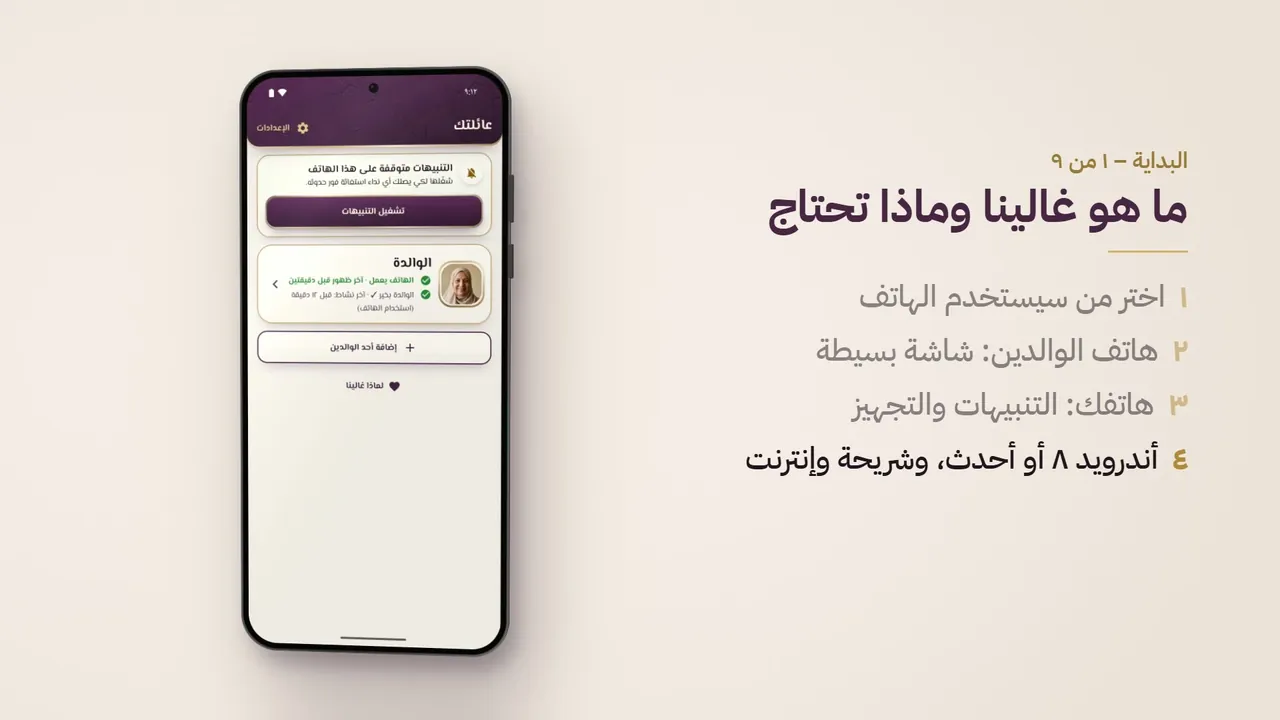
يُعرض الآن · البداية
ما هو غالينا وماذا تحتاج
الخطوات
- تطبيق واحد بأربعة أوضاع، يُختار أحدها عند فتحه أول مرة:
- لا يسجّل هاتف الوالدين الدخول أبدًا، بل يستخدم حسابًا تقنيًا مخفيًا لا غرض منه إلا ربطه بالعائلة.
- يسجّل أفراد العائلة والمساعِدات الدخول بحساب Google، فيحتفظون بكل شيء عند تغيير الهاتف.
- يدعم التطبيق العربية والإنجليزية، ولكل هاتف لغته.
- غالينا ليس خدمة طوارئ ولا جهازًا طبيًا؛ فهو ينبّه العائلة ويتصل بها، ولا تتابعه جهة مختصة على مدار الساعة.
البداية
9 فيديوكل يوم
10 فيديوالسلامة
9 فيديوللعائلة
13 فيديوالباقات والحلول
4 فيديوالمساعد
اسأل مساعد غالينا
اسأل عن أي ميزة بكلماتك، وتأتيك الإجابة من دليل استخدام غالينا.
يكتب الإجاباتِ ذكاءٌ اصطناعي استنادًا إلى دليل غالينا، وقد تقع فيها أخطاء؛ لذا يُرجى مراجعة دليل الاستخدام أو مراسلتنا على support@ghalina.com. تُعالَج الأسئلة عبر خدمة Google Gemini، فلا تكتب فيها أي بيانات شخصية أو صحية.
ما زلت تحتاج إلى مساعدة؟
راسلنا، أو أرسل رسالة مكتوبة أو صوتية من التطبيق، ويقرأ كل رسالة شخص حقيقي.
كل ما في الدليل
23 فصلًا و291 موضوعًا، افتح أيًّا منها.
1البداية
ما هو غالينا
- تطبيق واحد بأربعة أوضاع، يُختار أحدها عند فتحه أول مرة:
- «هذا الهاتف لشخص عزيز نعتني به» (الوضع المبسّط): هاتف الوالدة أو الوالد، ويصبح غالينا شاشته الرئيسية وتطبيق الهاتف فيه.
- «أنا أعتني بشخص عزيز» (وضع العائلة): تطبيق الأبناء والبنات، وفيه التنبيهات والتجهيز عن بُعد والأدوية.
- «هذا الهاتف لي» (الاستخدام الشخصي): هاتف كبير وهادئ لصاحبه، دون عائلة، وله دليل خاص في ghalina.com/manual-solo.
- «أساعد في رعاية أحد (مقدّم رعاية)» (وضع المساعِدة): لمساعِدة المنزل أو الممرّضة التي تدعوها العائلة (باقة العائلة).
- لا يسجّل هاتف الوالدين الدخول أبدًا، بل يستخدم حسابًا تقنيًا مخفيًا لا غرض منه إلا ربطه بالعائلة.
- يسجّل أفراد العائلة والمساعِدات الدخول بحساب Google، فيحتفظون بكل شيء عند تغيير الهاتف.
- يدعم التطبيق العربية والإنجليزية، ولكل هاتف لغته.
- غالينا ليس خدمة طوارئ ولا جهازًا طبيًا؛ فهو ينبّه العائلة ويتصل بها، ولا تتابعه جهة مختصة على مدار الساعة.
ما تحتاج إليه
- أندرويد 8.0 أو أحدث على هاتف الوالدين وعلى كل هاتف من هواتف العائلة.
- لا يتوفر تطبيق العائلة على آيفون حتى الآن، لكن اتصالات النجدة من هاتف الوالدين تستطيع الاتصال بأي رقم في قائمة العائلة، ومنها أرقام آيفون.
- شريحة اتصال في هاتف الوالدين ليتمكن من الاتصال، لأن اتصالات النجدة الاحتياطية تستخدم شبكة الهاتف العادية.
- إنترنت على هاتف الوالدين (بيانات الجوال أو واي فاي) لتصل التنبيهات إلى العائلة. ودون إنترنت تستمر المكالمات واتصالات النجدة والتذكيرات (انظر دون إنترنت).
- حساب Google على كل هاتف من هواتف العائلة.
تثبيت غالينا (النسخة التجريبية)
- النسخة التجريبية على Google Play بدعوة.
- افتح ghalina.com/beta، واكتب عنوان Gmail المرتبط بحساب Google على هاتفك، واضغط اطلب دعوتي.
- تصلك فورًا رسالة قصيرة من support@ghalina.com بعنوان «وصلنا طلبك»، بلغة الصفحة التي طلبت منها.
- نضيف عنوان Gmail إلى النسخة التجريبية، ثم نرسل إليك رسالة ثانية «تم قبولك» فيها رابط Google Play.
- نستخدم عنوان Gmail فقط لإضافتك إلى قائمة المختبِرين في Google Play ولإرسال هاتين الرسالتين إليك، وتعالجه Google وفق شروطها الخاصة.
- افتح الرسالة على هاتفك الأندرويد بحساب Google نفسه، واضغط الرابط. في صفحة المختبِرين اضغط قبول الدعوة، ثم تنزيله على Google Play، وفي المتجر اضغط تثبيت كأي تطبيق آخر. لا ملف تحمّله ولا إعدادات تغيّرها في الهاتف.
- ثبّته على هاتفك أنت أولًا، وعلى هاتف والدتك أو والدك في الأخير. فهاتف الوالدين يحتاج طلبًا خاصًّا به، بعنوان Gmail المرتبط بحساب Google على ذلك الهاتف.
- لم يصلك البريد بعد يومين؟ تفقّد مجلد الرسائل غير المرغوب فيها أو مجلد العروض.
التشغيل الأول: اللغة والوضع
- اختر لغتك: English أو العربية، فيتحول التطبيق إليها فورًا.
- من سيستخدم هذا الهاتف؟ تظهر ثلاث بطاقات كبيرة:
- «هذا الهاتف لشخص عزيز نعتني به» ← تجهيز هاتف الوالدين (أدناه). ويُسجَّل خروج أي حساب Google مسجّل في غالينا على ذلك الهاتف.
- «هذا الهاتف لي» ← الاستخدام الشخصي (انظر دليله الخاص في ghalina.com/manual-solo).
- «أنا أعتني بشخص عزيز» ← المتابعة باستخدام Google ← اسمك (مطلوب، لأن والدتك أو والدك يريانه، مثل «طلبك عند سارة، والمساعدة في الطريق»)، ورقم هاتفك وصورتك (اختياريان) ← الربط بهاتف الوالدين.
- «أساعد في رعاية أحد (مقدّم رعاية)» ← انظر مساعِدة المنزل أو الممرّضة.
- يعيدك زر «اللغة» في الأعلى إلى صفحة اللغة.
- يفتح زر ؟ الصغير ذو الإطار الذهبي، بجانب زر «اللغة»، دليل المستخدم على الإنترنت عند هذه الصفحة. انظر دليل المستخدم وزر «؟».
- إذا كان هاتف الوالدين يحلّ محلّ هاتف غالينا قديم، يسأل التجهيز عن ذلك أولًا. انظر هاتف جديد للوالدين.
تجهيز هاتف الوالدين صفحة بصفحة
- نفّذ هذه الخطوات وهاتف والدتك أو والدك في يدك. تطلب كل صفحة أمرًا واحدًا وتوضّح سببه، ويمكن تأجيل أي صفحة بزر لاحقًا وإكمالها من قائمة التجهيز، ما عدا الإشعارات ورمز العائلة السري، فالتجهيز يحتاج إليهما.
- يختلف عدد الصفحات بحسب إصدار أندرويد: 14 صفحة على أندرويد 14 وما بعده، و13 على أندرويد 12 و13، و12 على أندرويد 8 إلى 11. ويُظهر الشريط العلوي التقدّم، مثل «5 من 14».
- تنتقل الصفحة إلى التالية وحدها بعد نحو ثانية من إتمام بندها.
- في كل صفحة من صفحات التجهيز زر ؟ صغير ذو إطار ذهبي في نهاية سطر «الإعداد: ن من 15». ضغطة واحدة تفتح دليل المستخدم عند موضوع هذه الصفحة.
- بماذا تنادي والدتك أو والدك؟ الوالدة أو الوالد أو الجدة أو الجد، أو اسم من اختيارك (حتى 20 حرفًا). يُستخدم في رسائل العائلة، مثل «استغاثة من الوالدة».
- غالينا تطبيقًا للهاتف: أزرار اتصال كبيرة، ومكالمات العائلة ترنّ دائمًا. في الشاشة التالية اختر غالينا.
- الإشعارات (لازمة): لتظهر على الشاشة الإشارة التي تبيّن أن العائلة متصلة، وطلبات النجدة، وتذكيرات الأدوية، ورسائل العائلة. لا يوجد في هذه الصفحة زر لاحقًا، ويتابع التجهيز بعد تفعيل الإشعارات. وإن لم يظهر سؤال، أو توقف أندرويد عن السؤال، اضغط لم ينجح؟ ← فتح الإعدادات ← الإشعارات، وفعّل «السماح بالإشعارات» لغالينا.
- التنبيهات على الشاشة المقفلة (أندرويد 14 وما بعده): لتظهر المكالمات والتذكيرات وسؤال السقوط فوق شاشة القفل. فعّل المفتاح الخاص بغالينا.
- المنبّهات والتذكيرات (أندرويد 12 وما بعده): لترنّ التذكيرات في موعدها تمامًا. فعّل المفتاح الخاص بغالينا.
- الموقع: أثناء استخدام الهاتف فقط: لإرسال الموقع عند الاستغاثة أو السقوط، ولـ«العودة إلى المنزل» (عند إخبار العائلة) و«مشاركة مرة واحدة»، ولمواقيت الصلاة. اختر «أثناء استخدام التطبيق» وأبقِ «الموقع الدقيق» مفعّلًا. لا يطلب التجهيز «الموقع طوال الوقت» أبدًا؛ فهذا الإذن لا يُطلب إلا للمنطقة الآمنة بعد أن تفعّلها العائلة (انظر المنطقة الآمنة). ثم يسأل: هل أنت في بيت والدتك أو والدك الآن؟ اضغط حفظ هذا المكان كبيتي (لميزة «العودة إلى المنزل» والمنطقة الآمنة)، أو اختيار المكان على الخريطة إن لم يكن الهاتف في البيت الآن (ابحث عن العنوان، وحرّك الخريطة حتى يقف الدبوس على البيت، ثم اعتماد هذا المكان)، أو تخطٍّ. وإن كانت خرائط Google على الهاتف، تعرض بطاقة اختيارية حفظ الخريطة لاستخدامها دون إنترنت.
- الاتصال عند طلب النجدة: ليتصل الهاتف بالعائلة من تلقاء نفسه إن لم يستجب أحد للاستغاثة.
- الميكروفون: للأوامر الصوتية، ولا يُستخدم إلا بعد ضغطة. وتعرض بطاقة اختيارية «الأوامر الصوتية دون إنترنت».
- الكاميرا: للمكبّر.
- جهات الاتصال: لإظهار أسماء المتصلين.
- توفير البطارية: كي لا يوقف أندرويد غالينا لتوفير البطارية (النجدة، وكشف السقوط، والتذكيرات). اضغط الزر واسمح. وعلى هواتف شاومي وريدمي وبوكو وهواوي وهونر وسامسونج وأوبو وريلمي وون بلس، تشرح «نصيحة لهذا الهاتف» إعدادًا إضافيًا من الشركة المصنّعة.
- الوصول إلى «عدم الإزعاج»: لترنّ مكالمات العائلة حتى على الوضع الصامت.
- رمز العائلة السري، ثم ربط هاتف من العائلة: اختر رمز العائلة السري (يُكتب مرتين)، فيظهر رمز استجابة سريعة ورمز مكتوب يمسحه أحد أفراد العائلة. انظر ربط العائلة.
- الشاشة الرئيسية: يصبح غالينا الشاشة الرئيسية للهاتف. وتأتي هذه الخطوة أخيرًا كي يحتفظ الهاتف بشاشته المعتادة أثناء التجهيز. في الشاشة التالية اختر غالينا.
- قائمة التجهيز (الصفحة الأخيرة) تُظهر كل صفحة بحالتها: «تم» أو «لم يتم بعد». وتسأل أيضًا:
- هل نُفعّل ميزات العائلة المسلمة؟ والإجابة المختارة مسبقًا «نعم» إذا جرى التجهيز بالعربية، و«لا» إذا جرى بالإنجليزية.
- مواقيت الصلاة على الشاشة الرئيسية (عند الإجابة بنعم).
- حماية المكالمات من الاحتيال · اختياري (انظر التحذير من مكالمات الاحتيال).
- الخريطة دون إنترنت · اختياري.
- يُنهي زر تم – ابدأ استخدام الهاتف التجهيز، ولا يكتمل التجهيز دون رمز العائلة السري، ولا والإشعارات متوقفة (تعرض الصفحة الأخيرة حينئذٍ زر تفعيل الإشعارات).
- إذا لم يُربط أي هاتف من العائلة بعد، تظهر رسالة: «إلى أن يُربط هاتف من العائلة، لن تصل تنبيهات الاستغاثة إلى أحد». اضغط عرض الرمز مرة أخرى أو الربط لاحقًا. وتعرض الشاشة الرئيسية حينئذٍ «لم يُربط بالعائلة بعد – اضغط لعرض الرمز» حتى ينضم أحد.
- الموافقة أولًا: يعرض التجهيز «ما ستراه عائلتك» ويطلب الموافقة، ثم يظهر دائمًا إشعار بأن غالينا يرعى هذا الهاتف.
- للتراجع لاحقًا: في غالينا: الإعدادات ← إيقاف الوضع المبسّط (برمز العائلة السري)، أو في أندرويد: الإعدادات ← التطبيقات ← التطبيقات التلقائية ← تطبيق الشاشة الرئيسية.
دليل المستخدم وزر «؟»
- يظهر زر ؟ صغير ذو إطار ذهبي في الصفحة الأولى («من سيستخدم هذا الهاتف؟»، بجانب زر اللغة)، وفي كل صفحة تجهيز (في نهاية سطر «الإعداد: ن من 15»)، وفي صفحة إعدادات هاتف الوالدين وصفحة إعدادات تطبيق العائلة نفسه (آخر زر في الشريط العلوي). ولا يظهر في الشاشة الرئيسية ولا في القوائم.
- ضغطة واحدة تفتح دليل المستخدم على الإنترنت عند موضوع هذه الصفحة: فيديو وشرح مكتوب بالخطوات.
- يلزم الاتصال بالإنترنت. وبدونه تظهر رسالة قصيرة: «يلزم الاتصال بالإنترنت لفتح الدليل».
- وفي الإعدادات صف أخير باسم دليل المستخدم («فيديوهات وشرح مكتوب لكل صفحة») فوق سطر رقم الإصدار، يفتح الدليل كله.
- الأمر نفسه في هاتف الوالدين وفي هاتف الاستخدام الشخصي وفي تطبيق العائلة: ففي صفحة إعداداته زر ؟ في الشريط العلوي (يفتح فصل تطبيق العائلة)، وصف دليل المستخدم فوق سطر رقم الإصدار.
إذا رُفض أحد الأذونات
- إذا توقف أندرويد عن السؤال، توضّح الصفحة ذلك ويصبح الزر فتح الإعدادات: اضغطه، ثم الأذونات، وفعّل الإذن من هناك.
- رُفض تطبيق الهاتف: تعرض «لم ينجح؟» خطوات أندرويد (التطبيقات التلقائية ← تطبيق الهاتف ← غالينا).
- على أندرويد 15 وما بعده، قد يظهر للتطبيق المثبّت من ملف (لا من Google Play) أنه «مُنع من أن يكون تطبيق الهاتف التلقائي». افتح معلومات التطبيق لغالينا ← ⋮ (أعلى الشاشة) ← السماح بالإعدادات المقيّدة، ثم حاول مرة أخرى.
- رُفضت الشاشة الرئيسية: يفتح زرٌّ إعدادات الشاشة الرئيسية في أندرويد.
- كل ما أُجّل يبقى في القائمة: إعدادات غالينا ← 🔒 قائمة التجهيز.
ربط العائلة
- يعرض هاتف الوالدين في الصفحة 14 (أو من الإعدادات ← 🔒 رمز الربط) رمز استجابة سريعة ورمزًا من 8 خانات، مثل K7M2-9QXR.
- يبقى الرمز صالحًا 30 دقيقة، وما دام ظاهرًا على الشاشة يحلّ محلّه رمز جديد قبل انتهائه بدقيقة.
- على هاتفك: «أنا أعتني بشخص عزيز» ← تسجيل الدخول بحساب Google ← اسمك ← امسح رمز الاستجابة السريعة، أو اكتب الرمز (بالأحرف الكبيرة أو الصغيرة، والشَّرطة اختيارية). ويصلح أيضًا لصق الرسالة كاملة.
- يعرض هاتفك «بانتظار موافقة هاتف الوالدة…».
- يعرض هاتف الوالدين صورتك واسمك وبريدك في Google: «سارة تريد رعاية هذا الهاتف. هل سارة من العائلة؟» مع زرّي نعم، اسمح ولا. ولا يُجيب زر الرجوع عن السؤال.
- نعم، اسمح ← «تستطيع سارة الآن رعاية هذا الهاتف ✓»، ويعرض هاتفك أنك متصل بالوالدة.
- لا ← لا يتغير شيء، ويعرض هاتفك أن هاتف الوالدين رفض الطلب. ولا يمكن استخدام ذلك الرمز مرة أخرى؛ اطلب رمزًا جديدًا.
- لا إجابة قبل انتهاء الرمز (10 دقائق على الأقل) ← «انتهت صلاحية الرمز، اطلب رمزًا جديدًا».
- رمز واحد لشخص واحد: بمجرد أن يستخدم أحدٌ الرمز، يعرض هاتف الوالدين رمزًا جديدًا للشخص التالي.
- أول من ينضم يصبح مشرف العائلة، وتبدأ الفترة التجريبية 14 يومًا عند هذا الربط الأول المقبول.
- يصل إلى بقية الأفراد إشعار مثل: «انضم عمر إلى هاتف الوالدة».
دعوة الإخوة والأخوات
- في تطبيق العائلة: دعوة العائلة ← تنزلق ورقة من الأسفل فوق الصفحة التي كنت فيها ← شارك الدعوة (عبر واتساب أولًا، أو أي تطبيق آخر). اسحب الورقة للأعلى لترى الدعوات المرسلة من هذا الهاتف وأفراد العائلة. وللإغلاق اسحبها للأسفل أو اضغط خارجها أو اضغط إغلاق. ويستطيع أي فرد من العائلة أن يدعو.
- تتضمن الدعوة رابطًا (ghalina.com/i/…) ورمزًا من 12 خانة، مثل K7M2-9QXR-4HTD.
- على الشاشة الضيقة أو مع الخط الكبير ينتقل الرمز إلى سطر جديد بين مجموعات الخانات الأربع فقط، ولا ينكسر وسط المجموعة.
- تصلح الدعوة مرة واحدة وتبقى 48 ساعة، ويستطيع كل فرد إنشاء 20 دعوة في اليوم على الأكثر.
- يثبّت أخوك أو أختك غالينا، ويختار «أنا أعتني بشخص عزيز»، ويسجّل الدخول، ثم يفتح الرابط (أو يكتب الرمز). ويمكنه اختيار «أضف صورتي إلى الشاشة الرئيسية» (ويتطلب ذلك رقم هاتفه).
- يسأل هاتف الوالدين بعد ذلك: «عمر يريد الانضمام إلى عائلتك. هل تسمح لعمر بالانضمام إلى عائلتك؟» ← اسمح أو لا تسمح. ويبقى السؤال قائمًا حتى 24 ساعة.
- لكل والد أو والدة 6 أفراد من العائلة على الأكثر. ومع الباقة الفردية لا تصل التنبيهات إلا إلى المشتري، ومع باقة العائلة تصل إلى ما يصل إلى 6 أفراد.
- إلغاء دعوة أرسلتها: في ورقة دعوة العائلة، اضغط إلغاء الدعوة بجانب الدعوة السارية ← «هل تريد إلغاء هذه الدعوة؟ لن يعمل الرمز بعد الإلغاء.» ← إلغاء الدعوة (أو إبقاء الدعوة). وتظهر الدعوة بعدها «أُلغيت»، ومن يحاول استخدام الرمز يرى «أُلغيت هذه الدعوة». وإذا كان هاتف الوالدين يسأل عن ذلك الشخص، يختفي السؤال ولا ينضم أحد.
- ويستطيع مسؤول العائلة أيضًا إلغاء دعوة أرسلها غيره ما دامت تنتظر موافقة هاتف الوالدين: صفحة الوالدين ← أفراد العائلة ← إلغاء الدعوة بجانب الشخص المنتظر.
- لا يمكن إلغاء دعوة رُدّ عليها (بالموافقة أو الرفض) أو انتهت مدتها.
رمز العائلة السري
- رقم من 4 إلى 6 أرقام لا يعرفه إلا أفراد العائلة، يحمي الإعدادات المهمة على هاتف الوالدين من التغيير بالخطأ.
- ليس هو الرقم السري لشريحة الاتصال، ولا قفل الشاشة.
- يُختار أثناء التجهيز (ويُكتب مرتين)، ولا يكتمل التجهيز دونه.
- يُطلب عند: إيقاف الوضع المبسّط، وإزالة غالينا، وقائمة التجهيز، وإعدادات أندرويد، وعرض رمز الربط، وتغيير الرمز نفسه، ومدة ضغط النجدة، وتحكم العائلة بالهاتف، ومواعيد رمضان على هاتف الوالدين، وحماية المكالمات من الاحتيال.
- لا يُطلب عند: تغيير الألوان وحجم الخط واللغة، و«بيتي»، وصور الأشخاص، ومفتاح ميزات العائلة المسلمة، وإعدادات الصلاة، وترتيب العائلة، وإرسال الرأي.
- بعد 5 محاولات خاطئة يتوقف الإدخال 30 ثانية. وبعد كتابته مرة تُفتح البنود المقفلة الأخرى خلال تلك الزيارة، ويُطلب مجددًا بعد الابتعاد دقيقتين.
- تغييره: على هاتف الوالدين من الإعدادات ← 🔒 تغيير رمز العائلة السري (يتطلب الرمز الحالي). ومن هاتف العائلة: صفحة الوالدين ← الشاشة الرئيسية ← رمز العائلة السري ← تعيين أو تغيير (لأي فرد من العائلة، ولو من دون باقة) أو إزالة (يتطلب الباقة الفردية أو باقة العائلة أو الفترة التجريبية).
- نُسي الرمز؟ يعيّن أي فرد من العائلة رمزًا جديدًا من هاتفه، ولو من دون باقة: الشاشة الرئيسية ← رمز العائلة السري ← تغيير الرمز. ثم يُظهر هاتف الوالدين من عيّنه، مثل: «عُيّن رمز عائلة سري جديد من هاتف سارة يوم 10 أكتوبر». ولا تستطيع ذلك مساعِدة المنزل، ولا توجد طريقة أخرى لإعادة تعيينه.
2السلامة
النجدة: الشريط الأحمر
- يظهر شريط النجدة الأحمر أسفل كل شاشة من شاشات هاتف الوالدين: شريط كامل في الشاشة الرئيسية، وشريط أنحف في بقية الشاشات (شاشة الهاتف، «المزيد»، المكبّر، الأوامر الصوتية، الصلاة، الأدوية وغيرها). ولا يغطّيه شيء. وعند ظهور لوحة المفاتيح يصعد الشريط فوقها مباشرة، فتبقى النجدة على بُعد ضغطة واحدة دائمًا. ويقول الشريط دائمًا «اضغط مطولاً» دون عدد الثواني، فيبقى في سطر واحد بالحجم نفسه مع الخط الكبير؛ ومدة الضغط (من 2 إلى 5 ثوانٍ، وافتراضيها 3) تُضبط في الإعدادات ويقرؤها TalkBack: «اضغط مطولاً 3 ثوانٍ لطلب المساعدة».
- اضغط عليه مطوّلًا 3 ثوانٍ (وتستطيع العائلة اختيار ثانيتين أو 3 أو 4 أو 5 ثوانٍ). ويصدر الهاتف نقرة في كل ثانية أثناء الضغط، فلا تُطلق اللمسة العابرة أي إنذار.
- يبدأ بعدها عدّ تنازلي مدته 5 ثوانٍ: «إرسال طلب المساعدة خلال 5 ثوانٍ»، مع صفّارة واهتزاز في كل ثانية (تُسمع الصفّارة حتى على الوضع الصامت). وتعرض الشاشة حتى 3 أشخاص سيُبلَّغون. ويوقف زر إلغاء الكبير كل شيء، فلا يُرسل أي تنبيه.
- بعد انتهاء العدّ يقوم الهاتف بما يلي:
- يحدّد موقعه (خلال 10 ثوانٍ على الأكثر، وإلا استخدم آخر موقع معروف)،
- يرسل إلى العائلة تنبيهًا بالموقع ومستوى البطارية،
- يعرض «جارٍ تحديد موقعك…» ← «جارٍ إرسال طلب المساعدة…» ← «أُبلغت عائلتك» ← «بانتظار رد أحدهم…».
- عندما يضغط أحد أفراد العائلة سأتولّى الأمر، يعرض الهاتف وينطق: «طلبك عند سارة، والمساعدة في الطريق. ستتلقى اتصالًا الآن» (ولا ينطقها أثناء مكالمة). ويستطيع الوالد أو الوالدة بعدها الضغط على اتصال أو إغلاق.
- يلغي زر أنا بخير الآن التنبيه ويوقف الاتصالات، وتُبلَّغ العائلة بالإلغاء.
- يفتح زر المعلومات الطبية في شاشة المساعدة البطاقة الطبية إذا فعّلتها العائلة.
- طرق أخرى لطلب النجدة: الأمر الصوتي «النجدة» أو «ساعدني» أو «طوارئ» وما يشبهها (انظر الأوامر الصوتية).
- لا تعمل إلا استغاثة واحدة في الوقت نفسه، والضغط مرة أخرى يعرض الاستغاثة الجارية.
- النجدة مجانية ولا تُقفل أبدًا، وتعمل دون أي باقة.
إطفاء زر النجدة
بعض العائلات تريد واجهة كبيرة وبسيطة فقط. في تطبيق العائلة افتح الأمان ← تشغيل النجدة أو إطفاؤها وأطفئ زر النجدة الأحمر، أو على هاتف الوالد افتح الإعدادات ← زر النجدة ← زر النجدة الأحمر (بالرقم السري للعائلة). يسألك غالينا مرة واحدة: «إطفاء زر النجدة؟». بعدها يختفي الشريط الأحمر من كل الشاشات، ويتوقف الضغط المطوّل وزر «النجدة فوق التطبيقات»، وتستفيد الشاشات من المساحة. كشف السقوط والبطاقة الطبية ميزتان منفصلتان. وتُعيده بالطريقة نفسها.
النجدة على شاشة القفل
- لا يحتاج والدك أو والدتك إلى فتح قفل الهاتف. فعلى شاشة القفل، أسفل البطاقة الطبية، يظهر سطر أحمر لزرّ النجدة: «النجدة – المس، ثم اضغط مطولاً لطلب المساعدة»، وعلى الشارة المستديرة كلمة «SOS». وإذا كانت البطاقة الطبية متوقفة أو غير مشمولة في الباقة، يظهر سطر النجدة وحده. وهو مجاني دائمًا.
- عند لمسه تُفتح شاشة فوق شاشة القفل دون الرمز السري: «هل تحتاج إلى مساعدة؟ اضغط مطولاً على الزر الأحمر، فيصل إلى عائلتك تنبيه مع موقعك.»، مع شريط النجدة الأحمر نفسه الموجود في الشاشة الرئيسية.
- اضغط على الشريط مطوّلًا 3 ثوانٍ (أو المدة التي اختارتها العائلة). ولا تُرسل لمسة الجيب أي شيء، إذ لا بد من لمس السطر ثم الضغط المطوّل على الشريط.
- بعد ذلك يجري كل شيء كالمعتاد: العدّ التنازلي لمدة 5 ثوانٍ مع زر إلغاء، والتنبيه مع الموقع، ورد العائلة، والاتصالات الاحتياطية، وزر المعلومات الطبية.
- تعيد أزرار إلغاء وأنا بخير الآن وإغلاق شاشة القفل، ويبقى الهاتف مقفلًا طوال الوقت.
- ما تراه العائلة: تنبيه الاستغاثة نفسه الذي يصل من الشاشة الرئيسية («استغاثة من الوالدة – الوالدة بحاجة إلى مساعدة»)، مع الموقع.
- يحتاج السطر إلى السماح بإشعارات غالينا وإلى ظهور الإشعارات على شاشة القفل. فإذا ضُبطت شاشة القفل على إخفاء الإشعارات اختفى السطر أيضًا، ويبقى شريط النجدة في الشاشة الرئيسية والأمر الصوتي «النجدة» يعملان.
زرّ النجدة فوق التطبيقات
- يمكن أن يظهر زرّ SOS أحمر صغير مستدير فوق تطبيقات والدك أو والدتك الأخرى (واتساب ويوتيوب والمتصفح…)، فتكون النجدة على بُعد ضغطة مطوّلة دون العودة إلى الشاشة الرئيسية. ويتطلّب باقة للوالد أو الوالدة (الفردية أو باقة العائلة أو فترة التجربة لمدة 14 يومًا)، أما شريط النجدة في الشاشة الرئيسية فيبقى مجانيًا دائمًا. ومع الباقة يكون مفعّلًا تلقائيًا، وبدونها لا يظهر، ويعرض تطبيق العائلة في القسم عبارة «افتحها مع الباقة الفردية أو باقة العائلة».
- اضغط عليه مطوّلًا 3 ثوانٍ (أو المدة التي اختارتها العائلة): تمتلئ حلقة ذهبية وتظهر بجانبه عبارة «استمرّ بالضغط…». ثم يجري كل شيء كالمعتاد: العدّ التنازلي لمدة 5 ثوانٍ مع زر إلغاء، والتنبيه مع الموقع، ورد العائلة، والاتصالات الاحتياطية. ويعيد زر إلغاء إلى التطبيق الذي كان مفتوحًا.
- اللمسة السريعة تُظهر فقط «اضغط مطوّلًا 3 ثوانٍ للنجدة» لمدة ثانيتين، ولا يُرسل شيء.
- تحريكه: اسحبه بالإصبع، وعند تركه ينتقل بهدوء إلى أقرب حافة جانبية من الشاشة، ويتذكّر الهاتف مكانه.
- أين لا يظهر أبدًا: داخل غالينا، وأثناء المكالمات الهاتفية أو مكالمات واتساب، وما دام تنبيه استغاثة أو سقوط مفتوحًا، وفوق أي تطبيق أوقفته العائلة. وفي تطبيقات الفيديو (يوتيوب وشاهد…) يبقى منخفضًا عند الحافة، فلا يغطّي الصورة أبدًا.
- اسمح به مرة واحدة: يطلب أندرويد إذن «العرض فوق التطبيقات الأخرى». أثناء الإعداد (صفحة «زرّ النجدة فوق التطبيقات») أو لاحقًا من الإعدادات ← زر النجدة ← زرّ النجدة فوق التطبيقات: اضغط فتح الإعدادات، واختر «غالينا»، وشغّل «السماح بالعرض فوق التطبيقات الأخرى». ويؤجّل زر ليس الآن ذلك إلى وقت لاحق.
- إيقافه: من هاتف الوالدين في الإعدادات ← زر النجدة ← زرّ النجدة فوق التطبيقات (دون رمز سري)، ومن تطبيق العائلة في السلامة ← زرّ النجدة فوق التطبيقات الأخرى (ومعه قائمة التطبيقات التي يظهر فوقها). وتعرض كل صفحة مثالًا حيًّا أولًا. وإذا أوقفه الوالد أو الوالدة من الهاتف، يذكر تطبيق العائلة ذلك ولا يستطيع إعادة تشغيله.
- الزرّ يرسم نفسه فقط: لا يقرأ شيئًا من الشاشة أو من التطبيقات الأخرى، ولا يُرسل شيئًا ما لم يُضغط مطوّلًا. ولا يعرف التطبيق المفتوح إلا إذا فُتح من غالينا.
اتصالات النجدة الاحتياطية
- إذا لم يضغط أحد سأتولّى الأمر خلال 60 ثانية (وتستطيع العائلة اختيار 30 ثانية أو دقيقة أو دقيقتين أو 5 دقائق)، يبدأ هاتف الوالدين الاتصال بالعائلة من تلقاء نفسه، عبر مكبّر الصوت.
- يُعتمد دائمًا ما اختارته العائلة. فإن وصل اختيارها إلى هاتف الوالدين والاستغاثة في الانتظار (كأن يكون الهاتف قد شُغّل للتو)، ينتقل العدّ على شاشة النجدة إليه؛ وإن كانت المدة الأقصر قد انقضت بدأت الاتصالات فورًا. ويحفظ هاتف الوالدين آخر ما اختارته العائلة، فتُستخدم المدة نفسها حتى لو ضُغط زر النجدة قبل تحميل الإعدادات؛ أما الهاتف الذي لم يصله اختيارها قط فيعرض «سيتصل الهاتف بسارة بعد قليل» دون رقم حتى يصل.
- الترتيب: الأشخاص الذين حدّدتهم العائلة للنجدة بترتيبهم؛ فإن لم يُحدَّد أحد، فكل من على الشاشة الرئيسية وله رقم بترتيب القائمة؛ فإن لم يوجد أحد، فأفراد العائلة الذين لهم رقم هاتف.
- يتصل بشخص واحد في كل مرة وينتظر انتهاء المكالمة. وإذا لم يبدأ رنين المكالمة خلال 15 ثانية عُدّت فاشلة. وبين كل شخص والذي يليه 4 ثوانٍ.
- يمرّ على القائمة مرتين، وبين الجولتين 30 ثانية.
- لا يقطع أبدًا مكالمة جارية، ولا يُنهي أي مكالمة.
- تتوقف الاتصالات فور أن يضغط أحدهم سأتولّى الأمر، أو يضغط الوالد أو الوالدة أنا بخير الآن، أو تُغلق العائلة التنبيه.
- بعد الجولتين: «لم يرد أحد بعد» وزر كبير اتصل بعائلتي مرة أخرى.
- لا يتصل غالينا أبدًا برقم الطوارئ، ولا يرسل رسائل نصية.
- إذا لم يُمنح إذن «الاتصال عند طلب النجدة»، تعرض الشاشة أزرارًا كبيرة للاتصال بكل شخص بدلًا من ذلك.
النجدة دون إنترنت
- يبدأ الهاتف الاتصالات الاحتياطية فورًا دون انتظار الستين ثانية: «لا يوجد إنترنت – نتصل بسارة الآن».
- تمرّ المكالمات عبر شبكة الهاتف العادية، فتحتاج إلى شريحة وتغطية لا إلى إنترنت.
- يُحفظ التنبيه مع الموقع على الهاتف، ويصل إلى العائلة فور عودة الإنترنت.
- لا يصل إلى العائلة تنبيه في التطبيق ما دام الهاتف دون إنترنت.
ما تراه العائلة أثناء الاستغاثة
- إنذار مرتفع يتكرر حتى يستجيب أحد، مع شاشة كاملة فوق شاشة القفل: «استغاثة من الوالدة – الوالدة بحاجة إلى مساعدة. اضغط للاستجابة.»
- إنذار الاستغاثة والسقوط يرنّ بصوت مرتفع حتى لو كان هاتفك على الوضع الصامت أو الاهتزاز. يشغّل غالينا صوت المنبّه بنفسه كما يفعل المنبّه، فيبدأ هادئًا ثم يعلو خلال ثوانٍ. وإذا كان صوت المنبّه لديك منخفضًا، يرفعه غالينا إلى 60% على الأقل طوال رنين الإنذار، ثم يعيده كما كان. وأثناء المكالمة يرنّ بصوت خافت، ثم يعلو من جديد بعد انتهائها. ومع منح الوصول إلى «عدم الإزعاج» يتجاوز وضع «عدم الإزعاج» أيضًا.
- وطوال رنين الإنذار تظهر في إشعاراتك ملاحظة هادئة: «الإنذار يرنّ الآن. المس لفتحه.»
- الأزرار: سأتولّى الأمر، واتصال (يتصل ويُحتسب «سأتولّى الأمر» أيضًا)، وفتح الخريطة (موقع الاستغاثة)، ثم تم حل الأمر. وزر ذكّرني بعد دقيقتين يغلق الإنذار ويعرض الشاشة الرئيسية للتطبيق، ثم يعود الإنذار بعد دقيقتين تمامًا بشاشته الحمراء، حتى لو كنت تستخدم غالينا حينها، وفي موعده حتى لو أغلقت غالينا أو انطفأت الشاشة (يظهر في الأثناء إشعار هادئ «سنذكّرك الساعة 11:17»، ويتوقف إذا تولّى الأمرَ غيرُك أو أُغلق التنبيه). والضغط على سأتولّى الأمر في الإشعار يفتح شاشة الاستجابة الحمراء.
- لم يصل الموقع مع التنبيه؟ تعرض البطاقة لم يصل الموقع بعد ومعها زر واضح اطلب موقع الوالدة. عندها يسأل هاتف الوالدة: «مشاركة مرة واحدة» أو «عدم المشاركة»، وتعرض البطاقة جارٍ الطلب… بانتظار هاتف الوالدة. وعند المشاركة يظهر زر فتح الخريطة. وإن رُفض الطلب تظهر عبارة تم رفض مشاركة الموقع من قبل الطرف الآخر، وإن لم يصل رد خلال 10 دقائق تظهر لا رد بعد، ومع كلٍّ منهما زر اطلب مرة أخرى. ويعمل ذلك أثناء أي استغاثة أو سقوط مفتوح حتى دون خطة، فمساعدة النجدة لا تُقفَل أبدًا. ويظهر الزر نفسه في بطاقة الاستغاثة ضمن التنبيهات. ويظهر الموقع الآن في صندوق خاص بعنوان موقع الوالدة يضم الحالة وزرها الوحيد. وإذا كان آخر تقرير من هاتف الوالدة يفيد بأنها داخل المنطقة الآمنة فيظهر الوالدة في البيت (داخل المنطقة الآمنة) ويفتح فتح الخريطة موقع البيت دون زر طلب. وإن كان التقرير أقدم من نحو 30 دقيقة تظهر أيضًا عبارة آخر ما عُرف مع الوقت، ويبقى زر صغير اطلب الموقع. أما خارج المنطقة أو عند إيقافها أو عدم معرفة الحالة فيظهر زر اطلب موقع الوالدة كما سبق.
- عندما يضغط أحدهم سأتولّى الأمر، تتوقف إنذارات الآخرين وتعرض «سارة تتولّى الأمر».
- عندما يلغي الوالد أو الوالدة الاستغاثة أو يُغلقها أحد أفراد العائلة، تتوقف كل الإنذارات وتظهر رسالة هادئة بأن كل شيء على ما يرام.
- إذا ضُغط «سأتولّى الأمر» دون إنترنت، يُحفظ ويُرسل عند عودة الاتصال.
- يُرسل التنبيه مرة واحدة؛ ولا يكرر الخادم الاستغاثة، بل يتولى هاتف الوالدين الاتصال.
- لا تؤخّر ساعات الهدوء تنبيه الاستغاثة أو السقوط أبدًا.
- دون أي باقة، لا يصل تنبيه الاستغاثة إلا إلى الفرد الأساسي في العائلة (أما تنبيهات السقوط فتتطلب الباقة الفردية أو باقة العائلة أو الفترة التجريبية). وإن تعذّر الوصول إليه، يحرص غالينا على أن يصل التنبيه إلى فرد واحد على الأقل لديه التطبيق.
كشف السقوط
- متوقف حتى تشغّله العائلة: صفحة الوالدين ← السلامة ← كشف السقوط. ويتطلب تغييره من هاتف العائلة الباقة الفردية أو باقة العائلة أو الفترة التجريبية (كسائر إعدادات السلامة)، ويتوقف كشف السقوط على هاتف الوالدين إذا انتهت الفترة التجريبية دون باقة.
- أثناء تشغيله يظهر إشعار هادئ: «كشف السقوط مفعّل». ويعمل والشاشة مطفأة، والهاتف في الجيب أو الحقيبة.
- ما يُعدّ سقوطًا: سقوط حرّ قصير، ثم ارتطام قوي خلال ثانية، ثم سكون الهاتف نحو 5 ثوانٍ.
- ما لا يُعدّ سقوطًا: هاتف انزلق إلى طاولة أو إلى الأرض واستقرّ مسطّحًا. ولا يوجد إعداد للحساسية.
- عند رصد سقوط، يعرض هاتف الوالدين فوق شاشة القفل «هل حدث سقوط؟ هل كل شيء بخير؟»، ويُصدر نغمة بأعلى صوت للمنبّه، ويهتز، وينطق السؤال، مع عدّ تنازلي: «إن لم يأتِ ردّ، تُنبَّه العائلة خلال 30 ثانية» (وتستطيع العائلة اختيار 15 أو 30 أو 60 ثانية).
- أنا بخير ← لا يُرسل شيء، وهكذا ينتهي الإنذار الخاطئ.
- أحتاج مساعدة، أو عدم الإجابة ← يصل إلى العائلة تنبيه سقوط بالموقع، تمامًا كالاستغاثة، مع الاتصالات الاحتياطية.
- ترى العائلة: «احتمال سقوط: الوالدة – رصد الهاتف سقوطًا ولم يأتِ أي رد. اضغط للاستجابة.»
- بعد كل رصد لا يبدأ رصد جديد قبل 30 ثانية، ويتوقف الرصد أثناء استغاثة جارية أو سؤال سقوط.
- يجب أن يكون الهاتف مع الوالد أو الوالدة (في الجيب أو الحقيبة)، وقد لا يكتشف كل سقوط.
العودة إلى المنزل
- زر العودة إلى المنزل على الشاشة الرئيسية لهاتف الوالدين. ويبقى مخفيًا حتى يُحفظ البيت، ويمكن إظهاره أو إخفاؤه من الإعدادات ← بيتي.
- عند الضغط عليه: «هيا إلى المنزل»، وعنوان البيت، وزرّان كبيران مشيًا وبالسيارة يفتحان خرائط Google بالإرشاد خطوة بخطوة، وزر صغير اعرض السهم بدلًا من ذلك، وزر كبير للاتصال بأول شخص في ترتيب النجدة. ولا توجد خريطة داخل غالينا.
- إذا كان الموقع متوقفًا، تظهر مرة واحدة نافذة أندرويد «تشغيل الموقع؟» بلمسة واحدة، ويبقى زر كبير شغّل الموقع على الشاشة.
- لا تُبلَّغ العائلة إلا باختيار. فتح الصفحة لا يرسل شيئًا. وتحت زر الاتصال تعرض الصفحة أحد أمرين:
- لم يطلب أحد من العائلة أن يُبلَّغ تلقائيًا ← زر كبير: «أخبر عائلتي: قد أحتاج إلى مساعدة، وأنا في طريقي إلى البيت». وعندما يضغطه الوالد أو الوالدة تصل العائلةَ رسالة «طلبت الوالدة طريق العودة إلى المنزل» مع موقع الهاتف في تلك اللحظة (يُحفظ 24 ساعة) وزرّي الاتصال بالوالدة والخريطة، مرة كل 10 دقائق على الأكثر، إلى الأعضاء الذين تصلهم التنبيهات عادةً بحسب الباقة.
- فعّل عضو واحد على الأقل «أخبرني دائمًا عند طلب الوالدة الطريق إلى البيت» (مُعطَّل افتراضيًا؛ السلامة ← بيت الوالدة، انظر أدناه) ← لا يظهر الزر. يُرسَل التنبيه تلقائيًا، إلى هؤلاء الأعضاء وحدهم، وتذكر الصفحة أسماءهم كاملة، مثل: «يُخبر التطبيق سارة وعمر وليلى دائمًا عند طلبك الطريق إلى البيت، بحسب ما اختير في إعدادات التطبيق.» (دون عبارة «وآخرين»). وإذا أوقفه الجميع عاد الزر.
- لا تظهر عبارة «وصل الخبر إلى عائلتك» إلا بعد أن يؤكد الخادم وصول التنبيه. ودون إنترنت تقول الصفحة: «سنُخبر عائلتك فور عودة الإنترنت.» وتتحول إلى «وصل الخبر» وحدها بعد أن يتزامن الهاتف؛ وبين الإرسال والتأكيد تقول: «نُخبر عائلتك…». وإذا رفض الخادم التنبيه، تذكر الصفحة أنه تعذّر إخبار العائلة وتطلب الاتصال بها.
- خيار العائلة (لكل عضو خيار خاص به): السلامة ← بيت الوالدة ← أخبرني دائمًا عند طلب الوالدة الطريق إلى البيت (مُعطَّل افتراضيًا، وتحته: «سيُظهر هاتف الوالدة أنك فعّلت هذا الخيار.»). ويتطلب لهذا العضو الباقة الفردية أو باقة العائلة أو الفترة التجريبية، مثل التنبيه نفسه؛ أما إيقافه فمتاح دائمًا. ولا يغيّره إلا العضو صاحب الخيار.
- الصندوق نفسه (الزر، أو الأسماء وحالة الإرسال) يظهر أيضًا في صفحة السهم دون إنترنت.
- يتجاوز هذا التنبيه ساعات الهدوء. وتتطلب «العودة إلى المنزل» كلها (الزر والإرشاد والسهم وهذا التنبيه) الباقة الفردية أو باقة العائلة أو الفترة التجريبية. ودون باقة لا يظهر الزر على هاتف الوالدين، ويعود مع الشراء.
- لم يُحفظ البيت بعد: «تستطيع عائلتك تحديد بيتك من هواتفها» مع زر الاتصال.
- تحديد البيت:
- على هاتف الوالدين: الإعدادات ← بيتي ← حفظ هذا المكان كبيتي ← «هل هذا بيتك؟» ← نعم، هذا بيتي (دون رمز سري)؛
- أو من أيّ الهاتفين: اختيار المكان على الخريطة، ثم ابحث عن العنوان أو المكان، وضع الدبوس على البيت، واضغط اعتماد هذا المكان؛
- أثناء التجهيز (الصفحة 6)؛
- من هاتف العائلة: السلامة ← بيت الوالدة ← استخدام موقع هاتف الوالدة الآن (ويُسأل الوالد أو الوالدة عن المشاركة مرة واحدة) أو كتابة العنوان.
- إزالة عنوان البيت (من هاتف العائلة، مع الباقة الفردية أو باقة العائلة): السلامة ← بيت الوالدة ← إزالة عنوان البيت (رابط صغير تحت العنوان، لا يظهر إلا إذا كان البيت محدّدًا) ← «إزالة عنوان بيت الوالدة؟» ← إزالة العنوان أو الإبقاء على العنوان. فيختفي زر «العودة إلى المنزل» من هاتف الوالدين، وتتوقف المنطقة الآمنة ولا تُرسل تنبيهات إلى أن يُحدَّد بيت جديد. ويبقى مفتاح المنطقة ومساحتها واسمها كما هي، فيعود الاثنان تلقائيًا مع البيت الجديد.
العودة إلى المنزل دون إنترنت: السهم
- دون إنترنت (أو إذا تعذّر فتح الخريطة، أو بعد اعرض السهم بدلًا من ذلك)، تعرض الشاشة سهمًا كبيرًا جدًا نحو البيت مع المسافة: «البيت على بعد 1.2 كم في هذا الاتجاه. امشِ في اتجاه السهم.»
- يعتمد على نظام تحديد المواقع وبوصلة الهاتف، ونظام تحديد المواقع يعمل دون إنترنت. ولا يُرسل شيء، ويبقى الموقع على الهاتف.
- على بعد 50 مترًا: «أوشكت على الوصول إلى المنزل.»
- إذا لم تكن البوصلة موثوقة، يُعرض الاتجاه بالكلمات («البيت في اتجاه الشمال الشرقي، 1.2 كم») مع «لتصحيح السهم، حرّك الهاتف على شكل الرقم 8».
- إذا كان الهاتف مائلًا، تطلب رسالة إمساكه بشكل مستوٍ («أمسِك الهاتف مستويًا لاتجاه أدق»). تظهر عندما يميل الهاتف أكثر من نحو 32 درجة عن الوضع المسطّح، وتزول عندما ينخفض الميل عن نحو 22 درجة. ويبقى السهم يعمل في أثناء ذلك.
- إذا كان الموقع متوقفًا: شغّل الموقع. وإذا تعذّر على الهاتف تحديد مكانه: «اتصل بعائلتك».
- يبقى السهم على الشاشة عند عودة الإنترنت، ويعيد زر مشيًا أو بالسيارة مع الخريطة إلى الخريطة.
- اختياريًا: تتيح خريطة Google المحفوظة دون إنترنت (الإعدادات ← بيتي، أو أثناء التجهيز) الإرشاد بالسيارة دون إنترنت. أما إرشاد المشي فيتطلب الإنترنت في خرائط Google.
- لا يعمل السهم إلا وهو ظاهر على الشاشة، فلا يستنزف البطارية.
المنطقة الآمنة
- تحدّدها العائلة: صفحة الوالدين ← السلامة ← المنطقة الآمنة. مركزها بيت الوالدين، ونصف قطرها 300 متر افتراضيًا (من 100 إلى 1000 متر، بخطوات 50 مترًا)، ولها اسم، ويمكن إيقافها. وتتطلب الباقة الفردية أو باقة العائلة أو الفترة التجريبية.
- عند تحديدها باستخدام استخدام موقع الوالدة الحالي على أنه البيت، يُطلب من هاتف الوالدين مشاركة موقعه مرة واحدة.
- عندما يخرج الهاتف من المنطقة، يصل إلى العائلة «خرجت الوالدة من المنطقة الآمنة» مع الوقت، دون أي موقع: لا خريطة ولا إحداثيات.
- تنبيه واحد لكل خروج. وعند عودة الهاتف يُغلق التنبيه من تلقاء نفسه ويظهر «عادت إلى المنطقة الآمنة» مع الوقت.
- دون موقع (إذن مرفوض أو موقع متوقف) لا يمكن مراقبة المنطقة، وتعرض بطاقة «المكان» «غير معروف بعد».
- بين التنبيهات لا ترى العائلة إلا بطاقة المكان: داخل المنطقة الآمنة، أو خارجها، أو المنطقة الآمنة متوقفة، أو غير معروف بعد.
- تحتاج إلى إذن «السماح طوال الوقت» على هاتف الوالدين، ولا تستخدمه إلا المنطقة الآمنة. عندما تفعّل العائلة المنطقة، يظهر على هاتف الوالدين إشعار وبطاقة على الشاشة الرئيسية: فعّلت عائلتك المنطقة الآمنة، بقيت خطوة واحدة. وتفتح الضغطة صفحة تشرح الأمر (يتحقق غالينا فقط من خروج الهاتف من المنطقة أو عودته إليها، ولا يُرسل الموقع مع هذا التنبيه أبدًا)، ثم يفتح زر متابعة خيارات أندرويد: اختر السماح طوال الوقت. أما ليس الآن فتُبقي البطاقة، وتعمل المنطقة حينها فقط وغالينا ظاهر على الشاشة.
- إلى أن يُسمح بذلك، ترى العائلة تحت المفتاح: أكمِلوا على هاتف الوالدة: اضغطوا «السماح طوال الوقت». وإيقاف المنطقة لا يطلب شيئًا أبدًا.
- قد يتأخر أندرويد في رصد عبور الحدود نحو دقيقتين.
- لا يظهر شيء على هاتف الوالدين عند الخروج من المنطقة.
البطاقة الطبية على شاشة القفل
- متوقفة حتى تفعّلها العائلة: السلامة ← معلومات طبية للطوارئ.
- تملأ العائلة: الاسم الكامل للوالد أو الوالدة (ويظهر بدلًا من الاسم الذي تنادونه به في العائلة)، وتاريخ الميلاد أو العمر، ورقم «في حالة الطوارئ اتصل بـ» (يُكتب، أو يُختار أحد أفراد العائلة بلمسة واحدة)، والحساسية، والحالات الصحية، والملاحظات المهمة (من خيارات جاهزة أو بكلماتها)، وتفاصيل أخرى للمسعفين (حتى ثمانية أسطر بعنوان وتفاصيل، مثل «اللغة: تتحدث العربية فقط»)، وفصيلة الدم، واسم الطبيب ورقمه، وخيار تضمين أدوية الوالدة (مفعّل افتراضيًا).
- يظهر على هاتف الوالدين إشعار هادئ على شاشة القفل: «معلومات طبية للطوارئ – اضغط للقراءة». وعند سحبه للأسفل يعرض الاسم وفصيلة الدم والحساسية وأول رقم للاتصال. والضغط عليه يفتح البطاقة فوق شاشة القفل دون فتح القفل، في شاشة واحدة دون تمرير: الاسم الكامل وتاريخ الميلاد والعمر وفصيلة الدم في الأعلى، ثم «في حالة الطوارئ اتصل بـ» مع شخصين وأرقامهما بخط كبير (ولمس السطر يتصل به)، ثم الحساسية والحالات الصحية والأدوية والملاحظات مع أسطر العائلة الخاصة، والطبيب (ولمسه يتصل به)، وبقية أفراد العائلة. وإذا كثرت المعلومات صغُر الخط قليلًا مع بقائه واضحًا، ولا تحتاج إلى التمرير إلا البطاقة الطويلة جدًا.
- على الهاتف المضبوط بالعربية يظهر بجانب كل عنوان اسمه بالإنجليزية (مثل «الحساسية» ALLERGIES)، ليقرأه المسعفون الذين لا يقرؤون العربية.
- لا يمكن فتح أي شيء آخر في الهاتف من البطاقة، ويعيد زر إغلاق إلى شاشة القفل.
- تُفتح البطاقة أيضًا من زر المعلومات الطبية في شاشتي الاستغاثة والسقوط.
- تعمل دون إنترنت، لأن الهاتف يحتفظ بنسخة منها.
- ما دامت مفعّلة، يستطيع أي شخص يحمل الهاتف قراءتها. وهذا هو الغرض منها.
- ليست هي «معلومات الطوارئ» في أندرويد، ولا ضمان بأن يطّلع عليها المسعفون.
- يتطلب عرضها على شاشة القفل، وكذلك ملؤها من هاتف العائلة، الباقة الفردية أو باقة العائلة أو الفترة التجريبية. ودون باقة تبقى البيانات محفوظة لكنها لا تُعرض.
- سطر النجدة الأحمر أسفل البطاقة مجاني، ويبقى حتى عندما لا تُعرض البطاقة (انظر النجدة على شاشة القفل).
التحذير من مكالمات الاحتيال
- يقتصر على المكالمات الواردة من أرقام لا يعرفها الهاتف (لا العائلة، ولا جهات اتصال الهاتف، ولا أي مكالمة يجريها الوالد أو الوالدة).
- في مكالمة كهذه تعرض شاشة المكالمة «رقم غير معروف – لا تعطِ أي رمز أو رقم سري لأحد»، وتعرض بطاقة المتصل «ليس من جهات اتصالك – يُرجى الحذر». وأثناء المكالمة يظهر سطر هادئ: «لا تشارك أي رمز وصلك في رسالة، فالبنوك لا تطلبه أبدًا».
- حماية المكالمات من الاحتيال (اختيارية، تُفعَّل على هاتف الوالدين برمز العائلة السري، عبر «الوصول إلى الإشعارات» في أندرويد): إذا وصلت رسالة نصية فيها رمز أثناء مكالمة كهذه، يظهر شريط أحمر «وصلك رمز الآن – لا تقرأه للمتصل»، وإن كان الهاتف على الأذن ينطق صوت قصير في سماعة الأذن فقط: «لا تقرأ هذا الرمز لأحد».
- لا يطّلع غالينا إلا على إشعارات تطبيق الرسائل النصية في الهاتف، وأثناء مكالمة كهذه فقط، ولغرض واحد هو ملاحظة وصول رمز. ولا يقرأ أبدًا واتساب أو أي محادثات أخرى، ولا يحتفظ بالرسالة ولا يرسلها.
- قد يوقف غالينا هذه الحماية مؤقتًا عن بُعد عند الحاجة (على جميع الهواتف معًا). وفي أثناء الإيقاف لا يطّلع هاتف الوالدين على رسائل الرموز إطلاقًا، وتظهر في شاشة السلامة لدى العائلة عبارة «أوقف غالينا هذه الميزة مؤقتًا»، وتبقى تنبيهات المكالمات الطويلة وتثبيت التطبيقات تعمل كالمعتاد.
- «تنبيه الاحتيال» للعائلة (مفعّل افتراضيًا؛ السلامة ← تنبيه الاحتيال). يُرسل دون الرقم ودون الرمز في الحالات الآتية:
- وصل رمز أثناء المكالمة وبلغت المكالمة 3 دقائق (تستطيع العائلة اختيار من 1 إلى 10)،
- بلغت المكالمة وحدها 12 دقيقة (من 5 إلى 30، أو إيقاف ذلك)،
- ثُبّت تطبيق أثناء المكالمة، أو خلال 10 دقائق بعد مكالمة استمرت 3 دقائق أو أكثر،
- ثُبّت تطبيق للتحكم عن بُعد (مثل AnyDesk وTeamViewer QuickSupport): فورًا.
- تنبيه واحد على الأكثر لكل مكالمة، وتنبيهان في اليوم (أما تطبيق التحكم عن بُعد فيُبلَّغ عنه دائمًا).
- مثال على نصّه: «تنبيه بشأن مكالمة الوالدة – وصل إلى الوالدة رمز تحقق أثناء مكالمة من رقم غير معروف، وما زالت المكالمة جارية (9 دقائق)»، مع زر الاتصال بالوالدة.
- يحذّر غالينا ولا يمنع؛ فلا يحظر أي مكالمة أو رمز، ولا يرى الرمز الذي يصل عبر واتساب.
- الباقة: تتطلب التحذيرات على هاتف الوالدين وتنبيه الاحتيال الباقة الفردية أو باقة العائلة أو الفترة التجريبية. ودون باقة لا يعرض هاتف الوالدين أيًّا منها (باستثناء تنبيه «ليس من جهات اتصالك – يُرجى الحذر»)، ولا يعرض أي رسالة بيع.
التطبيقات الجديدة وتطبيقات التحكم عن بُعد
- عند تثبيت تطبيق على هاتف الوالدين، يصل إلى العائلة «ثُبّت AnyDesk على هاتف الوالدة» (أو «3 تطبيقات جديدة على هاتف الوالدة»).
- تطبيقات التحكم عن بُعد (التي تتيح لشخص بعيد رؤية الهاتف والتحكم فيه) يرافقها تحذير واضح: «اتصل بالوالدة الآن». ويتجاوز هذا التحذير ساعات الهدوء أيضًا.
- يُشار إلى التطبيقات المثبّتة من خارج متجر التطبيقات (من ملف أو رابط).
- تنبيه واحد لكل تقرير، يذكر 10 تطبيقات على الأكثر. ولا تُطلق تحديثات التطبيقات، ولا غالينا نفسه، ولا التطبيقات الموجودة عند ربط الهاتف أي تنبيه.
- يبقى التطبيق الجديد مخفيًا عن «كل التطبيقات» على هاتف الوالدين حتى تضغط العائلة إظهار في تطبيقات الوالدة (الباقة الفردية أو باقة العائلة أو الفترة التجريبية). أما إخفاء عن تطبيقات الوالدة فمجاني دائمًا.
- يتطلب التنبيه الباقة الفردية أو باقة العائلة أو الفترة التجريبية، ويبقى التطبيق الجديد مخفيًا على الهاتف حتى دون باقة.
3الأدوية ومواقيت الصلاة ورمضان
إضافة دواء
- من هاتف العائلة: صفحة الوالدين ← الأدوية ← إضافة (يتطلب الباقة الفردية أو باقة العائلة أو الفترة التجريبية). وفي المرة الأولى تظهر ملاحظة: «غالينا أداة تذكير وليست نصيحة طبية».
- تُملأ البيانات الآتية: صورة الحبة (بالكاميرا أو من المعرض، وتُقصّ مربعة)، والاسم، والجرعة، والتعليمات (مثل «بعد الفطور») أو كلماتك الخاصة.
- الشكل (قرص، كبسولة، شراب، قطرات، بخاخ، حقنة، أخرى) ووقت تناوله (أي وقت، قبل الطعام، مع الطعام، بعد الطعام).
- المواعيد: الصباح 8:00، والظهر 13:00، والمساء 19:00، وقبل النوم 22:00، أو مواعيد تختارها (حتى 8 مرات في اليوم). وأيام الأسبوع أو كل يوم، وتاريخا البدء والانتهاء.
- المخزون (الباقة الفردية أو باقة العائلة): عدد الحبوب المتبقية، وعدد الحبوب في كل جرعة، وموعد التنبيه (قبل النفاد بـ5 أيام افتراضيًا).
- التذكير الصوتي (الباقة الفردية أو باقة العائلة): سجّل حتى 15 ثانية بصوتك.
- يمكن إيقاف الدواء مؤقتًا واستئنافه، أو حذفه.
- يصل التغيير إلى هاتف الوالدين خلال ثوانٍ ويحتفظ بنسخة منه، فترنّ التذكيرات حتى دون إنترنت.
- الدواء الذي يُضاف بعد أحد مواعيد اليوم لا يُذكَّر به في ذلك الموعد.
التذكير على هاتف الوالدين
- في الموعد تُفتح شاشة كبيرة (حتى فوق شاشة القفل) بصورة الحبة والاسم والجرعة والتعليمات.
- نغمة هادئة بصوت المنبّه، ثم صوت العائلة المسجّل، أو يقرأ الهاتف التذكير: «حان وقت دوائك. ضغط الدم، قرص واحد، بعد الفطور».
- الأزرار: تناولت الدواء ✓، وذكّرني بعد 10 دقائق (حتى 3 مرات؛ وتستطيع العائلة اختيار 5 أو 10 أو 15 دقيقة)، واستمع مرة أخرى. وعند حلول عدة أدوية معًا: بطاقة لكل دواء وزر تناولت الأدوية كلها ✓.
- إذا لم يأتِ رد: تذكير ثانٍ بعد 10 دقائق (وتستطيع العائلة اختيار 5 أو 10 أو 15 أو 20)، ولا رنين تلقائي بعده.
- أثناء المكالمة لا يغطي شيء شاشة المكالمة، بل يظهر إشعار صغير فقط، ويفتح الرنين التالي الشاشة كالمعتاد.
- إذا كان الوالد أو الوالدة يستخدم تطبيقًا آخر، يظهر إشعار مع نغمة بدلًا من الشاشة الكاملة.
- كل ضغطة على تناولت الدواء ✓ تُنقص المخزون جرعة واحدة.
- إذا لم يُسمح بـ«المنبّهات والتذكيرات»، قد تتأخر التذكيرات بضع دقائق، ويظهر إشعار بذلك مرة في اليوم.
- تستطيع العائلة تغيير موعد التذكير الثاني ومدة اعتبار الجرعة فائتة ومدة التأجيل من إعدادات تذكير الأدوية.
الجرعات الفائتة
- الجرعة التي لا تُؤكَّد خلال 30 دقيقة من موعدها (وتستطيع العائلة اختيار 15 أو 30 أو 45 أو 60 أو 90 دقيقة) تُعدّ فائتة.
- يصل إلى العائلة تنبيه بالجرعة الفائتة (الباقة الفردية أو باقة العائلة أو الفترة التجريبية). ويتحقق الخادم من ذلك أيضًا، فيُرسل التنبيه حتى لو كان هاتف الوالدين مغلقًا أو دون إنترنت.
- تبقى الجرعة على شاشة الوالدين ساعة إضافية لتأكيدها متأخرة، وضغطة «تناولت الدواء» المتأخرة تُغلق تنبيه العائلة («أُخذت متأخرة»).
- تستطيع العائلة الضغط على تأكيد أنها أُخذت لجرعة أُعطيت حضوريًا، فينتهي التذكير على هاتف الوالدين.
قرب نفاد الدواء
- عند إدخال المخزون، يحسب غالينا الأيام المتبقية: الحبوب المتبقية ÷ الحبوب في اليوم.
- عندما تبلغ الأيام المتبقية حدّ التنبيه (5 أيام افتراضيًا)، يصل إلى العائلة تنبيه بقرب النفاد، وتعرض القائمة «بقي 12 · يكفي 6 أيام» و«أعِد التعبئة قريبًا».
- يتطلب الباقة الفردية أو باقة العائلة أو الفترة التجريبية.
السجلّ والتقرير الأسبوعي
- السجلّ (الباقة الفردية أو باقة العائلة أو الفترة التجريبية): آخر 7 أو 30 يومًا، ونسبة الجرعات المأخوذة، لكل يوم ولكل دواء، والجرعات الفائتة والمتأخرة. ويصنع زر مشاركة التقرير الأسبوعي صورة لإرسالها.
- التقرير الأسبوعي: كل جمعة الساعة 18:00 (بتوقيتك أنت) يصل إشعار: «تقرير الأدوية الأسبوعي للوالدة – أُخذت 26 من 28 جرعة (93%)»، مع الجرعات الفائتة.
جدول رمضان ومواعيد رمضان
- جدول رمضان (مجاني): مفتاح في بطاقة رمضان ضمن الأدوية. تحلّ مواعيد رمضان للأدوية محلّ مواعيدها المعتادة، أما الدواء الذي ليست له مواعيد رمضانية فيبقى على مواعيده المعتادة. والسحور افتراضيًا قبل الفجر بـ30 دقيقة، والإفطار عند المغرب (وتستطيع العائلة تعديل الاثنين). وتتبع المواقيت الرسمية للصلاة على هاتف الوالدين، حتى دون إنترنت.
- مواعيد رمضان (ميزة ضمن الباقة: الفردية أو العائلة أو الفترة التجريبية؛ وأول رمضان لعائلتك مع غالينا هدية، انظر أدناه): يقترح غالينا موعدًا في رمضان لكل دواء حسب علاقته بالطعام وعدد مرّاته في اليوم:
- مرة في اليوم ← عند الإفطار؛ مرتان ← السحور والإفطار؛ ثلاث مرات أو أكثر ← السحور والإفطار وجرعة بينهما، مع إشارة «راجع طبيب الوالدة»؛
- قبل الطعام = مع الوجبة نفسها؛ مع الطعام بعدها بنحو 15 دقيقة؛ بعد الطعام بنحو 30 دقيقة؛
- لا تتأخر جرعة السحور أبدًا عن 10 دقائق قبل الفجر.
- الشاشة: كيف تُحسب المواعيد؟ (الشرح، بلمسة واحدة)؛ مفتاح جدول رمضان في صندوق عاجي؛ ثم الفجر والمغرب لليوم في شريحتين بلون الجلد البنفسجي مع مصدر المواقيت؛ ثم كل دواء تحت شريط بنفسجي فيه اسمه وجرعته وقلم. وكل جرعة صفّ: قمر أو غروب، والسحور أو الإفطار، وحبّة صغيرة لعلاقتها بالطعام (مثل «قبل الطعام») والموعد بخطّ كبير. ويفتح القلم جرعات الدواء كلّها في ورقة واحدة (السحور أو الإفطار، أبكر / أبعد).
- راجع المواعيد، وعدّل أي جرعة، ثم اضغط تبدو مناسبة ✓. وحيث حدّدت العائلة مواعيد رمضان أخرى من قبل يظهر سطر قصير بـاقتراح غالينا بجانبها (إبقاء هذه / استخدام الاقتراح).
- أول رمضان هدية (في تطبيق العائلة فقط): في أول رمضان لعائلتك مع غالينا تكون مواعيد رمضان لجميع الأدوية المضافة مسبقًا مجانية من أول يوم رمضان في بلد والدتك أو والدك حتى العيد، ولو دون باقة. وإذا ربطتم الهاتف أثناء رمضان تبدأ الهدية حينها، بشرط أن يتبقى من رمضان 3 أيام أو أكثر. ولا تُحسب الهدية مستعمَلة إلا عند حفظ أول موعد رمضاني؛ فالعائلة التي لا تفعل ذلك تحتفظ بهديتها لرمضان لاحق. اضغطوا على ملاحظة هدية رمضان من غالينا 🌙 لتروا كيف تعمل: مع العيد تعود المواعيد المعتادة تلقائيًا، وتُحفظ مواعيد رمضان دون تنبيه للعام القادم. أما إضافة دواء جديد أو تعديل دواء فيتطلب باقة.
- رمضان القادم مع باقة: تعرض الشاشة مواعيد العام الماضي بجانب اقتراح غالينا لأدوية اليوم، ولكل دواء: أبقِ أو عدّل أو احذف مواعيد العام الماضي.
- رمضان القادم دون باقة: تظهر في بطاقة رمضان 🔒 مواعيد رمضان · فردية أو عائلية، وتُحذف مواعيد العام الماضي عند بداية رمضان، وتعمل الأدوية في مواعيدها المعتادة حتى في ساعات الصيام. وقبل رمضان بنحو أسبوعين يصل العائلة إشعار واحد («رمضان بعد أسبوعين تقريبًا») مع عرض الباقات / ليس الآن. وإيقاف الدواء مجاني دائمًا (حذف الدواء).
- لا ترنّ مواعيد رمضان إلا إذا كان الجدول مفعّلًا ويومًا من أيام رمضان في بلد العائلة، مع باقة أو هدية؛ ومن أول يوم بعد العيد تعود المواعيد المعتادة. ولا يعرض هاتف الوالدين الهدية ولا أي عبارة دفع.
- متاحة في تطبيق العائلة (الأدوية ← بطاقة رمضان ← مواعيد رمضان) وعلى هاتف الوالدين (الإعدادات ← الأدوية ← 🔒 مواعيد رمضان، برمز العائلة السري).
- مع التنبيه دائمًا: «راجع طبيب الوالدة – غالينا أداة تذكير وليست نصيحة طبية».
- إذا تعذّر حساب مواقيت الصلاة، تُستخدم المواعيد المعتادة، فلا تفوت أي جرعة.
تنبيه السحور
- متوقف حتى تشغّله العائلة: الأدوية ← تنبيه السحور ← «إيقاظ الوالدة للسحور»، ولا يعمل إلا في أيام رمضان.
- يرنّ قبل الفجر بـ45 دقيقة افتراضيًا (وتختار العائلة من 15 إلى 90 دقيقة)، ولا يتأخر أبدًا عن 5 دقائق قبل الفجر.
- يرنّ كالمنبّه، حتى على الوضع الصامت وفي «عدم الإزعاج»، ودون إنترنت.
- يستطيع كل فرد من العائلة تسجيل رسالته الخاصة حتى 15 ثانية (الباقة الفردية أو باقة العائلة)، وعند وجود عدة رسائل يُسمع صوت مختلف كل يوم. ودون رسالة: نغمة هادئة وعبارة «حان وقت السحور».
- على هاتف الوالدين: شاشة كاملة فوق شاشة القفل بصورة صاحب الرسالة واسمه، والدقائق المتبقية حتى الفجر، وأدوية السحور، وأزرار صحوت ✓ ونبّهني بعد 10 دقائق (مرتين على الأكثر) واستمع مرة أخرى.
- أثناء مكالمة، أو إذا كان «عدم الإزعاج» يُسكت المنبّهات أيضًا، لا تظهر إلا ملاحظة هادئة مع صحوت ✓. ولا يرنّ أبدًا أثناء استغاثة أو سؤال سقوط.
- ترى العائلة نتيجة اليوم على بطاقة الوالدين: «استيقاظ الوالدة للسحور الساعة 4:05 ص ✓» أو «لا ردّ من الوالدة على تنبيه السحور (3:50 ص)». ويستطيع كل فرد تفعيل أخبرني إن لم يأتِ رد (متوقف افتراضيًا).
- يستمر كل رنين حتى 3 دقائق. وتتبع أيام رمضان تقويم أم القرى، وتستطيع العائلة تقديمه أو تأخيره يومًا واحدًا.
- يتطلب التنبيه نفسه الباقة الفردية أو باقة العائلة أو الفترة التجريبية. ودون باقة لا يرنّ الهاتف ببساطة (ولا تظهر رسالة بيع).
ميزات العائلة المسلمة: تشغيل أو إيقاف
- مفتاح رئيسي واحد، «ميزات العائلة المسلمة»، يُظهرها جميعًا أو يخفيها: مواقيت الصلاة، والقبلة، والأذان، ومواعيد رمضان، وتنبيه السحور.
- وما دام مفعّلًا يظهر تحته مفتاحان: مواقيت الصلاة (المواقيت وزر الصلاة والأذان والتذكير وإعدادات الصلاة)، وميزات رمضان (مواعيد الأدوية في رمضان والأوقات المقترحة، وتنبيه السحور، والإفطار والسحور على زر الصلاة، وأيام رمضان). وتحتاج ميزات رمضان إلى تشغيل مواقيت الصلاة.
- أما القبلة فلا مفتاح لها: تظهر في أماكنها (قائمة «المزيد» وشاشة الصلاة) ما دام المفتاح الرئيسي مفعّلًا.
- تكون مفعّلة إذا جُهّز الهاتف بالعربية، ومتوقفة إذا جُهّز بالإنجليزية. ولا يغيّرها تغيير اللغة لاحقًا أبدًا.
- لمسة واحدة تشغّلها أو توقفها: على هاتف الوالدين (الإعدادات ← الصلاة والقبلة ورمضان ← ميزات العائلة المسلمة، دون رمز سري)، أو في تطبيق العائلة (الشاشة الرئيسية للوالدة)، أو في الصفحة الأخيرة من التجهيز. وإيقافها يُخفي كل ما يخص المسلمين في كل مكان، وتُحفظ الإعدادات كلها وتعود عند تشغيلها.
- مجانية. ويمكن إيقاف ميزات الصلاة ورمضان بلمسة واحدة متى شئت، كلها معًا أو مواقيت الصلاة أو ميزات رمضان وحدها.
مواقيت الصلاة والأذان
- تعرض بطاقة الصلاة الاختيارية على الشاشة الرئيسية الصلاة التالية بخط كبير («3:30 م» فوق «العصر»). وفي الساعة الأخيرة قبل كل صلاة، طوال العام، تعرض العدّ التنازلي بدل الوقت («بعد 25 دقيقة» فوق «العصر»). وفي رمضان تعرض الإفطار والسحور مع العدّ التنازلي نفسه في الساعة الأخيرة. والضغط عليها يفتح شاشة الصلاة، وهي بلون الجلد الداكن في كل الألوان: مسار ذهبي للشمس عليه الصلوات الخمس والشروق بالترتيب (ما مضى وقته عليه علامة صح، والصلاة القادمة شمس مضيئة)، وفي وسطه الصلاة القادمة بخط كبير («العصر 3:20 م»)، ثم العدّ التنازلي في شريط ذهبي («بعد 25 دقيقة»، وفي رمضان «الإفطار بعد 25 دقيقة» أو «ينتهي السحور بعد …»)، ثم المواقيت الستة في مربعات (ما مضى عليه علامة صح، والقادمة بلون الجلد)، وزرّان كبيران بعلامتين ذهبيتين: القبلة وصوت الأذان.
- المواقيت هي مواقيت الجهة الرسمية في بلد الوالدين (مثل الهيئة العامة للشؤون الإسلامية والأوقاف في الإمارات، وأم القرى في السعودية، ومصر والكويت وقطر والبحرين وعُمان والأردن والمغرب وتركيا وباكستان وماليزيا وسنغافورة وإندونيسيا وأمريكا الشمالية)، وتُختار تلقائيًا؛ وفي غيرها طريقة رابطة العالم الإسلامي. وقد قورنت بالجداول الرسمية فلم يتجاوز الفرق دقيقة واحدة.
- تستطيع العائلة اختيار طريقة أخرى، والمدينة، ومطابقة مسجد الحي (تقديم كل صلاة أو تأخيرها حتى 30 دقيقة).
- تُحسب المواقيت على الهاتف حتى دون إنترنت، ولا يغادر الموقع المستخدم لها الهاتف.
- الأذان: متوقف افتراضيًا. وتختار العائلة: أبدًا، أو عند كل صلاة، أو عند الصلوات التي أختارها (بتحديد ما تشاء من الفجر والظهر والعصر والمغرب والعشاء؛ وفي المرة الأولى يُحدَّد الفجر والمغرب). ويُرفع مرة واحدة بشاشة كاملة مع زر إيقاف الأذان. والعائلة التي اختارت سابقًا «المغرب في رمضان فقط» يُرفع الأذان لديها الآن عند كل مغرب، بعد إلغاء ذلك الخيار.
- تذكير قبل الصلاة (متوقف افتراضيًا لكل العائلات): نغمة هادئة على هاتف والدتك أو والدك قبل كل صلاة، أو قبل الصلوات التي تحددها فقط، بـ10 أو 15 أو 20 أو 30 دقيقة، مع عبارة منطوقة إن شئت («بقيت ربع ساعة على صلاة الظهر»). وتظهر بطاقة هادئة أعلى الشاشة فيها اسم الصلاة و«بعد 15 دقيقة» والوقت وزر حسناً، ويبقى زر النجدة ظاهرًا، فلا تغطي الشاشة كلها. وتختفي وحدها عند دخول الوقت. وإذا كان تطبيق آخر مفتوحًا ظهر إشعار بالكلمات نفسها. وزر استماع يُسمعك إياه على هاتفك.
- يُسمع التذكير مرة واحدة، ولا يُسمع أثناء مكالمة أو طلب النجدة (بل ينتظر ثم يظهر بعدها إن لم يدخل الوقت)، ويبقى صامتًا في «عدم الإزعاج» أو على الصامت مع ظهور البطاقة. ويعمل دون إنترنت وبعد إعادة تشغيل الهاتف، كالأذان تمامًا.
- تذكير بعد الأذان (تذكير ثانٍ مستقل، متوقف افتراضيًا لكل العائلات): نغمة هادئة بعد دخول وقت الصلاة بـ5 أو 10 أو 15 أو 20 دقيقة (10 دقائق عند تفعيله)، لكل الصلوات أو للصلوات التي تحددها فقط، مع عبارة منطوقة إن شئت («حان وقت صلاة العصر.»). ويُحسب من وقت الصلاة بعد أي تعديل عليه، ويأتي حتى لو كان الأذان متوقفًا. وتقول البطاقة الهادئة «حان وقت صلاة العصر · رُفع الأذان قبل 10 دقائق» مع زر حسناً، ويبقى زر النجدة ظاهرًا.
- لا يأتي هذا التذكير أثناء مكالمة أو طلب النجدة أو سؤال السقوط (بل ينتظر ثم يظهر بعدها، ما دام لم يمضِ على دخول الوقت 30 دقيقة)، ويبقى صامتًا في «عدم الإزعاج» أو على الصامت مع ظهور البطاقة، ويختفي وحده بعد 30 دقيقة من دخول الوقت. ويعمل دون إنترنت وبعد إعادة تشغيل الهاتف. وتضبطه العائلة من مواقيت الصلاة (البطاقة التالية لـ«تذكير قبل الصلاة»)، ويمكن تفعيل التذكيرين معًا.
- وتعرض شاشة الصلاة على هاتف الوالدين سطرًا هادئًا واحدًا: «مواقيت رسمية، تُحسب على هذا الهاتف حتى دون إنترنت.»، ويقرأ قارئ الشاشة (TalkBack) أيضًا مصدر المواقيت، وعند أي صلاة يُرفع الأذان، ومتى يأتي التذكير.
- التسجيل هو مطلع أذان المسجد الحرام في مكة المكرمة. ويستطيع الوالد أو الوالدة اختيار صوت الأذان من زر صوت الأذان في شاشة الصلاة أو من إعدادات الصلاة (دون رمز سري)، مع الاستماع إليه مسبقًا. ولا يتضمن التطبيق حاليًا إلا الجزء الأول.
- لا يُرفع الأذان أبدًا أثناء مكالمة أو استغاثة أو سؤال سقوط. وأثناء المكالمة أو في «عدم الإزعاج» أو على الوضع الصامت لا يظهر إلا إشعار هادئ. وإذا تأخر أكثر من 10 دقائق لا يُرفع.
- مجاني.
إعدادات الصلاة على هاتف الوالدين
- تستطيع والدتك أو والدك ضبط إعدادات الصلاة بنفسه، دون رمز سري: من الزر الذهبي الصغير إعدادات الصلاة في أسفل شاشة الصلاة، أو من الإعدادات ← الصلاة والقبلة ورمضان ← إعدادات الصلاة («الأذان والتذكير وتعديل الوقت»، ويظهر ما دامت مواقيت الصلاة مفعّلة).
- خمسة صفوف، يذكر كلٌّ منها في سطر واحد ما هو مضبوط الآن:
- الأذان: دون أذان، أو عند كل صلاة، أو عند الصلوات التي أختارها (زر لكل صلاة من الخمس).
- صوت الأذان: اختيار صوت المؤذن مع الاستماع إليه مسبقًا.
- قبل الصلاة: دون تذكير، أو قبل الصلاة بـ10 أو 15 أو 20 أو 30 دقيقة.
- بعد الأذان: دون تذكير، أو بعد الأذان بـ5 أو 10 أو 15 أو 20 دقيقة.
- تعديل وقت الصلاة: تقديم كل صلاة من الخمس أو تأخيرها دقيقة بكل لمسة، حتى 30 دقيقة، ويظهر الوقت الجديد فورًا. ويسأل زر العودة إلى المواقيت الرسمية مرة واحدة قبل التنفيذ.
- وفي صفحتي «قبل الصلاة» و«بعد الأذان» صف الصلوات والصوت: لكل الصلوات أو لما يختاره منها، ونغمة هادئة وحدها أو نغمة مع عبارة منطوقة.
- لا يتغير شيء حتى يضغط حفظ، والرجوع لا يغيّر شيئًا.
- وتحت الصف يظهر «آخر تعديل: سارة · اليوم» إذا غيّره أحد أفراد العائلة خلال آخر 7 أيام. وفي أسفل الصفحة: «يمكن لعائلتك أيضاً تغيير ذلك من هواتفهم.»
- يستخدم تعديل وقت الصلاة الأرقام نفسها التي تستخدمها مطابقة مسجد الحي لدى العائلة: يقرأ الهاتفان القيم نفسها ويعدّلانها، ويُعتمد آخر حفظ. وهكذا يصحّح الوالدان الوقت الخاطئ بنفسيهما دون الحاجة إلى الاتصال بأحد.
- وتبقى طريقة الحساب والمدينة وأيام رمضان على هاتف العائلة، ولا يُعدَّل وقت الشروق إلا منه.
- مجانية في كل الباقات.
ما تراه العائلة عندما يغيّر الوالدان أحد إعدادات الصلاة
- في مواقيت الصلاة، تحت كل بطاقة غيّرها الوالدان: «تغيّر على هاتف الوالدة · اليوم 6:12 م» مع زر تراجع، لمدة 7 أيام. ولا يُرسل أي إشعار.
- يعيد تراجع ما كانت العائلة قد ضبطته لتلك البطاقة.
- استعادة إعدادات الصلاة (زر هادئ في أسفل مواقيت الصلاة، لا يظهر إلا إذا غُيّر شيء على هاتف الوالدين): بعد تأكيد قصير («استعادة إعدادات الصلاة؟» ثم «كل ما تغيّر في إعدادات الصلاة على هاتف الوالدة يعود كما ضبطته العائلة من قبل.») يعيد بلمسة واحدة كل إعداد صلاة غيّره الوالدان. وحين يكون لدى جميع أفراد العائلة أحدث إصدار من التطبيق، يظهر الزر في الإطار الهادئ نفسه الذي يظهر فيه استعادة المظهر: يعرض ما يختلف عن إعداداتكم، ويذكر التأكيد ما سيعود بالضبط. ثم يُظهر هاتف الوالدة «آخر تعديل: سارة»، ويبقى زر تراجع تحت كل بطاقة يعيد خطوة واحدة إلى الوراء.
- لا يظهر زر التراجع على هاتف الوالدين أبدًا. ويعمل هاتفهما بالقيمة الجديدة فورًا، حتى دون إنترنت.
القبلة
- يعرض زر القبلة سهمًا كبيرًا نحو الكعبة المشرّفة، باستخدام بوصلة الهاتف وموقعه، حتى دون إنترنت.
- هو دقيق حتى حول الحرم المكي، لأن الاتجاه والمسافة يُحسبان إلى إحداثيات الكعبة المشرفة نفسها، لا إلى مدينة مكة المكرمة. وقرب الحرم تظهر المسافة بالأمتار، وعند الكعبة المشرفة يعرض التطبيق عبارة «أنت عند الكعبة المشرفة».
- يدور السهم بسلاسة ودون ارتعاش.
- تظهر عبارة «أنت تتجه إلى القبلة» عندما يتجه الهاتف إليها بفارق نحو 5 درجات.
- إذا لم تكن البوصلة موثوقة، يُعرض الاتجاه بالكلمات مع «حرّك الهاتف على شكل الرقم 8».
- إذا كان الهاتف مائلًا، تطلب رسالة إمساكه بشكل مستوٍ («أمسِك الهاتف مستويًا لاتجاه أدق»). تظهر عندما يميل الهاتف أكثر من نحو 32 درجة عن الوضع المسطّح، وتزول عندما ينخفض الميل عن نحو 22 درجة. ويبقى السهم يعمل في أثناء ذلك.
- مجانية.
إذاعة القرآن
- يفتح زر إذاعة القرآن (في المزيد بعد القبلة، ويمكن وضعه في الشاشة الرئيسية من «أزرار الشاشة الرئيسية») مشغّلًا كبيرًا وبسيطًا. ويظهر مع «ميزات العائلة المسلمة» مثل القبلة.
- بطاقة داكنة في أعلى الشاشة فيها شعار ذهبي للمصحف واسم المحطة وسطر واحد يبيّن ما يجري: «اضغط تشغيل للاستماع» أو «جارٍ الاتصال…» أو «يُذاع الآن» أو «متوقف مؤقتًا» أو «تعذّر الاتصال. تحقّق من الإنترنت.». وتحت الشعار زر ذهبي دائري كبير تشغيل / إيقاف مؤقت، وكتابته وأيقونته داكنتان على الذهبي في كل الألوان وفي الليل أيضًا.
- لا يوجد زر لمستوى الصوت في هذه الشاشة: استخدموا أزرار الصوت الجانبية في الهاتف، فهي تفتح لوحة الصوت في غالينا.
- القرّاء: تحت عنوان «القرّاء» ست بطاقات عاجية كبيرة، لكل منها شعار ذهبي بجانب الاسم، وعلامة صح على المختار. وهي كلها تلاوات (مشاري العفاسي، وعبد الباسط عبد الصمد، وسعود الشريم، وماهر المعيقلي، وسعد الغامدي، وتلاوات مختارة). تكفي لمسة واحدة على القارئ فتُشغَّل فورًا. والنص الكبير يلتف دون قطع.
- مؤقّت النوم: ثلاثة أزرار بجانب زر التشغيل: «متوقف» و30 و60 دقيقة. وفي أثناء عمله تعرض الشاشة «يتوقف بعد 27 دقيقة»، ويخفت الصوت تدريجيًا قبل أن يتوقف.
- تستمر الإذاعة في العمل والشاشة مطفأة، وعندما يفتح الوالد أو الوالدة تطبيقًا آخر. وتعرض شاشة القفل والإشعار اسم المحطة مع إيقاف مؤقت وإيقاف. وتوقفها المكالمة الهاتفية أو الأذان مؤقتًا ثم تعود بعدهما، ويوقفها تشغيل موسيقى أو فيديو من تطبيق آخر. وإذا بقيت متوقفة مؤقتًا 15 دقيقة أنهت نفسها.
- تحتاج إلى الإنترنت. والبث مجاني وعام (موقع MP3Quran.net)، وغالينا يكتفي بتشغيله ولا يحفظ منه شيئًا.
- في تطبيق العائلة، من الشاشة الرئيسية للوالدة ← إذاعة القرآن، تختارون المحطة التي تبدأ بها الإذاعة (مجانًا في كل الباقات). ويمكن للوالدة اختيار محطة أخرى من شاشتها.
- يبقى شريط النجدة الأحمر في أسفل الشاشة. مجانية.
4هاتف سهل للوالدين
الشاشة الرئيسية الحاضرة دائمًا
- غالينا هو الشاشة الرئيسية لهاتف الوالدين، ويعيدهما زر الرئيسية إليه دائمًا.
- يعرض أعلاها الاسم الذي اخترته وزر الإعدادات في الطرف المقابل، وتحته مباشرة حالة البطارية بالكلمات في حبّة ملوّنة صلبة (خضراء إذا كانت جيدة، وكهرمانية إذا كانت منخفضة)، ثم اليوم والتاريخ في سطر واحد («الثلاثاء، 6 أكتوبر») وساعة كبيرة. ويبقى التاريخ ظاهرًا حتى مع انخفاض البطارية.
- وتحتها: العائلة في صف واحد من بطاقات الصور الكبيرة يُمرَّر جانبيًا: الصورة تملأ البطاقة كلها داخل إطار ذهبي رفيع، والاسم مكتوب على الصورة (بالحجم نفسه في كل البطاقات)، وشارة اتصال خضراء صغيرة في الركن العلوي. تظهر ثلاث بطاقات وطرف البطاقة التالية (وبطاقتان أكبر مع الخط الكبير)، وتدلّ النقاط تحت الصف على أن هناك المزيد. ثم ستة أزرار كبيرة في صفين (على هاتف جديد: الصور، الكاميرا، الأدوية / الهاتف، المكبّر، المزيد؛ والمزيد دائمًا في الآخر، انظر أزرار الشاشة الرئيسية والمزيد)، ثم شريط النجدة الأحمر.
- تعرض بطاقة الصلاة الاختيارية وقت الصلاة التالية، وفي الساعة الأخيرة قبلها عدًّا تنازليًا («بعد 25 دقيقة»). انظر مواقيت الصلاة والأذان.
- كل شيء كبير عن قصد: خط كبير وصور كبيرة وأزرار كبيرة تناسب ضعف البصر واليدين. وتستطيع العائلة تغيير حجم الخط (من 85% إلى 160%) والأزرار.
- تعرض كل التطبيقات فقط التطبيقات التي سمحت بها العائلة، في صفوف كبيرة.
- يفتح زر الإعدادات في الأعلى إعدادات الوالدين. يأخذ العنوان والتاريخ صفًّا واحدًا لكلٍّ منهما بالعربية والإنجليزية: عند حجم الخط 100% يصغّران بدل أن ينكسرا إلى سطر ثانٍ. ومن 130% يصبح التاريخ الإنجليزي قصيرًا («Tue, Oct 6») ويبقى العنوان «Margaret’s phone ❤️» كاملًا وقد ينزل إلى سطرين متقاربين داخل الصفوف نفسها دون أن تطول البطاقة. ومن 130% فما فوق يغيب سطر مشارك مع العائلة عن أعلى الشاشة الرئيسية فتكبر الصور تحته، ويبقى عند 100%. ويظل قارئ الشاشة يقرأ التاريخ الكامل. ومن 150% يعودان إلى الانكسار. ويبقى زرّا الإعدادات والبطارية في المكان المقابل نفسه في اللغتين دون أن يتحركا.
- مشارك مع عائلتك: بعد ربط هاتف من العائلة، تظهر دائمًا في أسفل الجزء العلوي (تحت التاريخ) كتلة هادئة تبيّن مع مَن يُشارَك الهاتف بسطر واحد قصير «مشارك مع العائلة»، وتبقى الأسماء في الصفحة التي تظهر بعد الضغط. وبالضغط عليه تظهر صفحة مَن يرى ماذا: التنبيهات مثل طلب النجدة أو سقوط محتمل؛ والموقع مع تنبيه النجدة أو السقوط فقط، ومع «العودة إلى المنزل»، وعند «مشاركة مرة واحدة»، وليس طوال الوقت أبدًا؛ والأدوية التي أُخذت؛ والبطارية وآخر استخدام للهاتف. وتوضّح كذلك كيف تتوقف المشاركة: تُزيل العائلة الهاتف من تطبيقها، أو الإعدادات ← إيقاف الوضع المبسّط (برمز العائلة السري).
- إذا حلّ تطبيق آخر محلّ الشاشة الرئيسية، يظهر إشعار «اضغط لاستعادة الشاشة الرئيسية المبسّطة» (مرة كل 12 ساعة على الأكثر).
أزرار الشاشة الرئيسية والمزيد
- تحت الصور توجد دائمًا ستة أزرار كبيرة في صفّين. وفي الهاتف الجديد هي الصور والكاميرا والأدوية / الهاتف والمكبّر والمزيد، والمزيد دائمًا في الآخر.
- يُظهر زر الهاتف عبارة صغيرة مثل «اتصالان فائتان» عند وجود مكالمات فائتة (ومنها مكالمات الأرقام غير المعروفة)، ويفتح شاشة الهاتف على لوحة الأرقام (أدناه). وزر الهاتف ثابت: لا تستطيع العائلة حذفه ولا استبداله بزر آخر، لكن تستطيع نقله إلى مكان آخر. ويفتح زر الصور ما اختارته العائلة في زر الصور (صور العائلة، أو معرض الهاتف، أو زرّين كبيرين للاثنين). ويُظهر زر الأدوية موعد الجرعة التالية.
- تستطيع العائلة وضع أي تطبيق معتمد (واتساب أو إنستغرام أو يوتيوب أو جيميل وغيرها) أو أحد أزرار غالينا في أي مكان من الأماكن الخمسة، ويظهر التطبيق بأيقونته الأصلية داخل الدائرة الذهبية.
- يفتح المزيد صفحة فيها أيقونات كبيرة، ستّ في كل صفحة (عمودان، وعمود واحد مع الخط الكبير جدًا)، مع زرّي «رجوع» و«المزيد» الكبيرين وشريط النجدة الأحمر. وفيها بقية الأزرار والتطبيقات المعتمدة بترتيب العائلة: واتساب أولًا في الهاتف الجديد، ثم الرسائل (تفتح تطبيق الرسائل في الهاتف)، والعودة إلى المنزل، والقبلة (ما دامت ميزات العائلة المسلمة مفعّلة)، وتحدّث، ويوتيوب (إذا كان مثبّتًا)، والتطبيقات المعتمدة. وأصبحت «كل التطبيقات» جزءًا من المزيد.
- في تطبيق العائلة: الشاشة الرئيسية للوالدة ← أزرار الشاشة الرئيسية. اضغط مطولًا على الزر واسحبه لتغيير الترتيب (مجانًا دائمًا)، والمس الزر لاستبداله بتطبيق معتمد أو بأحد أزرار غالينا، وينتقل الزر القديم إلى «المزيد». أما زر الهاتف فلا استبدال له، ومكتوب تحته: «ثابت دائمًا في الشاشة الرئيسية، ويمكنك تغيير مكانه فقط». ويحتاج الاستبدال إلى الباقة الفردية أو باقة العائلة بعد الفترة التجريبية.
- وتحتها صفحة «المزيد» لترتيب الأيقونات الكبيرة (اضغط مطولًا واسحب، أو استخدم الأسهم؛ مجانًا دائمًا)، والمفتاح بجانب أحد أزرار غالينا يُظهره أو يخفيه.
- إذا تعذّر ظهور زر (تطبيق غير مثبّت، أو «العودة إلى المنزل» بانتظار تحديد البيت) أخذ مكانَه الزرُّ التالي، فتبقى الأزرار الستة دائمًا.
- مع الخط الكبير (130%) على هاتف صغير تبقى الشاشة الرئيسية كلها في شاشة واحدة بلا تمرير: تصبح الأزرار وبطاقات الصور أقصر قليلًا، ولا تُقطع أي كلمة.
الاتصال بالصور
- يظهر كل شخص في صورة كبيرة مع اسم قصير مألوف («سارة»، «أبو أحمد»، حتى 20 حرفًا).
- اضغط على الصورة مطوّلًا 3 ثوانٍ للاتصال (وتستطيع العائلة اختيار من ثانية إلى 5 ثوانٍ): يُنطق الاسم، وتمتلئ حلقة حول الصورة، ويصدر الهاتف نقرة كل ثانية، فلا اتصال بالخطأ. ورفع الإصبع مبكرًا يلغي الاتصال.
- لا بأس بارتعاش اليد: بعد أن يُنطق الاسم يمكن أن ينزلق الإصبع أو يهتز كما يشاء، ويبدأ الاتصال بعد الثواني الثلاث، ولا يتحرك الصف. ولا يوقفه إلا رفع الإصبع (رفعه خلال ثانية تقريبًا يفتح بطاقة الشخص، ورفعه بعد ذلك يُظهر «للاتصال، أبقِ إصبعك على الصورة 3 ثوانٍ»).
- لرؤية أشخاص آخرين مرّر الصف بسرعة (حركة خاطفة قبل أن يُنطق الاسم). والتمرير لا يتصل بأحد أبدًا.
- الضغطة القصيرة تفتح بطاقة الشخص: اتصال، وفيديو (مكالمة فيديو واتساب)، ورسالة واتساب.
- حتى 12 شخصًا على الشاشة الرئيسية.
- الترتيب: «الأكثر اتصالًا أولًا (تلقائيًا)»، ويُحدَّث مرة في اليوم من المكالمات على الهاتف، أو «حسب ترتيبي» من العائلة.
- ترتيب العائلة على هاتف الوالدين: الإعدادات ← ترتيب العائلة (دون رمز سري). يظهر كل شخص مع سهم كبير للأعلى وسهم كبير للأسفل؛ اضغط السهمين لنقل الشخص، ثم زر تم الأخضر الكبير. ولا سحب على هاتف الوالدين، ويبقى الضغط المطوّل على الصورة في الشاشة الرئيسية للاتصال. وتأتي العائلة أولًا دائمًا، وتبقى كل الأسماء بعد آخر فرد من العائلة. ويظهر الترتيب الجديد في تطبيق العائلة أيضًا («حسب ترتيبي»).
- تتيح بطاقة لوحة الأرقام الاتصال بأي رقم.
كل الأسماء: الاتصال بمن هم خارج العائلة
- الأسماء المحفوظة في هاتف الوالدين نفسه تجدها في تبويب الأسماء من شاشة الهاتف، بحروف كبيرة (لم تعد هناك بطاقة «كل الأسماء» في الشاشة الرئيسية، ومكانها صار بطاقة الصورة الثالثة للعائلة). وما زال المفتاح في تطبيق العائلة يسمّى كل الأسماء في هاتف الوالدة. وهو مجاني في كل الباقات.
- في المرة الأولى يطلب غالينا بلطف قراءة جهات الاتصال في الهاتف: «الأسماء تبقى في هذا الهاتف، ولا تراها عائلتك أبدًا». اضغط سماح. وإن رُفض الإذن تظهر في الصفحة رسالة ودودة وزر سماح.
- في الأعلى اختارتها العائلة: الأسماء التي ثبّتتها العائلة (مثل الطبيب أو الجار). ثم الأسماء في هاتفك من الألف إلى الياء، لكل اسم صورته من جهة الاتصال أو حرفه الأول بالذهبي.
- قل الاسم: اضغط الزر الكبير وانطق الاسم بالعربية أو الإنجليزية، فيجده غالينا حتى مع اختلاف بسيط في الإملاء. وشريط الحروف على الجانب ينقلك إلى الحرف.
- لمسة واحدة على الاسم لا تتصل فورًا، بل تسأل: تتصل بأحمد؟ مع زر أخضر كبير نعم، اتصل وزر إلغاء. وبعد بدء المكالمة يعود الوالد إلى الشاشة الرئيسية.
- العودة إلى العائلة تعيدك إلى الشاشة الرئيسية، وتعود وحدها بعد دقيقة دون لمس.
- الخصوصية: تُقرأ جهات اتصال الوالد على هاتفه فقط، ولا تُرفع إلى أي مكان، ولا تراها العائلة.
شاشة الهاتف: المكالمات ولوحة الأرقام والأسماء
- يفتح زر الهاتف شاشة كبيرة واحدة فيها ثلاثة تبويبات: المكالمات ولوحة الأرقام والأسماء، وفي أسفلها شريط النجدة الأحمر كما في كل الشاشات. ويفتحها زر الهاتف على تبويب لوحة الأرقام أولًا.
- تعرض المكالمات كل مكالمة مرّت على الهاتف منذ أصبح غالينا تطبيق الهاتف فيه: الفائتة والتي تم الرد عليها والصادرة والمرفوضة، من العائلة ومن غيرهم، الأحدث أولًا. في كل صف الصورة أو الحرف الأول، والاسم، وما حدث ومتى («فائتة مرتين · 10:05 ص»، «تم الرد · أمس»)، وزر اتصال أخضر كبير. لمسة واحدة تتصل فورًا.
- الرقم الذي ليس من العائلة ولا من جهات الاتصال على الهاتف يظهر بإطار نحاسي وعبارة «ليس من جهات اتصالك. كن حذرًا». أما الرقم المخفي فيظهر «رقم مخفي» ولا يمكن الاتصال به.
- عند فتح تبويب آخر يظهر عدد الاتصالات الفائتة الجديدة على تبويب المكالمات (ويعرض زر الهاتف في الشاشة الرئيسية «اتصالان فائتان» مثلًا). وبفتح المكالمات تُعدّ مقروءة.
- لوحة الأرقام: أزرار عاجية كبيرة، والرقم بخط كبير جدًا، واسم الشخص إذا كان الرقم معروفًا، أو «ليس من جهات اتصالك» إذا لم يكن. حذف يمسح رقمًا واحدًا (والضغط المطوّل يمسح الكل)، واتصال يتصل، والضغط المطوّل على 0 يكتب +.
- الأسماء: الأسماء المحفوظة في هاتف الوالدين (انظر «كل الأسماء» أعلاه)، مع قل الاسم والحروف.
- الخصوصية: قائمة المكالمات تبقى على هاتف الوالدين فقط، لا تُرفع أبدًا ولا تراها العائلة. ولا تظهر فيها المكالمات التي سبقت تحويل غالينا إلى تطبيق الهاتف. وتحتفظ بآخر 60 يومًا (حتى 200 مكالمة).
رنين هادئ للأرقام غير المعروفة (إعداد للعائلة)
- في تطبيق العائلة: صفحة الوالدين ← الشاشة الرئيسية ← المكالمات ← رنين هادئ للأرقام غير المعروفة (متوقف في البداية، ومن الإعداد عن بُعد بعد الفترة التجريبية).
- عند تشغيله تصل مكالمات الأرقام التي ليست من العائلة ولا من جهات اتصال الوالدين دون صوت أو اهتزاز. ولا تُحظر أبدًا: تظهر شاشة المكالمة ويمكن الرد عليها، وتبقى في المكالمات بعبارة «رنّت بهدوء».
- مكالمات العائلة وجهات اتصال الوالدين، والرقم الذي يتصل مرة ثانية خلال 5 دقائق، ترنّ دائمًا (فالطبيب أو المندوب كثيرًا ما يتصل مرتين).
شاشة المكالمة
- تملأ المكالمة الواردة الشاشة: صورة المتصل واسمه، وزر أخضر كبير جدًا رد، وزر داكن ليس الآن.
- الأرقام غير المعروفة: «رقم غير معروف» مع التنبيه الكهرماني «ليس من جهات اتصالك – يُرجى الحذر».
- أثناء المكالمة: اسم كبير، ومؤقّت، ومكبّر الصوت، ولوحة الأرقام، وخفض الصوت / رفع الصوت («مستوى الصوت 4 من 6»)، وإنهاء المكالمة.
- تستطيع العائلة تفعيل الرد التلقائي لأشخاص محدّدين بعد 10 ثوانٍ (5 أو 10 أو 15 أو 20 أو 30) عبر مكبّر الصوت، ولا يعمل إلا عندما ترنّ مكالمة واحدة فقط ولا توجد مكالمة أخرى.
- يعمل مكبّر الصوت تلقائيًا في بداية كل مكالمة (وتستطيع العائلة إيقاف ذلك)، إلا إذا كانت سماعة رأس أو سماعة طبية متصلة.
- تظهر المكالمة الفائتة: «مكالمة فائتة من سارة – اضغط لمعاودة الاتصال».
- أرقام الطوارئ المكتوبة في لوحة الأرقام تُحال إلى خدمة الاتصال بالطوارئ في أندرويد نفسه.
حماية الرنين (الوضع الصامت)
- مفعّلة افتراضيًا. مكالمات العائلة ترنّ دائمًا حتى إن كان الهاتف على الوضع الصامت أو الاهتزاز: يرفع غالينا صوت الرنين إلى أدنى مستوى حدّدته العائلة على الأقل (80% افتراضيًا، وتختار العائلة من 30% إلى 100%).
- يُقصد بـ«العائلة» الأشخاص على الشاشة الرئيسية وأفراد العائلة المرتبطون.
- مع تفعيل حماية الرنين، يُخرج غالينا الهاتف أيضًا من الوضع الصامت أو الاهتزاز ويرفع صوت الرنين كلما ظهرت الشاشة الرئيسية ومع كل تقرير عن حالة الهاتف، ولا يخفض الصوت أبدًا.
- إذا تعذّر رفع صوت الرنين (وضع صامت دون الوصول إلى «عدم الإزعاج»، أو «عدم الإزعاج» يمنع المكالمات)، ترنّ مكالمة العائلة بصوت المنبّه بدلًا من ذلك.
- يخضع المتصلون الآخرون لإعدادات الهاتف في الوضع الصامت و«عدم الإزعاج».
- على أندرويد 15 وما بعده لم يعد بإمكان التطبيقات إيقاف «عدم الإزعاج»، ومع ذلك ترنّ مكالمات العائلة بصوت المنبّه.
- تستطيع العائلة إيقاف حماية الرنين وتحديد أدنى مستوى للصوت (الشاشة الرئيسية ← المكالمات؛ الباقة الفردية أو باقة العائلة أو الفترة التجريبية).
- يصل إلى العائلة تنبيه «الهاتف على الوضع الصامت» إذا كان الهاتف على الصامت أو الاهتزاز أو كان صوت الرنين صفرًا (انظر جاهزية الهاتف).
المكبّر
- بطاقة المكبّر (أو قول «المكبّر»): تكبّر الكاميرا الخلفية الخط الصغير. يبدأ عند 2×، وزرّا أكبر / أصغر (أو الشريط الذهبي بينهما) من 1× إلى 10× (بقدر ما تسمح الكاميرا)، وزر شغّل الضوء يشغّل المصباح إن وُجد. وتبقى الشاشة مضاءة.
- يثبّت زر ثبّت الصورة المشهد لقراءته بهدوء: تكبير، وتحريك بالأسهم، وغيّر الألوان (أبيض على أسود، أو أصفر على أسود). ويعيد زر تابِع التصوير.
- يعمل دون إنترنت، ولا يُحفظ شيء ولا يُرسل.
المصباح والسطوع
- زرّان في صفحة المزيد (وللعائلة أن تضعهما على الشاشة الرئيسية). يظهر زر المصباح فقط في الهواتف التي فيها فلاش.
- المصباح: زر كبير واحد يشغّل المصباح أو يطفئه، وتكتب الشاشة يعمل أو مطفأ. وحيث يسمح الهاتف، تغيّر خفيف / متوسط / قوي شدّة الضوء. ويُطفأ المصباح عند إغلاق الشاشة.
- السطوع: يغيّر + أكثر سطوعاً و– أقل سطوعاً الشاشة على سبع درجات، من «خافت جداً» إلى «الأسطع»، وتذكر كلمة مستوى السطوع. ولا تُظلم الشاشة تماماً أبداً.
- يتغيّر سطوع غالينا فوراً. وليتغيّر سطوع الهاتف كله، تسمح العائلة مرة واحدة بخيار السطوع لكل التطبيقات في الإعدادات ← تحكم العائلة بالهاتف (برمز العائلة). ولا يُرسَل الوالد أو الوالدة إلى إعدادات أندرويد.
الأوامر الصوتية
- اضغط تحدّث (في المزيد، أو في الشاشة الرئيسية إن وضعته العائلة هناك)، ثم تكلّم بالعربية أو الإنجليزية:
- «اتصل بسارة» أو «اتصل ببنتي» ← تظهر الصورة ويبدأ الاتصال بعد ثانيتين (ويوقفه زر لا تتصل).
- «النجدة» أو «ساعدني» أو «وقعت» أو «طحت» أو «إسعاف» ← يُفتح العدّ التنازلي للنجدة.
- «اتصل بـ999» (أو 911 أو 112 أو 998…) ← يُفتح العدّ التنازلي للنجدة بدلًا من الاتصال بالرقم.
- «أدويتي» أو «المكبّر» أو «الصور» ← تُفتح الشاشة المطلوبة.
- «كم الساعة؟» أو «البطارية» ← تظهر الإجابة بخط كبير وتُنطق.
- عند وجود أسماء متقاربة ← «بمن تريد أن تتصل؟» مع ما يصل إلى 4 صور كبيرة.
- لا توجد كلمة تنشيط صوتية، بل يضغط الوالد أو الوالدة زر تحدّث أولًا دائمًا، وتكتب الشاشة «اضغط وتكلّم».
- دون إنترنت لا تعمل إلا على الهواتف التي تتوفر فيها حزمة الصوت دون إنترنت لتلك اللغة (الإعدادات ← الأوامر الصوتية دون إنترنت)، ويعتمد توفّر العربية دون إنترنت على الهاتف.
المنبّهات والمواعيد
- تضيفها العائلة من تطبيق العائلة: في صفحة الوالدين اضغطوا التذكيرات، ثم إضافة منبّه أو إضافة موعد (الإضافة والتعديل تحتاجان إلى باقة، أما هاتف الوالدين فيحتفظ بكل ما أُضيف). والنموذج في ثلاث بطاقات مجمّعة: ماذا (نص المنبّه، أو من وما هو الموعد، وأين) ومتى (التاريخ والوقت، أو كل يوم للمنبّه) ومفتاح مفعّل.
- الأوقات بتوقيت هاتف الوالدين المحلي، وتنبّه الصفحة إلى ذلك.
- على هاتف الوالدين يوجد زر كبير المنبّهات والمواعيد في المزيد (ويمكن للعائلة نقله إلى الشاشة الرئيسية من «أزرار الشاشة الرئيسية»). وتظهر القائمة بطاقات: اليوم أو غدًا أو التاريخ، أو كل يوم، والوقت بأرقام كبيرة.
- عند حلول الموعد تفتح شاشة تنبيه كبيرة فوق شاشة القفل مع نغمة: النص والوقت والمكان. يغلقها زر موافق، ويعيدها زر ذكّرني بعد 10 دقائق. ويبقى شريط النجدة الأحمر في أسفل الشاشة.
- يرنّ في وقته والشاشة مطفأة وبلا إنترنت. وإذا لم يُسمح بـ«المنبّهات والتذكيرات» قد يتأخر دقائق، ويُظهر إشعار ذلك.
- يمكن للعائلة تعديل أي عنصر أو حذفه في أي وقت (حذف هذا المنبّه / حذف هذا الموعد في أسفل النموذج).
أعياد الميلاد
- تضيف العائلة عيد ميلاد من التذكيرات ← إضافة عيد ميلاد: من (الاسم، ورقم الهاتف إن أردتم زر اتصال بلمسة واحدة) ومتى (اليوم والشهر، ويمكن إضافة سنة الميلاد لإظهار العمر مثل «يبلغ 76») والتذكير: في اليوم نفسه، أو قبله بيوم، أو في اليومين. ويتكرر كل سنة بالإعدادات نفسها.
- تظهر أيضًا أعياد الميلاد المحفوظة في جهات اتصال الوالدين على الهاتف، فأضيفوا هنا ما ينقص.
- على هاتف الوالدين يوجد زر أعياد الميلاد في المزيد. وأعلى الصفحة بطاقة التالي فيها الاسم واليوم و«بعد 3 أيام»، وتحتها كل الأعياد، لكل عيد تاريخه في مربع صغير وزر اتصال إن وُجد رقم.
- في يوم العيد (وقبله بيوم إن اخترتم) يظهر تنبيه كبير: «اليوم عيد ميلاد سارة» مع اتصال بسارة وموافق.
- يستطيع الوالد أو الوالدة حذف عيد ميلاد أضافته العائلة: زر حذف صغير على بطاقته، ثم سؤال كبير «حذف عيد ميلاد سارة؟» مع نعم، احذف ولا، أبقِه. ويُحذف عند العائلة أيضًا. أما أعياد الميلاد القادمة من جهات الاتصال فلا حذف لها هنا، وتُعدَّل من جهات الاتصال.
- العرض على هاتف الوالدين مجاني، والإضافة والتعديل مع باقة Single أو Family.
صور من العائلة
- يرسل أفراد العائلة صورًا مع تعليق حتى 140 حرفًا (إرسال صورة؛ الباقة الفردية أو باقة العائلة أو الفترة التجريبية).
- يصل إلى الوالدين إشعار «أرسلت لك سارة صورة». وتظهر الصور كبيرة، الأحدث أولًا، مع «من سارة» والتاريخ بالكلمات، ويقرأ زر اقرأ بصوت عالٍ التعليق.
- ترى العائلة «شوهدت ✓» أو «لم تُشاهَد بعد».
- الصور مشفّرة من طرف إلى طرف، فلا يراها حتى غالينا.
- لا حاجة إلى واتساب. وهي أنسب للوالدين منه: لا يرسل الصور إلا أفراد العائلة (لا غرباء ولا مجموعات ولا إشاعات متناقَلة ولا روابط احتيال)، وتصل الصورة الجديدة بإشعار «صورة جديدة من سارة» وبلمسة واحدة تظهر كبيرة ومعها اسم المرسِل، وتحمل أيقونة «الصور» شارة حتى تُشاهَد، وكل شيء على شاشة واحدة بسيطة دون ما يُنزَّل أو يُبحث عنه أو يُتعلَّم.
- لا يتضمن التطبيق زرًّا لحذف صورة واحدة، وتُحذف كل الصور عندما يحذف المشرف كل بيانات الوالدين.
- ما يفتحه زر الصور (في تطبيق العائلة: الشاشة الرئيسية للوالدين ← زر الصور، مجانًا في كل الباقات): الاختيار بين الاثنين (المُوصى به، وهو الأصل): زرّان كبيران، صور من العائلة (أحدث صورها مع «3 صور جديدة») وكل صوري (معرض الصور في الهاتف: الكاميرا والهاتف). صور غالينا فقط: صور العائلة مباشرة. معرض الهاتف فقط: معرض الهاتف مباشرة. وإن لم يكن في الهاتف تطبيق للصور تظهر صور العائلة دائمًا.
- خلفية الشاشة الرئيسية على هاتف الوالدين نفسه (الإعدادات ← المظهر ← خلفية الشاشة الرئيسية، بلا رمز سري): *ألواني* أو *بحر* أو *كثبان* أو *صورتي الخاصة* (صورة من معرض الهاتف)، مع التعتيم. يسري آخر تغيير سواء أجراه الوالد/الوالدة أو العائلة. والصورة الخاصة مجانية في كل الخطط (تظهر عبارة «مجانية دائمًا» في تطبيق العائلة).
- خلفية الشاشة الرئيسية (في تطبيق العائلة: الشاشة الرئيسية للوالدين ← خلفية الشاشة الرئيسية، مجانًا في كل الباقات): خياران، ولكل منهما صفحته. اختيار مظهر جاهز هو الأصل، وتبقى المظاهر اللونية كما هي. صورتك يضع صورة هادئة خلف الأزرار: البحر أو الكثبان أو صورتك الخاصة من معرض هاتفك (إرسال صورتك الخاصة يحتاج إلى باقة «فردي» أو «العائلة»). اختر تعتيمًا خفيفًا أو متوسطًا أو قويًا؛ وتصبح الأزرار فوق الصورة عاجية شبه شفافة، فيبقى كل نص واضحًا وسهل القراءة. أما الشريط العلوي بالاسم والتاريخ والوقت فلا يتغيّر. العائلة وحدها تغيّر هذا الإعداد، وهاتف الوالد أو الوالدة يعرضه فقط.
صور الأشخاص التي يغيّرها الوالدان
- الإعدادات ← صور الأشخاص ← غيّر صورة (دون رمز سري): التقاط صورة جديدة أو اختيار صورة، ثم تحريكها وتكبيرها بأزرار كبيرة.
- ترى العائلة الصورة الجديدة أيضًا («غُيّرت الصورة على هاتف الوالدة»)، مشفّرة من طرف إلى طرف.
المظهر: حجم الخط والألوان واللغة
- الإعدادات ← الشبكات (أول قسم، دون رمز سري): زرّان كبيران متجاوران لـالواي فاي والبلوتوث، يُظهر كلٌّ منهما حالته بخط كبير: «يعمل» أو «متوقف». اضغط أحدهما فتظهر لوحة أندرويد الصغيرة (فأندرويد لا يسمح لأي تطبيق بتشغيلهما مباشرة)؛ غيّر الحالة هناك ثم ارجع، فيعرض الزر الحالة الجديدة. وإن لم يُمنح إذن البلوتوث يكتب الزر «اضغط للفتح» ويبقى يعمل.
- الإعدادات ← المظهر (دون رمز سري): ست سمات ألوان (البرقوقي والشمبانيا افتراضيًا، والأخضر الدائم والشمس، ورمل الصحراء والأزرق المخضرّ، والكحلي والنعناعي، والسماء والغيم، وليلي: أسود وذهبي بتباين عالٍ جدًا)؛ وحجم الخط (أصغر / أكبر، من 85% إلى 160%، مع زر العودة إلى حجم الخط العادي بضغطة واحدة؛ وإن كان حجم الخط في أندرويد نفسه أكبر أيضًا ظهر تنبيه مع زر فتح إعدادات أندرويد، لأن أندرويد وحده يستطيع تغييره؛ ولشاشة تطبيق العائلة للتحكم بحجم الخط الزر نفسه)؛ واللغة (لغة الهاتف، أو English، أو العربية).
- الضغط على سمة يعرض معاينتها فقط، ويطبّقها زر استخدم هذه الألوان. ويسأل التطبيق قبل تغيير اللغة.
- تستطيع العائلة تغيير الإعدادات نفسها من هواتفها (الباقة الفردية أو باقة العائلة أو الفترة التجريبية)، ويُعتمد آخر تغيير.
- الرجوع: يُزيح زر رجوع (أو سحبة الرجوع) الصفحةَ فورًا نحو الجهة التي جاءت منها، وترتفع الصفحة التي خلفها إلى مكانها كبطاقة تُرفع عن رزمة صغيرة. وعلى أندرويد 14 أو أحدث تتحرك الصفحة مع إصبعك أثناء سحبة الرجوع؛ ارفع الإصبع للرجوع، أو أعِده لتبقى في مكانك. ومع إعداد أندرويد إزالة الصور المتحركة تتبدّل الصفحات بتلاشٍ قصير.
- الخط الكبير على هاتف العائلة: إذا كبّرتَ حجم الخط من إعدادات الهاتف نفسه، تُفسح صفحات غالينا المجال للنص بدل أن تقطع الكلمات؛ فتمتد العناوين الطويلة على سطرين، وتصطف الأزرار المتجاورة بعضها فوق بعض، وتنتقل الخيارات إلى سطر ثانٍ. من حجم خط 150% فما فوق، في الشاشة الرئيسية لوالدتك ينتقل شريط «مكالمة فائتة» من فوق الصورة إلى شريط رفيع بسطر واحد تحتها، وتُخفي شارة «لا يوجد إنترنت» أيقونتها لتظهر الكلمتان كاملتين على سطرين. والوقت الصغير تحت «الأدوية» (مثل 11:20 ص) صار بعيدًا عن الحافة السفلية للبلاطة.
العودة إلى إعداداتكم: حين يتغيّر شيء على هاتف الوالدين
- يحفظ غالينا إعداداتكم: حجم الخط والألوان واللغة وزر «العودة إلى المنزل» وعنوان البيت وإعدادات الصلاة كما اخترتموها آخر مرة.
- إذا غيّرت الوالدة أحدها من هاتفها، تظهر في صفحة الوالدة بطاقة هادئة تحت حالتها: «تغيّرت على هاتف الوالدة»، وسطر لكل إعداد (مثل: «حجم الخط 85٪ · في إعدادكم 130٪»)، ويظهر سطر هادئ واحد في صفّها على الصفحة الرئيسية للعائلة، دون شارة ولا صوت.
- يعرض زر العودة إلى إعداداتكم ما سيعود بالضبط ويسأل مرة واحدة (نعم، أعِدها). أما إبقاء اختيارات الوالدة فيُخفي البطاقة على هاتفك حتى التغيير التالي على هاتفها.
- لكل قسم زرّ هادئ خاص به ما دام مختلفًا: استعادة المظهر (الشاشة الرئيسية) واستعادة إعداد البيت (السلامة، وتعود المنطقة الآمنة مع البيت). ولإعدادات الصلاة زرّها استعادة إعدادات الصلاة.
- مجانية في كل الباقات، فهي تعيد قيمكم أنتم فقط. ولا يتغيّر أبدًا: زر النجدة والأدوية وجهات الاتصال والمعلومات الطبية والرمز السري للعائلة ومواعيد رمضان.
- يعرض هاتف الوالدة بطاقة لطيفة واحدة مرة واحدة دون صوت: «سارة: أعدنا ضبط هاتفك · خط أكبر وألوانك المعتادة» · حسناً.
- تظهر البطاقة حين يكون لدى كل أفراد العائلة أحدث إصدار من التطبيق (ملاحظات النسخة التجريبية: حدّثوا هواتف العائلة كلها).
هاتف الوالدين دون إنترنت
- بعد نحو 45 ثانية دون إنترنت، يعرض أعلى الشاشة «لا يوجد إنترنت – المكالمات ونداء النجدة تعمل». والضغط عليه يبيّن ما يعمل وما ينتظر.
- ما يستمر في العمل: المكالمات، واتصالات النجدة بالعائلة، وتذكيرات الأدوية (مع مواعيد رمضان)، ومواقيت الصلاة، وسهم «العودة إلى المنزل»، والمكبّر، والبطاقة الطبية، والأوامر الصوتية على الهواتف التي فيها حزمة الصوت دون إنترنت.
- ما ينتظر الإنترنت: التنبيهات إلى العائلة (مع الموقع)، والصور الجديدة، وتسجيل «تناولت الدواء» في قائمة العائلة. وتُرسل من تلقاء نفسها لاحقًا.
- إذا انقطع الإنترنت نحو دقيقتين ونصف والوالد أو الوالدة خارج البيت (أكثر من 500 متر)، يسأل الهاتف مرة واحدة: «تشغيل بيانات الجوال لتتمكن عائلتك من الوصول إليك؟» ← يفتح نعم لوحة أندرويد، ويشغّلها الوالد أو الوالدة بنفسه. فلا يستطيع غالينا تشغيل البيانات من تلقاء نفسه. وتستطيع العائلة إيقاف هذا السؤال (السلامة ← عند انقطاع الإنترنت).
الضغط على زر الرئيسية مرات كثيرة
- إذا ضُغط زر الرئيسية 7 مرات خلال نحو 6 ثوانٍ، تظهر رسالة هادئة: «هل تريد التوقف عن استخدام غالينا؟» مع طريقة الخروج (الإعدادات ← إيقاف الوضع المبسّط، برمز العائلة السري).
- لا تتضمن أزرارًا، وتختفي بعد 4 ثوانٍ أو بلمسة، ولا تظهر أكثر من مرة كل 10 دقائق.
لوحة الصوت: لوحة غالينا الكبيرة
- عند الضغط على أزرار الصوت في الهاتف وغالينا مفتوح، تظهر بتدرّج لطيف لوحة كبيرة بدل لوحة أندرويد الصغيرة: الصوت بأربعة أصوات (الرنين والتنبيهات والمكالمات والوسائط والمنبّه). يظهر مستوى كل صوت بالكلمات (مُغلق، منخفض، متوسط، عالٍ، الأعلى) مع زرّي – و+ الكبيرين. وحين لا يُشغَّل شيء تغيّر الأزرار الرنين، وحين تعمل موسيقى أو فيديو تغيّر المكالمات والوسائط. تختفي اللوحة وحدها بعد ثوانٍ، أو بالضغط على إغلاق.
- الشكل الافتراضي (أعمدة مضيئة) أربعة أعمدة طويلة لكل صوت تمتلئ من الأسفل ببنفسجي فاتح من لون السمة، ولمسة على العمود تنتقل إلى المستوى. لا تغطي اللوحة شريط النجدة الأحمر أبدًا، بل تتوقف فوقه، حتى مع الخط الكبير.
- جرّب الصوت: زر صغير في اللوحة (في كل الأشكال) يُسمِع رنينًا قصيرًا نحو ثانيتين بمستوى الرنين الحالي، ليعرف الوالدان مدى علوّ صوت الهاتف. ويبقى صامتًا ما دام الهاتف صامتًا.
- صامت – بلا اهتزاز: زر كبير ظاهر دائمًا ويعمل دائمًا، ولا يحتاج إلى إذن من العائلة. وما دام الهاتف صامتًا يصير الزر أخضر ويقول تشغيل الصوت. وحماية الرنين لا تعيد الصوت من تلقاء نفسه ما دام الصمت من اختيار الوالدين، حتى يضغطا تشغيل الصوت أو يستعملا مفتاح الرنين في الهاتف. وإن لم يسمح هاتف بالصمت التام تذكر اللوحة ذلك.
- إذا كانت حماية الرنين مفعّلة لدى العائلة، فلا ينزل الرنين في اللوحة عن حدّه الأدنى، وتذكر اللوحة ذلك («الرنين لا ينخفض عن «عالٍ»»).
- اختيار الشكل: الإعدادات ← لوحة الصوت ← شكل لوحة الصوت (صف مقفل: الرمز السري للعائلة أولاً): معاينتان صغيرتان للّمس: أعمدة مضيئة (الافتراضي: أربعة أعمدة طويلة تمتلئ ببنفسجي فاتح من السمة، ولمسة على العمود تنتقل إلى المستوى) وأربع كلمات (إيقاف، منخفض، متوسط، عالٍ؛ وتُظلَّل الكلمة المختارة بالبنفسجي الفاتح نفسه الذي في «أعمدة مضيئة»). وأي اختيار قديم («دائري» أو «سماعات») يظهر الآن بشكل «أعمدة مضيئة». ويمكن للعائلة ضبطه أيضًا، مجانًا في كل الباقات.
- الحدّ: تظهر اللوحة ما دام غالينا في المقدمة (وهو الشاشة الرئيسية، فهذا أغلب الوقت). وفي التطبيقات الأخرى تظهر لوحة أندرويد نفسها، لأن غالينا لا يستعمل خدمة إمكانية الوصول ولا يطلب إذنًا إضافيًا.
شاشتي الرئيسية: أزرار كبيرة تملأ الشاشة (للاستخدام الشخصي)
تستخدم غالينا لاستخدامك الشخصي؟ لك دليل خاص بك: غالينا لاستخدامي الشخصي.
- عندما تستخدم غالينا استخدامًا شخصيًا، تملأ أزرارك الشاشة كلها تحت الساعة: ثلاثة أزرار في كل صف وثلاثة صفوف (أحبّاؤك في الأعلى، ثم ثمانية أزرار وزر المزيد).
- الإعدادات ← شاشتي الرئيسية ← إظهار صف الأشخاص: أوقفه لتستفيد أزرارك من هذه المساحة أيضًا.
- عند إيقاف صف الأشخاص مع اختيار 3 في الصف، تعرض الشاشة أربعة صفوف من ثلاثة أزرار (اثنا عشر مكانًا في الصفحة، وآخرها زر المزيد)، فلا تتمدّد الأزرار طولًا وتضيق، وتبقى الأيقونات متناسقة. وعند تشغيل صف الأشخاص تبقى ثلاثة صفوف، ويبقى خيار 2 في الصف كما هو.
- لا تعرض الشاشة الرئيسية صفًّا فارغًا أبدًا: إذا زادت الأماكن في الصفحة عن الأزرار التي اخترتها، تُملأ الأماكن الفارغة قبل المزيد بالأزرار التالية من قائمة المزيد بترتيبها (للعرض فقط، فلا تُضاف إلى أزرارك، وتبقى قائمة المزيد تعرض كل شيء). وإذا لم تكفِ الأزرار الإضافية، يقلّ عدد الصفوف بدل أن يبقى صفّ فارغ. ويبقى زر الهاتف أولًا والمزيد أخيرًا.
- عدد الأزرار في الصف: اختر 3 في الصف (أزرار أكثر في الشاشة الواحدة) أو 2 في الصف (أزرار أكبر وأطول بالأيقونات الذهبية الكبيرة نفسها).
- إذا زادت أزرارك على ما تتسع له الشاشة، مرّر الأزرار جانبًا إلى الصفحة التالية. تدلّك النقاط على الصفحة الحالية، ويبقى زر المزيد آخر زر في كل صفحة.
- لا فراغ فارغًا: تبدأ الأزرار مباشرةً تحت الساعة (أو صف الأشخاص) وتطول على الهاتف الطويل، سواء كان زر النجدة مفعّلًا أم لا، وسواء كان في الصف زرّان أو ثلاثة أزرار.
- لا يقطع الخط الكبير أي زر: تبقى الصفحة كاملة وتبقى النصوص مقروءة.
- اختيار الاستخدام الشخصي: في أول شاشة اضغط هذا الهاتف لي، فلا يسألك الإعداد إلا عمّا يحتاجه هاتفك (بلا رمز للعائلة ولا رقم سري للعائلة). يبدأ زر النجدة متوقفًا. لاستخدامه افتح الإعدادات ← زر النجدة وشغّل مفتاح زر النجدة الأحمر؛ ولا يظهر صفّا مدة الضغط وزر النجدة العائم إلا ما دام المفتاح مشغّلًا.
- إضافة زر: الإعدادات ← شاشتي الرئيسية ← إضافة زر. اضغط على أي زر أو أي تطبيق في هاتفك، فيُضاف في آخر شاشتك قبل المزيد.
- ترتيب أزراري: اضغط مطولًا على الزر واسحبه إلى مكانه الجديد (تتزحزح الأزرار الأخرى، ويهتزّ الهاتف اهتزازة خفيفة عند الرفع والإسقاط، ومع TalkBack إجراءا «انقل إلى الأعلى / الأسفل»). إزالة تُخرج الزر من الشاشة الرئيسية ويبقى في المزيد. زر الهاتف ثابت دائمًا في مكانه: لا يمكن رفعه ولا إسقاط زر على مكانه.
- الأشخاص في أعلى الشاشة هم المفضّلون في جهات اتصال هاتفك (أو أولى جهات الاتصال إن لم يكن لديك مفضّلون)، وإن لم تكن لديك جهات اتصال لا يظهر الصف.
- في الاستخدام الشخصي لا يُطلب أي رقم سري للعائلة، فالإعدادات كلها لك.
- يخاطبك تجهيز الاستخدام الشخصي أنت («بيتك»)، ولا يذكر الوالدين أو العائلة. وإن لم يكن للهاتف إنترنت عند نهاية التجهيز، يسجّله غالينا بنفسه حين يتصل بالإنترنت، فتُحفظ ألوانك وحجم الخط وخيار زر النجدة.
5جاهزية الهاتف: البطارية والوضع الصامت وانقطاع الاتصال
البطارية
- على هاتف الوالدين: إذا انخفضت البطارية عن 20% ولم يكن الهاتف يُشحن، تقول حبّة البطارية في أعلى الشاشة «اشحن الهاتف» مع أيقونة بطارية صغيرة على لون برونزي (بالحجم نفسه وفي سطر واحد كما في «البطارية جيدة»، فلا يتغيّر الشريط العلوي ولا بطاقات الصور). ويقرأ TalkBack الجملة كاملة. وتحت 10% يصبح لونها أحمر داكنًا وتنبض بهدوء.
- في لوحة العائلة: تحت 20% ودون شحن تظهر «البطارية منخفضة (12%)»، مع منحنى البطارية لآخر 24 ساعة.
- تنبيه انخفاض البطارية إلى العائلة: يُرسل عندما تكون البطارية أقل من 20% ولا يُشحن الهاتف (الباقة الفردية أو باقة العائلة أو الفترة التجريبية)، وهي القاعدة نفسها على شاشة الوالدين. ويُبلغ هاتف الوالدين عن ذلك خلال ثوانٍ من نزول البطارية تحت 20% أو فصل الشاحن. وما دامت منخفضة يصل تذكير مرة كل 6 ساعات على الأكثر، ويُغلق التنبيه من تلقاء نفسه عند الشحن أو ارتفاع البطارية.
- التنبيهات التي تنتظر انتهاء ساعات الهدوء تصل عند انتهائها.
الهاتف على الوضع الصامت
- يصل إلى العائلة «الهاتف على الوضع الصامت» إذا كان هاتف الوالدين على الصامت أو الاهتزاز أو كان صوت الرنين صفرًا. ويصل تذكير مرة كل 6 ساعات على الأكثر ما دام الوضع قائمًا، ويُغلق التنبيه عند عودة الصوت.
- يتطلب الباقة الفردية أو باقة العائلة أو الفترة التجريبية.
تأكد أن المكالمات تُسمع (للعائلة)
- في صفحة الوالد أو الوالدة داخل تطبيق العائلة، زر تأكد من سماع [الاسم] مجاني في كل الباقات. يرفع صوت الرنين (ولا يخفضه أبداً) ويُخرج الهاتف من الوضع الصامت أو الاهتزاز، فترنّ المكالمة التالية.
- لا يعمل إلا إذا كان خيار يمكن للعائلة التحكم بالصوت مفعّلاً. يُفعّل على هاتف الوالدين: الإعدادات ← 🔒 تحكم العائلة بالهاتف ← يمكن للعائلة التحكم بالصوت (برمز العائلة). وفي الصفحة نفسها خطوة واحدة إضافية هي صلاحية عدم الإزعاج، لحالة كون الهاتف على «عدم الإزعاج».
- تذكر البطاقة ما حدث: بانتظار الردّ، أو تم، أو ينقص هاتف الوالدين إذن «عدم الإزعاج»، أو تعذّر تغيير الصوت، أو لا ردّ (قد يكون الهاتف مطفأً أو بلا إنترنت)، أو الخيار مغلق على ذلك الهاتف.
- الحدود: طلب واحد في كل مرة، وبحد أقصى 6 في الساعة و20 في اليوم لكل والد أو والدة، لجميع أفراد العائلة معاً. ولا يرى الوالد أو الوالدة شيئاً على الشاشة.
رنّ على الهاتف (للعائلة)
- في صفحة الوالد أو الوالدة داخل تطبيق العائلة، زر اجعل هاتف [الاسم] يرنّ (تحت تأكد من سماع [الاسم]) مجاني في كل الباقات. يجعل هاتف الوالدين يرنّ بصوت عالٍ لمدة دقيقة، حتى في الوضع الصامت أو الاهتزاز، ليسهل العثور عليه.
- لا يحتاج إلى خيار يمكن للعائلة التحكم بالصوت: البحث عن هاتف ضائع يعمل دائماً.
- على هاتف الوالدين، فوق شاشة القفل: عائلتك تبحث عن هذا الهاتف، وزر ضخم وجدتُه يوقف الرنين ويخبر العائلة، وشريط النجدة. وبعد 60 ثانية يتوقف الرنين تلقائياً.
- تذكر البطاقة ما حدث: يرنّ الآن، أو رنّ بصوت عالٍ · قبل دقيقتين، أو تعذّر الرنين (مثلاً «عدم الإزعاج» على الصمت التام وغالينا بلا صلاحية: الإعدادات ← 🔒 تحكم العائلة بالهاتف ← صلاحية «عدم الإزعاج»)، أو لا ردّ (قد يكون الهاتف مطفأً أو بلا إنترنت)، أو لا يمكن الوصول إلى الهاتف.
- الحدود: نفس حدود تأكد من سماع [الاسم] (طلب واحد في كل مرة، و6 في الساعة و20 في اليوم لكل والد أو والدة).
الهاتف غير متصل
- يرسل هاتف الوالدين تقريرًا عن حالته كل 15 دقيقة تقريبًا.
- إذا لم يصل إلى الخادم أي تقرير طوال 3 ساعات (هاتف مغلق، أو بطارية فارغة، أو دون إنترنت)، يصل إلى العائلة تنبيه الهاتف غير متصل مرة واحدة لكل انقطاع، وتعرض اللوحة «الهاتف غير متصل · آخر ظهور قبل 4 ساعات».
- يُغلق التنبيه من تلقاء نفسه مع التقرير التالي.
- يتطلب الباقة الفردية أو باقة العائلة أو الفترة التجريبية.
«الوالدة بخير»: آخر نشاط
- تعرض بطاقة العائلة آخر نشاط للوالدين: فتح قفل الهاتف أو استخدامه في غالينا، أو تحريك الهاتف (لا أثناء الشحن)، أو مكالمة أجراها أو ردّ عليها، أو دواء أُخذ.
- تظهر «الوالدة بخير ✓» إذا كان آخر نشاط خلال 3 ساعات (وتختار العائلة 2 أو 3 أو 4 أو 6)، خارج وقت النوم (من 23:00 إلى 07:00 افتراضيًا).
- وإلا يُعرض الوقت، مثل «آخر نشاط: 9:10 ص (قبل 5 ساعات)». ولا تظهر عبارة «بخير» أبدًا أثناء استغاثة أو سقوط مفتوح.
- ليس إشعارًا ولا تنبيهًا: تراه عندما تفتح التطبيق. وليس فحصًا صحيًا، ولا يُظهر مكان الوالدين أبدًا.
- يُرسل مرة كل 15 دقيقة على الأكثر، ويتطلب الباقة الفردية أو باقة العائلة أو الفترة التجريبية.
6مساعِدة المنزل أو الممرّضة
مساعِدة المنزل أو الممرّضة
- تستطيع مساعِدة المنزل أو الممرّضة إعطاء الأدوية وتأكيد إعطائها من هاتفها. وذلك مع باقة العائلة (أو الفترة التجريبية) فقط، وحتى اثنتين لكل والد أو والدة.
- إضافتها: صفحة الوالدين ← أفراد العائلة ← إضافة مساعِدة المنزل أو ممرّضة ← أرسل إليها الدعوة. تثبّت غالينا، وتختار «أساعد في رعاية أحد (مقدّم رعاية)»، وتسجّل الدخول بحساب Google، وتفتح الرابط.
- يسأل هاتف الوالدين: «ماريا تريد المساعدة في أدويتك. هل ماريا مساعِدة المنزل أو الممرّضة؟» ← نعم أو لا. ويبقى طلبها قائمًا حتى ساعة واحدة.
- ترى: اسم الوالد أو الوالدة ورقمه، وأدوية اليوم مع صور الحبوب والجرعات والمواعيد، وهل أُعطيت كل جرعة، وأسماء أفراد العائلة وأرقامهم.
- تستطيع: تلقّي تذكيرات الأدوية، والضغط على أُعطيت ✓ (فترى العائلة «✓ أُعطيت بواسطة ماريا 8:05»)، والاتصال بالوالدين وبالعائلة، وتلقّي إنذارات الاستغاثة والسقوط دون الموقع، إن سمحت العائلة بذلك فقط.
- لا ترى أبدًا: صور العائلة ورسائلها الصوتية، والموقع، والمنطقة الآمنة، وحالة الهاتف، وآخر نشاط، والإعدادات، والتطبيقات المثبّتة، وتنبيهات الاحتيال، والبطاقة الطبية، وسجلّ التنبيهات.
- يستطيع أي فرد من العائلة إزالتها في أي وقت، أو إيقاف تنبيهات الاستغاثة أو الأدوية لها. وتستطيع هي التوقف بزر إيقاف المساعدة.
- مع الباقة الفردية أو دون باقة (بعد الفترة التجريبية)، يتوقف دورها مؤقتًا، ولا يعرض تطبيقها إلا الاتصال.
7تطبيق العائلة
صفحة الوالدين (لوحة المتابعة)
- تعرض الصفحة الرئيسية للعائلة كل والد أو والدة مع سطر الحالة («الهاتف يعمل · آخر ظهور قبل دقيقتين») وسطر «الوالدة بخير».
- صفحة الوالدين، بالترتيب:
- ملاحظة حمراء الاستجابة الآن ما دامت استغاثة أو سقوط مفتوحًا؛
- بطاقة الوالدين: الصورة، والاسم، وحالة الهاتف، و«الوالدة بخير»، ونتيجة السحور في رمضان، وزر الاتصال بالوالدة؛
- إدارة هاتف الوالدة: الشاشة الرئيسية، وجهات الاتصال، والأدوية، والسلامة، وإرسال صورة، وأفراد العائلة؛ يُكتب كل اسم كلمة في كل سطر، وتصطف الأيقونات في الصف الواحد؛
- هاتف الوالدة الآن مع زر تحديث الحالة: البطارية، والرنين، والإنترنت، وآخر ظهور، وتجهيز الهاتف، وكشف السقوط، والمكان (داخل المنطقة الآمنة أو خارجها، دون خريطة أبدًا)؛
- أدوية اليوم وآخر التنبيهات؛
- العائلة: دعوة العائلة، ومن يتلقى كل تنبيه، والباقة؛
- مشرف العائلة (للمشرفين فقط): هاتف جديد للوالدة، وحذف كل بيانات الوالدة.
- المعاينة المباشرة (في الشاشة الرئيسية وجهات الاتصال): صورة مطابقة لشاشة الوالدة الرئيسية كما تظهر على هاتفها، بعدد الأشخاص نفسه في كل صفحة ونقاط الصفحات نفسها، ومعها البطارية كما أبلغ عنها هاتفها آخر مرة («البطارية منخفضة» عند انخفاضها). وما دامت حالة البطارية غير معروفة بعد، فلا تظهر البطارية.
كل الأسماء في هاتف الوالدة: المفتاح والأسماء المثبّتة
- في صفحة الوالدة، تضم الأشخاص في هاتف الوالدة بطاقة كل الأسماء في هاتف الوالدة. وهي مجانية في كل الباقات.
- المفتاح مفعّل افتراضيًا. أوقفه إن كانت القائمة قد تربكها، كما في حالات فقدان الذاكرة: فتختفي البطاقة من شاشتها الرئيسية.
- الأسماء المثبّتة: أضف حتى 5 أسماء مع أرقامها (مثل الطبيب والجار). تظهر في أعلى قائمتها تحت «اختارتها العائلة».
- لا ترى أبدًا الأسماء المحفوظة في هاتف والدتك، فهي تُقرأ على هاتفها فقط. ولا يُزامَن إلا المفتاح والأسماء المثبّتة التي تكتبها أنت.
التنبيهات و«سأتولّى الأمر»
- الاستغاثة والسقوط: إنذار بملء الشاشة (انظر ما تراه العائلة).
- كل تنبيه آخر: إشعار عالي الأولوية مع سأتولّى الأمر (والخريطة إذا تضمّن موقعًا).
- تعرض قائمة التنبيهات كل تنبيه بوقته وتفاصيله وحالته، مع سأتولّى الأمر وحُلّ الأمر.
- دون باقة، تبقى التنبيهات المغلقة القديمة خلف بطاقة الباقات.
من يتلقى كل تنبيه، وساعات الهدوء
- يختار كل فرد تنبيهاته: الاستغاثة، والسقوط، والعودة إلى المنزل، والتطبيقات الجديدة، وتنبيه الاحتيال، والجرعة الفائتة، وقرب نفاد الدواء، وانخفاض البطارية، والوضع الصامت، وانقطاع اتصال الهاتف، والمنطقة الآمنة، والتقرير الأسبوعي. وكلها مفعّلة حتى تُوقف.
- يجب أن يُبقي شخص واحد على الأقل تنبيهات الاستغاثة والسقوط مفعّلة، ويمنع التطبيق إيقافها لدى آخر شخص.
- ساعات الهدوء (مثل من 22:00 إلى 07:00): تنتظر التنبيهات الأخرى حتى تنتهي. أما الاستغاثة والسقوط و«العودة إلى المنزل» والتحذير من تطبيقات التحكم عن بُعد فتصل دائمًا.
- يرى مشرف العائلة جدولًا بخيارات الجميع ويستطيع تغيير خيارات أي فرد.
- الباقة: دون باقة لا تصل التنبيهات إلا إلى الفرد الأساسي، وللاستغاثة فقط. ومع الباقة الفردية لا تصل إلا إلى المشتري (بكل أنواعها). ومع باقة العائلة أو أثناء الفترة التجريبية تصل إلى ما يصل إلى 6 أفراد.
الأدوار: المشرف والفرد
- أول من ارتبط هو مشرف العائلة، ومن يأتي بعده فرد.
- يستطيع كل فرد تجهيز هاتف الوالدين، ودعوة الآخرين، واختيار تنبيهاته.
- لا يستطيع إلا المشرف إزالة أحد، ونقل الوالدين إلى هاتف جديد، وحذف كل بيانات الوالدين، وتغيير خيارات التنبيه أو أدوار الآخرين.
- لا يمكن إزالة المشرف الوحيد. وإذا غادر المشرف، يصبح أقدم الأفراد الباقين مشرفًا.
إزالة أحد أفراد العائلة
- صفحة الوالدين ← أفراد العائلة ← إزالة (للمشرفين فقط، ولا يزيل المشرف نفسه) ← «إزالة عمر من هاتف الوالدة؟».
- تنتهي تنبيهاته وصلاحياته فورًا، وتبقى صورته على الشاشة الرئيسية للوالدين حتى تُحذف من جهات الاتصال، ويمكن دعوته مرة أخرى.
- يُبلَّغ الآخرون: «أزالت سارة عمر من هاتف الوالدة».
- يُستبدل مفتاح التشفير الخاص بالعائلة، فلا يستطيع من أُزيل فتح الصور الجديدة.
رعاية الوالدين معًا
- في تطبيق العائلة: إضافة أحد الوالدين، ثم الربط بالهاتف الثاني بالطريقة نفسها.
- تغطي باقة العائلة الوالدين معًا (هاتفين)، وتغطي الباقة الفردية والدًا واحدًا. ويمكن دائمًا ربط الهاتف الثاني، ويُعرض خيار «الربط دون باقة». ودون باقة العائلة (وبعد الفترة التجريبية) يحتفظ ذلك الهاتف بالمزايا المجانية، ويصل تنبيه النجدة إلى فرد واحد من العائلة.
8الباقات والأسعار
الفترة التجريبية 14 يومًا
- 14 يومًا بكل الميزات مجانًا، كأن لديك باقة العائلة. وتبدأ عند أول ربط مقبول.
- تُمنح مرة واحدة لكل فرد من العائلة، ومرة واحدة لكل هاتف من هواتف الوالدين.
- تُنبَّه العائلة على هاتفها في اليوم الحادي عشر (بقيت 3 أيام)، وفي اليوم الثالث عشر (تنتهي غدًا)، وفي اليوم الرابع عشر (انتهت الفترة التجريبية). وتذكر كل رسالة ما سيتوقف على هاتف الوالدين وما يبقى مجانيًا، ولمسة واحدة تفتح الباقات. ويظهر شريط تنبيه على لوحة العائلة في الأيام الثلاثة الأخيرة.
- عند انتهائها: «انتهت فترتك التجريبية المجانية، وما زالت تنبيهات الاستغاثة تعمل».
دون شراء (بعد الفترة التجريبية)
- مجاني دائمًا على هاتف الوالدين: الشاشة الرئيسية، والاتصال بالصور، والضغط المطوّل للاتصال، وشاشة المكالمة وحماية الرنين، وحجم الخط والسمات، وزر النجدة مع الاتصالات الاحتياطية (حتى دون إنترنت، ويرنّ كذلك في الوضع الصامت أو عدم الإزعاج)، والاتصال عبر «كل الأسماء»، والتراجع بلمسة واحدة عمّا تغيّر في هاتف الوالدين، وطلب موقع الوالدة عند النجدة أو السقوط، والمكبّر، ومواقيت الصلاة والأذان واتجاه القبلة، وتذكيرات الأدوية المضبوطة مسبقًا (تبقى تعمل بمواعيد رمضان التي لديها، وحذف الدواء مجاني)، وإرسال الملاحظات.
- يتوقف على هاتف الوالدين: كشف السقوط، والبطاقة الطبية على شاشة القفل (تبقى بياناتها محفوظة لكنها لا تُعرض)، والأوامر الصوتية، و«العودة إلى المنزل»، وزرّ النجدة فوق التطبيقات (أما شريط النجدة في الشاشة الرئيسية فيبقى مجانيًا)، والصور، والتحذير من مكالمات الاحتيال، وتنبيه السحور. ولا تظهر على الهاتف أي رسالة بيع، وقد تظهر بدلًا من الأيقونة ملاحظة هادئة «اسأل عائلتك» دون أي أسعار.
- الأدوية الجديدة أو المعدَّلة (من هاتف العائلة أو من هاتف الوالدين)، ومعها مواعيد رمضان والسحور والإفطار لها، تتطلب الباقة الفردية أو باقة العائلة أو الفترة التجريبية (وأول رمضان لعائلتك هدية: مواعيد رمضان للأدوية المضافة مسبقًا). أما المضبوطة مسبقًا فتبقى تعمل.
- فرد واحد من العائلة (الفرد الأساسي) يظل يتلقى تنبيهات الاستغاثة فقط. ويظلّ زرّ النجدة يعمل دائمًا. وكل تنبيه آخر (الدواء الفائت، والبطارية، والصمت، وانقطاع الاتصال، والمنطقة الآمنة، والتطبيقات الجديدة، والتحذير من الاحتيال) يتطلب باقة.
- يبقى تعيين رمز عائلة سري جديد (إذا نُسي الرمز) مجانيًا من هاتف العائلة.
- كل ما سوى ذلك في تطبيق العائلة يعرض «افتحها مع الباقة الفردية أو باقة العائلة».
الباقة الفردية (7.99 دولار، دفعة واحدة)
- هاتف الوالدين وفرد واحد من العائلة (المشتري) بكل الميزات: كل التنبيهات، والتجهيز الكامل عن بُعد، و«الوالدة بخير»، وسجلّ الأدوية، والتقرير الأسبوعي، والعدّ التنازلي لنفاد الدواء، والتذكيرات الصوتية ورسالة السحور، والصور دون حدّ، وسجلّ التنبيهات كاملًا.
- والد أو والدة واحد فقط، ولا مساعِدة منزل ولا ممرّضة، ولا تصل التنبيهات إلى بقية أفراد العائلة.
باقة العائلة (11.99 دولار، دفعة واحدة)
- كل ما في الباقة الفردية لما يصل إلى 6 أفراد من العائلة، وللوالدين معًا (هاتفين)، ومساعِدة منزل أو ممرّضة (حتى اثنتين لكل والد أو والدة). «الأفضل قيمة».
- الترقية من الباقة الفردية إلى باقة العائلة: بدفع الفرق، 4 دولارات.
- بدون اشتراك شهري وبدون إعلانات في أي باقة. ويعرض Google Play السعر المحلي، وقد تختلف الأسعار من بلد لآخر.
عندما تكون الباقة الفردية من شراء فرد آخر
- لكل والد أو والدة باقة فردية واحدة. فإذا اشترتها سارة وفتح عمر شاشة الباقات، تظهر له «باقة الوالدة الحالية فردية، من شراء سارة» مع ثلاثة خيارات بدلًا من باقة فردية ثانية:
- سأدفع الترقية (الخيار الموصى به والأقل تكلفة): يدفع عمر الفرق، 4 دولارات، فتصبح باقة الوالدة باقة العائلة للجميع. وتبقى مشتريات سارة كما هي، ويصلها إشعار «ترقية باقة هاتف الوالدة إلى باقة العائلة على نفقة عمر».
- أطلب من سارة الترقية: يصل سارة إشعار يفتح الترقية على هاتفها، ويرى عمر «بانتظار ردّ سارة». ولا يُخصم أي مبلغ قبل أن تتمّ سارة الشراء.
- أشتري الباقة باسمي: يُطلب رأي سارة أولًا: «طلب من عمر: شراء باقة العائلة لهاتف الوالدة. إذا وافقت، نستردّ لك ثمن الباقة الفردية». ولا يستطيع عمر الشراء إلا بعد موافقتها. وبعد أن يؤكّد Google Play دفع عمر، يُستردّ ثمن الباقة الفردية لسارة عبر Google Play وتصبح باقة العائلة باسم عمر.
- ينتظر الطلب 48 ساعة، وتبقى الموافقة صالحة 48 ساعة. ويمكن لسارة الرفض، ولعمر الإلغاء. ولا يُستردّ أي مبلغ إلا بعد نجاح دفع عمر.
الشراء والاستعادة والاسترداد
- يتم الشراء من شاشة الباقات في تطبيق العائلة، والدفع عبر Google Play، ولا يرى غالينا بيانات البطاقة أبدًا.
- الباقة الفردية المشتراة أثناء الفترة التجريبية: كل الميزات حتى تنتهي الفترة التجريبية، ثم الباقة الفردية.
- استعادة الشراء على هاتف جديد أو بعد إعادة التثبيت بحساب Google نفسه ← «تمت استعادة مشترياتك» أو «لم نجد أي شراء سابق على حساب Google هذا».
- الاسترداد: الطلب المسترد يتوقف عن فتح الميزات خلال يوم تقريبًا. والترقية المستردة تعود إلى الباقة الفردية، والباقة المستردة تعود إلى الفترة التجريبية (إن كانت سارية) أو إلى عدم وجود باقة. وتستمر تنبيهات الاستغاثة والسقوط.
- باقة العائلة هديةً من غالينا: قد يُهدي فريق غالينا باقة العائلة مدى الحياة شكرًا لبعض المختبِرين. تعمل كباقة العائلة المشتراة تمامًا وتظهر باسم «باقة العائلة»، ولا يُذكر أنها هدية إلا في سطر واحد ضمن قسم «حول التطبيق» في إعدادات تطبيق العائلة.
9الخصوصية والأمان
الخصوصية بكلمات بسيطة
- الموافقة أولًا: يوافق الوالد أو الوالدة أثناء التجهيز، ويظهر دائمًا إشعار بأن غالينا يعمل.
- الموقع عند الحاجة فقط: في تنبيه الاستغاثة أو السقوط، وعند إخبار العائلة من «العودة إلى المنزل» (بزر الوالد أو الوالدة، أو تلقائيًا للأعضاء الذين طلبوا ذلك)، ومرة واحدة عند تحديد البيت أو المنطقة الآمنة، وعندما يختار الوالد أو الوالدة مشاركة مرة واحدة. ولا يكون أبدًا في تنبيه المنطقة الآمنة، ولا يوجد تتبّع.
- آخر نشاط لا يرسل إلا وقت آخر نشاط ونوعه، ولا يرسل أبدًا أسماء التطبيقات أو ما قيل أو المكان.
- مشفّرة من طرف إلى طرف (لا يراها حتى غالينا): الصور التي ترسلها العائلة، وصور جهات الاتصال والأدوية، والتذكيرات الصوتية، ورسائل السحور، وتعليقات الصور، وتفاصيل البطاقة الطبية.
- غير مشفّرة من طرف إلى طرف (لكنها مشفّرة أثناء النقل والتخزين، ولا تقرؤها عبر غالينا إلا عائلتك): الموقع، والأدوية وسجلّها، والتنبيهات، وحالة الهاتف، والتطبيقات المثبّتة، وأسماء جهات الاتصال وأرقامها.
- تبقى المكالمات وسجلّها ودفتر العناوين والأوامر الصوتية وصورة المكبّر على الهاتف.
- تُخزَّن البيانات على Google Cloud في بلجيكا (الاتحاد الأوروبي). لا إعلانات، ولا بيع للبيانات.
- إذا فُقدت هواتف العائلة كلها وهاتف الوالدين، فلن يستطيع أحد فتح الصور والرسائل الصوتية المشفّرة، ولا نحن أيضًا. أما البطاقة الطبية فتُكتب من جديد.
من يرى ماذا
- أفراد العائلة المرتبطون بذلك الوالد أو الوالدة (حتى 6)، وهاتف الوالدين نفسه.
- وعلى هاتف الوالدين يعرض سطر مشارك مع عائلتك في الشاشة الرئيسية أسماءهم؛ وبالضغط عليه تظهر قائمة بما يرونه وكيف تتوقف المشاركة.
- لا ترى مساعِدة المنزل أو الممرّضة إلا ما ورد في مساعِدة المنزل أو الممرّضة.
- ولا أحد غيرهم، إلا إذا اقتضى القانون ذلك.
حذف بياناتك
- فرد من العائلة: الإعدادات ← الحساب ← حذف حسابي. يُخرجك ذلك من كل العائلات فورًا. وإذا كنت المشرف، يصبح الفرد التالي مشرفًا. وإذا كنت الوحيد، يعرض التطبيق حذف بيانات الوالدين أيضًا.
- مشرف العائلة: صفحة الوالدين ← حذف كل بيانات الوالدة ← اكتب اسم الوالد أو الوالدة ← حذف كل شيء. يعود هاتف الوالدين إلى شاشته الرئيسية المعتادة ويوضّح السبب، ويُحتفظ بسجلّ الشراء.
- هاتف الوالدين: الإعدادات ← 🔒 إيقاف الوضع المبسّط، أو إلغاء تثبيت التطبيق.
- دون التطبيق: راسل privacy@ghalina.com بعنوان «Delete my Ghalina account»، ويتم الحذف خلال 30 يومًا.
10رأيك
أرسل لنا رأيك
- على كل هاتف: الإعدادات ← أرسل لنا رأيك (ولا يُطلب رمز سري على هاتف الوالدين).
- اختر: اقتراح، أو مشكلة، أو كلمة شكر. واكتب (حتى 2000 حرف) أو سجّل صوتك (حتى دقيقة واحدة) أو الاثنين.
- حتى 5 رسائل لكل شخص في اليوم، ويطير ظرف ذهبي عند الإرسال.
- أضف بريدًا إلكترونيًا إذا أردت ردًّا (اختياري).
- تُرسل تفاصيل التطبيق (إصدار غالينا وأندرويد، وطراز الهاتف، والألوان، وحجم الخط، واللغة) ما لم توقفها، ولا يُرسل أبدًا اسم أو رقم أو موقع.
- تصل الرسالة إلى فريق غالينا بالبريد الإلكتروني ولا تُحفظ على خوادم غالينا. ودون إنترنت تنتظر على الهاتف وتُرسل لاحقًا.
- أو راسلنا على support@ghalina.com.
سجلّ العائلة المؤسِّسة (للعائلات المؤسِّسة فقط)
- خاص بالعائلات الأولى التي دعاها فريق غالينا إلى برنامج العائلات المؤسِّسة، ويوجد في تطبيق العائلة: الإعدادات ← العائلة المؤسِّسة ← سجلّ العائلة المؤسِّسة. ولا يتغيّر شيء في هاتف الوالدين.
- 14 يومًا من الاستخدام خلال 30 يومًا. يُحتسب اليوم تلقائيًا متى فتحتم تطبيق العائلة فيه، ولا يلزم أن تكون الأيام متتالية. وإن احتجتم إلى وقت أطول بسبب سفر أو مرض، فراسلونا وسنمدّد لكم المدة.
- الإبلاغ عن مشكلة أو اقتراح فكرة: اختاروا موضعها (في هاتف الوالدين أو في تطبيقي)، واكتبوا أو سجّلوا رسالة صوتية، وأرفقوا صورة للشاشة عند الحاجة. وتُموَّه الصورة تلقائيًا فلا يمكن قراءة الأسماء والأرقام ولا تمييز الصور، ويمكنكم إيقاف التمويه إذا كانت الكلمات مهمّة. ويمكن إيقاف إرفاق بيانات الهاتفين (إصدار التطبيق وطراز الهاتف، دون أي أسماء أو أرقام).
- المتابعات بعد اليوم الثالث والسابع والرابع عشر من الاستخدام: ثلاثة أسئلة في أقل من دقيقة. ويُفتح الاستبيان الختامي القصير (خمسة أسئلة) في اليوم الرابع عشر.
- تذكيرات لطيفة في السابعة مساءً على هاتف العائلة، تذكير واحد في اليوم على الأكثر، ويمكن إيقافها مع بقاء الأيام محتسبة. أمّا واصِل التجربة فاختياري.
- تصل البلاغات والرسائل الصوتية وصور الشاشة والإجابات إلى فريق غالينا بالبريد الإلكتروني، ولا تُحفظ على خوادم غالينا. ولا يحتفظ الخادم إلا بالأعداد: أيام الاستخدام والمتابعات وعدد الملاحظات المرسلة.
- إذا انتهت الأيام الثلاثون قبل بلوغ 14 يومًا من الاستخدام، ينتقل المقعد إلى عائلة من قائمة الانتظار، وتبقى فترة التجربة المجانية كما هي.
- وبعد البرنامج قد يشكر فريق غالينا العائلة بباقة العائلة مدى الحياة: إشعار واحد، وختم عائلة مؤسِّسة في الإعدادات ← حول التطبيق، وسطر «الباقة: العائلة · مدى الحياة».
11حلّ المشكلات: ماذا لو…
هاتف الوالدين مغلق أو بلا تغطية
- لا يستطيع الهاتف الاتصال وهو مغلق، ودون تغطية لا تتم الاتصالات الاحتياطية.
- بعد 3 ساعات دون تقرير، يصل إلى العائلة تنبيه بأن الهاتف غير متصل (الباقة الفردية أو باقة العائلة أو الفترة التجريبية).
- يظل الخادم يرسل تنبيهات الجرعات الفائتة.
- عند عودة الهاتف، تُرسل التنبيهات المنتظرة وتسجيلات «تناولت الدواء».
نفدت البطارية
- يتوقف كل شيء على هاتف الوالدين. وترى العائلة أولًا تنبيه انخفاض البطارية (تحت 20%)، ثم تنبيه انقطاع الاتصال بعد 3 ساعات.
- بعد الشحن وإعادة التشغيل، تعود التذكيرات وكشف السقوط من تلقاء نفسها بمجرد فتح قفل الهاتف أول مرة.
هاتف جديد للوالدين
- على الهاتف الجديد: ثبّت غالينا ← «هذا الهاتف لشخص عزيز نعتني به» ← «هل يحلّ هذا الهاتف محلّ هاتف غالينا قديم؟» ← نعم، يحلّ محلّ الهاتف القديم. يظهر رمز استجابة سريعة ورمز من 8 خانات (صالح 30 دقيقة).
- مشرف العائلة: صفحة الوالدين ← مشرف العائلة ← هاتف جديد للوالدة ← امسح الرمز أو اكتبه ← نعم، انقل.
- تبقى جهات الاتصال والصور والأدوية والإعدادات والأفراد والباقة والفترة التجريبية كما هي، ثم يُكمل الهاتف الجديد صفحات الأذونات.
- يفقد الهاتف القديم صلاحيته فورًا ويعرض «انتقل غالينا إلى هاتف جديد»، ثم يعود إلى شاشته الرئيسية المعتادة.
- حتى 5 عمليات نقل لكل والد أو والدة في اليوم.
غيّر أحد أفراد العائلة هاتفه
- ثبّت غالينا، واختر «أنا أعتني بشخص عزيز»، وسجّل الدخول بحساب Google نفسه، فتعود إلى والدتك أو والدك: لا رمز جديد ولا فقدان لشيء.
- تنتقل تنبيهاتك إلى الهاتف الجديد وتتوقف على القديم: تصل التنبيهات إلى هاتف واحد لكل فرد من العائلة، وهو الهاتف الذي سجّلت الدخول عليه آخر مرة.
- إذا كنت أنت من اشترى الباقة، استخدم استعادة الشراء عند الحاجة.
فُقد هاتف الوالدين أو سُرق
- يستطيع المشرف نقل غالينا إلى هاتف جديد (أعلاه)، فيفقد الهاتف المفقود صلاحيته فورًا.
- لإيقاف كل شيء، يستطيع المشرف حذف كل بيانات الوالدين.
- تبقى البطاقة الطبية مقروءة على شاشة قفل الهاتف المفقود ما دامت مفعّلة، وتستطيع العائلة إيقافها من السلامة (الباقة الفردية أو باقة العائلة أو الفترة التجريبية).
خروج أحد من العائلة
- الفرد الذي يحذف حسابه يخرج من كل العائلات فورًا، ويستطيع المشرف إزالة أي فرد.
- لا يتضمن تطبيق العائلة زرًّا مستقلًا للخروج من عائلة بعينها.
- تستطيع المساعِدة الضغط على إيقاف المساعدة.
- صارت الأسئلة تنزلق من الأسفل على شكل ورقة بدل المربع في الوسط (إنهاء تنبيه، إزالة العنوان، إزالة فرد أو مساعِدة، إلغاء دعوة، إعادة الضبط، حذف جهة اتصال أو دواء، إزالة الرمز السري، تسجيل الخروج، إيقاف المساعدة، حذف الحساب): تبقى الصفحة ظاهرة خلفها، وتُغلق بالسحب للأسفل أو بالضغط خارجها أو بزر الرجوع. وصار زر تسجيل الخروج عند المساعِدة يسأل أولًا: «تسجيل الخروج من غالينا؟».
أُلغي تثبيت غالينا من هاتف الوالدين
- تعود الشاشة الرئيسية المعتادة وتطبيق الهاتف المعتاد.
- لا تصل إلى العائلة بعد ذلك تنبيهات أو حالة من ذلك الهاتف، ويظهر غير متصل بعد 3 ساعات.
- تبقى البيانات للعائلة حتى يحذفها المشرف. أعد التثبيت والربط، أو اتبع خطوات الهاتف الجديد.
- الطريقة الصحيحة: الإعدادات ← 🔒 إزالة غالينا من هذا الهاتف (برمز العائلة السري).
رابط Google Play لا يُظهر غالينا
- افتح الرابط على الهاتف نفسه وبحساب Google الذي أعطيتنا عنوان Gmail الخاص به، فالحساب الآخر لا يرى النسخة التجريبية.
- ما زال الأمر كذلك؟ راسلنا على support@ghalina.com مع عنوان Gmail، ونتحقق من قائمة النسخة التجريبية.
لا تصل الإشعارات أو الإنذارات إلى هاتف العائلة
- اسمح بالإشعارات لغالينا. وتعرض الصفحة الرئيسية للعائلة شريطًا إذا لم يُسمح بالإشعارات أو بالإنذارات بملء الشاشة.
- على أندرويد 14 وما بعده، اسمح بـ«التنبيهات بملء الشاشة» لغالينا ليملأ إنذار الاستغاثة الشاشة.
- نداء الاستغاثة يرنّ حتى في وضع عدم الإزعاج: اسمح لغالينا بـ«الوصول إلى وضع عدم الإزعاج» (واسمه في أندرويد 16 «الوصول إلى الأوضاع»؛ ويظهر في الصفحة الرئيسية للعائلة تنبيه «ليصلك نداء الاستغاثة حتى في وضع عدم الإزعاج»، وفي الإعدادات ← التنبيهات صف الاستغاثة في وضع عدم الإزعاج). بعدها لا يتجاوز وضعَ عدم الإزعاج إلا إنذار الاستغاثة والسقوط، وتبقى بقية إشعارات غالينا هادئة. ومن دون هذا الإذن لا يصلك نداء الاستغاثة إلا إذا كان وضع عدم الإزعاج لديك يسمح بالمنبّهات.
- يرنّ «ذكّرني بعد دقيقتين» في موعده حتى لو أغلقت غالينا أو انطفأت الشاشة: يبقى إشعار هادئ «سنذكّرك الساعة 11:17» طوال الانتظار، ويختفي إذا تولّى غيرُك أمر الاستغاثة أو أُغلق التنبيه.
- وعلى أندرويد 12 وما بعده يمكنك أيضًا السماح بـ«المنبّهات والتذكيرات» (تنبيه في الصفحة الرئيسية للعائلة وصف في الإعدادات ← التنبيهات) احتياطًا إضافيًا لهذا التذكير. وإن كان مسموحًا به فلا يظهر شيء. ولا تظهر هذه التنبيهات أبدًا أثناء نداء استغاثة مفتوح.
- أبقِ صوت المنبّه مرتفعًا، فإنذار الاستغاثة يستخدم صوت المنبّه.
- راجع ساعات الهدوء وخيارات التنبيه الخاصة بك.
- راجع الباقة: دون باقة لا يتلقى تنبيهات الاستغاثة إلا الفرد الأساسي.
- راجع إعداد توفير البطارية لغالينا على هاتفك (انظر أدناه).
توفير البطارية يوقف غالينا
- على هاتف الوالدين، تطلب الصفحة 12 من التجهيز من أندرويد ألّا يوقف غالينا. وإذا أُجّلت: الإعدادات ← 🔒 قائمة التجهيز ← توفير البطارية.
- لبعض الشركات المصنّعة (شاومي وهواوي وسامسونج وأوبو وغيرها) إعداد إضافي، ويعرض التجهيز نصيحة لذلك الهاتف.
- دون ذلك قد تتأخر التذكيرات وكشف السقوط والتنبيهات أو تتوقف.
- على هاتف العائلة لا يطلب غالينا ذلك. فإذا تأخرت التنبيهات، استثنِ غالينا من توفير البطارية في إعدادات أندرويد.
التذكيرات ترنّ متأخرة
- اسمح بـ«المنبّهات والتذكيرات» لغالينا (الصفحة 5 من التجهيز).
- اسمح باستثناء غالينا من توفير البطارية (الصفحة 12).
تغيّر تطبيق الهاتف أو الشاشة الرئيسية
- يجب أن يكون غالينا تطبيق الهاتف لتعمل شاشة المكالمة الكبيرة وحماية الرنين وتحذيرات الاحتيال، وأن يكون الشاشة الرئيسية ليعيد إليه زر الرئيسية.
- افتح الإعدادات ← 🔒 قائمة التجهيز، أو في أندرويد: الإعدادات ← التطبيقات ← التطبيقات التلقائية.
12أسئلة وأجوبة: البداية
21 سؤالًا
كيف أشغّل غالينا؟
- بعد التجهيز لا حاجة إلى تشغيل شيء: غالينا هو الشاشة الرئيسية لهاتف الوالدين، ويُفتح من تلقاء نفسه بزر الرئيسية.
- في المرة الأولى، افتح غالينا من تطبيقات الهاتف واتبع خطوات التجهيز.
هل غالينا مجاني؟
- جرّب جميع المزايا مجانًا لمدة 14 يومًا. بدون اشتراك شهري وبدون إعلانات: بعد التجربة تشتري مرة واحدة الباقة الفردية بـ7.99 دولار أو باقة العائلة بـ11.99 دولار. والنجدة لا تُقفل أبدًا.
- ودون دفع، يبقى مجانيًا زر النجدة والاتصال والمكبّر ومواقيت الصلاة والأذان واتجاه القبلة وتذكيرات الأدوية المضبوطة مسبقًا، ويظل فرد واحد من العائلة يتلقى تنبيهات الاستغاثة. أما كشف السقوط والبطاقة الطبية وغيرهما فتتطلب باقة. انظر دون شراء.
هل أحتاج إلى هاتفين؟
- نعم: هاتف أندرويد للوالدين، وهاتف أندرويد لك لتطبيق العائلة. ويستخدم كل أخ وأخت هاتفه الخاص.
هل أستطيع استخدام هاتف واحد لي ولوالدتي؟
- لا. يعمل الهاتف بوضع واحد: هاتف الوالدين، أو هاتف أحد أفراد العائلة، أو هاتف المساعِدة. ولا يستطيع هاتف الوالدين الانضمام إلى عائلته («هذا هاتف والدتك أو والدك»).
هل يعمل على آيفون؟
- ليس بعد. تطبيق العائلة لأندرويد فقط، أندرويد 8.0 أو أحدث. ومع ذلك تستطيع اتصالات النجدة الوصول إلى أرقام آيفون في قائمة العائلة.
ما إصدار أندرويد المطلوب؟
- أندرويد 8.0 أو أحدث، على كل الهواتف.
هل يحتاج والدي إلى حساب Google؟
- لا. لا يسجّل هاتف الوالدين الدخول أبدًا، أما أفراد العائلة والمساعِدات فيسجّلون الدخول بحساب Google.
هل تحتاج والدتي إلى الإنترنت؟
- نعم لتصل التنبيهات إلى العائلة (بيانات الجوال أو واي فاي). أما المكالمات واتصالات النجدة والتذكيرات ومواقيت الصلاة وسهم «العودة إلى المنزل» فتعمل دونه.
كم يستغرق التجهيز؟
- صفحة لكل خطوة: من 12 إلى 15 صفحة بحسب إصدار أندرويد، وفي كل صفحة زر واحد. ويمكن تأجيل أي خطوة وإكمالها لاحقًا من قائمة التجهيز.
لماذا يطلب التجهيز أذونات كثيرة؟
- لكل إذن ميزة تحتاج إليه، وتوضّحها الصفحة: الاتصال لاتصالات النجدة الاحتياطية، والموقع للاستغاثة والمنطقة الآمنة، والإشعارات والمنبّهات للتذكيرات، والميكروفون للأوامر الصوتية، والكاميرا للمكبّر، و«عدم الإزعاج» لترنّ مكالمات العائلة.
هل أستطيع تخطّي صفحة من صفحات التجهيز؟
- نعم، بزر لاحقًا. ولا يلزم لإنهاء التجهيز إلا الإشعارات ورمز العائلة السري، وتبقى البنود المؤجلة في الإعدادات ← 🔒 قائمة التجهيز.
ماذا لو أجّلت ربط هاتف من العائلة؟
- اضغط الربط لاحقًا، فتعرض الشاشة الرئيسية «لم يُربط بالعائلة بعد – اضغط لعرض الرمز». وإلى أن يُربط هاتف من العائلة لن تصل تنبيهات الاستغاثة إلى أحد (وتعمل الاتصالات الاحتياطية إن كان على الشاشة الرئيسية أشخاص لهم أرقام).
انتهت صلاحية رمز الربط. ماذا أفعل؟
- على هاتف الوالدين يظهر رمز جديد من تلقاء نفسه ما دامت الشاشة مفتوحة. وإلا فافتح الإعدادات ← 🔒 رمز الربط (أو ملاحظة «لم يُربط بالعائلة» على الشاشة الرئيسية) للحصول على رمز جديد.
ضغطت والدتي «لا» بالخطأ. ماذا أفعل؟
- لم يتغير شيء. اطلب رمزًا جديدًا على هاتف الوالدين وامسحه مرة أخرى، فالرمز المرفوض لا يُستخدم ثانيةً.
لماذا يجب أن يوافق هاتف الوالدين؟
- كي لا ينضم إلا من يوافق عليه الوالدان؛ فكل فرد جديد وكل مساعِدة منزل أو ممرّضة يحتاج إلى موافقة على ذلك الهاتف قبل أن يرى أي شيء.
من يصبح مشرف العائلة؟
- أول شخص يوافق هاتف الوالدين على طلبه.
كم عدد أفراد العائلة الذين يمكنهم الانضمام؟
- حتى 6 لكل والد أو والدة. ويُرفض السابع: «في هذه العائلة 6 أفراد بالفعل. يجب إزالة أحدهم أولًا».
رابط الدعوة لا يعمل.
- تصلح الدعوة مرة واحدة وتبقى 48 ساعة، ولم تعد الرموز القديمة المكوّنة من 6 خانات تعمل. اطلب دعوة جديدة.
- «أُلغيت هذه الدعوة»: ألغاها من أرسلها (أو مسؤول العائلة). اطلب منه دعوة جديدة.
هل أستطيع رعاية والدتي ووالدي معًا؟
- نعم. اضغط إضافة أحد الوالدين واربط الهاتف الثاني. ووصول التنبيهات من الوالدين معًا يتطلب باقة العائلة.
هل يصلح غالينا للجدّ أو الجدة أو لشخص غير الوالدين؟
- نعم. يعرض التجهيز: الوالدة، والوالد، والجدة، والجد، أو اسمًا من اختيارك مثل «تيتا» أو «يمّه».
هل توجد نسخة تجريبية للعرض؟
- ليس داخل التطبيق المنشور. ولدى الفريق نسخة عرض منفصلة للاختبار.
13أسئلة وأجوبة: هاتف الوالدين
20 سؤالًا
لماذا كل شيء كبير هكذا؟
- عن قصد: الخط والصور والأزرار الكبيرة أسهل لضعف البصر واليدين. وتستطيع العائلة أو الوالدان تغيير حجم الخط من 85% إلى 160%.
هل يستطيع والدي استخدام تطبيقات أخرى؟
- نعم، التطبيقات التي تسمح بها العائلة، ضمن كل التطبيقات. وتبقى التطبيقات الجديدة مخفية حتى تسمح بها العائلة.
هل يمكن أن تحذف والدتي غالينا بالخطأ؟
- داخل غالينا، يتطلب إيقاف الوضع المبسّط وإزالة غالينا من هذا الهاتف رمز العائلة السري.
- لا يستطيع غالينا منع إعدادات أندرويد نفسها من إلغاء تثبيته أو اختيار شاشة رئيسية أخرى. وإن حدث ذلك، ترى العائلة أن «الشاشة الرئيسية متوقفة»، أو أن الهاتف غير متصل بعد 3 ساعات.
ماذا يحدث إذا ضغط والدي زر الرئيسية مرات كثيرة؟
- 7 ضغطات خلال نحو 6 ثوانٍ تُظهر رسالة هادئة تشرح طريقة الخروج من غالينا (برمز العائلة السري)، وتختفي بعد 4 ثوانٍ.
هل يستطيع الوالدان تغيير الألوان أو حجم الخط؟
- نعم، من الإعدادات ← المظهر، دون رمز سري.
هل يوجد وضع داكن؟
- في هاتف الوالدين سمة ليلي: أسود وذهبي، وهي داكنة بتباين عالٍ جدًا. ولا تتبع الوضع الداكن في أندرويد تلقائيًا.
هل يستطيع الوالدان تغيير اللغة؟
- نعم، من الإعدادات ← المظهر (لغة الهاتف، أو English، أو العربية)، ويسأل التطبيق قبل التغيير. ولا تتغير ميزات العائلة المسلمة بتغيير اللغة.
التقطت والدتي صورة جديدة لأحد الأشخاص. هل سأراها؟
- نعم. الصور التي تُغيَّر من الإعدادات ← صور الأشخاص تظهر على هاتفك أيضًا، مشفّرة من طرف إلى طرف.
ما الإشعار الذي يقول إن غالينا يرعى هذا الهاتف؟
- يظهر دائمًا على هاتف الوالدين ويوضّح ما تستطيع العائلة رؤيته، ولا يمكن إخفاؤه ما دامت المشاركة مفعّلة.
ما إشعار «كشف السقوط مفعّل»؟
- يظهر أثناء عمل كشف السقوط، وهو هادئ دون صوت.
ما إشعار «معلومات طبية للطوارئ – اضغط للقراءة»؟
- هو البطاقة الطبية على شاشة القفل، ويظهر ما دامت العائلة قد فعّلتها. وإذا أُزيل بالسحب يعود من جديد.
هل يستنزف غالينا البطارية؟
- يقرأ كشف السقوط مستشعر الحركة على دفعات، ولا يُتحقق من الموقع إلا عند الاستغاثة أو السقوط أو حدود المنطقة الآمنة أو «العودة إلى المنزل» (عند إخبار العائلة) أو المشاركة مرة واحدة. ولا يعمل السهم والقبلة إلا وهما ظاهران على الشاشة.
هل يستطيع الوالدان استخدام واتساب؟
- نعم، إذا سمحت به العائلة ضمن «كل التطبيقات». والضغطة القصيرة على أي شخص تعرض مكالمة فيديو واتساب ورسالة واتساب. أما الصور فغالينا أبسط: لا يرسلها إلا أفراد العائلة، وتظهر كل صورة كبيرة مع اسم المرسِل. ولا تستخدم مكالمات واتساب شاشة المكالمة في غالينا ولا حماية الرنين.
ماذا يحدث عند إعادة تشغيل الهاتف؟
- يبدأ غالينا من جديد بعد أول فتح لقفل الهاتف: تُضبط التذكيرات وكشف السقوط والمنطقة الآمنة والأذان مرة أخرى. وقبل أول فتح للقفل لا يعمل شيء من غالينا.
ماذا لو تغيّر تاريخ الهاتف أو منطقته الزمنية؟
- تُضبط التذكيرات والأذان من جديد فورًا، وتتبع الساعة المحلية للهاتف.
هل يعمل غالينا في وضع الطيران؟
- لا مكالمات ولا إنترنت جوال. ومع تشغيل الواي فاي تُرسل التنبيهات. وتعرض لوحة العائلة أن وضع الطيران مفعّل.
ماذا لو أُزيلت شريحة الاتصال؟
- لا مكالمات، فلا تتم الاتصالات الاحتياطية للنجدة. ومع الواي فاي يصل تنبيه الاستغاثة إلى العائلة. ولا يرصد غالينا تغيير الشريحة.
ما معنى «لا يوجد إنترنت – المكالمات ونداء النجدة تعمل»؟
- لا يتوفر إنترنت على الهاتف، لكنه ما زال قادرًا على الاتصال. ولا تظهر إلا إذا كانت في الهاتف شريحة ووضع الطيران متوقف.
هل يستطيع الوالدان ترك غالينا لبعض الوقت؟
- يتطلب إيقاف الوضع المبسّط رمز العائلة السري، ويُعيد الشاشة الرئيسية المعتادة للهاتف، ويتوقف غالينا عن رعاية الهاتف حتى يُجهَّز من جديد.
من يستطيع فتح إعدادات الوالدين؟
- يستطيع الجميع فتحها، ولا تطلب رمز العائلة السري إلا البنود المقفلة 🔒.
14أسئلة وأجوبة: النجدة والسقوط
23 سؤالًا
بمن يتصل الهاتف عندما تضغط والدتي زر النجدة؟
- أولًا يصل تنبيه إلى هواتف العائلة. وإذا لم يضغط أحد «سأتولّى الأمر» خلال 60 ثانية، يتصل الهاتف بالأشخاص الذين حدّدتهم العائلة للنجدة واحدًا تلو الآخر، مرتين. انظر اتصالات النجدة الاحتياطية.
هل يتصل غالينا بالإسعاف أو الشرطة؟
- لا. لا يتصل غالينا إلا بالعائلة. وفي حالات الطوارئ اتصلوا بخدمات الطوارئ في بلدكم، ويستطيع الوالدان الاتصال بها من لوحة الأرقام.
قالت والدتي «اتصل بـ999» عبر الأوامر الصوتية. ماذا يحدث؟
- يُفتح العدّ التنازلي للنجدة بدلًا من الاتصال بالرقم، وتُنبَّه العائلة.
هل يمكن أن يضغط والدي زر النجدة بالخطأ؟
- يجب الضغط على الشريط 3 ثوانٍ (من 2 إلى 5)، ثم تتاح 5 ثوانٍ للإلغاء. فاللمسة العابرة لا تفعل شيئًا.
كيف أغيّر مدة ضغط النجدة؟
- من هاتفك: السلامة ← زر النجدة (2 أو 3 أو 4 أو 5 ثوانٍ؛ الباقة الفردية أو باقة العائلة أو الفترة التجريبية). وعلى هاتف الوالدين مجانًا: الإعدادات ← 🔒 مدة ضغط النجدة. أما العدّ التنازلي ذو الثواني الخمس فلا يتغير.
لماذا لا أرى زرّ النجدة الأحمر فوق واتساب؟
- تحقّق على هاتف الوالدين: الإعدادات ← زر النجدة ← زرّ النجدة فوق التطبيقات. يجب أن يكون مفعّلًا هناك وفي تطبيقك (السلامة ← زرّ النجدة فوق التطبيقات الأخرى)، وأن يكون إذن «العرض فوق التطبيقات الأخرى» في أندرويد مسموحًا (تظهر في الصفحة عبارة «تمّ السماح، والزرّ الأحمر جاهز.»). ويجب أن يكون غالينا هو الشاشة الرئيسية. كما يختفي أثناء المكالمات، وداخل غالينا، وما دامت النجدة مفتوحة، وفوق التطبيقات التي أوقفتموها في القائمة.
كيف أوقف الاتصالات الاحتياطية؟
- اضغط سأتولّى الأمر على هاتفك، أو يضغط الوالد أو الوالدة أنا بخير الآن.
ألغت والدتي الاستغاثة. هل تعلم العائلة بذلك؟
- نعم. تتوقف الإنذارات وتظهر رسالة بأن كل شيء على ما يرام.
ماذا ترى العائلة إذا أُرسلت الاستغاثة دون إنترنت؟
- لا شيء حتى يعود الهاتف إلى الاتصال، ثم يصل التنبيه بموقعه. وفي الأثناء يتصل الهاتف بالعائلة فورًا.
هل تعمل النجدة دون باقة؟
- نعم، دائمًا. ودون باقة لا يصل التنبيه إلا إلى الفرد الأساسي، أما الاتصالات الاحتياطية فتشمل كل من في ترتيب النجدة.
من هو الفرد الأساسي؟
- أول من انضم، أو مشتري الباقة الفردية. وإذا غادر، يصبح أقدم الأفراد الباقين هو الفرد الأساسي.
هاتفي على الوضع الصامت. هل سأسمع الاستغاثة؟
- نعم، ما دام صوت المنبّه مرتفعًا، لأن إنذار الاستغاثة يستخدم صوت المنبّه. ولتجاوز «عدم الإزعاج»، امنح غالينا الوصول إلى «عدم الإزعاج» من إعدادات أندرويد، فتطبيق العائلة لا يطلبه.
ضغط اثنان منا «سأتولّى الأمر». ماذا يحدث؟
- يُعتمد الأول، ويرى الآخرون «سارة تتولّى الأمر» ويتوقف إنذارهم.
أُعيد تشغيل الهاتف أثناء الاستغاثة. هل ضاعت؟
- لا. تُحفظ الاستغاثة وتستمر بعد إعادة التشغيل (إن بدأت قبل أقل من 3 ساعات)، ومعها الاتصالات الاحتياطية.
كم تبقى الاستغاثة مفتوحة؟
- على هاتف الوالدين 3 ساعات على الأكثر. ولدى العائلة تبقى مفتوحة حتى يُغلقها أحد أو يلغيها الوالد أو الوالدة.
هل يستطيع الوالدان طلب النجدة أثناء مكالمة؟
- نعم. ولا تقطع الاتصالات الاحتياطية أي مكالمة جارية، بل تبدأ بعد انتهائها.
هل يُرسل زرّ النجدة رسالة نصية؟
- لا. يمرّ التنبيه عبر الإنترنت، والمكالمات عبر شبكة الهاتف.
هل يطلق كشف السقوط إنذارًا إذا أسقطت والدتي هاتفها؟
- الهاتف الذي ينزلق إلى طاولة أو إلى الأرض ويستقرّ مسطّحًا يُتجاهَل. وإن بدا السقوط حقيقيًا، يسأل الهاتف أولًا «هل كل شيء بخير؟»، وزر أنا بخير لا يرسل شيئًا.
هل يحتاج كشف السقوط إلى ساعة ذكية؟
- لا. يكفي الهاتف ما دام مع الوالد أو الوالدة.
هل يمكن ألّا يكتشف السقوط؟
- نعم. فهو يحتاج إلى سقوط حرّ ثم ارتطام قوي ثم سكون، وقد لا يُكتشف الانزلاق البطيء إلى الأرض.
من يستطيع تشغيل كشف السقوط أو إيقافه؟
- العائلة فقط، من السلامة (الباقة الفردية أو باقة العائلة أو الفترة التجريبية). ولا يوجد مفتاح له على هاتف الوالدين.
هل يمكن جعل كشف السقوط أكثر أو أقل حساسية؟
- لا، لا يوجد إعداد للحساسية. لكن يمكن تغيير مدة انتظار الهاتف للإجابة (15 أو 30 أو 60 ثانية).
ظهر سؤال السقوط ليلًا. ماذا يفعل الوالد؟
- يضغط أنا بخير إن كان كل شيء على ما يرام، ولا يُرسل شيء.
15أسئلة وأجوبة: الموقع والمنطقة الآمنة والعودة إلى المنزل
15 سؤالًا
هل نستطيع رؤية مكان والدتنا طوال الوقت؟
- لا. لا يصل الموقع إلى العائلة إلا في تنبيه الاستغاثة أو السقوط، وعند إخبار العائلة من «العودة إلى المنزل» (يضغط الوالد أو الوالدة «أخبر عائلتي»، أو يكون أحد الأعضاء قد طلب أن يُبلَّغ دائمًا)، وعندما يضغط مشاركة مرة واحدة.
هل يُظهر تنبيه المنطقة الآمنة أين ذهبت؟
- لا. يذكر فقط أنها خرجت، مع الوقت. ويمكنك سؤالها عن مكانها من التنبيه.
كم مرة نستطيع السؤال عن مكانها؟
- سؤال واحد في الوقت نفسه، و3 مرات في الساعة و10 مرات في اليوم على الأكثر للعائلة كلها.
لماذا تعرض المنطقة الآمنة «غير معروف بعد»؟
- لم يرسل الهاتف تقريره بعد، أو تغيّرت المنطقة للتو، أو الموقع متوقف أو غير مسموح «طوال الوقت».
لماذا تأخر تنبيه المنطقة الآمنة؟
- قد يتأخر أندرويد في الإبلاغ عن عبور الحدود نحو دقيقتين.
هل يمكن تحديد منطقتين آمنتين؟
- لا. توجد منطقة آمنة واحدة لكل والد أو والدة، مركزها البيت.
من يستطيع تحديد بيت الوالدين؟
- الوالد أو الوالدة (الإعدادات ← بيتي، دون رمز سري)، أو أي فرد من العائلة (السلامة ← بيت الوالدة). ويُعتمد أحدث بيت.
زر «العودة إلى المنزل» غير ظاهر.
- يبقى مخفيًا حتى يُحفظ البيت، ويمكن للوالدين إظهاره أو إخفاؤه من الإعدادات ← بيتي.
هل تعمل «العودة إلى المنزل» في بلد آخر أو بعيدًا عن البيت؟
- نعم، ما دام البيت محفوظًا. وتحتاج خرائط Google إلى الإنترنت للإرشاد، ودون إنترنت يعرض السهم الاتجاه والمسافة.
هل تُبلَّغ العائلة عند الضغط على «العودة إلى المنزل»؟
- باختيار فقط. يضغط الوالد أو الوالدة «أخبر عائلتي: قد أحتاج إلى مساعدة، وأنا في طريقي إلى البيت»، أو يكون أحد أفراد العائلة قد فعّل «أخبرني دائمًا عند طلب الوالدة الطريق إلى البيت» (فتذكر الصفحة من هم، ويُرسَل التنبيه تلقائيًا إلى هؤلاء الأعضاء). ويصل الموقع مع التنبيه، مرة كل 10 دقائق على الأكثر (الباقة الفردية أو باقة العائلة أو الفترة التجريبية). وفتح الصفحة وحده لا يُخبر أحدًا.
متى تقول الصفحة «وصل الخبر إلى عائلتك»؟
- فقط بعد أن يؤكد الخادم وصول التنبيه. ودون إنترنت تقول: «سنُخبر عائلتك فور عودة الإنترنت.» وتتغير وحدها حين يعود الهاتف إلى الاتصال.
السهم يشير إلى اتجاه خاطئ.
- حرّك الهاتف على شكل الرقم 8 لمعايرة البوصلة. وإذا لم تكن البوصلة موثوقة، يُعرض الاتجاه بالكلمات.
هل يحتاج السهم إلى الإنترنت؟
- لا. يعتمد على نظام تحديد المواقع والبوصلة، ونظام تحديد المواقع يعمل دون إنترنت.
16أسئلة وأجوبة: المكالمات والاحتيال
16 سؤالًا
لماذا ترنّ مكالمة العائلة والهاتف على الوضع الصامت؟
- بسبب حماية الرنين: مكالمات العائلة ترنّ دائمًا، وتستطيع العائلة إيقاف ذلك من هواتفها.
لماذا لا يرنّ المتصل المجهول والهاتف على الوضع الصامت؟
- لا تشمل حماية الرنين إلا مكالمات العائلة، ويخضع المتصلون الآخرون لإعدادات الصامت و«عدم الإزعاج» في الهاتف، إلا إذا كانت حماية الرنين قد أخرجت الهاتف من الوضع الصامت.
هل يحظر غالينا مكالمات الاحتيال؟
- لا. يحذّر الوالدين ويُبلغ العائلة، ولا يحظر أبدًا أي مكالمة أو رمز.
هل يقرأ غالينا رسائل والدي؟
- لا. مع تفعيل حماية المكالمات من الاحتيال، لا يلاحظ إلا وصول رسالة فيها رمز إلى تطبيق الرسائل النصية أثناء مكالمة من رقم غير معروف. ولا يحتفظ بالرسالة ولا يرسلها، ولا يطّلع أبدًا على واتساب أو المحادثات الأخرى.
هل سأرى رقم المتصل أو الرمز؟
- لا. لا يتضمن تنبيه الاحتيال الرقم ولا الرمز أبدًا.
لماذا لم يصلني تنبيه الاحتيال؟
- لا تُحتسب إلا المكالمات الواردة من أرقام غير معروفة، ويجب أن يُرَدّ عليها، وتنطبق الحدود (تنبيه لكل مكالمة، وتنبيهان في اليوم). ويتطلب أيضًا الباقة الفردية أو باقة العائلة أو الفترة التجريبية، وأن يكون خيار «تنبيه الاحتيال» مفعّلًا لديك.
اتصلت والدتي بالبنك. هل يحذّر غالينا؟
- لا. المكالمات التي يجريها الوالدان لا تُحتسب أبدًا.
ما تطبيق التحكم عن بُعد؟
- تطبيق مثل AnyDesk أو TeamViewer QuickSupport يتيح لشخص بعيد رؤية الهاتف والتحكم فيه. وكثيرًا ما يطلب المحتالون من كبار السن تثبيته، فتُحذَّر العائلة فورًا.
ظهر تطبيق جديد لكن والدتي لا تجده.
- تبقى التطبيقات الجديدة مخفية عن «كل التطبيقات» حتى يضغط أحد أفراد العائلة إظهار في تطبيقات الوالدة.
هل يستطيع الوالدان الاتصال بأي رقم؟
- نعم، من بطاقة لوحة الأرقام. وتمرّ أرقام الطوارئ عبر خدمة الاتصال بالطوارئ في أندرويد.
من يظهر على الشاشة الرئيسية؟
- الأشخاص الذين تضيفهم العائلة (حتى 12)، وأفراد العائلة الذين اختاروا «أضف صورتي إلى الشاشة الرئيسية» عند قبول الدعوة.
كيف أغيّر ترتيب الأشخاص؟
- «الأكثر اتصالًا أولًا» (تلقائيًا مرة في اليوم) أو «حسب ترتيبي»: في تطبيق العائلة، أمسك مقبض الشخص واسحب البطاقة إلى مكانها الجديد (والأسهم تعمل أيضًا). وتحريك أي شخص يحوّل الترتيب إلى «حسب ترتيبي».
- ويستطيع الوالدان ذلك أيضًا: الإعدادات ← ترتيب العائلة، بسهمين كبيرين للأعلى والأسفل، ثم تم.
والدتي تردّ على المكالمات بالخطأ.
- تحتاج المكالمة الواردة إلى ضغطة على زر رد الكبير، ولا يوجد سحب. ولا يعمل الرد التلقائي إلا للأشخاص الذين اختارتهم العائلة.
هل يمكن أن تُجاب المكالمات تلقائيًا؟
- فقط للأشخاص الذين فُعّل لهم الرد التلقائي، بعد 10 ثوانٍ افتراضيًا، عبر مكبّر الصوت.
لماذا يعمل مكبّر الصوت في بداية كل مكالمة؟
- مكبّر الصوت التلقائي مفعّل افتراضيًا، وتستطيع العائلة إيقافه من إعدادات المكالمات.
ماذا لو لم يكن غالينا تطبيق الهاتف؟
- تظل المكالمات من الشاشة الرئيسية تخرج، لكن شاشة المكالمة تكون للتطبيق الآخر: فلا شاشة كبيرة ولا حماية رنين ولا تحذيرات احتيال. وترى العائلة أن «تطبيق الهاتف متوقف».
17أسئلة وأجوبة: الأدوية
18 سؤالًا
من يضيف الأدوية؟
- العائلة، من هواتفها. أما هاتف الوالدين فيعرضها ويذكّر بها فقط.
هل تستطيع والدتي إضافة دواء بنفسها؟
- لا. تستطيع فقط تأكيد الجرعات، وضبط مواعيد رمضان برمز العائلة السري.
كم دواءً يمكن إضافته؟
- لا يوجد حدّ، ولكل دواء حتى 8 مواعيد في اليوم.
هل تعمل التذكيرات دون إنترنت؟
- نعم. يحتفظ الهاتف بنسخة ويرنّ في الموعد، وتُرسل «تناولت الدواء» عند عودة الإنترنت.
هل ترنّ التذكيرات على الوضع الصامت؟
- تُصدر النغمة بصوت المنبّه، فتُسمع على الوضع الصامت ما دام صوت المنبّه مرتفعًا.
جاء التذكير أثناء مكالمة. هل ضاع؟
- لا. لا يظهر أثناء المكالمة إلا إشعار صغير، ويفتح الرنين التالي الشاشة كاملة.
لم يسمع والدي التذكير.
- يرنّ مرة أخرى بعد 10 دقائق. وبعد 30 دقيقة تُعدّ الجرعة فائتة وتُبلَّغ العائلة (الباقة الفردية أو باقة العائلة أو الفترة التجريبية).
أخذت والدتي الدواء ونسيت الضغط على الزر.
- يستطيع أحد أفراد العائلة الضغط على تأكيد أنها أُخذت، أو تضغط هي تناولت الدواء خلال ساعة بعد انتهاء المهلة، فتُحتسب «أُخذت متأخرة».
هل سأعرف إن كان الهاتف مغلقًا وقت الدواء؟
- نعم. يكتشف الخادم الجرعات الفائتة حتى والهاتف مغلق. أما الجرعات الفائتة التي مضى عليها أكثر من 12 ساعة فلا تُطلق تنبيهًا.
سافرنا إلى الخارج. متى ترنّ التذكيرات؟
- في المواعيد نفسها بحسب الساعة المحلية الجديدة: جرعة الساعة 8:00 ترنّ في الساعة 8:00 بالتوقيت المحلي.
كيف يعمل تنبيه قرب نفاد الدواء؟
- أدخل عدد الحبوب المتبقية وعدد الحبوب في كل جرعة، فتُنقص كل ضغطة «تناولت الدواء» المخزون. وعندما يتبقى 5 أيام (أو ما تختاره) تُنبَّه العائلة.
هل أستطيع تسجيل صوتي للتذكير؟
- نعم، حتى 15 ثانية لكل دواء (الباقة الفردية أو باقة العائلة)، ويُسمع بعد النغمة.
لا يستطيع والدي قراءة اسم الدواء.
- تساعده صورة الحبة والتذكير المنطوق وصوتك المسجّل، ويُقرأ التذكير بلغة التطبيق.
متى يُرسل التقرير الأسبوعي؟
- كل جمعة الساعة 18:00 بتوقيتك أنت (الباقة الفردية أو باقة العائلة أو الفترة التجريبية).
هل أستطيع إيقاف دواء مؤقتًا؟
- نعم، بمفتاح الإيقاف المؤقت، فلا يُذكَّر به حتى يُستأنف.
هل غالينا نصيحة طبية؟
- لا. غالينا أداة تذكير. راجع الطبيب في مواعيد الأدوية، وفي رمضان أيضًا.
ماذا يحدث للتذكيرات بعد الفترة التجريبية دون باقة؟
- المضبوطة مسبقًا تظل ترنّ على هاتف الوالدين، لكن العائلة لا تستطيع إضافة الأدوية أو تغييرها ولا تتلقى تنبيهات الجرعات الفائتة، وتتطلب الأدوية الجديدة أو المعدَّلة الباقة الفردية أو باقة العائلة أو الفترة التجريبية.
هل ترى مساعِدة المنزل الأدوية؟
- نعم، أدوية اليوم مع صور الحبوب (باقة العائلة). وتضغط أُعطيت ✓ فترى العائلة من أعطاها.
18أسئلة وأجوبة: الصلاة ورمضان
15 سؤالًا
هل يمكن إيقاف ميزات الصلاة ورمضان؟
- نعم، بمفتاح رئيسي واحد هو ميزات العائلة المسلمة، على هاتف الوالدين (دون رمز سري) أو من هاتفك. وتكون مفعّلة إذا جُهّز التطبيق بالعربية، ومتوقفة إذا جُهّز بالإنجليزية.
- وما دام مفعّلًا يمكنك إيقاف مواقيت الصلاة وحدها أو ميزات رمضان وحدها. والإيقاف يُخفي كل ما يخص المسلمين، وتبقى الإعدادات محفوظة.
ما مدى دقة مواقيت الصلاة؟
- تعتمد طريقة الجهة الرسمية في بلد الوالدين، وقد قورنت بجداول 13 جهة رسمية عربية فلم يتجاوز الفرق دقيقة واحدة.
يقيم مسجدنا الصلاة بعد بضع دقائق.
- استخدم مطابقة مسجد الحي في مواقيت الصلاة لتقديم كل صلاة أو تأخيرها بضع دقائق. ويستطيع الوالدان فعل ذلك من هاتفهما في إعدادات الصلاة ← تعديل وقت الصلاة.
تقول والدتي إن أحد المواقيت غير صحيح. هل تستطيع تصحيحه بنفسها؟
- نعم. من شاشة الصلاة: إعدادات الصلاة ← تعديل وقت الصلاة، ثم − أو + دقيقة في كل مرة (حتى 30 دقيقة)، ثم حفظ، دون رمز سري. وترى أنت تحت «مطابقة مسجد الحي» عبارة «تغيّر على هاتف الوالدة» مع زر تراجع.
هل تستطيع والدتي تغيير الأذان أو التذكيرات بنفسها؟
- نعم، من إعدادات الصلاة على هاتفها (دون رمز سري): الأذان، وصوته، والتذكير قبل الصلاة، والتذكير بعد الأذان، وتعديل المواقيت. وتبقى طريقة الحساب والمدينة وأيام رمضان على هاتفك.
كيف أعيد كل ما غيّرته والدتي؟
- في مواقيت الصلاة، اضغط استعادة إعدادات الصلاة في الأسفل ثم أكّد، فيعود كل إعداد صلاة غُيّر على هاتفها إلى ما ضبطته العائلة من قبل. ولإعادة بطاقة واحدة فقط، استخدم تراجع تحتها (خلال 7 أيام).
هل يُرفع الأذان افتراضيًا؟
- لا. تختار العائلة: أبدًا (الافتراضي)، أو عند كل صلاة، أو عند الصلوات التي تحددها.
هل يمكن تذكير الوالدة قبل الصلاة بقليل؟
- نعم، إذا فعّلت العائلة تذكير قبل الصلاة في مواقيت الصلاة (وهو متوقف افتراضيًا): نغمة هادئة قبل الصلاة بـ10 أو 15 أو 20 أو 30 دقيقة، لكل الصلوات أو لما تحدده منها، مع عبارة منطوقة اختيارية، وبطاقة هادئة على شاشتها. مجانًا.
هل يمكن تذكير الوالدة بعد الأذان بقليل؟
- نعم، بتفعيل تذكير بعد الأذان في مواقيت الصلاة، أو من هاتفها في إعدادات الصلاة ← بعد الأذان (وهو متوقف افتراضيًا): نغمة هادئة بعد دخول الوقت بـ5 أو 10 أو 15 أو 20 دقيقة، مع عبارة منطوقة اختيارية («حان وقت صلاة العصر.»)، حتى لو كان الأذان متوقفًا. ويمكن تفعيله مع التذكير قبل الصلاة. مجانًا.
هل يُرفع الأذان أثناء مكالمة؟
- لا. أثناء المكالمة أو في «عدم الإزعاج» أو على الوضع الصامت لا يظهر إلا إشعار هادئ.
هل يمكن رفع الأذان كاملًا؟
- لا يتضمن التطبيق حاليًا إلا الجزء الأول من أذان مكة المكرمة.
هل يرنّ تنبيه السحور على الوضع الصامت؟
- نعم، كالمنبّه، وفي «عدم الإزعاج» أيضًا، إلا إذا كان «عدم الإزعاج» يُسكت المنبّهات كذلك.
هل يستطيع كل منا تسجيل رسالة للسحور؟
- نعم، لكل فرد من العائلة رسالته (حتى 15 ثانية، الباقة الفردية أو باقة العائلة)، وتُسمع رسالة مختلفة كل يوم.
هل سأعرف إن استيقظت والدتي للسحور؟
- نعم، تظهر نتيجة اليوم على بطاقتها. وفعّل أخبرني إن لم يأتِ رد لتتلقى إشعارًا.
هل مواعيد الأدوية في رمضان وصفة طبية؟
- لا. يقترح غالينا مواعيد بحسب علاقة الدواء بالطعام وعدد جرعاته في اليوم. راجع الطبيب.
19أسئلة وأجوبة: تطبيق العائلة والتنبيهات
19 سؤالًا
لماذا لم يصلني التنبيه؟
- تحقّق من: السماح بالإشعارات، وخيارات تنبيهاتك، وساعات الهدوء، والباقة (دون باقة لا يتلقى الاستغاثة إلا الفرد الأساسي، ومع الباقة الفردية المشتري فقط)، واتصال هاتف الوالدين بالإنترنت.
هل أستطيع إيقاف بعض التنبيهات مع إبقاء النجدة؟
- نعم. يختار كل فرد تنبيهاته، ويجب أن يُبقي شخص واحد على الأقل تنبيهات الاستغاثة والسقوط مفعّلة.
ما ساعات الهدوء؟
- ساعات تحدّدها تنتظر فيها التنبيهات غير العاجلة. أما الاستغاثة والسقوط و«العودة إلى المنزل» وتحذيرات تطبيقات التحكم عن بُعد فتصل دائمًا.
هل يستطيع المشرف تغيير تنبيهاتي؟
- نعم، يستطيع المشرف تغيير خيارات التنبيه لأي فرد.
غيّر اثنان منا الإعداد نفسه في الوقت نفسه.
- يحفظ كل تغيير الحقول التي عدّلها فقط؛ فتبقى الإعدادات المختلفة كلها، أما الإعداد نفسه فيُعتمد فيه آخر تغيير، دون أي تنبيه.
هل يستطيع كل أفراد العائلة تغيير إعدادات الوالدين؟
- نعم، كل فرد (لا المشرف وحده)، مع الباقة الفردية أو باقة العائلة أو الفترة التجريبية. ومع الباقة الفردية لا يملك ذلك إلا المشتري.
ما معنى «الوالدة بخير»؟
- استُخدم هاتف الوالدين مؤخرًا (خلال 3 ساعات افتراضيًا)، خارج وقت النوم. وليس فحصًا صحيًا.
هل يصلني إشعار إذا لم تستخدم والدتي الهاتف ساعات طويلة؟
- لا. لا يوجد تنبيه لعدم النشاط، بل ترى آخر نشاط عند فتح التطبيق. وبعد 3 ساعات دون أي تقرير يُرسل تنبيه انقطاع اتصال الهاتف.
ما زر «تحديث الحالة» في صفحة الوالدين؟
- يطلب من هاتف الوالدين تقريرًا جديدًا عن حالته.
هل أستطيع رؤية سجلّ التنبيهات؟
- نعم، في التنبيهات. ودون باقة تبقى التنبيهات المغلقة القديمة مقفلة.
كيف أخرج من العائلة؟
- لا يوجد زر مستقل للخروج. احذف حسابك (الإعدادات ← الحساب)، أو اطلب من المشرف إزالتك.
هل أستطيع تحويل هاتفي ليصبح هاتف الوالدين؟
- الإعدادات ← «تغيير وضع هذا الهاتف» يعيدك إلى شاشة البداية، ويبقى حسابك مرتبطًا بعائلتك.
لغتي العربية ولغة أخي الإنجليزية.
- لكل هاتف لغته، وتُكتب التنبيهات بلغة التطبيق لدى كل فرد.
هل يتبع تطبيق العائلة الوضع الداكن في هاتفي؟
- لا. لتطبيق العائلة مظهر واحد ثابت، أما السمات الست فتخص هاتف الوالدين فقط.
هل أستطيع إرسال صورة إلى والدتي؟
- نعم، من «إرسال صورة» (الباقة الفردية أو باقة العائلة أو الفترة التجريبية)، فيصلها «أرسلت لك سارة صورة».
هل أستطيع حذف صورة أرسلتها؟
- ليس من التطبيق حاليًا. وتُحذف كل الصور عندما يحذف المشرف كل بيانات الوالدين.
هل أستطيع الاتصال بوالدتي من التطبيق؟
- نعم، بزر الاتصال بالوالدة على بطاقتها (عند حفظ رقمها في الشاشة الرئيسية).
هل يجب إبقاء تطبيق العائلة مفتوحًا؟
- لا. تصل التنبيهات في صورة إشعارات. اسمح بالإشعارات والتنبيهات بملء الشاشة، وأبقِ صوت المنبّه مرتفعًا.
هل يمكن أن تصلني التنبيهات على هاتفين؟
- تصل التنبيهات إلى هاتف واحد لكل فرد من العائلة: الهاتف الذي سجّلت الدخول عليه آخر مرة. وللانتقال إلى هاتف جديد، ثبّت غالينا عليه وسجّل الدخول بحساب Google نفسه.
20أسئلة وأجوبة: الباقات والدفع
19 سؤالًا
متى تبدأ الفترة التجريبية؟
- عند أول ربط مقبول، وتستمر 14 يومًا.
هل يمكن الحصول على فترة تجريبية ثانية؟
- لا. تُمنح مرة واحدة لكل فرد من العائلة، ومرة واحدة لكل هاتف من هواتف الوالدين.
ماذا يحدث عند انتهاء الفترة التجريبية؟
- «انتهت فترتك التجريبية المجانية، وما زالت تنبيهات الاستغاثة تعمل». ويحتفظ هاتف الوالدين بالاتصال والطوارئ والمكبّر ومواقيت الصلاة وتذكيرات الأدوية المضبوطة مسبقًا، ويتوقف كشف السقوط والبطاقة الطبية والأوامر الصوتية و«العودة إلى المنزل» والتحذير من الاحتيال وتنبيه السحور، وتُقفل ميزات العائلة باستثناء تنبيه الاستغاثة للفرد الأساسي.
هل هو اشتراك؟
- بدون اشتراك شهري وبدون إعلانات، وتشتري الباقة الفردية أو باقة العائلة مرة واحدة.
ما الفرق بين الباقة الفردية وباقة العائلة؟
- الباقة الفردية: والد أو والدة واحد، وفرد واحد من العائلة (المشتري). وباقة العائلة: الوالدان معًا، وحتى 6 أفراد، ومساعِدة منزل أو ممرّضة.
هل أستطيع الترقية من الباقة الفردية إلى باقة العائلة؟
- نعم، بدفع الفرق (4 دولارات).
اشترينا الباقة مرتين بالخطأ.
- لا يبيع Google Play المنتج نفسه مرتين للحساب نفسه، بل يستعيد التطبيق الشراء بدلًا من ذلك.
اشترت أختي باقة فردية لوالدتنا. هل أستطيع شراء باقة أخرى؟
- لا، فلكل والد أو والدة باقة فردية واحدة. تعرض شاشة الباقات «باقة الوالدة الحالية فردية، من شراء سارة» مع ثلاثة خيارات: سأدفع الترقية (4 دولارات، باقة العائلة للجميع، وتبقى مشتريات سارة كما هي)، أو أطلب من سارة الترقية، أو أشتري الباقة باسمي (بعد موافقة سارة، ثم يُستردّ لها ثمن الباقة الفردية). راجع «عندما تكون الباقة الفردية من شراء فرد آخر».
غادر مشتري الباقة العائلة. هل تبقى الباقة؟
- نعم، تبقى الباقة مع الوالد أو الوالدة. ومع الباقة الفردية يصبح أقدم الأفراد الباقين هو الفرد الأساسي.
غيّرت هاتفي. هل أدفع مرة أخرى؟
- لا. سجّل الدخول بحساب Google نفسه، واستخدم استعادة الشراء عند الحاجة.
هل تنتقل الباقة عندما تحصل والدتي على هاتف جديد؟
- نعم. النقل إلى هاتف جديد يحتفظ بالباقة وبالفترة التجريبية.
هل أستطيع استرداد المبلغ؟
- يتولى Google Play الاسترداد، ويتوقف الطلب المسترد عن فتح الميزات خلال يوم تقريبًا.
لماذا يختلف السعر في بلدي؟
- يعرض Google Play السعر المحلي، وقد تختلف الأسعار من بلد لآخر.
هل يعرض موقع غالينا الأسعار بعملتي؟
- نعم. يعرض الموقع الأسعار بعملة بلدك، ويحدّدها من المنطقة الزمنية لجهازك. هذا للاستئناس فقط؛ السعر النهائي يظهر في Google Play.
- إن لم تكن هذه عملتك، فاضغط «ليست عملتك؟ غيّرها» تحت السعر واختر عملة أخرى.
هل للموقع وضع داكن؟
- نعم. استخدم زرّ الشمس/القمر في الشريط العلوي للموقع. المظهر الفاتح هو الأساسي، ويُحفظ اختيارك على ذلك الجهاز.
أين صفحة المساعدة وفيديوهات الدليل في الموقع؟
- في قسم المساعدة في موقع ghalina.com (من الشريط العلوي) إجابات قصيرة مرتّبة حسب الموضوع، ومربع بحث واحد يبحث فيها وفي هذا الدليل، والمساعد، وعنوان بريدنا.
- يبدأ الدليل في ghalina.com/manual بالفيديوهات: اختر بطاقة فيديو لتشغيله، وتظهر خطواته بجانبه. ويُفتح كل موضوع بجانب الصفحة، ومعه الفيديو إن وُجد.
- الفيديوهات العربية جاهزة، أما الإنجليزية فما زالت قيد الإعداد.
هل تشمل باقة العائلة والدًا ثالثًا؟
- لا. تشمل باقة العائلة والدين اثنين، ويحتاج الثالث إلى باقة أخرى.
هل تُقفل النجدة يومًا؟
- لا. زرّ النجدة يظلّ يعمل دائمًا.
هل يرى والدي إعلانات أو رسائل بيع؟
- لا. لا يعرض هاتف الوالدين أبدًا أي رسالة بيع أو إعلانات.
21أسئلة وأجوبة: الخصوصية والبيانات
12 سؤالًا
هل يستطيع فريق غالينا رؤية صور والدتي؟
- لا. الصور والرسائل الصوتية وتفاصيل البطاقة الطبية مشفّرة من طرف إلى طرف، فلا يستطيع حتى غالينا فتحها.
ماذا ترى خوادم غالينا؟
- الموقع في التنبيهات، والأدوية وسجلّها، والتنبيهات، وحالة الهاتف، والتطبيقات المثبّتة، وأسماء جهات الاتصال وأرقامها. وهي مشفّرة أثناء النقل والتخزين، ولا تقرؤها عبر غالينا إلا عائلتك.
هل يستمع غالينا إلى المكالمات؟
- لا. تبقى المكالمات وسجلّها ودفتر العناوين والأوامر الصوتية على الهاتف.
هل يعرف غالينا التطبيقات التي يستخدمها والدي؟
- يعرف التطبيقات المثبّتة (للتحذير من الجديد منها)، ولا يعرف أبدًا ما يجري داخلها ولا أيها يُستخدم.
أين تُخزَّن البيانات؟
- على Google Cloud في بلجيكا (الاتحاد الأوروبي).
هل تُباع بياناتي أو تُستخدم للإعلانات؟
- لا. لا إعلانات، ولا تُباع البيانات أبدًا.
هل يستطيع أي شخص قراءة البطاقة الطبية؟
- نعم، أي شخص يحمل الهاتف، من شاشة القفل، ما دامت العائلة قد فعّلتها؛ وهذا هو الغرض منها. ويمكن إيقافها من السلامة.
ماذا لو فقدنا كل هواتفنا؟
- إذا فُقدت هواتف العائلة كلها وهاتف الوالدين، فلن يمكن فتح الصور والرسائل الصوتية المشفّرة بعد ذلك، ويبقى كل ما عداها.
كيف أحذف كل شيء؟
- يستطيع مشرف العائلة ذلك من صفحة الوالدين ← حذف كل بيانات الوالدة، أو بمراسلة privacy@ghalina.com.
هل ترى مساعِدة المنزل صورنا أو الموقع؟
- لا. لا ترى إلا أدوية اليوم والأسماء والأرقام، وإنذارات الاستغاثة والسقوط دون الموقع إن سُمح لها بذلك.
هل تُحفظ الآراء المرسلة؟
- لا. تصل إلى الفريق بالبريد الإلكتروني ولا تُحفظ على خوادم غالينا. وللعائلات المؤسِّسة لا يحتفظ الخادم إلا بالأعداد (أيام الاستخدام والمتابعات وعدد الملاحظات)، ولا يحتفظ بمحتواها أبدًا.
هل غالينا للأطفال؟
- لا. حسابات العائلة للبالغين (18 عامًا فأكثر).
22أسئلة وأجوبة: حالات خاصة
16 سؤالًا
ماذا لو سافر والدي إلى بلد آخر؟
- تتبع التذكيرات الساعة المحلية. وتتبع مواقيت الصلاة المدينة التي اختارتها العائلة، وإلا فآخر مكان معروف للهاتف (يُحدَّث مرة كل 12 ساعة على الأكثر)، وإلا فمدينة المنطقة الزمنية. ويستخدم الخادم المنطقة الزمنية الجديدة للهاتف في رصد الجرعات الفائتة.
ماذا لو بقي الهاتف دون إنترنت أيامًا؟
- تستمر المكالمات والتذكيرات ومواقيت الصلاة وكشف السقوط والشاشة الرئيسية. وتُرسل التنبيهات والجرعات المنتظرة لاحقًا، ويصل إلى العائلة تنبيه انقطاع الاتصال بعد 3 ساعات.
ماذا لو سُرق هاتف الوالدين؟
- ينقل المشرف غالينا إلى هاتف جديد أو يحذف البيانات، فيفقد الهاتف القديم صلاحيته فورًا.
نُسي رمز العائلة السري وليست لدينا باقة.
- يستطيع أي فرد من العائلة تعيين رمز جديد من هاتفه، ولو من دون باقة: صفحة الوالدين ← الشاشة الرئيسية ← رمز العائلة السري ← تغيير الرمز، ويُظهر هاتف الوالدين من غيّره. أما إزالة الرمز فتبقى بحاجة إلى الباقة الفردية أو باقة العائلة أو الفترة التجريبية.
ماذا لو لم يعد المشرف قادرًا على استخدام غالينا؟
- إذا حذف المشرف حسابه، يصبح أقدم الأفراد الباقين مشرفًا. وإلا يبقى مشرفًا، ولا توجد طريقة لتولّي الدور دونه.
ماذا لو حاول شخصان الانضمام بالرمز نفسه؟
- يخدم الرمز شخصًا واحدًا، ويعرض هاتف الوالدين رمزًا جديدًا بعد الطلب الأول.
ماذا لو وصل طلب انضمام وهاتف الوالدين دون إنترنت؟
- يظهر الطلب عند عودة الاتصال ما لم تنتهِ مدته (رمز الربط: 10 دقائق على الأقل؛ والدعوة: 24 ساعة؛ والمساعِدة: ساعة واحدة).
ماذا لو نقلنا غالينا إلى هاتف جديد دون إنترنت؟
- يحتاج الهاتف الجديد إلى الإنترنت لإنشاء رمزه، ويواصل المحاولة.
ماذا لو غيّر الوالد الشاشة الرئيسية من إعدادات أندرويد؟
- يعرض غالينا «اضغط لاستعادة الشاشة الرئيسية المبسّطة» (مرة كل 12 ساعة على الأكثر)، وترى العائلة أن «الشاشة الرئيسية متوقفة».
ماذا لو أغلق موفّر البطارية في الهاتف غالينا؟
- قد تتأخر التذكيرات وكشف السقوط والتنبيهات أو تتوقف. اسمح لغالينا في إعداد توفير البطارية (الصفحة 12 من التجهيز) واتبع نصيحة الشركة المصنّعة.
ماذا لو ضُغطت النجدة مرتين معًا؟
- لا تعمل إلا استغاثة واحدة، والضغطة الثانية تعرض الاستغاثة الجارية.
ماذا لو رُصد سقوط أثناء استغاثة؟
- يتوقف كشف السقوط أثناء الاستغاثة أو سؤال السقوط.
ماذا لو كان الوالد في مكالمة عند بدء استغاثة أو تنبيه سقوط؟
- يُرسل التنبيه كالمعتاد، ولا تقطع الاتصالات الاحتياطية المكالمة الجارية، بل تبدأ بعد انتهائها.
ماذا لو كان وضع «عدم الإزعاج» مفعّلًا؟
- ترنّ مكالمات العائلة بفضل حماية الرنين، وتستخدم نغمة الأدوية وتنبيه السحور صوت المنبّه، ويبقى الأذان صامتًا، ولا يصل إلى العائلة تنبيه «الوضع الصامت» إلا للصامت أو الاهتزاز أو صوت رنين صفر.
ماذا لو أوقفت العائلة البطاقة الطبية؟
- تختفي من شاشة القفل بمجرد وصول التغيير إلى الهاتف، وتُحذف النسخة المحفوظة عليه.
ماذا لو انتهت باقة مساعِدة المنزل؟
- مع الباقة الفردية أو دون باقة بعد الفترة التجريبية، يتوقف دورها مؤقتًا ولا يعرض تطبيقها إلا الاتصال، ويعود مع باقة العائلة.
23المصطلحات
المصطلحات المستخدمة في غالينا
- الوضع المبسّط: غالينا على هاتف الوالدين.
- مشرف العائلة: أول فرد من العائلة ارتبط بالهاتف؛ يستطيع إزالة الأفراد والنقل إلى هاتف جديد وحذف البيانات.
- الفرد الأساسي: الفرد الذي يتلقى التنبيهات دون باقة أو مع الباقة الفردية (أول من ارتبط، أو مشتري الباقة الفردية).
- رمز العائلة السري: من 4 إلى 6 أرقام تحمي الإعدادات المهمة على هاتف الوالدين.
- رمز الربط: 8 خانات مع رمز استجابة سريعة على هاتف الوالدين، صالح 30 دقيقة، لربط هاتف من العائلة.
- الدعوة: رمز من 12 خانة ورابط يرسله أحد أفراد العائلة، صالح 48 ساعة.
- شريط النجدة: الشريط الأحمر الذي يُضغط عليه مطوّلًا لطلب المساعدة.
- الاتصالات الاحتياطية: المكالمات التي يجريها هاتف الوالدين من تلقاء نفسه إن لم يستجب أحد للاستغاثة أو السقوط.
- سأتولّى الأمر: استجابة أحد أفراد العائلة، فتتوقف الاتصالات الاحتياطية وإنذارات الآخرين.
- سؤال السقوط: شاشة «هل حدث سقوط؟ هل كل شيء بخير؟».
- المنطقة الآمنة: منطقة حول البيت، والخروج منها يُبلغ العائلة دون موقع.
- مشاركة مرة واحدة: اختيار الوالدين إرسال الموقع الحالي مرة واحدة.
- العودة إلى المنزل: إرشاد إلى البيت، أو سهم دون إنترنت.
- حماية الرنين: تجعل مكالمات العائلة ترنّ حتى على الوضع الصامت.
- تنبيه الاحتيال: تنبيه هادئ للعائلة بشأن مكالمة من رقم غير معروف.
- حماية المكالمات من الاحتيال: ملاحظة وصول رسائل الرموز أثناء تلك المكالمة (اختيارية).
- آخر نشاط / «الوالدة بخير»: وقت آخر استخدام للهاتف ونوعه.
- ساعات الهدوء: ساعات يحدّدها الفرد تنتظر فيها التنبيهات غير العاجلة.
- الفترة التجريبية والباقة الفردية وباقة العائلة: الأيام الأربعة عشر المجانية والباقتان بالدفع مرة واحدة.
- مشفّرة من طرف إلى طرف: لا يفتحها إلا هواتف العائلة وهاتف الوالدين.