

Ghalina for my own use: user manual
This is the manual for Ghalina on your own phone, the way you use it when you choose “This phone is for me” (Personal use). It explains what you see, step by step, and how to make the phone fit you. There is no family, no family app and no family PIN here: every setting is yours.
- 8 chapters
- 38 topics
- 12 videos ready
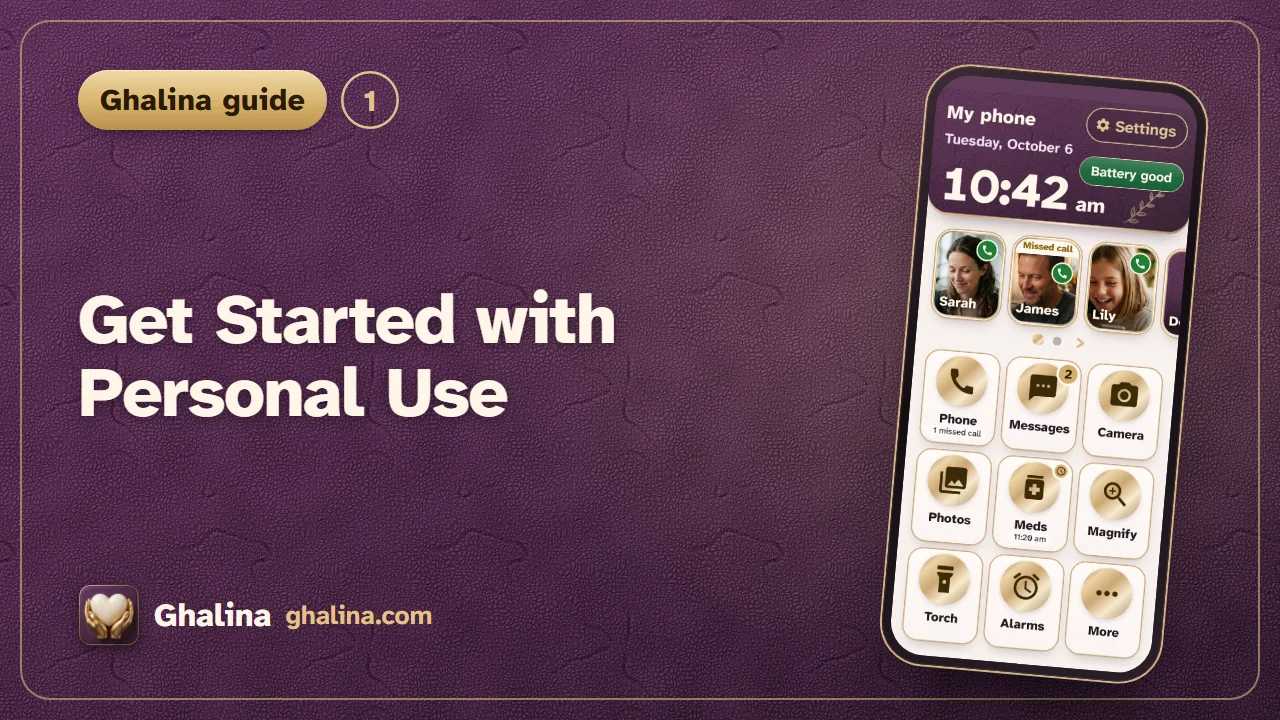
Now playing · Personal use
Get Started with Personal Use
Steps
- Choose your language: English or Arabic. The app switches at once.
- On the first screen tap This phone is for me (“Personal use: a calm, big phone”). The setup then asks only what your own phone needs.
Videos for your own phone
12 videosStill need help?
Write to us, or send a written or voice message from the app. A real person reads every message.
Everything in the manual
8 chapters and 38 topics. Open any of them.
1Getting started
What Ghalina is for you
- Ghalina turns your phone into a calm, big phone: big buttons with big gold icons, big clear text and a simple home screen that is always one press away.
- You decide what is on it. You choose the buttons, their order and how big they are. Any app on your phone can become one of the buttons.
- Everything stays on your phone. A Personal use phone sends nothing about you to a family or to a server.
First launch: choose “This phone is for me”
- Choose your language: English or Arabic. The app switches at once.
- On the first screen tap This phone is for me (“Personal use: a calm, big phone”). The setup then asks only what your own phone needs.
- A “Language” button at the top goes back to the language page.
- A small gold-rimmed ? next to the “Language” button opens the online user guide at this page. See The user guide and the “?” button.
Setting up your phone, page by page
- The setup speaks to you: “your home”, “your phone”. It never asks for a name for a family, a family code or a family PIN.
- Every setup page has a small gold-rimmed ? at the end of the “Setup” row. One tap opens the user guide at the topic for that page.
- Each page asks for one thing and says why. You can read it, allow it, or skip it where skipping is possible:
- Phone app: so calls show big, clear buttons, Ghalina needs to be this phone’s phone app. You can switch back to the usual phone app at any time in Android’s settings.
- Notifications: they bring your reminders and alerts to the screen.
- Location: used only while you use Ghalina, for “Take me home” and for prayer times worked out on your phone. Ghalina never follows the phone.
- Permission to make calls: when you tap a photo to call, Ghalina places the call itself.
- Do Not Disturb access: so calls can ring even while the phone is on silent. You can turn it off again in the same place.
- Home app: when you press the Home button, the phone shows Ghalina’s simple screen. You can go back to the usual home screen at any time.
- Prayer and Ramadan features: the question “Turn on prayer and Ramadan features?” (prayer times and the qibla, the adhan if you want it, and the Ramadan features). Answer for yourself; you can change it later with one tap in Settings. If you also say yes to the Prayer button there, it is put on your home screen for you.
- Are you at home now?: saves your home place for “Take me home”. You can set it later in Settings.
- The red SOS button is off when the setup ends. You can switch it on later (see The Red SOS button).
- If the phone has no internet at the end of the setup, Ghalina registers it by itself as soon as it is online, so your colours, text size and SOS choice are saved.
The user guide and the “?” button
- A small gold-rimmed ? appears on the first page (“Who will use this phone?”, next to the language button), on every setup page (at the end of the “Setup” row), and on the Settings page (the last button in the top bar). It is not on your home screen or in the menus.
- One tap opens the online user guide at the topic for that page: a video and the written steps.
- It needs internet. Without it a short message says “You need internet to open the guide”.
- Settings also has a last row, User guide (“Videos and written steps for every page”), above the version line. It opens the whole guide.
If a permission is refused
- Nothing breaks. The page tells you what will not work without it. Later, Settings → Setup checklist shows what is still to allow.
- Notifications are the one thing the last page asks you to turn on before you finish, because reminders and alerts need them.
Going back to your usual home screen
- In Ghalina open Settings → Leave senior mode, or in Android open Settings → Apps → Default apps → Home app and choose your usual one.
- Nothing is deleted. Choose Ghalina as the home app again whenever you like.
2Your home screen
The home screen that is always there
- Ghalina is your home screen. The Home button always brings you back to it.
- At the top: the Settings pill, the battery in words, the date and a big clock. Under it your people (if you keep that row), then your buttons.
- The buttons fill the screen down to the bottom, with no empty gap. On a tall phone they grow taller.
- A new Personal use phone shows three buttons per row and three rows: your people, then eight buttons and More. The starting eight are Phone, Messages, Camera, Photos, WhatsApp (Medicines when WhatsApp is not installed), Magnifier, Torch and Alarms.
- Everything is big on purpose. Big text never cuts a button: the page stays whole and the labels stay readable.
Your people row
- The row of big photo cards at the top shows the people in your phone’s contacts: the ones you starred as favourites, or your first contacts when you have no favourites (up to 12). Swipe it sideways to see more.
- Tap a card to call that person.
- Ghalina only reads your contacts to show them. It does not store them or send them anywhere.
- No contacts means no people row.
- Settings → My home screen → Show people row: switch it off and your buttons use that space too. With the row off and three buttons per row, the home shows four rows, 12 buttons.
- The Personal use home never shows a blank row: when the page has more places than your chosen buttons, the empty places before More are filled with the next buttons from the More list, in its order (display only, they are not added to your buttons, and More still lists everything). A button you removed is never used as one of these fills, so it does not come back by itself; Add a button brings it back. If there are not enough other buttons, the grid has fewer rows instead. Phone stays first and More last.
Buttons per row
- Settings → My home screen → Buttons per row.
- 3 per row: more buttons on one screen.
- 2 per row: bigger, taller buttons with the same big gold icons.
- The choice is saved on your phone and applies at once.
More buttons: pages and More
- If you have more buttons than fit on one screen, swipe the buttons sideways to the next page. The dots show which page you are on.
- More is always the last button on every page. It opens a page of big icons with everything that is not on your home: our own buttons, then every app on your phone.
- A button that cannot work on your phone is left out. The Magnifier needs a back camera, the Torch needs a flash, WhatsApp and YouTube need to be installed.
- You can have up to 30 buttons on your home.
Add a button
- Settings → My home screen → Add a button.
- You see a big row for every button and every app that is not on your home yet: its icon, its name and a plum +.
- Tap a row. The button goes to the end of your home, just before More, and the row fades out of the list.
- If your home is full, the page says so: remove a button first.
- When every button is on the home already, the page says so.
Arrange my buttons
- Settings → My home screen → Arrange my buttons.
- Hold a button and drag it to its new place. The other buttons slide out of the way, the button you hold grows a little and your phone gives a small tap when you pick it up and when you let go. You can also press the dotted handle on the left of a button and drag at once. With TalkBack, use the actions Move up and Move down on a button.
- Remove under a name takes the button off your home. It stays in More, so you can add it back.
- The Phone button is always on your home and stays where it is: it shows a lock, you cannot pick it up, and nothing can be dropped on its place.
3Safety
The Red SOS button
- The red SOS button is an option: it is off by default and is not part of the standard home screen for personal use. You switch it on yourself: Settings → My home screen → Red SOS button. No PIN is asked.
- While it is off, there is no red bar on any screen, and the hold-time and floating-SOS rows are not shown in Settings. The screens use the space.
- While it is on, the red bar sits at the bottom of the home screen, with a slimmer one on the other screens. Nothing covers it, and when the keyboard opens the bar rides just above it.
- The bar says “Press and hold”. How long to hold (2 to 5 seconds, 3 by default) is set in Settings, in the SOS section that appears once the button is on. TalkBack reads it, for example “SOS. Press and hold for 3 seconds to call for help”.
- The phone ticks each second while the bar is held, so a quick touch never starts an alarm.
- SOS over other apps (the floating SOS row) also shows in Settings only while the Red SOS button is on.
- Switch it off the same way, with the same switch.
Who SOS calls
- There is no family on a phone for your own use, so you choose what SOS does. When you switch the Red SOS button on, Who SOS calls opens right under it:
- My contacts: up to three people you pick from your phone's contacts. SOS calls them one after another, on speaker.
- Emergency number: SOS calls your country's emergency number (999 in the UAE). This is a real emergency call to the police and ambulance, so use SOS only in a real emergency.
- Both: your contacts first, then the emergency number if nobody answers.
- Which emergency number: under Emergency number (or Both) tap Which emergency number?. The list opens with the country your phone is in already chosen (UAE 999, Saudi Arabia 911, Oman 9999, Kuwait 112, Qatar 999, Bahrain 999, Egypt 123, Jordan 911 and more). At the very end is Custom number: tap it and type your own number with the big keypad (digits only, 2 to 15). SOS then calls the number you chose. It is saved on your phone only.
- Nothing is chosen for you. Until you choose, the switch says “Choose who SOS calls to turn it on” and SOS stays off (no red bar).
- With My contacts or Both, the phone's contact picker opens at once for the first person; after that, tap Add a contact to add more, up to three (Ghalina reads only the person you pick). Tap a person to remove them. If you remove the last one, SOS switches itself off.
- When you choose, Ghalina asks once for permission to place calls by itself.
- When you hold SOS, the calls start at once (there is nobody to wait for). As soon as one call is answered, the next calls stop. The emergency number is called only once; Call again starts the calls over.
- Nothing is sent to anyone: no message, no “Sent to family” screen. Your choice is saved on your phone only.
4Everyday tools
The Phone screen: calls, keypad and people
- The Phone button opens one big screen with three tabs: Calls, Keypad and People. It opens on the Keypad first. The red SOS bar stays at the bottom when SOS is on.
- Calls shows the calls the phone has seen since Ghalina became its phone app: missed, answered, made and declined, newest first. Each row has the photo or the first letter, the name, what happened and when, and a big green call button. One tap calls straight away.
- A number that is not in your contacts has a copper border and “Not in your contacts. Be careful”. A hidden number shows “Hidden number” and cannot be called back.
- The number of new missed calls shows on the Calls tab, and on the home Phone button (“2 missed calls”).
- Keypad: big ivory keys, the number in huge digits, the name when the number is known. Delete removes one digit (hold it to clear all), Call calls, hold 0 for +.
- People: the names saved on your phone, with Say a name and the letters.
- The call list stays on your phone. It keeps the last 60 days (up to 200 calls).
The call screen
- Incoming calls fill the screen: the caller’s photo and name, a huge green Answer and a dark Not now.
- Unknown numbers show “Unknown number” and an amber “Not in your contacts – be careful”.
- During a call: big name, timer, Speaker, Keypad, Quieter / Louder, Hang up.
- A missed call shows “Missed call from Sarah – tap to call back”.
- Emergency numbers typed on the keypad are handed to Android’s own emergency calling.
Messages, Camera, Photos and WhatsApp
- Messages opens your phone’s own messages app, Camera opens the camera, Photos opens your photos and WhatsApp opens WhatsApp.
- Any other app you add as a button shows its own icon inside the gold circle and opens like a normal app.
Magnifier
- The Magnifier button (or say “Magnifier”): the back camera makes small print big. It starts at 2×. Bigger / Smaller (or the gold slider between them) go from 1× to 10×, as far as the camera allows. Light turns on the torch when the phone has one. The screen stays on.
- Freeze holds the picture so you can read it calmly: zoom, move with arrows, and Change colours (white on black, yellow on black). Continue returns to the camera.
- It works without internet. Nothing is saved or sent.
Torch and Brightness
- Two buttons, on your home or in More. The Torch button shows only on phones that have a flash.
- Torch: one big button switches the torch on or off, and the screen says ON or OFF. Where the phone allows it, Low / Medium / High change how strong the light is. The torch goes off when the screen closes.
- Brightness: + Brighter and – Dimmer change the screen in seven steps, from Very dim to Brightest, and a word says where it is. It never goes fully dark.
Alarms & appointments
- The Alarms button (the full name, Alarms & appointments, is kept for TalkBack) opens a big list. Each item is a card with Today, Tomorrow or the date, Every day, and the time in big numbers.
- When one is due, a big full-screen alert opens over the lock screen with a chime: the words, the time and the place. OK closes it, and Remind me in 10 min brings it back.
- Add your own (they are yours; nobody else can add them for you): on the Alarms list tap Add an alarm or Add an appointment. The form has three cards: What (a few words, and for an appointment where), When (every day, or a date, and the time), then Save. Tap any card in the list to change it. Every card has its own small Delete; it asks first (Yes, delete / No, keep it) and is always free, also after the free trial. They are kept on your phone, work with no internet, and ring exactly like any other alarm.
- Birthdays: open the Birthdays button (in More) and tap Add a birthday: Who (name, optional phone number for a one-tap Call), When (the date, optional birth year) and when to remind you (on the day, the day before, or both). Tap a birthday to change it; its small Delete is on the card. Birthdays that come from your phone contacts are changed in Contacts.
- It rings on time even with the screen off or without internet. Without “Alarms & reminders” allowed in Android, it can be a few minutes late and a notification says so.
Medicines
- The Medicines button opens My medicines today: each dose of today as a big card with the time, the name and I took it ✓ when it is due.
- Add a medicine: the big button at the top. Fill in the name, the dose, the times (Morning, Noon, Evening, Bedtime or your own time), the days, and if you like a photo of the pill or box, the pills left and a short voice reminder in your own voice. Tap Save.
- My medicines (under today's doses) lists every medicine you added, also the paused ones. Tap one to change it, pause it (Remind me on this phone) or Delete medicine (it asks first).
- Your medicines are kept on your phone only. The reminder rings on time with the screen off and without internet, like an alarm.
Prayer times, Qibla and Quran radio
- These features show only if you said yes to “Turn on prayer and Ramadan features?” in the setup. You can switch them on or off later in Settings, all together or only the prayer times or the Ramadan features. When you switch the Muslim features (and Prayer times) on in Settings, the Prayer button appears on your home screen by itself. If you take it off later, put it back with Settings > My home screen > Add a button. Switch the features off and the button is hidden again.
- Prayer: the next prayer and its time in big letters; in the last hour before it, a countdown (“in 25 min”). The times are worked out on your phone from your country’s official authority, also without internet, and your location for them never leaves the phone.
- The adhan is off until you choose it in Settings: never, at every prayer, or at the prayers you pick. It plays once, full screen, with Stop the adhan, and never during a call.
- Qibla: a big arrow towards the Kaaba, using the phone’s compass and its own location, also without internet. “You are facing the qibla” shows when the phone points within about 5 degrees. If the compass is not reliable, wave the phone in a figure 8; if the phone is tilted, hold it flat.
- Quran radio (in More, next to the Qibla, and you can add it to your home): a big, simple player with one round gold Play / Pause button. Under Reciters tap a name and it plays at once. The sleep timer has Off, 30 and 60 minutes. It keeps playing with the screen off. It needs the internet. Use the phone’s side volume keys for the sound.
5Look and sound
Text size, colours and language
- Settings → Look (no PIN): six colour themes (Plum & Champagne by default, Evergreen & Sunlight, Desert Sand & Deep Teal, Midnight Navy & Mint, Sky & Cloud, and Night: black & gold with extra-high contrast). A tap on a theme only previews it; Use these colours applies it.
- Text size: Smaller / Bigger, from 85% to 160%, and Back to normal text size in one tap. If Android’s own text size is also bigger, a hint with Open Android settings appears, because only Android can change that one.
- Language: the phone’s, English or Arabic. A language change asks first.
- With big text, Ghalina’s pages make room instead of cutting words: long titles wrap, side-by-side buttons stack.
- Back (or the Back swipe) slides the page away and the page behind rises into place. On Android 14 or newer the Back swipe moves the page with your finger.
Wi-Fi and Bluetooth
- Settings → Connections (the first section): Wi-Fi and Bluetooth as two big buttons side by side, each showing On or Off.
- Tap one and Android’s own small panel opens (Android does not let any app switch them directly). Switch it there and come back: the button shows the new state.
The volume panel
- When you press the phone’s volume keys while Ghalina is open, a big panel fades in instead of Android’s small one: Sound with four sounds (Ringer, Notifications, Calls & media, Alarm). Each shows its level in words (Off, Quiet, Medium, Loud, Max) and big – and + buttons.
- With nothing playing, the keys change the ringer; while music or a video plays, they change Calls & media. The panel goes away by itself after a few seconds, or with Close.
- Choose the look: Settings → Volume panel → Volume panel style. Light pills is the default: four tall columns per sound, filled from the bottom with a light purple taken from your colours; tap a column to jump to that level. Four words shows Off, Low, Medium, High.
- Test sound plays a short ring for about two seconds at the ringer’s current level, so you hear how loud the phone is.
- Silent – no vibration is a big button that always works. While the phone is silent it turns green and says Sound on.
- The panel never covers the red SOS bar when SOS is on.
- It shows only while Ghalina is in front, which is most of the time. In other apps Android’s own volume panel shows.
6Privacy and security
Privacy in plain words
- A Personal use phone has no family: it reports nothing to a family or to a server, no status, no last activity.
- Your contacts are read only to show your people row and your call names. They are not stored or sent.
- Your location is used only while you use Ghalina, for “Take me home” and prayer times worked out on the phone. Ghalina never follows the phone.
- The Magnifier saves nothing and sends nothing.
- The call list stays on your phone.
- Your choices (buttons, order, people row, buttons per row, SOS) are saved on your phone only.
- Ghalina does not use an accessibility service.
7Troubleshooting: what if…
A button is missing
- The Magnifier button needs a back camera, the Torch needs a flash, WhatsApp and YouTube need to be installed on the phone, and the prayer buttons need the prayer features turned on.
- A missing button is not deleted. Open Settings → My home screen → Add a button to put back any button that is not on the home.
The phone app or home screen was changed
- If another phone app or home app took over, open Android’s settings → Apps → Default apps and choose Ghalina again for Phone app and Home app.
- Settings → Setup checklist shows what is still to allow.
Reminders and alarms are late
- Allow Alarms & reminders for Ghalina in Android’s settings.
- Turn off battery optimisation for Ghalina, so the phone does not close it.
8Q&A
9 questions
Do I need a family or a family app?
No. In Personal use everything is on your own phone. There is no family code, no family PIN and no second app.
Do I need internet?
Not for the home screen, calls, the keypad, the Magnifier, the Torch, prayer times or the Qibla. The Quran radio needs the internet.
Can I use any app as a button?
Yes. Open Settings → My home screen → Add a button and tap the app. Up to 30 buttons fit on your home.
Can I change how many buttons I see?
Yes. Choose 2 or 3 buttons per row, and switch the people row off to get more room.
Can I take the Phone button off my home?
No, Phone is always on your home and keeps its place. The other buttons can be dragged to any other place with Arrange my buttons.
Is the red SOS button on?
Not until you switch it on in Settings. It is off by default.
How much does it cost?
Try everything free for 14 days from the day you set up the phone. After that, Personal use is $3.99, paid once (Google Play shows the price in your currency). No subscription, no ads. Open Settings → Your plan to see the days left, buy, or Restore purchase on a new phone with the same Google account.
What happens if I don't buy after the trial?
Your phone keeps working, free, for good: calls, your home as it is, SOS if you turned it on, Take me home, the magnifier, the torch, text size and the volume panel. The alarms, appointments and birthdays you already saved keep ringing, and you can still delete any reminder and remove any home button. Only these wait for Personal use: adding home buttons, arranging them by dragging, and making or changing your own alarms, appointments, birthdays and medicines (the medicines you saved keep reminding you). Tapping one opens Your plan (on Arrange my buttons the handles show a lock, but Remove still works). When the trial ends, Your plan opens once by itself; tap Later to close it.
Can I go back to my usual home screen?
Yes. Open Settings → Leave senior mode, or change the Home app in Android’s settings.
دليل استخدام غالينا لاستخدامك الشخصي
هذا دليل غالينا على هاتفك أنت، حين تختار «هذا الهاتف لي» (الاستخدام الشخصي). يشرح ما تراه خطوة بخطوة، وكيف تجعل الهاتف على قدّك. ليس هنا عائلة ولا تطبيق للعائلة ولا رقم سري للعائلة: كل إعداد بيدك.
- 8 فصول
- 38 موضوعًا
- الفيديوهات الجاهزة: 12
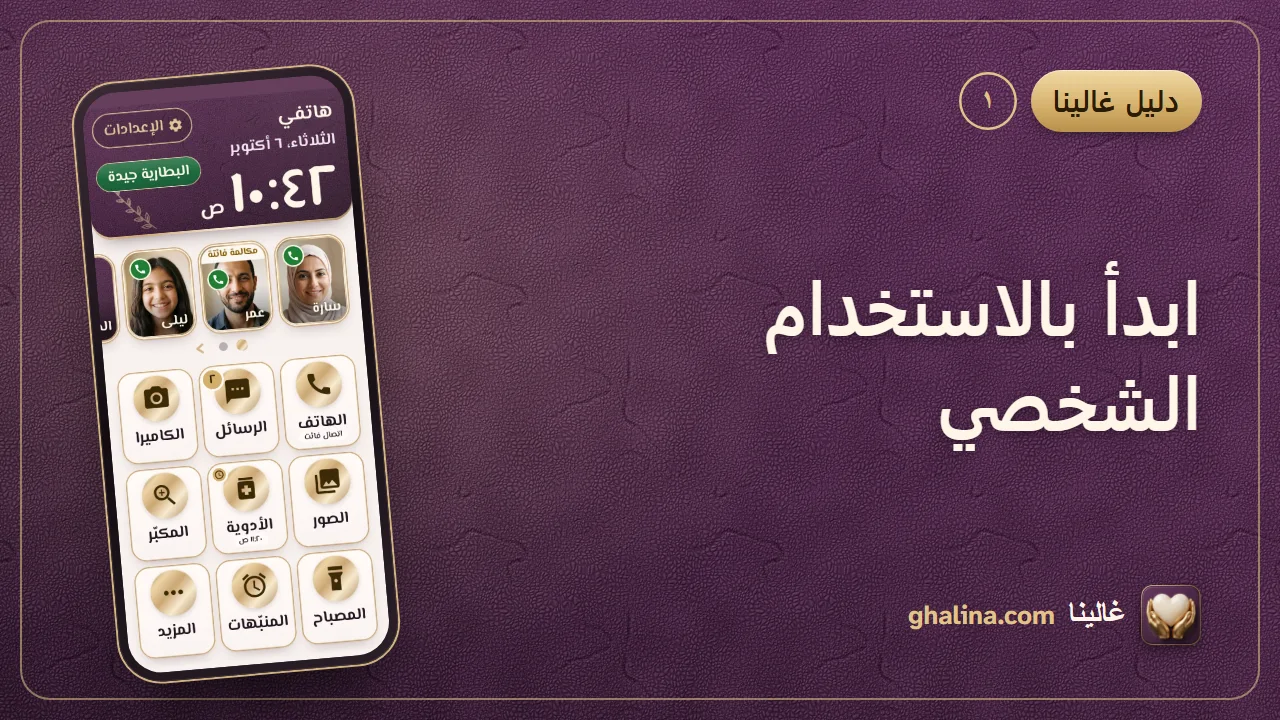
يُعرض الآن · الاستخدام الشخصي
ابدأ بالاستخدام الشخصي
الخطوات
- اختر لغتك: العربية أو English. يتبدّل التطبيق فورًا.
- في الشاشة الأولى اضغط هذا الهاتف لي («استخدام شخصي: هاتف كبير وهادئ»). فلا يسألك الإعداد بعدها إلا عمّا يحتاجه هاتفك.
فيديوهات لهاتفك الشخصي
12 فيديوما زلت تحتاج إلى مساعدة؟
راسلنا، أو أرسل رسالة مكتوبة أو صوتية من التطبيق، ويقرأ كل رسالة شخص حقيقي.
كل ما في الدليل
8 فصول و38 موضوعًا، افتح أيًّا منها.
1البداية
غالينا لك أنت
- يحوّل غالينا هاتفك إلى هاتف كبير وهادئ: أزرار كبيرة بأيقونات ذهبية كبيرة، ونصوص كبيرة واضحة، وشاشة رئيسية بسيطة على بُعد ضغطة واحدة دائمًا.
- أنت من يقرّر ما عليها. تختار الأزرار وترتيبها وحجمها. وأي تطبيق في هاتفك يصلح أن يكون زرًّا.
- كل شيء يبقى في هاتفك. الهاتف في الاستخدام الشخصي لا يرسل عنك شيئًا إلى عائلة ولا إلى خادم.
التشغيل الأول: اختر «هذا الهاتف لي»
- اختر لغتك: العربية أو English. يتبدّل التطبيق فورًا.
- في الشاشة الأولى اضغط هذا الهاتف لي («استخدام شخصي: هاتف كبير وهادئ»). فلا يسألك الإعداد بعدها إلا عمّا يحتاجه هاتفك.
- يعود زر «اللغة» في الأعلى إلى صفحة اللغة.
- يفتح زر ؟ الصغير ذو الإطار الذهبي، بجانب زر «اللغة»، دليل المستخدم على الإنترنت عند هذه الصفحة. انظر دليل المستخدم وزر «؟».
تجهيز هاتفك صفحةً صفحة
- يخاطبك التجهيز أنت: «بيتك» و«هاتفك». ولا يطلب اسمًا للعائلة ولا رمز عائلة ولا رقمًا سريًّا للعائلة.
- في كل صفحة من صفحات التجهيز زر ؟ صغير ذو إطار ذهبي في نهاية سطر «التجهيز». ضغطة واحدة تفتح دليل المستخدم عند موضوع هذه الصفحة.
- كل صفحة تطلب أمرًا واحدًا وتشرح السبب. تقرؤها وتسمح به، أو تتخطاه حيث يمكن التخطي:
- تطبيق الهاتف: لتظهر المكالمات بأزرار كبيرة واضحة، يحتاج غالينا أن يكون تطبيق الهاتف في هذا الجهاز. وتستطيع العودة إلى تطبيق الهاتف المعتاد في أي وقت من إعدادات أندرويد.
- الإشعارات: تأتيك بالتذكيرات والتنبيهات على الشاشة.
- الموقع: لا يُستخدم إلا أثناء استخدامك غالينا، من أجل «خذني إلى البيت» ومواقيت الصلاة التي تُحسب على هاتفك. ولا يتتبّع غالينا الهاتف أبدًا.
- إذن إجراء المكالمات: حين تضغط صورة للاتصال، يجري غالينا المكالمة بنفسه.
- الوصول إلى «عدم الإزعاج»: لتُسمَع المكالمات حتى والهاتف على الصامت. وتستطيع إيقافه في المكان نفسه متى شئت.
- تطبيق الشاشة الرئيسية: عند ضغط زر الرئيسية يعرض الهاتف شاشة غالينا البسيطة. وتستطيع العودة إلى شاشتك المعتادة في أي وقت.
- ميزات الصلاة ورمضان: سؤال «هل نُفعّل ميزات الصلاة ورمضان؟» (مواقيت الصلاة والقبلة، والأذان إن أردته، وميزات رمضان). أجب عن نفسك، وتستطيع تغيير ذلك لاحقًا بضغطة واحدة في الإعدادات. وإذا وافقت هناك أيضًا على زر الصلاة، يضعه غالينا في شاشتك الرئيسية بنفسه.
- هل أنت في البيت الآن؟: يحفظ مكان بيتك لـ«خذني إلى البيت». وتستطيع ضبطه لاحقًا من الإعدادات.
- يكون زر النجدة الأحمر متوقفًا عند انتهاء التجهيز. وتستطيع تشغيله لاحقًا (انظر زر النجدة الأحمر).
- إن لم يكن للهاتف إنترنت عند نهاية التجهيز، يسجّله غالينا بنفسه حين يتصل بالإنترنت، فتُحفظ ألوانك وحجم الخط وخيار زر النجدة.
دليل المستخدم وزر «؟»
- يظهر زر ؟ صغير ذو إطار ذهبي في الصفحة الأولى («من سيستخدم هذا الهاتف؟»، بجانب زر اللغة)، وفي كل صفحة تجهيز (في نهاية سطر «التجهيز»)، وفي صفحة الإعدادات (آخر زر في الشريط العلوي). ولا يظهر في شاشتك الرئيسية ولا في القوائم.
- ضغطة واحدة تفتح دليل المستخدم على الإنترنت عند موضوع هذه الصفحة: فيديو وشرح مكتوب بالخطوات.
- يلزم الاتصال بالإنترنت. وبدونه تظهر رسالة قصيرة: «يلزم الاتصال بالإنترنت لفتح الدليل».
- وفي الإعدادات صف أخير باسم دليل المستخدم («فيديوهات وشرح مكتوب لكل صفحة») فوق سطر رقم الإصدار، يفتح الدليل كله.
إذا رُفض إذن
- لا ينكسر شيء. تخبرك الصفحة بما لن يعمل من دونه. ولاحقًا يعرض الإعدادات ← قائمة الإعداد ما بقي لتسمح به.
- الإشعارات وحدها تطلب منك الصفحة الأخيرة تشغيلها قبل أن تنتهي، لأن التذكيرات والتنبيهات تحتاج إليها.
العودة إلى شاشتك الرئيسية المعتادة
- في غالينا افتح الإعدادات ← إيقاف الوضع المبسّط، أو من أندرويد افتح الإعدادات ← التطبيقات ← التطبيقات التلقائية ← تطبيق الشاشة الرئيسية واختر شاشتك المعتادة.
- لا يُحذف شيء. اختر غالينا تطبيقًا للشاشة الرئيسية من جديد متى شئت.
2شاشتك الرئيسية
الشاشة الرئيسية الحاضرة دائمًا
- غالينا هو شاشتك الرئيسية. وزر الرئيسية يعيدك إليه دائمًا.
- في الأعلى: زر الإعدادات، والبطارية بالكلمات، والتاريخ، وساعة كبيرة. وتحتها أحبّاؤك (إن أبقيت ذلك الصف)، ثم أزرارك.
- تملأ الأزرار الشاشة حتى أسفلها دون فراغ فارغ، وتطول على الهاتف الطويل.
- يعرض الهاتف الجديد ثلاثة أزرار في الصف وثلاثة صفوف: أحبّاؤك، ثم ثمانية أزرار وزر المزيد. والأزرار الثمانية الأولى هي: الهاتف والرسائل والكاميرا والصور وواتساب (أو الأدوية إن لم يكن واتساب مثبّتًا) والمكبّر والمصباح والمنبّهات.
- كل شيء كبير عن قصد. ولا يقطع الخط الكبير أي زر: تبقى الصفحة كاملة وتبقى النصوص مقروءة.
صف أحبّائك
- يعرض صف البطاقات الكبيرة بالصور في الأعلى الأشخاص من جهات اتصال هاتفك: من وضعتَ عليهم نجمة في المفضّلة، أو أولى جهات الاتصال إن لم يكن لديك مفضّلون (حتى 12). مرّره جانبًا لترى المزيد.
- اضغط بطاقة لتتصل بصاحبها.
- يقرأ غالينا جهات اتصالك ليعرضها فقط. ولا يحفظها ولا يرسلها إلى أي مكان.
- إن لم تكن لديك جهات اتصال لا يظهر الصف.
- الإعدادات ← شاشتي الرئيسية ← إظهار صف الأشخاص: أوقفه لتستفيد أزرارك من هذه المساحة أيضًا. وحين يكون الصف متوقفًا وعدد الأزرار ثلاثة في الصف، تعرض الشاشة أربعة صفوف و12 زرًّا.
- لا تعرض الشاشة الرئيسية صفًّا فارغًا أبدًا: إذا زادت الأماكن في الصفحة عن الأزرار التي اخترتها، تُملأ الأماكن الفارغة قبل المزيد بالأزرار التالية من قائمة المزيد بترتيبها (للعرض فقط، فلا تُضاف إلى أزرارك، وتبقى قائمة المزيد تعرض كل شيء). والزر الذي أزلتَه لا يُستخدم أبدًا لملء هذه الأماكن، فلا يعود وحده؛ ولإرجاعه استخدم إضافة زر. وإذا لم تكفِ الأزرار الأخرى، يقلّ عدد الصفوف بدل أن يبقى صفّ فارغ. ويبقى زر الهاتف أولًا والمزيد أخيرًا.
عدد الأزرار في الصف
- الإعدادات ← شاشتي الرئيسية ← عدد الأزرار في الصف.
- ثلاثة في الصف: أزرار أكثر في شاشة واحدة.
- زرّان في الصف: أزرار أكبر وأطول بالأيقونات الذهبية الكبيرة نفسها.
- يُحفظ اختيارك في هاتفك ويُطبَّق فورًا.
أزرار أكثر: الصفحات و«المزيد»
- إذا زادت أزرارك على ما تتسع له شاشة واحدة، مرّر الأزرار جانبًا إلى الصفحة التالية. تدلّك النقاط على الصفحة الحالية.
- يبقى زر المزيد آخر زر في كل صفحة. ويفتح صفحة أيقونات كبيرة فيها كل ما ليس على شاشتك: أزرارنا أولًا، ثم كل تطبيق في هاتفك.
- الزر الذي لا يستطيع العمل على هاتفك يُترك: المكبّر يحتاج كاميرا خلفية، والمصباح يحتاج فلاش، وواتساب ويوتيوب يجب أن يكونا مثبّتين.
- تتسع شاشتك لما يصل إلى 30 زرًّا.
إضافة زر
- الإعدادات ← شاشتي الرئيسية ← إضافة زر.
- ترى صفًّا كبيرًا لكل زر ولكل تطبيق ليس على شاشتك بعد: أيقونته واسمه وعلامة + برقوقية.
- اضغط صفًّا. يذهب الزر إلى آخر شاشتك قبل المزيد تمامًا، ويتلاشى الصف من القائمة.
- إذا امتلأت شاشتك قالت الصفحة ذلك: أزل زرًّا أولًا.
- وإذا كانت كل الأزرار على الشاشة أصلًا قالت الصفحة ذلك أيضًا.
ترتيب أزراري
- الإعدادات ← شاشتي الرئيسية ← ترتيب أزراري.
- اضغط مطولًا على الزر واسحبه إلى مكانه الجديد. تتزحزح الأزرار الأخرى لتفسح له المكان، ويكبر الزر الذي تمسكه قليلًا، ويهتزّ هاتفك اهتزازة خفيفة عند رفعه وعند تركه. وتستطيع أيضًا أن تضغط المقبض المنقّط على جانب الزر وتسحبه فورًا. ومع TalkBack استخدم الإجراءين انقل إلى الأعلى وانقل إلى الأسفل على الزر.
- إزالة تحت الاسم تُخرج الزر من شاشتك الرئيسية. ويبقى في المزيد، فتستطيع إعادته.
- زر الهاتف على شاشتك دائمًا وفي مكانه: عليه قفل، ولا يمكن رفعه، ولا يمكن إسقاط زر آخر على مكانه.
3السلامة
زر النجدة الأحمر
- زر النجدة الأحمر اختياري: هو متوقف في الأصل، وليس جزءًا من الشاشة الرئيسية المعتادة للاستخدام الشخصي. وتشغّله أنت بنفسك: الإعدادات ← شاشتي الرئيسية ← زر النجدة الأحمر. ولا يُطلب أي رقم سري.
- وهو متوقف، لا يظهر الشريط الأحمر في أي شاشة، ولا يظهر صفّا مدة الضغط وزر النجدة العائم في الإعدادات. وتستفيد الشاشات من المساحة.
- وهو يعمل، يظهر الشريط الأحمر أسفل الشاشة الرئيسية، وشريط أنحف في بقية الشاشات. ولا يغطّيه شيء، وحين تظهر لوحة المفاتيح يصعد فوقها مباشرة.
- يقول الشريط «اضغط مطولاً». ومدة الضغط (من 2 إلى 5 ثوانٍ، وافتراضيها 3) تُضبط في الإعدادات، في قسم النجدة الذي يظهر حين يعمل الزر. ويقرؤها TalkBack، مثل «اضغط مطولاً 3 ثوانٍ لطلب المساعدة».
- يصدر الهاتف نقرة في كل ثانية أثناء الضغط، فلا تُطلق اللمسة العابرة أي إنذار.
- النجدة فوق التطبيقات الأخرى (صف النجدة العائم) لا يظهر في الإعدادات أيضًا إلا ما دام زر النجدة الأحمر يعمل.
- أوقفه بالمفتاح نفسه.
بمن تتصل النجدة
- لا عائلة على هاتف استخدامك الشخصي، لذلك أنت من يختار ما تفعله النجدة. وحين تشغّل زر النجدة الأحمر يظهر تحته مباشرة بمن تتصل النجدة:
- جهات اتصالي: حتى ثلاثة أشخاص تختارهم من جهات الاتصال في هاتفك، ويتصل بهم الهاتف واحدًا تلو الآخر ومكبّر الصوت مفتوح.
- رقم الطوارئ: يتصل الهاتف برقم الطوارئ في بلدك (999 في الإمارات). وهو اتصال طوارئ حقيقي بالشرطة والإسعاف، فاستخدم النجدة في الطوارئ فقط.
- الاثنان معًا: جهات اتصالك أولًا، ثم رقم الطوارئ إن لم يردّ أحد.
- أي رقم طوارئ: تحت رقم الطوارئ (أو الاثنان معًا) اضغط أي رقم طوارئ؟. تُفتح قائمة الدول وقد اختار غالينا دولة هاتفك مسبقًا (الإمارات 999، السعودية 911، عُمان 9999، الكويت 112، قطر 999، البحرين 999، مصر 123، الأردن 911 وغيرها). وفي آخر القائمة رقم آخر: اضغط عليه واكتب رقمك بلوحة الأرقام الكبيرة (أرقام فقط، من 2 إلى 15). وتتصل النجدة بالرقم الذي اخترته. ويُحفظ في هاتفك وحده.
- لا يُختار شيء نيابةً عنك. وإلى أن تختار يقول المفتاح «اختر بمن تتصل النجدة لتشغيلها»، وتبقى النجدة متوقفة ولا يظهر الشريط الأحمر.
- مع جهات اتصالي أو الاثنان معًا تُفتح قائمة جهات الاتصال في الهاتف مباشرةً لتختار أول شخص، وبعدها اضغط إضافة جهة اتصال لتضيف غيره، حتى ثلاثة أشخاص (ولا يقرأ غالينا إلا من تختاره). واضغط على أي شخص لإزالته، وإن أزلت آخرهم تتوقف النجدة من تلقاء نفسها.
- وحين تختار، يطلب غالينا مرة واحدة إذنًا بإجراء المكالمات بنفسه.
- حين تضغط النجدة مطولًا تبدأ المكالمات فورًا، إذ لا أحد يُنتظر رده. وما إن يُرَدّ على مكالمة حتى تتوقف المكالمات التالية. ويُتّصل برقم الطوارئ مرة واحدة فقط، ويعيد زر اتصل مرة أخرى المكالمات من البداية.
- لا يُرسَل شيء إلى أحد: لا رسالة ولا شاشة «أُرسل إلى العائلة». ويُحفظ اختيارك في هاتفك وحده.
4أدوات كل يوم
شاشة الهاتف: المكالمات ولوحة الأرقام والأسماء
- يفتح زر الهاتف شاشة كبيرة واحدة فيها ثلاثة تبويبات: المكالمات ولوحة الأرقام والأسماء. ويفتحها على لوحة الأرقام أولًا. ويبقى شريط النجدة الأحمر في أسفلها حين تكون النجدة مفعّلة.
- تعرض المكالمات ما رآه الهاتف من مكالمات منذ أصبح غالينا تطبيق الهاتف فيه: الفائتة والتي رُدّ عليها والصادرة والمرفوضة، الأحدث أولًا. في كل صف الصورة أو الحرف الأول، والاسم، وما حدث ومتى، وزر اتصال أخضر كبير. لمسة واحدة تتصل فورًا.
- الرقم الذي ليس في جهات اتصالك يظهر بإطار نحاسي وعبارة «ليس من جهات اتصالك. كن حذرًا». أما الرقم المخفي فيظهر «رقم مخفي» ولا يمكن الاتصال به.
- يظهر عدد الاتصالات الفائتة الجديدة على تبويب المكالمات، وعلى زر الهاتف في الشاشة الرئيسية («اتصالان فائتان»).
- لوحة الأرقام: مفاتيح عاجية كبيرة، والرقم بأرقام ضخمة، والاسم حين يكون الرقم معروفًا. يحذف حذف رقمًا واحدًا (واضغطه مطولًا لمسح الكل)، ويتصل اتصال، واضغط 0 مطولًا للحصول على +.
- الأسماء: الأسماء المحفوظة في هاتفك، مع قل الاسم والحروف.
- يبقى سجل المكالمات في هاتفك. ويحتفظ بآخر 60 يومًا (حتى 200 مكالمة).
شاشة المكالمة
- تملأ المكالمات الواردة الشاشة: صورة المتصل واسمه، وزر رد أخضر ضخم، وزر ليس الآن داكن.
- الأرقام المجهولة تظهر «رقم غير معروف» مع عبارة كهرمانية «ليس من جهات اتصالك – كن حذرًا».
- أثناء المكالمة: اسم كبير، ومؤقّت، ومكبّر الصوت ولوحة الأرقام وخفض الصوت / رفع الصوت وإنهاء المكالمة.
- المكالمة الفائتة تظهر «مكالمة فائتة من سارة – اضغط للاتصال».
- أرقام الطوارئ المكتوبة على لوحة الأرقام تُسلَّم إلى اتصال الطوارئ في أندرويد نفسه.
الرسائل والكاميرا والصور وواتساب
- يفتح الرسائل تطبيق الرسائل في هاتفك، ويفتح الكاميرا الكاميرا، وتفتح الصور صورك، ويفتح واتساب واتساب.
- وأي تطبيق آخر تضيفه زرًّا يظهر بأيقونته داخل الدائرة الذهبية ويفتح كأي تطبيق عادي.
المكبّر
- زر المكبّر (أو قل «المكبّر»): تكبّر الكاميرا الخلفية الخط الصغير. يبدأ عند 2×، وزرّا أكبر / أصغر (أو الشريط الذهبي بينهما) من 1× إلى 10× بقدر ما تسمح الكاميرا. ويشغّل زر الإضاءة المصباح إن وُجد. وتبقى الشاشة مضاءة.
- يثبّت زر ثبّت الصورة المشهد لتقرأه بهدوء: تكبير، وتحريك بالأسهم، وغيّر الألوان (أبيض على أسود، أو أصفر على أسود). ويعيد زر تابِع التصوير.
- يعمل دون إنترنت، ولا يُحفظ شيء ولا يُرسل.
المصباح والسطوع
- زرّان، على شاشتك الرئيسية أو في المزيد. ويظهر زر المصباح فقط في الهواتف التي فيها فلاش.
- المصباح: زر كبير واحد يشغّل المصباح أو يطفئه، وتكتب الشاشة يعمل أو مطفأ. وحيث يسمح الهاتف، تغيّر خفيف / متوسط / قوي شدّة الضوء. ويُطفأ المصباح عند إغلاق الشاشة.
- السطوع: يغيّر + أكثر سطوعًا و– أقل سطوعًا الشاشة على سبع درجات، من «خافت جدًا» إلى «الأسطع»، وتذكر كلمة مستوى السطوع. ولا تُظلم الشاشة تمامًا أبدًا.
المنبّهات والمواعيد
- يفتح زر المنبّهات (والاسم الكامل «المنبّهات والمواعيد» يحتفظ به TalkBack) قائمة كبيرة. كل عنصر بطاقة فيها اليوم أو غدًا أو التاريخ، وكل يوم، والوقت بأرقام كبيرة.
- حين يحين موعد أحدها يفتح تنبيه كبير بملء الشاشة فوق شاشة القفل مع رنّة: النص والوقت والمكان. يغلقه موافق، ويعيده ذكّرني بعد 10 دقائق.
- أضِف منبّهاتك بنفسك: في قائمة المنبّهات اضغط إضافة منبّه أو إضافة موعد. في النموذج ثلاث بطاقات: ماذا (بضع كلمات، ومكان الموعد إن وُجد)، ومتى (كل يوم أو تاريخ محدد، والوقت)، ثم حفظ. اضغط أي بطاقة في القائمة لتعديلها. وعلى كل بطاقة زر حذف صغير يسألك قبل أن يحذف («نعم، احذف» / «لا، أبقِه»)، وهو مجاني دائمًا حتى بعد انتهاء التجربة. تُحفظ على هاتفك وتعمل دون إنترنت وترنّ تمامًا كأي منبّه آخر.
- أعياد الميلاد: افتح زر أعياد الميلاد (في «المزيد») واضغط إضافة عيد ميلاد: مَن (الاسم، ورقم هاتف اختياري لزر اتصال بلمسة واحدة)، ومتى (التاريخ، وسنة الميلاد اختيارية)، ومتى تريد التذكير (في اليوم نفسه أو قبله بيوم أو في اليومين). اضغط عيد الميلاد لتعديله، وزر حذف الصغير على بطاقته. أما الأعياد القادمة من جهات اتصال هاتفك فتُعدَّل من جهات الاتصال.
- يرنّ في وقته حتى والشاشة مطفأة أو دون إنترنت. وإن لم يُسمح بـ«المنبّهات والتذكيرات» في أندرويد فقد يتأخر دقائق، ويخبرك إشعار بذلك.
الأدوية
- يفتح زر الأدوية شاشة أدويتي اليوم: كل جرعة من جرعات اليوم في بطاقة كبيرة فيها الوقت والاسم، وزر تناولت الدواء ✓ حين يحين وقتها.
- إضافة دواء: الزر الكبير في أعلى الشاشة. اكتب الاسم والجرعة، واختر الأوقات (صباحًا أو ظهرًا أو مساءً أو قبل النوم أو وقتًا تختاره) والأيام، وإن شئت أضف صورة الحبة أو العلبة وعدد الحبات المتبقية وتذكيرًا قصيرًا بصوتك. ثم اضغط حفظ.
- تحت جرعات اليوم قائمة أدويتي بكل دواء أضفته، ومنها الموقوف مؤقتًا. اضغط على الدواء لتعديله، أو لإيقافه مؤقتًا (ذكّرني على هذا الهاتف)، أو اضغط حذف الدواء (ويسألك قبل الحذف).
- تُحفظ أدويتك على هاتفك فقط، ويرنّ التذكير في وقته والشاشة مطفأة ودون إنترنت، تمامًا كالمنبّه.
مواقيت الصلاة والقبلة وإذاعة القرآن
- لا تظهر هذه الميزات إلا إذا أجبت بنعم عن «هل نُفعّل ميزات الصلاة ورمضان؟» في التجهيز. وتستطيع تشغيلها أو إيقافها لاحقًا من الإعدادات، معًا أو مواقيت الصلاة وحدها أو ميزات رمضان وحدها. وعند تشغيل الميزات الإسلامية ومعها مواقيت الصلاة من الإعدادات، يظهر زر الصلاة في الشاشة الرئيسية من تلقاء نفسه. وإن أزلته لاحقًا فأعِده من الإعدادات > شاشتي الرئيسية > إضافة زر. وإذا أوقفت هذه الميزات يختفي الزر.
- الصلاة: الصلاة القادمة ووقتها بحروف كبيرة، وفي الساعة الأخيرة قبلها عدّ تنازلي («بعد 25 د»). تُحسب المواقيت على هاتفك من هيئة بلدك الرسمية، وحتى دون إنترنت، ولا يغادر موقعك الهاتف من أجلها.
- الأذان متوقف إلى أن تختاره في الإعدادات: أبدًا، أو عند كل صلاة، أو عند الصلوات التي تحددها. يُرفع مرة واحدة بملء الشاشة مع إيقاف الأذان، ولا يُرفع أثناء مكالمة.
- القبلة: سهم كبير نحو الكعبة، يستعمل بوصلة الهاتف وموقعه، وحتى دون إنترنت. وتظهر «أنت تواجه القبلة» حين يشير الهاتف إلى الاتجاه ضمن نحو 5 درجات. وإن لم تكن البوصلة موثوقة فحرّك الهاتف على شكل 8؛ وإن كان الهاتف مائلًا فأمسكه مسطّحًا.
- إذاعة القرآن (في المزيد بجانب القبلة، وتستطيع إضافتها إلى شاشتك الرئيسية): مشغّل كبير وبسيط فيه زر ذهبي مستدير واحد تشغيل / إيقاف مؤقت. تحت القرّاء اضغط اسمًا فيعمل فورًا. ولمؤقّت النوم إيقاف و30 و60 دقيقة. وتستمر الإذاعة والشاشة مطفأة. وتحتاج إلى الإنترنت. واستخدم أزرار الصوت الجانبية للتحكم بالصوت.
5المظهر والصوت
حجم الخط والألوان واللغة
- الإعدادات ← المظهر (دون رمز سري): ست سمات ألوان (البرقوقي والشمبانيا افتراضيًا، والأخضر الدائم والشمس، ورمل الصحراء والأزرق المخضرّ، والكحلي والنعناعي، والسماء والغيم، وليلي: أسود وذهبي بتباين عالٍ جدًا). لمسة على سمة تعرضها فقط، واستخدم هذه الألوان تطبّقها.
- حجم الخط: أصغر / أكبر من 85% إلى 160%، والعودة إلى حجم الخط العادي بضغطة واحدة. وإن كان حجم الخط في أندرويد نفسه أكبر أيضًا ظهر تنبيه مع زر فتح إعدادات أندرويد، لأن أندرويد وحده يستطيع تغييره.
- اللغة: لغة الهاتف، أو English، أو العربية. وتغيير اللغة يسألك أولًا.
- مع الخط الكبير تُفسح صفحات غالينا المجال بدل أن تقطع الكلمات: العناوين الطويلة تمتد على سطرين، والأزرار المتجاورة تصطف بعضها فوق بعض.
- يزيح رجوع (أو إيماءة الرجوع) الصفحة جانبًا، وترتفع الصفحة التي خلفها إلى مكانها. وفي أندرويد 14 فما فوق تتحرك الصفحة مع إصبعك أثناء إيماءة الرجوع.
الواي فاي والبلوتوث
- الإعدادات ← الشبكات (القسم الأول): الواي فاي والبلوتوث زرّان كبيران متجاوران، يعرض كل منهما يعمل أو متوقف.
- اضغط أحدهما فتفتح لوحة أندرويد الصغيرة (فأندرويد لا يسمح لأي تطبيق بتبديلهما مباشرة). بدّله هناك وارجع: يعرض الزر الحالة الجديدة.
لوحة الصوت
- حين تضغط أزرار الصوت في الهاتف وغالينا مفتوح، تظهر بتدرّج لطيف لوحة كبيرة بدل لوحة أندرويد الصغيرة: الصوت بأربعة أصوات (الرنين والتنبيهات والمكالمات والوسائط والمنبّه). يظهر مستوى كل صوت بالكلمات (مُغلق، منخفض، متوسط، عالٍ، الأعلى) مع زرّي – و+ الكبيرين.
- وحين لا يُشغَّل شيء تغيّر الأزرار الرنين، وحين تعمل موسيقى أو فيديو تغيّر المكالمات والوسائط. تختفي اللوحة وحدها بعد ثوانٍ، أو بالضغط على إغلاق.
- اختر الشكل: الإعدادات ← لوحة الصوت ← شكل لوحة الصوت. أعمدة مضيئة هو الافتراضي: أربعة أعمدة طويلة لكل صوت تمتلئ من الأسفل ببنفسجي فاتح من ألوانك، ولمسة على العمود تنتقل إلى المستوى. أما أربع كلمات فتعرض: مُغلق، منخفض، متوسط، عالٍ.
- جرّب الصوت يُسمِعك رنينًا قصيرًا نحو ثانيتين بمستوى الرنين الحالي، لتعرف مدى علوّ صوت الهاتف.
- صامت – بلا اهتزاز زر كبير يعمل دائمًا. وما دام الهاتف صامتًا يتحوّل أخضر ويكتب تشغيل الصوت.
- لا تغطي اللوحة شريط النجدة الأحمر أبدًا حين تكون النجدة مفعّلة.
- تظهر اللوحة ما دام غالينا في المقدمة، وهذا معظم الوقت. وفي التطبيقات الأخرى تظهر لوحة أندرويد نفسها.
6الخصوصية والأمان
الخصوصية بكلمات بسيطة
- لا عائلة في هاتف الاستخدام الشخصي: لا يرسل شيئًا إلى عائلة ولا إلى خادم، لا حالة ولا آخر نشاط.
- تُقرأ جهات اتصالك لعرض صف أحبّائك وأسماء المتصلين فقط. ولا تُحفظ ولا تُرسل.
- لا يُستخدم موقعك إلا أثناء استخدامك غالينا، من أجل «خذني إلى البيت» ومواقيت الصلاة التي تُحسب على الهاتف. ولا يتتبّع غالينا الهاتف أبدًا.
- لا يحفظ المكبّر شيئًا ولا يرسل شيئًا.
- يبقى سجل المكالمات في هاتفك.
- اختياراتك (الأزرار وترتيبها وصف الأشخاص وعدد الأزرار في الصف والنجدة) تُحفظ في هاتفك وحده.
- لا يستخدم غالينا خدمة إتاحة الوصول.
7حلّ المشكلات: ماذا لو…
زر غير موجود
- يحتاج زر المكبّر إلى كاميرا خلفية، ويحتاج المصباح إلى فلاش، ويجب أن يكون واتساب ويوتيوب مثبّتين في الهاتف، وتحتاج أزرار الصلاة إلى تشغيل ميزات الصلاة.
- الزر الغائب لم يُحذف. افتح الإعدادات ← شاشتي الرئيسية ← إضافة زر لتعيد أي زر ليس على شاشتك.
تغيّر تطبيق الهاتف أو الشاشة الرئيسية
- إن استولى تطبيق هاتف أو شاشة رئيسية آخر، فافتح إعدادات أندرويد ← التطبيقات ← التطبيقات التلقائية، واختر غالينا من جديد لـتطبيق الهاتف وتطبيق الشاشة الرئيسية.
- ويعرض الإعدادات ← قائمة الإعداد ما بقي لتسمح به.
التذكيرات والمنبّهات تتأخر
- اسمح لغالينا بـالمنبّهات والتذكيرات في إعدادات أندرويد.
- أوقف تحسين البطارية لغالينا، حتى لا يغلقه الهاتف.
8أسئلة وأجوبة
9 سؤالًا
هل أحتاج إلى عائلة أو إلى تطبيق للعائلة؟
لا. في الاستخدام الشخصي كل شيء في هاتفك أنت. لا رمز عائلة ولا رقم سري للعائلة ولا تطبيق ثانٍ.
هل أحتاج إلى إنترنت؟
ليس للشاشة الرئيسية ولا للمكالمات ولا للوحة الأرقام ولا للمكبّر ولا للمصباح ولا لمواقيت الصلاة ولا للقبلة. أما إذاعة القرآن فتحتاج إلى الإنترنت.
هل أستطيع جعل أي تطبيق زرًّا؟
نعم. افتح الإعدادات ← شاشتي الرئيسية ← إضافة زر واضغط التطبيق. ويتسع شاشتك لما يصل إلى 30 زرًّا.
هل أستطيع تغيير عدد الأزرار التي أراها؟
نعم. اختر زرّين أو ثلاثة في الصف، وأوقف صف الأشخاص لتحصل على مساحة أكبر.
هل أستطيع إزالة زر الهاتف من شاشتي؟
لا، زر الهاتف على شاشتك دائمًا وفي مكانه. أما بقية الأزرار فتسحبها إلى أي مكان آخر بـترتيب أزراري.
هل زر النجدة الأحمر يعمل؟
ليس قبل أن تشغّله من الإعدادات. فهو متوقف افتراضيًا.
كم التكلفة؟
جرّب كل شيء مجانًا 14 يومًا من يوم إعداد الهاتف. وبعدها يكون الاستخدام الشخصي بـ 3.99 دولار تُدفع مرة واحدة (ويعرض Google Play السعر بعملتك). بلا اشتراك وبلا إعلانات. افتح الإعدادات ← باقتك لترى الأيام المتبقية، أو لتشتري، أو لتختار استعادة الشراء على هاتف جديد بحساب Google نفسه.
ماذا يحدث إن لم أشترِ بعد التجربة؟
يبقى هاتفك يعمل مجانًا وللأبد: المكالمات، وشاشتك الرئيسية كما هي، وزرّ النجدة إن شغّلته، و«العودة إلى المنزل»، والمكبّر، والمصباح، وحجم الخط، ولوحة الصوت. والمنبّهات والمواعيد وأعياد الميلاد التي حفظتها تبقى ترنّ، ويمكنك دائمًا حذف أي تذكير وإزالة أي زرّ من شاشتك. وحدها هذه الأمور تحتاج إلى الاستخدام الشخصي: إضافة أزرار إلى شاشتك، وترتيبها بالسحب، وإنشاء منبّهاتك ومواعيدك وأعياد الميلاد وأدويتك أو تعديلها (وتبقى الأدوية المحفوظة تذكّرك بمواعيدها). وعند الضغط عليها تُفتح صفحة باقتك (وفي ترتيب أزراري تظهر قفلًا على المقابض، لكن إزالة تبقى تعمل). وعند انتهاء التجربة تُفتح باقتك مرة واحدة من تلقاء نفسها، واضغط لاحقًا لإغلاقها.
هل أستطيع العودة إلى شاشتي الرئيسية المعتادة؟
نعم. افتح الإعدادات ← إيقاف الوضع المبسّط، أو غيّر تطبيق الشاشة الرئيسية من إعدادات أندرويد.