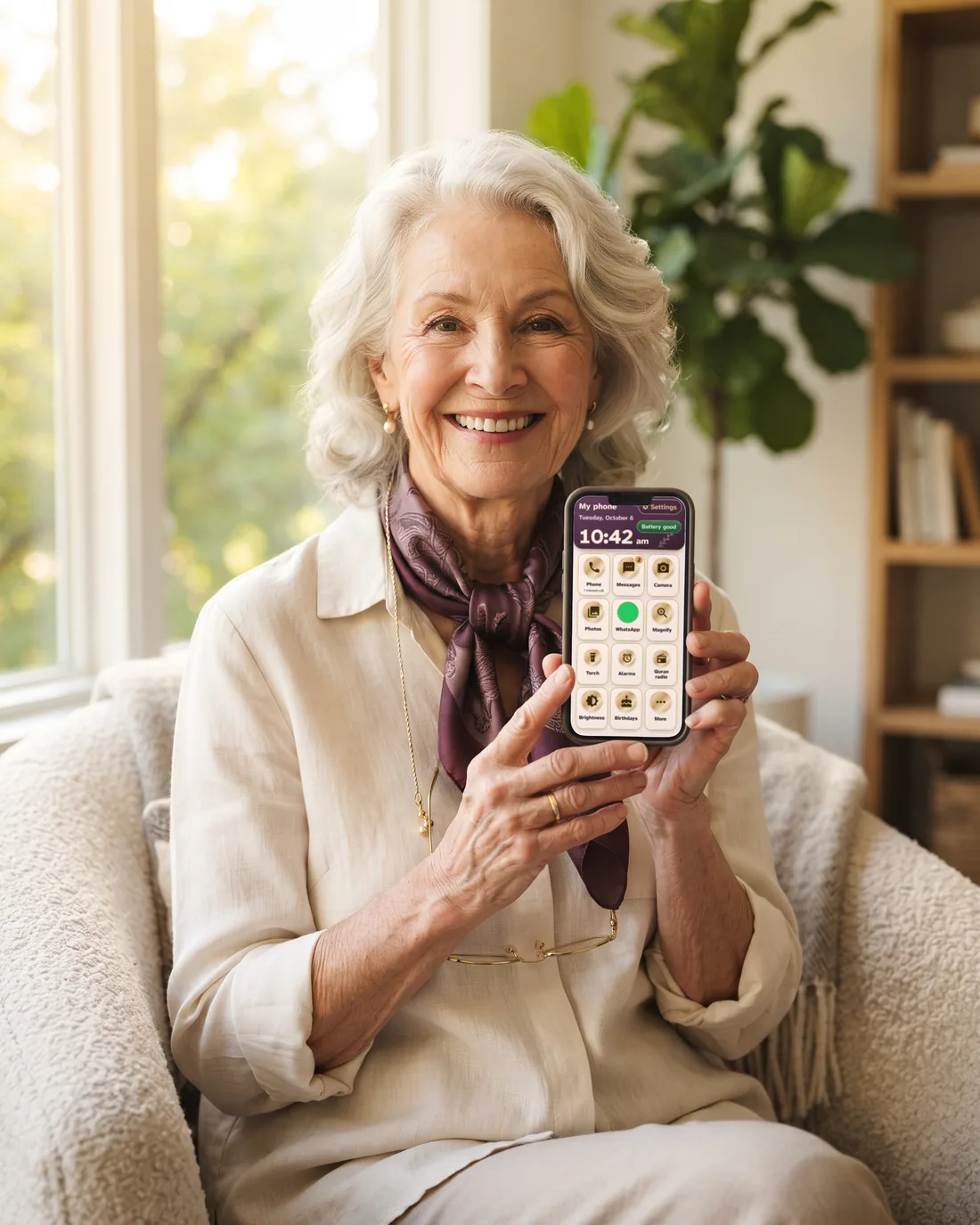
For your parents and grandparents

Your parent’s phone, made simple and safe. You look after it from yours.

Big photos to call, medicines on time and a simple home screen, all set up from your phone.

Download the beta

Beta on Google Play, by invitation

  • Android · English and Arabic · No ads

Everything in one app

Choose the way that fits you

  • One-tap photo calls
  • Set up from your phone
  • Medicine reminders
  • Family photos
  • Scam-call warnings
  • Fall alerts
  • Take me home
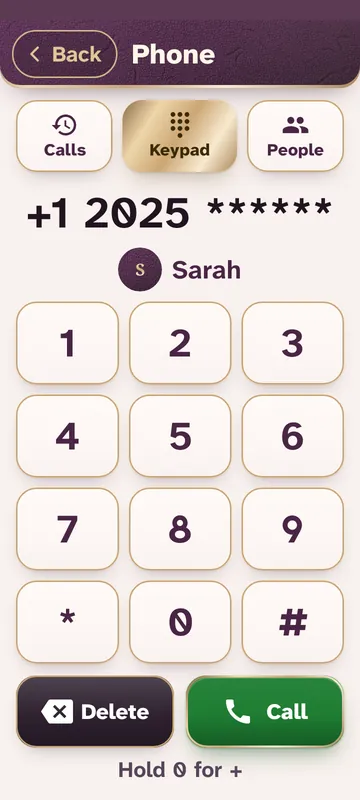
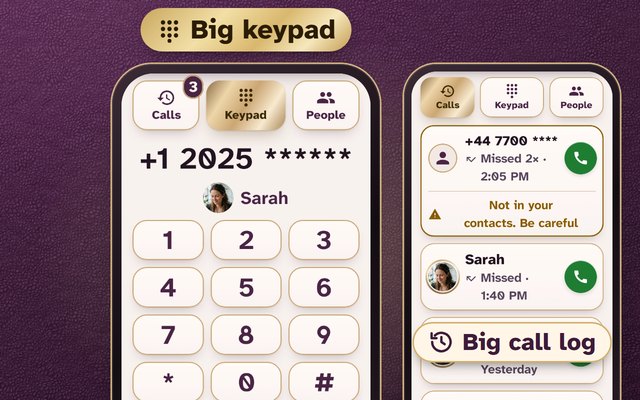
  • Big keypad
  • Family turns sound up
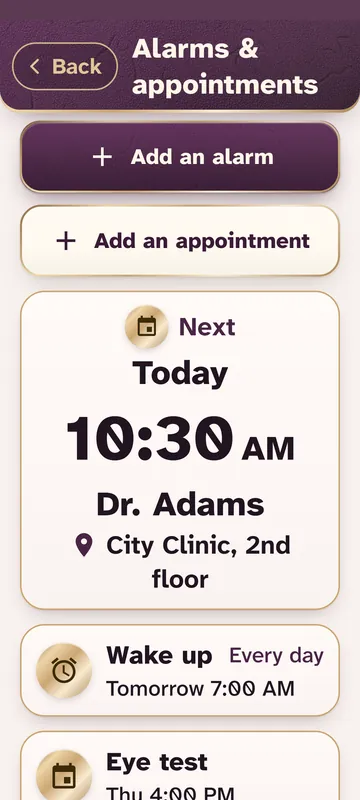
  • Alarms & birthdays
  • One-hold SOS
  • Everyday tools
  • Quran radio

More below: magnifier, voice calls, medical card.

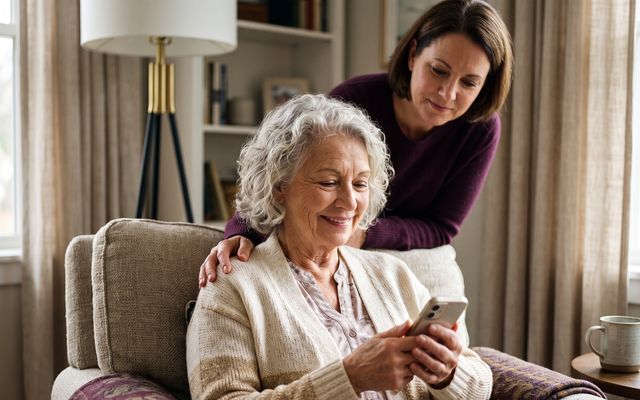
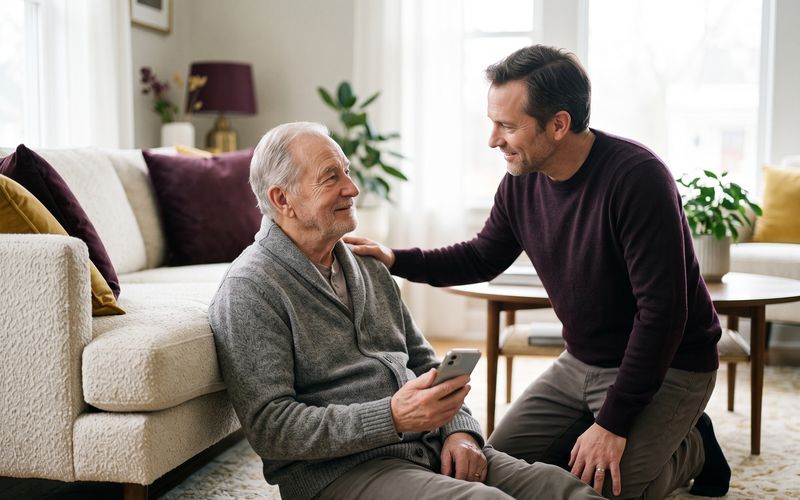
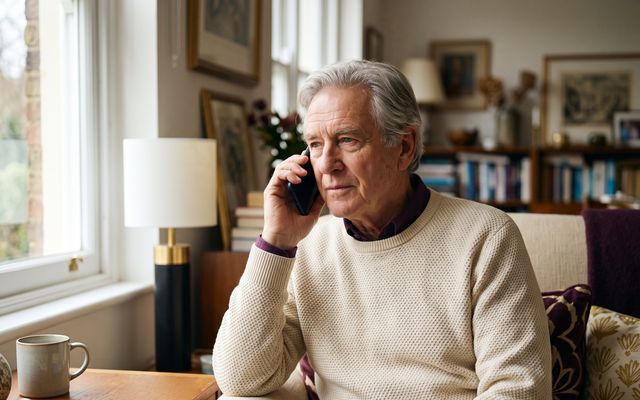
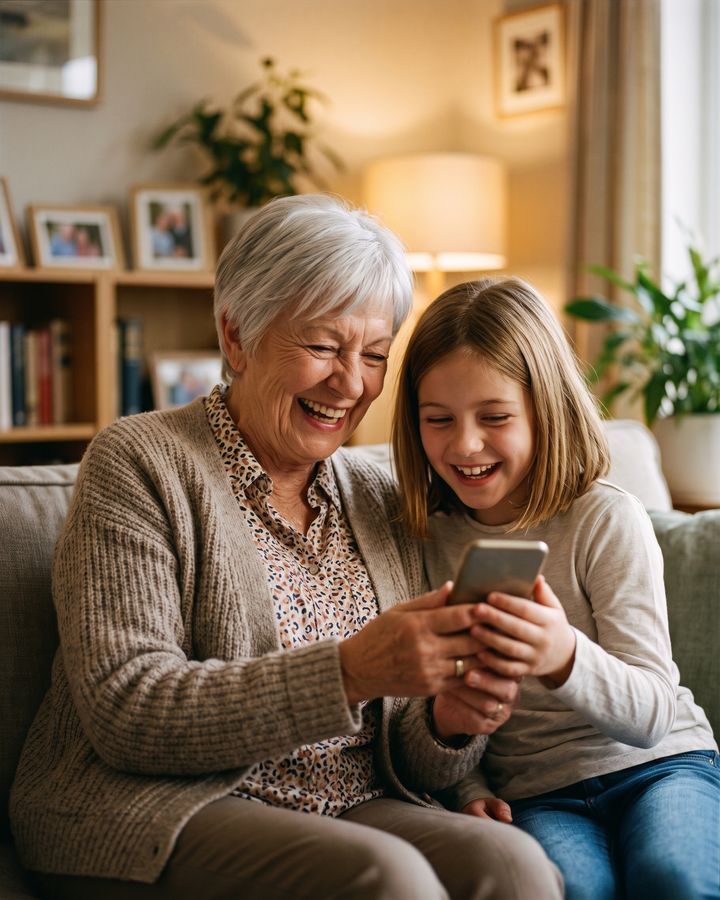
A grandmother smiling at her phone in her armchair at home A father smiling at his phone in his armchair at home A grandfather laughing as he holds up his phone in his armchair A grandmother looking at her phone at her table, with a cup of tea
Medicines on timeScam-call warningsFall alerts…and much more
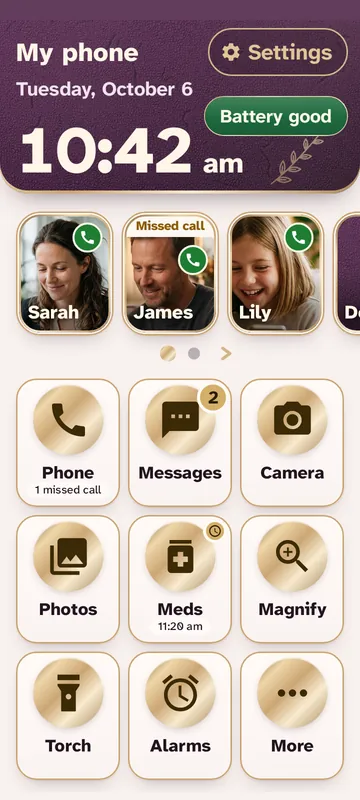
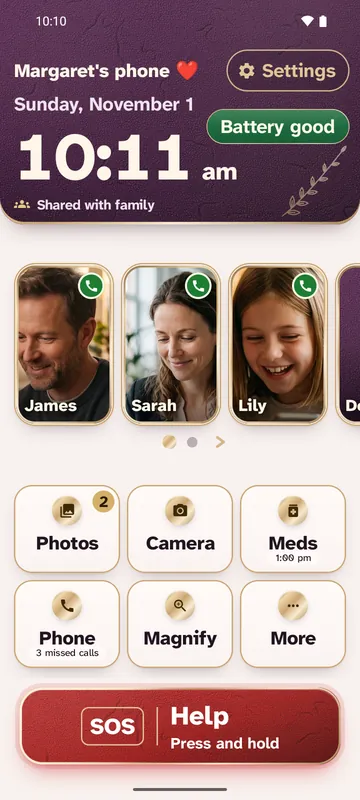
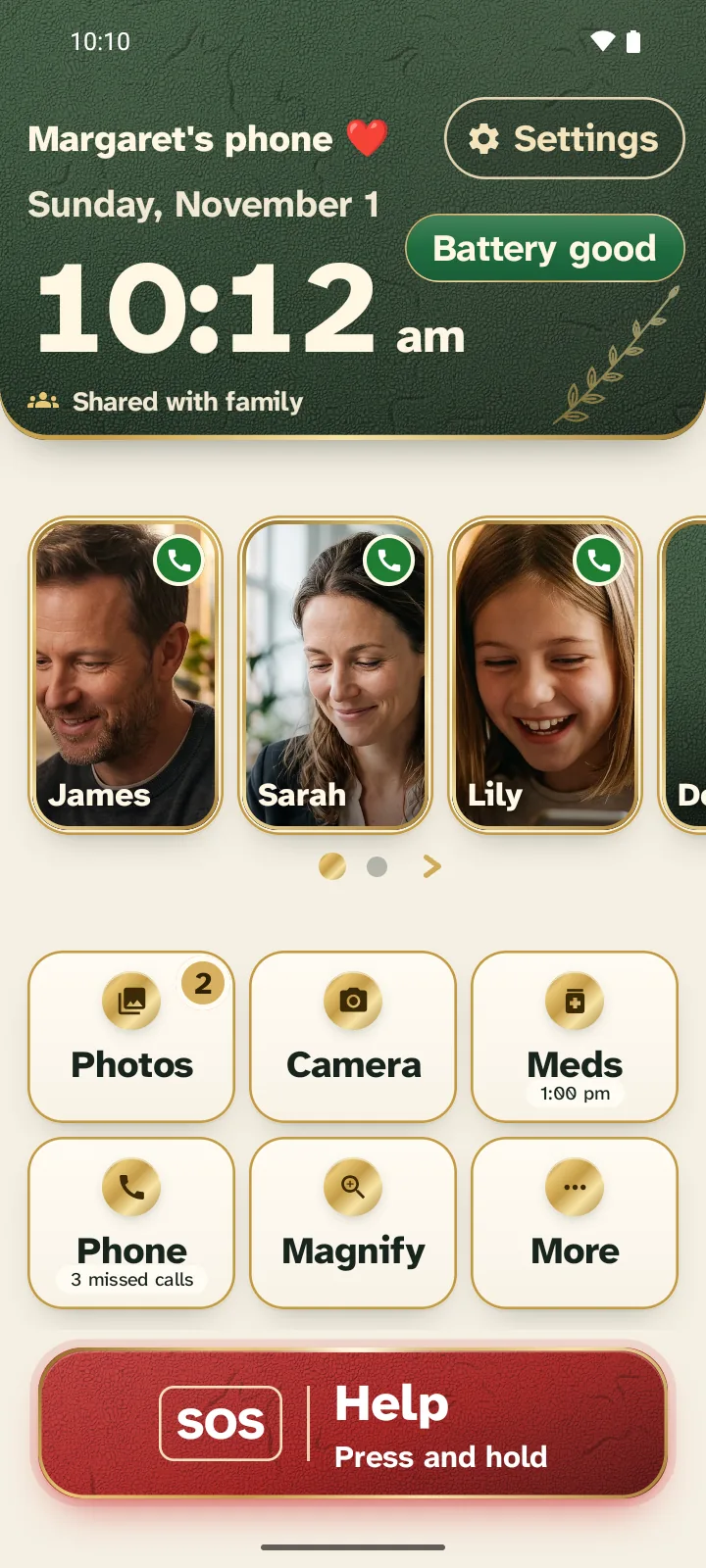
Your parent’s home screen: big photos of the family, Meds, Take me home and the red SOS bar. A finger holds a photo; a green ring fills, counts down and the call starts.
Your parent’s phone

With family

How it works

Two phones. One family.

  1. Install it on your parent’s phone

    It becomes their home screen: big photos of the people they love, and one red bar for help.

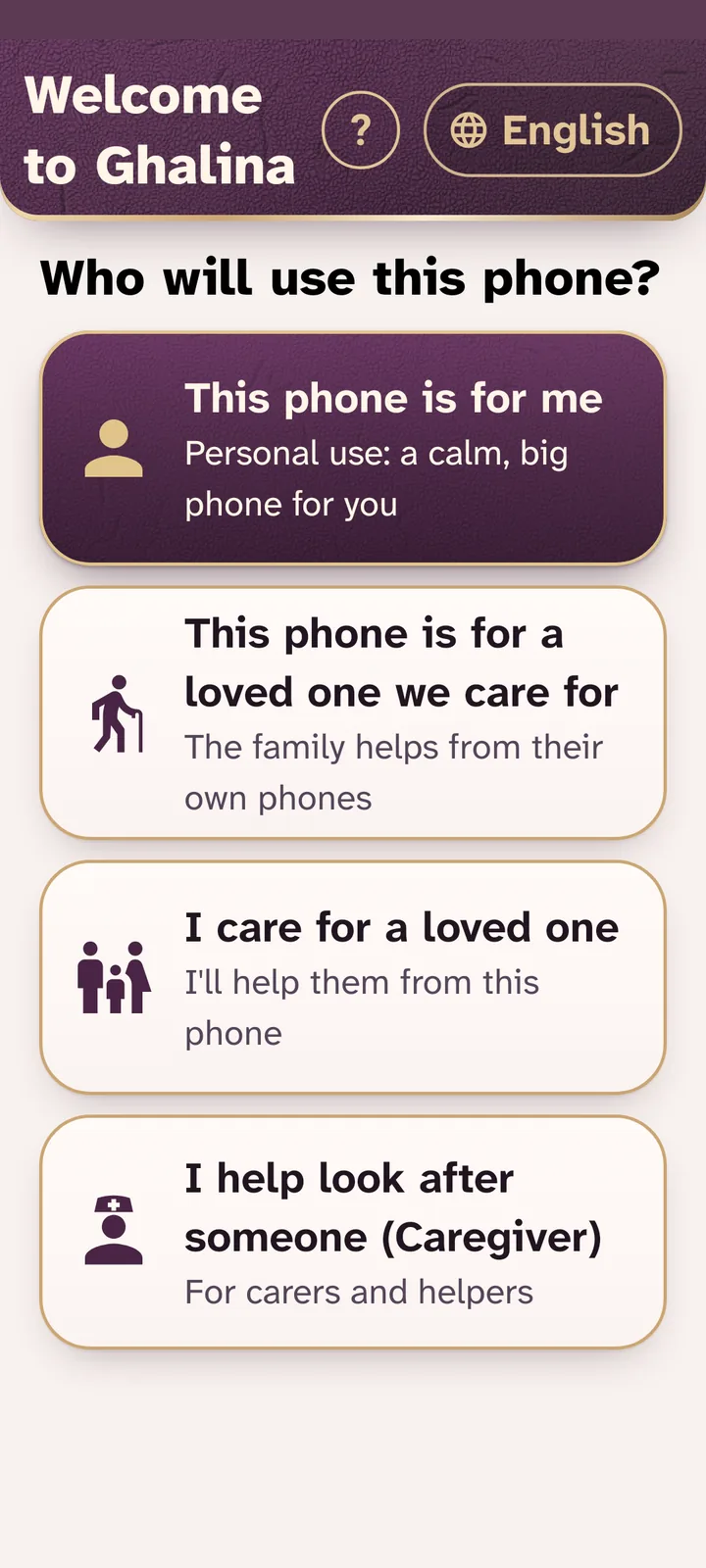
    Ghalina’s first screen: Who will use this phone? This phone is for my parent, This is my phone, or I help look after someone.
  2. Set it up from your phone

    Add people, photos and medicines on your phone. They appear on theirs.

    Your phone: the People on Margaret’s phone page: the Add a person button and the people list, with Lily, the person you just added.

    Your phoneContact added

    Your parent’s home screen: Sarah, James, the Doctor and now Lily, whom you added from your phone.

    Your parent’s phoneLily has appeared

  3. Stay close, from your phone

    See when their phone was last active and its battery level. Help from your phone, and hear from them when it matters.

    Your parent’s page on your phone: Phone OK, seen 2 min ago; OK ✓, last activity 12 min ago; a call button and Manage phone.

Main features

What does Ghalina do for your parent?

Swipe to see more. Each card leads to its section.

Easy to use

A phone they can use from day one

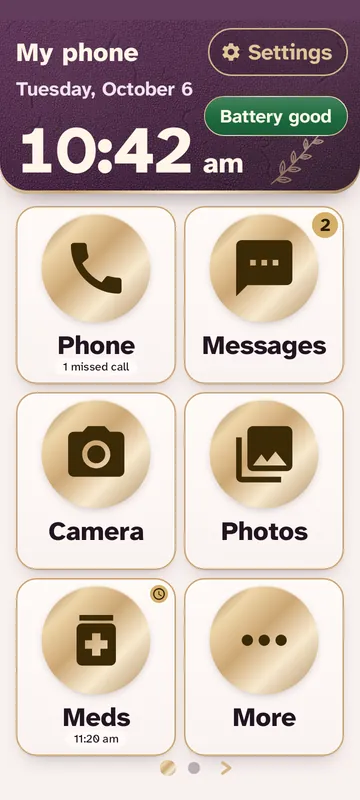
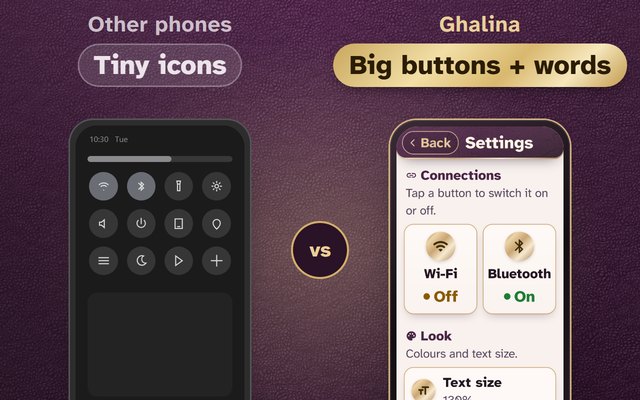
Large text, clear buttons, and nothing new to learn.

Calls by photo

The family appears as big photos. Holding a photo for 3 seconds starts the call, so nothing goes out by mistake, and the people they call most come first.

Need the neighbour or the doctor? They can call anyone saved on the phone, in big letters or by saying the name. It always asks “Call Andrew?” first, and the family never sees those names.

The home screen with big photos of the family, the time in large numbers and the red SOS bar; a swipe turns to the next page of people.

Ghalina stays the home screen

Press Home and they are back in Ghalina. Opened something by mistake? One press brings them back.

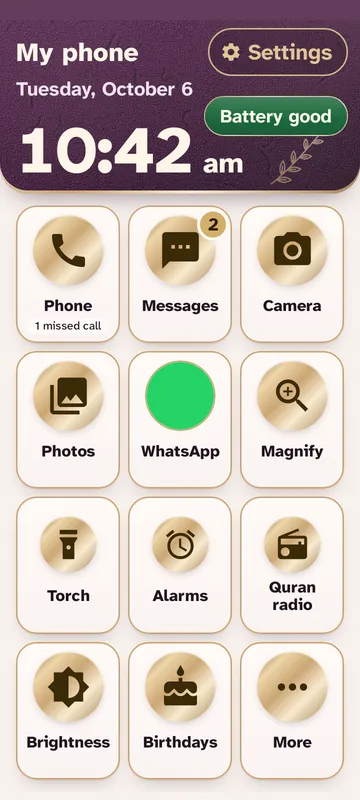
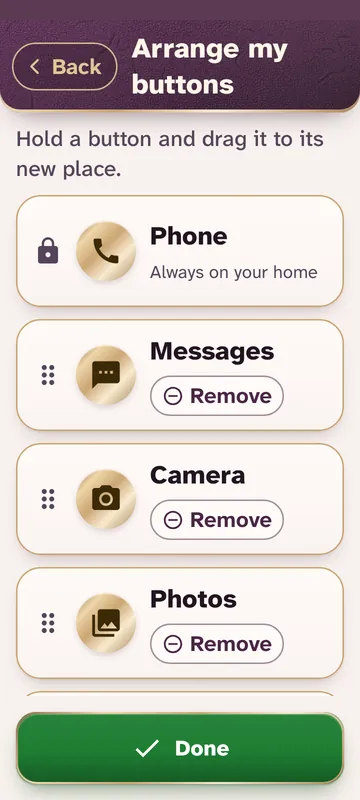
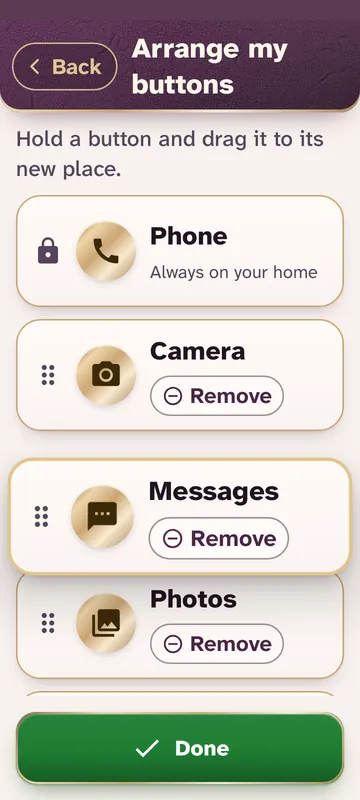
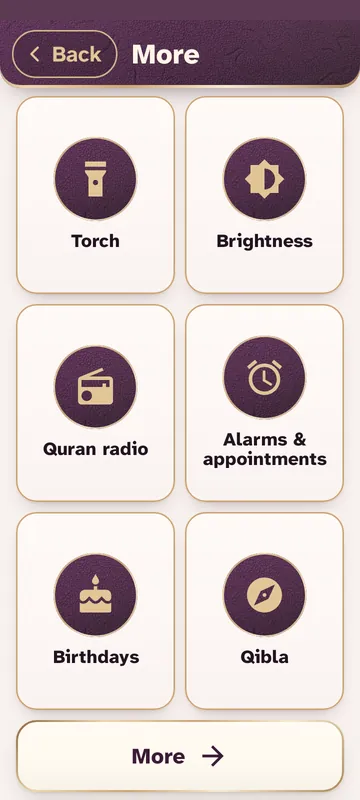
Two buttons you choose never move, with “More” last for everything else. You reorder the family by dragging; your parent can move people with big arrows.

Your parent’s phone: the hand presses Home again and again, and the phone always comes back to Ghalina’s home screen.
A grandmother and her granddaughter laughing together over a phone

Photos from the family

Only the family can send photos to their phone: no strangers, no groups, no forwarded rumours, no scam links. Your parent can change anyone’s photo too.

  • “Sarah sent you a photo.” One tap shows it big, and the Photos button keeps a badge until it is seen.
  • End-to-end encrypted: not even Ghalina can see them.
Your phone: Send Margaret a photo, with the picked photo ready and the Send to Margaret button.
Your phonePhoto sent

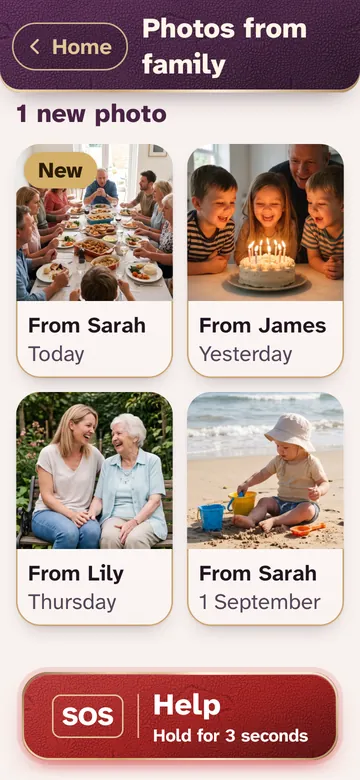
Your parent’s phone: Photos from family, with the new photo from Sarah as the newest.

Your parent’s phoneNew photo

A big call screen

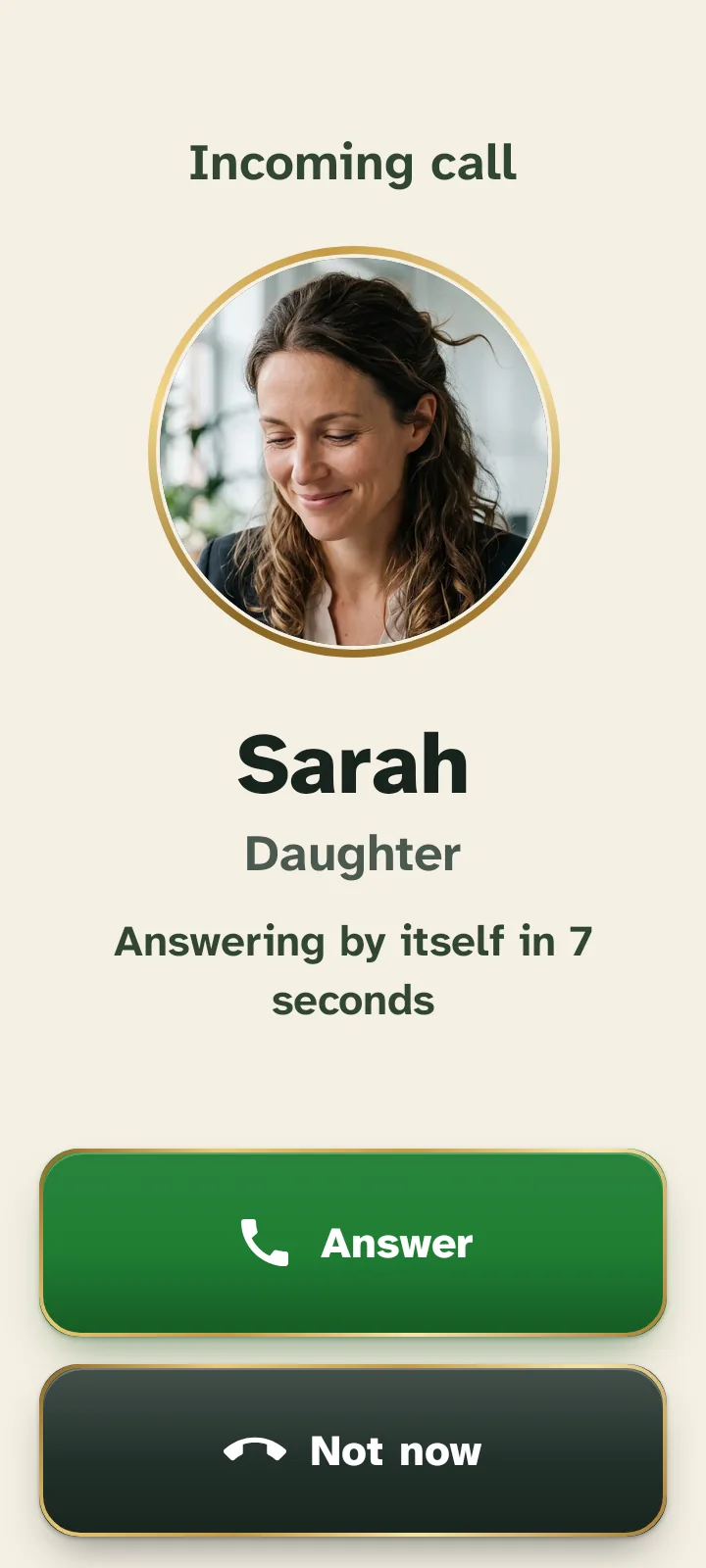
When someone calls, their photo fills the screen with two big buttons: Answer and Not now. Calls from the family ring even when the phone is on silent.

Sarah is calling: her photo fills the screen with her name and Daughter in big letters, and big Answer and Not now buttons.
A man speaking a voice command to his phone

Voice commands

They tap the microphone, say “Call Sarah”, and the phone calls her. On phones that support it, this works without internet too.

Text size and colours

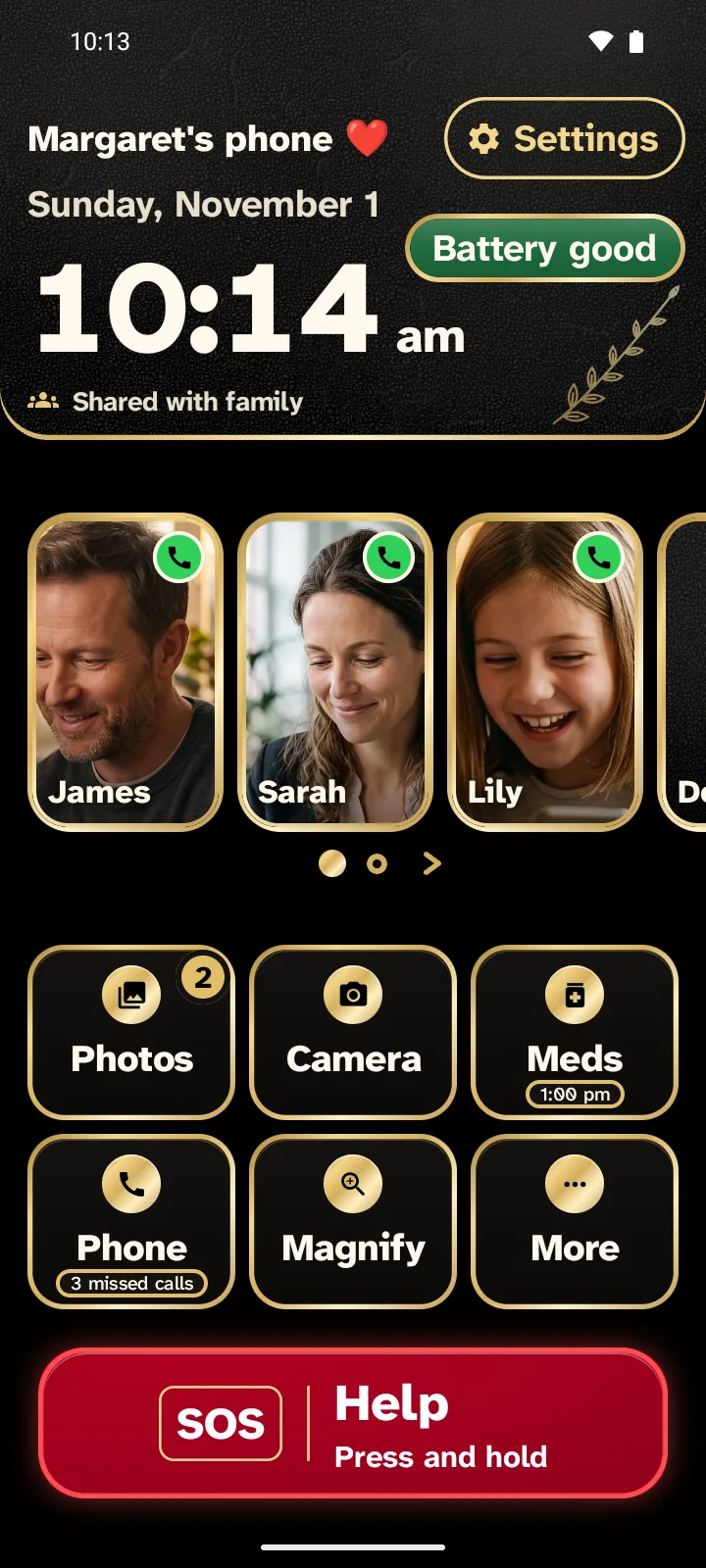
The text can be made bigger and the colours changed, including a black and gold night look that is easy on the eyes.

The home screen in Evergreen and Sunlight.
In the phone’s settings a tap on Evergreen and Sunlight shows a preview, and Use these colours turns the phone green.
The home screen in Night: black and gold.

Magnifier

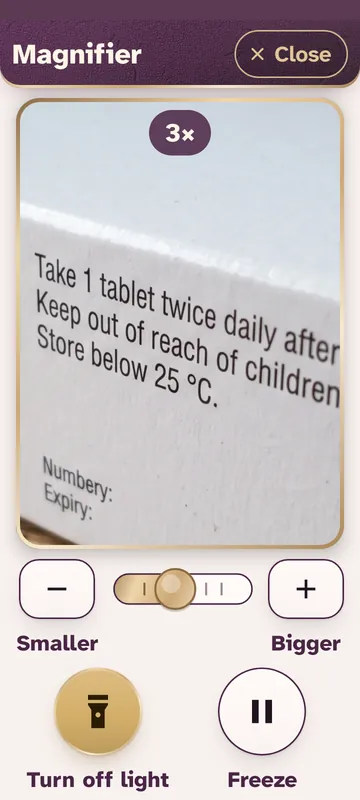
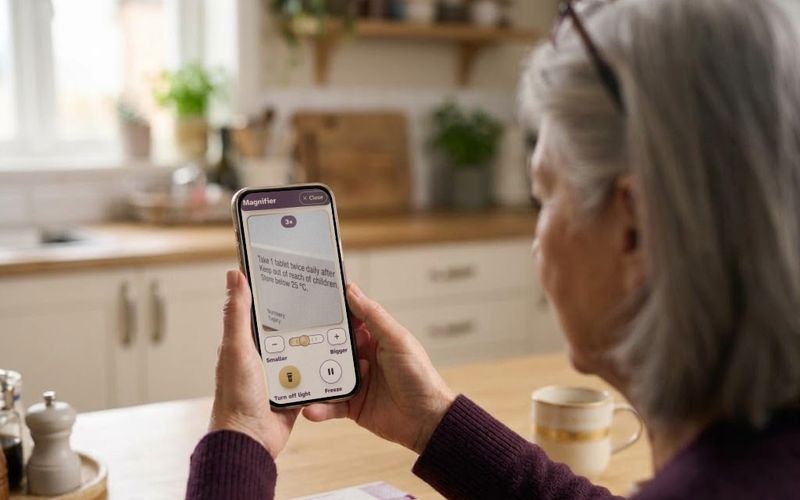
The phone’s camera makes small print big, such as the writing on a medicine box, and the light can be switched on.

Read small print: hold your phone over it.
The Magnifier at 3×: the print on the medicine box is big and easy to read.

Your parent’s phoneLight onBigger

Extra features

Smaller extras that add to the main features.

Show the 1211 extra features
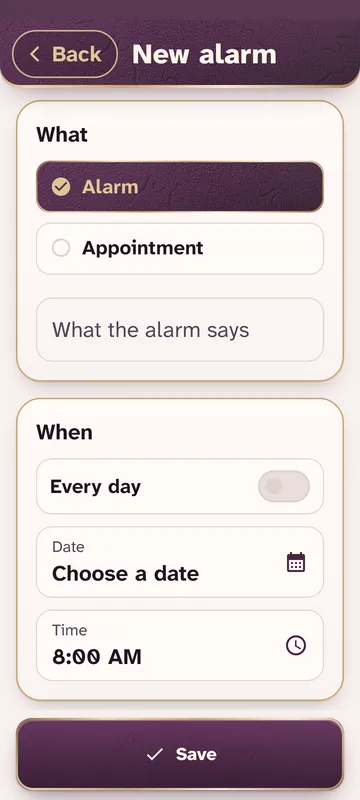
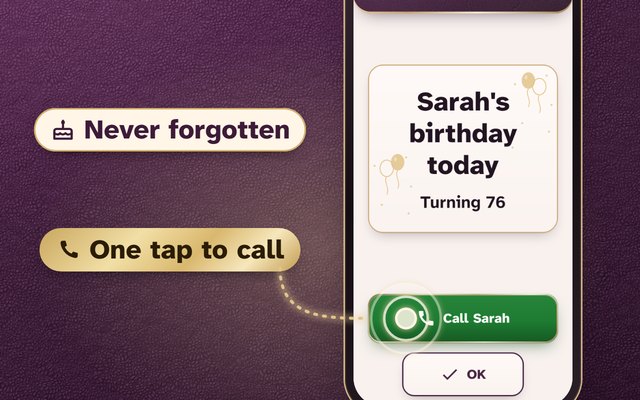
  • Birthdays that repeat by themselves

    Add it once. It comes back every year, with a big alert on the day and a green Call button.

    • Remind on the day, the day before, or both.
    • Add the birth year and it shows the age: “Turning 76”.
    • A big alert with a Call button, not a small notice that is easy to miss.
  • Find the phone with one tap

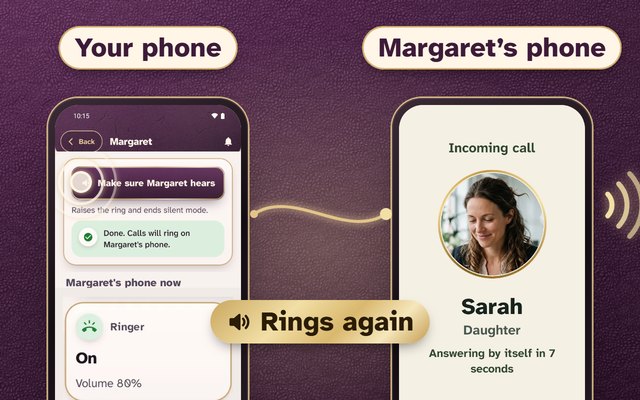
    Ring it from your phone. It rings loud for 60 seconds, even on silent, until your parent taps “I found it”.

    • Free on every plan.
    • It shows over the lock screen, and “I found it” lets you know.
    • A normal phone on silent stays silent when you call it.
  • Quran radio made simple

    Six reciters, one big Play button and a sleep timer of 30 or 60 minutes. It keeps playing with the screen off.

    • Mishary Alafasy, Abdulbasit Abdulsamad, Saad Al-Ghamdi and more.
    • A call or the adhan pauses it, then it carries on by itself.
    • You choose from your phone the station it starts on.
  • Torch in three strengths

    Low, Medium or High where the phone allows it, with one big tap to switch it on or off.

    • The screen says ON or OFF in big letters, so there is no guessing.
    • It turns off when the screen goes off, so it does not drain the battery.
    • Brightness sits next to it: seven steps, never fully dark.
  • Battery at a glance

    A pill on the home screen says Battery good, Charging, Full or Low, in big letters.

    • Below 20% it says “Battery low”; below 10% it turns red.
    • Your phone gets an alert below 20% too (paid plans).
    • No tiny battery icon to squint at.
  • Missed calls you cannot miss

    A “Missed call” ribbon sits on the person’s photo. One tap shows the time.

    • The Phone button shows “2 missed calls”, strangers too.
    • A note says “Missed call from Sarah – tap to call back”.
    • No call log to dig through.
  • A sound panel in plain words

    Ringer, notifications, calls and media, alarm: Off, Low, Medium or High, with a Test sound button.
    • The phone’s own volume keys open it, big, instead of a thin slider.
    • One big Silent button, and Sound on brings it back.
    • Family calls still ring on silent, at least as loud as you set.
  • Text back to normal in one tap

    Text too big or too small? One tap puts it back to the normal size.

    • Text size from 85% to 160%, with Smaller and Bigger.
    • Six colour themes, including Night: black and gold.
    • No PIN is needed on their phone for any of this.
  • A short name they know

    Give each person a name like “Sarah” or “Abu Ahmed”. It shows big under the photo, and calls keep the full name.

    • Up to 20 letters, the same size on every card.
    • Hold the photo for 3 seconds: the name is spoken, then it calls.
    • No scrolling through long contact names.
  • The name your family uses

    Nana, or whatever your family says: their phone shows the name your family calls them, and each of you can pick your own.

    • Pick Mother, Father, Grandma or Grandpa, or type your own.
    • The medical card for paramedics still shows the full name.
  • New phone, nothing lost

    A family admin moves contacts, photos, medicines and settings to the new phone with one QR code.

    • Family members, the plan and the free trial move too.
    • The old phone loses access at once.
    • No backup to set up, nothing to type again.
  • Photos read aloud

    Photos arrive big with your name, and the caption can be read aloud.

    • Only family can send them: no strangers, groups or scam links.
    • End-to-end encrypted: not even Ghalina can see them.
    • You see “Seen ✓” once they open it.
A woman at her office desk smiling at a message on her phone

If they need help, your phone rings first.

Loud like an alarm, with where their phone is and its battery. Tap “I’m on it” and they see that help is coming.

Your parent’s phone after an SOS: Your family has been told, then Sarah is on the way to help, Sarah will call you now.
Your parent’s phone
A woman at her office desk smiling at a message on her phone
A grandmother and her granddaughter laughing together over a phone
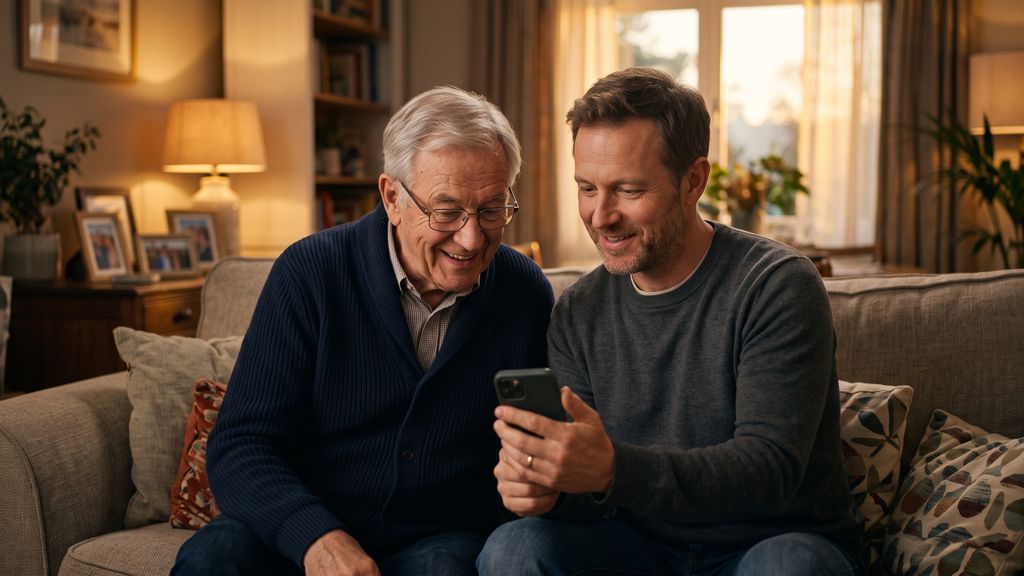
A father and his grown-up son looking at a phone together on the sofa

GhalinaClose, wherever you are.

Safety

Safe at home, and when they go out

An older woman holding the red SOS button on her phone
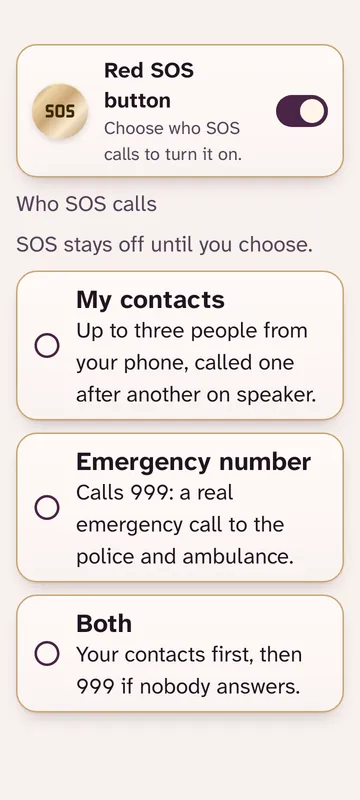
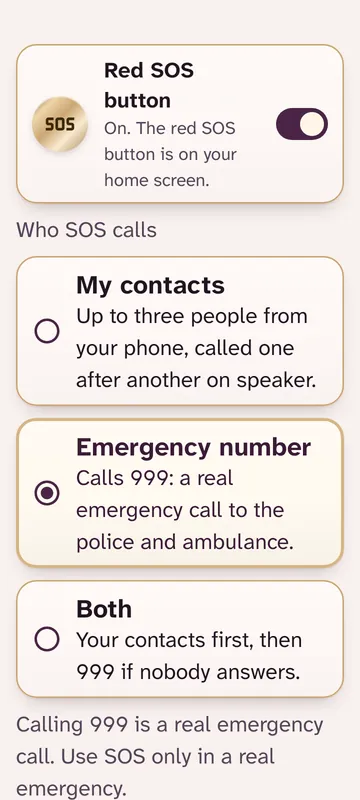
SOS1 hold1 hold of the red bar alerts the whole family.

The SOS button

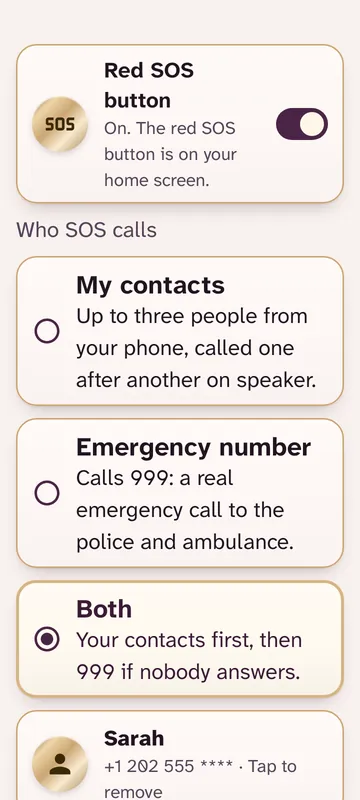
If nobody answers within a minute, the phone calls you one by one. It works from the lock screen too, without unlocking.

A small red SOS button can float over WhatsApp, YouTube and other apps, so help is one hold away anywhere. During videos it stays low at the edge, and it can be switched off.

Sarah James Lily
More details

A quick touch never raises an alarm, and the family can set the hold from 2 to 5 seconds.

No location in the alert? Tap “Ask for the location”. Their phone offers “Share once” or “Don’t share”; if they share, the map opens for everyone who got the alert. If the phone can’t find its position, you still see when it is at home, inside the safe zone. This works with or without a plan.

Your parent’s phone after an SOS: “Sarah is on the way to help”.

Your parent’s phoneAlert sent

Your phone: the SOS alarm, “Margaret needs help”, with where she is and the button “I’m on it”.

Your phone (Sarah)Sarah is on it

  1. Your parent holds the red bar for 3 seconds
  2. 5 seconds to cancel if it was a mistake
  3. The alert and the location go to the family
  4. Sarah taps “I’m on it”
  5. Your parent sees “Sarah is on the way to help”
  1. An older man resting on the rug after a slip, his son kneeling beside him, calm

    Fall detection

    Ghalina can tell a real fall from a dropped phone. After a fall the phone asks “Are you OK?”, and if your parent does not answer within 30 seconds, the family gets an alert with the location.

    Your parent’s phone after the fall check: Your family has been told, alert sent, waiting for an answer.

    Your parent’s phoneNo answer in 30 seconds

    Your phone: Fall alert, Margaret may have fallen, with where she is, I’m on it, Call Margaret, Open map and Remind me in 2 minutes.

    Your phoneMargaret may have fallen, with her location

    More details

    Ghalina looks for three signs in a row: the fall, a hard landing, then stillness. A phone that slips off a table and lies flat is not counted as a fall. Fall detection stays off until you switch it on.

  2. An older woman on a phone call, careful, with a red scam warning glow

    Scam-call warnings

    If a code arrives by text during a call from an unknown number, a red warning tells your parent not to read it out, and if the call goes on, you get a heads-up.

    Your parent’s phone in a call from an unknown number: Never share a code from a message, banks never ask. When a code arrives it turns red: A code just arrived, do NOT read it to the caller.

    Your parent’s phoneA code arrives during the callAnyDesk is installed

    Your phone: Alerts, Heads-up about Margaret’s call: AnyDesk was installed on Margaret’s phone during a call from an unknown number that is still going; Call Margaret; and below it the earlier heads-up about a code.

    Your phoneHeads-up about Margaret’s callAnyDesk installed: call Margaret now

    You also hear when a new app lands on their phone, above all the remote-control apps scammers ask for (AnyDesk, TeamViewer QuickSupport and the like).

    You get the name of every new app, and it stays hidden on their phone until you allow it. For a remote-control app the warning is stronger and asks you to call your parent now.

    More details

    When an unknown number calls, the call screen says “Never give anyone a code or PIN”. If an app is installed during a call of 3 minutes or more from an unknown number, or within 10 minutes after it, you also get a gentle heads-up. The heads-up carries neither the number nor the code. Ghalina warns and tells you, and it never blocks a call or a code.

    • The check of code messages is optional: the family turns it on with the family PIN, and during such a call it reads only the notifications of the phone’s messages app.
    • Ghalina can pause this check from afar if needed. The settings then say “Paused by Ghalina”, and the long-call and new-app heads-ups keep working.
  3. A father walking home along his street, checking his phone

    Take me home

    One tap opens the way home in Google Maps, with a big button to call the family.

    Your parent’s phone after Take me home: Let’s go home, Walking or By car, Call Sarah, and “Your family has been told”.

    Your parent’s phoneYour family has been told

    Your phone: Alerts, Margaret asked for directions home, the phone shared where it is, with Call Margaret, Open map and I’m on it.

    Your phoneMargaret asked for directions home

    More details
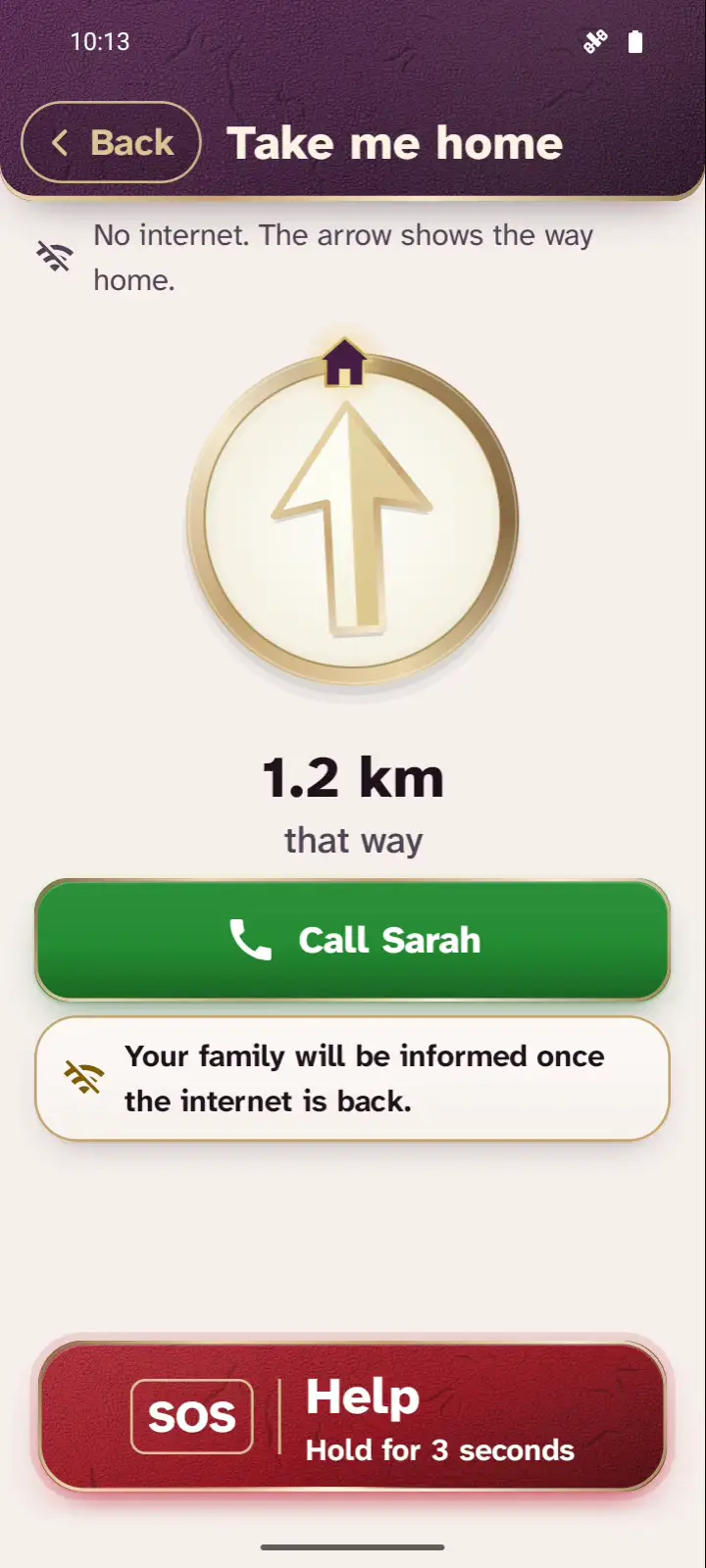
    • Without internet, or if the map does not open, a very big arrow points home and shows how far it is, such as “Home is 1.2 km that way”. The phone works out the direction by itself.
    • Opening Take me home sends nothing by itself. Your parent can press “Tell my family: I may need help, I’m going home”, and you get where they are, kept for 24 hours. Or switch on “Always tell me when Margaret asks for directions home” in your app; their phone then shows by name who is told. “Your family has been told” appears only once it has really arrived.
  4. An older man on a morning walk near his home

    Safe zone

    You set an area around home, and if the phone leaves it you get an alert without the location. If you want to know where your parent is, your parent is asked first, and the place is sent once only if they agree.

    Your parent’s phone: the home screen, Tuesday morning, 10:42 AM.

    Your parent’s phoneLeaves the safe zone, 10:42 AM

    Your phone: Alerts, Left the safe zone, Today 10:42 AM, Home. No location is shared; Ask where Margaret is, I’m on it, Resolved.

    Your phoneMargaret left the safe zone, 10:42 AMNo location is shared

    More details
    • You choose the area and its size. When the phone leaves it, you get a message with the time, and another when it is back.
    • The message never holds the location: no map, no coordinates, nothing stored.
    • Tap “Ask where they are” and their phone asks calmly, full screen. Nothing is sent unless they choose “Share once”.
    • If there is no answer within 10 minutes, nothing is shared and you can call them. A location shared once is deleted after 24 hours.
    • Between alerts you only see whether the phone is inside or outside the safe zone.
    • For the safe zone only, their phone asks once to allow location “all the time”, to check the border on the phone itself.
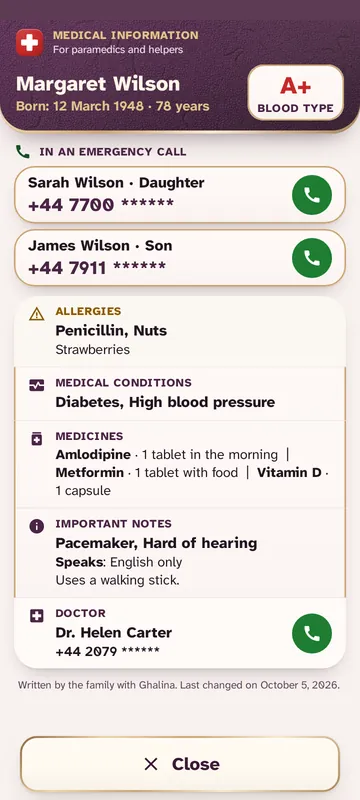
  5. Over the lock screen, your parent’s medical information: allergy to penicillin, high blood pressure, their medicines, blood type A+, their doctor’s number and the family to call, with Close; it opens from the lock-screen notice Medical info for emergencies: tap to read.
    A paramedic reading an older man’s medical card on his phone’s lock screen

    Medical info on the lock screen

    If you turn on the medical card, whoever helps your parent in an emergency can read their allergies, medicines and blood type without unlocking the phone. While it is on, anyone holding the phone can read it.

    More details

    You write the details and switch the card on, and it works without internet. The allergies, blood type and conditions travel end-to-end encrypted, so not even Ghalina can see them. The card is separate from Android’s own emergency information.

Ghalina is not a medical device and does not replace emergency services. It may not detect every fall, and reminders may not show in every situation.

Without internet

No internet? The important things still work.

An older man on a quiet road, his phone showing a big arrow
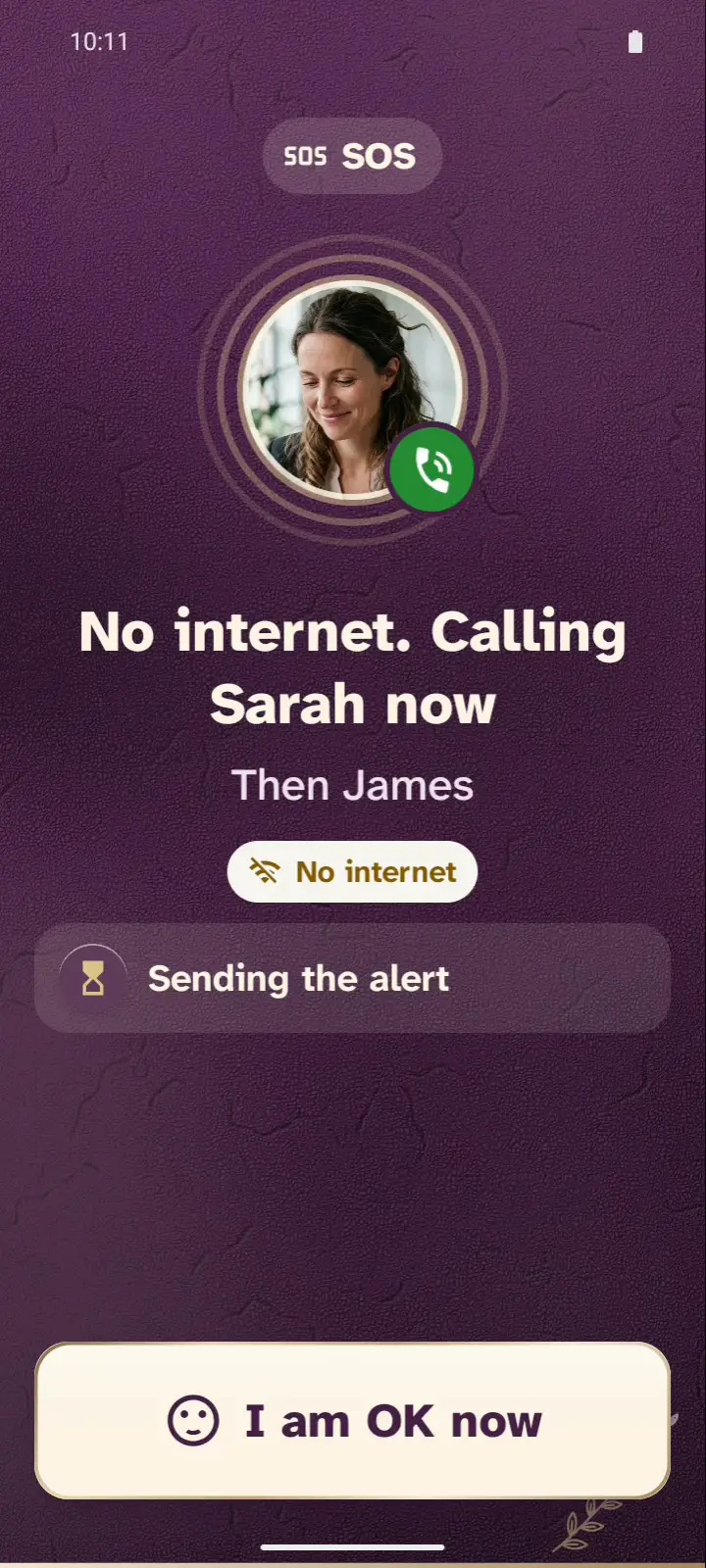
Without internet, your parent’s phone shows: No internet. Calling Sarah now
SOS
Without internet, your parent taps Take me home: No internet: the arrow shows the way home, a very big arrow, Home is 1.2 km that way, Walk where the arrow points, and a big Call Sarah button.
Take me home
  • The SOS button

    The phone calls the family at once with ordinary phone calls, one after another, and the alert with the location reaches your app when the internet is back.

  • Take me home

    The big arrow still points home.

  • Medicine reminders

    Reminders show on time with the pill photo, and “I took it” is sent to you later.

  • Everyday calls

    Calls by photo work as on any other day.

More details

When the internet drops, a calm note at the top of the home screen says “No internet. Calls and SOS calls still work”. If it drops while your parent is out, the phone offers once to turn on mobile data, and one tap opens Android’s own switch. SOS calls need a SIM card and mobile signal, not internet.

These work without internet too:

  • Contacts and the photos already on the phone
  • The magnifier
  • The medical card on the lock screen
  • Voice commands, on phones that support it

Medicines

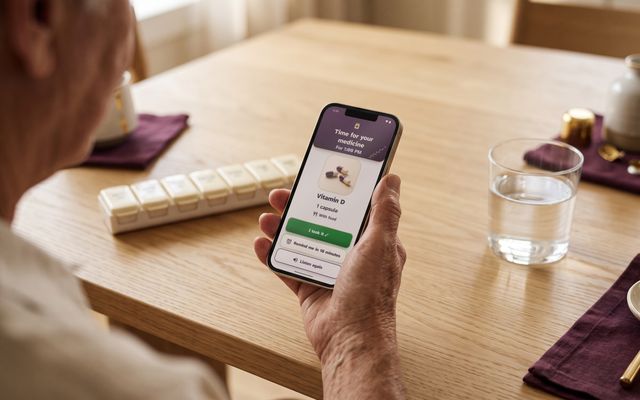
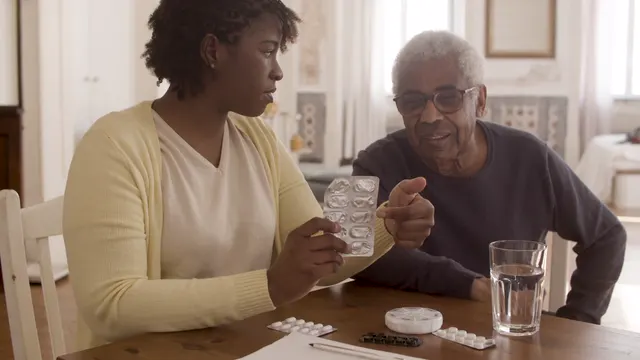
Medicine reminders with a photo of the pill

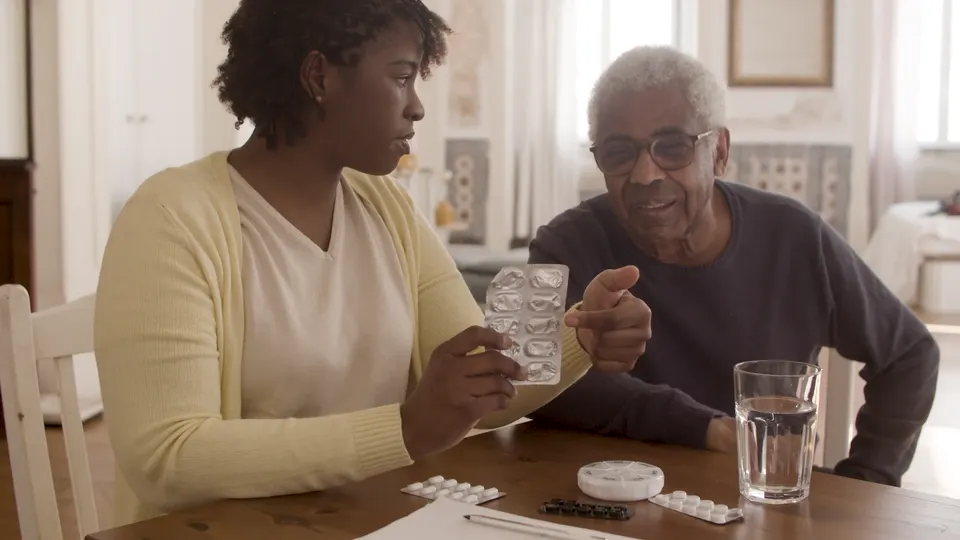
Snap each medicine with your phone, and your parent knows it by sight, no label to read.

Your phone: today’s medicines, with Vitamin D “Taken 1:02 PM”.

Your phoneVoice reminder savedVitamin D taken, 1:02 PMMissed dose: Vitamin D, 1:00 PM

Your parent’s phone after the reminder: today’s medicines, Vitamin D taken at 1:02 PM.

Your parent’s phoneVitamin D, 1:00 PMI took it ✓No one tapped “I took it”

  • Reminders in your voice

    Record a short message, and your parent hears it with the reminder.

  • Missed-dose alerts

    If your parent does not tap “I took it” in time, you get an alert.

  • Before it runs out

    You get a reminder before the box is empty.

  • A weekly report

    Every Friday evening you get a summary of the doses taken and missed.

More details

You add each medicine from your phone with the pill photo, the dose and whether it goes with food. A voice message lasts up to 15 seconds and is end-to-end encrypted.

The weekly report arrives at 6 PM in your time zone.

  • It covers the last 7 days: how many doses were taken out of all those due, with the percentage.
  • It lists each missed dose with the medicine’s name and time.
  • Each of you can switch it on or off in your alert settings. A home helper or nurse never gets it.
  • The medicine history on your phone shows the last 7 or 30 days by medicine and by day, including doses taken late, and you can share the weekly report.
A father and his grown-up son looking at a phone together on the sofa
Your parent’s page on your phone: Phone OK, seen 2 min ago; OK ✓, last activity 12 min ago; a call button and Manage phone (Home Screen, Contacts, Medicines, Safety, Send photo, Family members); a scroll shows the phone now: battery 76%, ringer on, Wi-Fi.
Your phone

For the whole family

What the family does from their phones

Invite your brothers and sisters with a link, and look after your parent together.

A daughter and two sons in three different places, each looking at their phone
  • See at a glance that your parent is OK

    When you open the app, you see the last activity on their phone, such as a call or a medicine taken, and “OK ✓” when it is recent. It never shows where they are.

    Your phone: your parent’s page, Phone OK, seen just now, Margaret is OK ✓, last activity just now (a call).

    Your phoneLast activity: 12 min agoMargaret is OK ✓ · just now

    Your parent’s phone: a call with Sarah, the timer running, Speaker on, Volume 4 of 6 and Hang up.

    Your parent’s phoneA call with Sarah

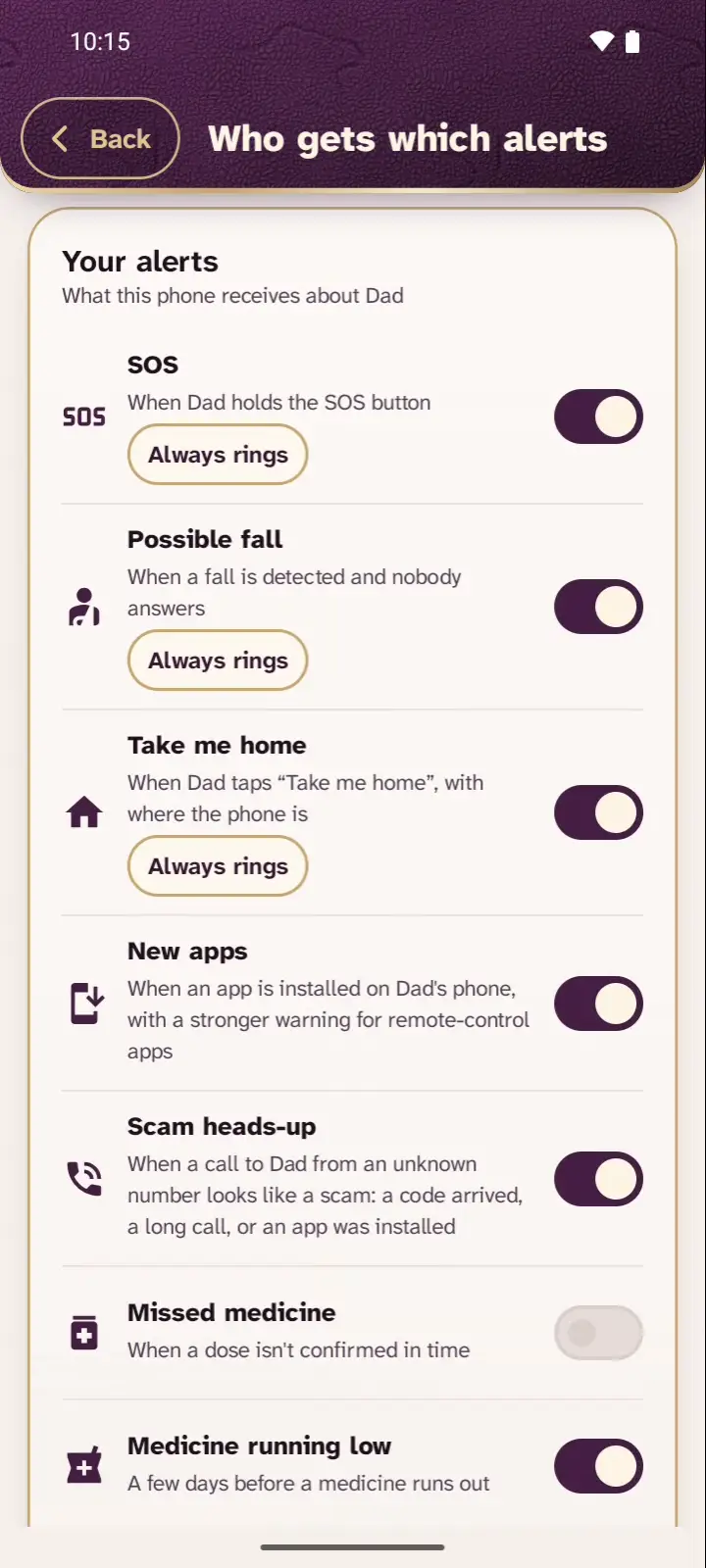
  • Each of you chooses your alerts

    For example, one sister follows the medicines and a brother the falls. SOS and fall alerts always stay on for at least one of you.

    More details

    Each of you can also set quiet hours, when the alerts that can wait are held back. SOS and fall alerts are never held back.

    Your phone’s alert settings: two alert types switched off, quiet hours set, and SOS and falls still on.
  • SOS rings out loud, even on silent or Do Not Disturb

    An SOS or fall alarm rings on your phone like an alarm clock, even on silent, vibrate or, once you allow it, Do Not Disturb. It starts gently and gets loud until someone responds. Nothing else from Ghalina gets through. Free for SOS alerts.

  • Know when their phone needs attention

    You get an alert if the battery is low, the phone is put on silent, or it has been offline for 3 hours.

    Battery good, 82%Battery low, 18%, chargingBattery very low, 6%

    Your elder’s phone with the battery at 18%: the home screen shows “Battery low”.

    Your parent’s phoneBattery at 18%

    Your phone: Alerts, Battery low, Battery 18%, with I’m on it and Resolved.

    Your phoneMargaret’s phone battery is low, 18%

  • Undo your parent’s changes in one tap

    If your parent changes the text size, the colours, the language, their home or the prayer settings by mistake, you see what changed and bring your own setup back in one tap. Their phone tells them gently. Free.

  • Cancel an invite

    Sent an invite to the wrong person, or changed your mind? Cancel it from your phone and the code stops working.

Add a home helper or nurse

Her simple version of the app

The helper uses a simple version of the app that shows today’s medicines. When she gives one, she taps “Given ✓”, and you see “Given by Maria” on your phone.

The helper never sees the family’s photos, the location or the phone’s settings. She can call your parent and the family, and any of you can remove her.

The helper’s phone: Margaret’s medicines today, Vitamin D 1:00 PM, Given at 1:02 PM, by you.

The helper’s phoneGiven ✓

Your phone: the medicines page, Vitamin D “Given by Maria 1:02 PM”.

Your phoneGiven by Maria

How she joins

  1. You send her an invitation from your phone.

  2. She installs Ghalina on her phone and chooses “I help look after someone”.

  3. Your parent’s phone asks “Is Maria your home helper or nurse?”, and she joins only after a yes.

For Muslim families, if you want them

Prayer times and medicine times in Ramadan

Optional and off by default: switch on “Muslim family features” in settings with one tap, and off again any time.

  • A suhoor wake-up in your voice

    On Ramadan days your parent’s phone rings before Fajr like an alarm clock, even on silent, with a short message in your voice or a soft chime. You see on your phone when they woke up.

    Your phone: Margaret’s page, Margaret woke up for suhoor at 4:51 AM.

    Your phoneYour voice message is readyMargaret is up for suhoor, 4:51 AM

    Your parent’s phone before Fajr: Suhoor time, a message from Sarah, 45 minutes until Fajr, and the big button I’m up.

    Your parent’s phoneRings before FajrI’m up ✓

  • Ramadan times for their medicines

    Ghalina suggests a time for each medicine at suhoor, at iftar or between them, depending on how it is taken with food. You can change any time from your phone.

    Please check with their doctor. Ghalina gives reminders and does not give medical advice.

    Your phone: Ramadan times, Blood pressure at suhoor 4:52 AM and at iftar 6:21 PM, “Changed here”.

    Your phoneBlood pressure: suhoor 4:52 AM

    Your parent’s phone: Ramadan times, Blood pressure, Suhoor 4:52 AM, at suhoor before eating, and Iftar 6:21 PM.

    Your parent’s phoneSuhoor 5:07 AMTimes updated

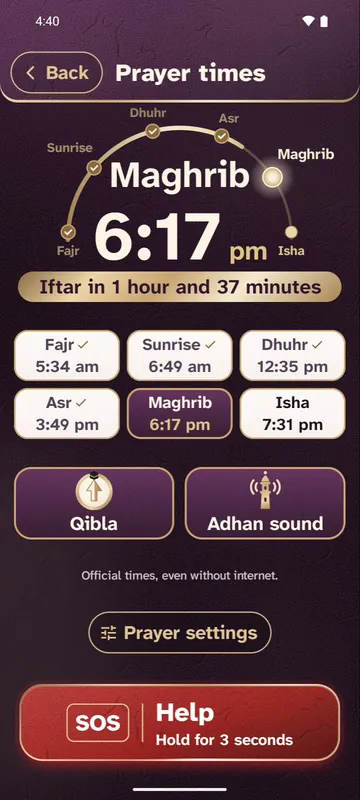
  • Prayer times and the qibla

    Prayer times in large type on the home screen, the adhan at the prayers you choose, and an arrow to the qibla. Gentle reminders before the prayer and after the adhan, if you want them. If a time looks off, your parent can correct it, and you can see and undo the change.

    The times follow the official method in Arab countries and several other countries.

    Prayer times on your parent’s phone: a gold sun path over the day with the next prayer, Maghrib, big in the middle at 6:17 pm, Iftar in 1 hour and 37 minutes, today’s prayers and sunrise as large tiles, official times even without internet; then Qibla, a big arrow: Qibla is this way, Makkah is 1,633 km away.
    Your parent’s phone
More details

The suhoor wake-up:

  • It rings 45 minutes before Fajr; the family can choose between 15 and 90 minutes.
  • It can be snoozed for 10 minutes, twice at most.
  • When several of you record a message, your parent hears a different voice each day.

Prayer times and the adhan:

  • The family can choose another calculation method, or move a prayer by a few minutes to match the local mosque.
  • The adhan is off until you choose it: at every prayer, or only at the prayers you pick. Your parent can choose its voice.
  • The reminder before the prayer is off until you turn it on: 10, 15, 20 or 30 minutes before, a soft chime or a chime with a short spoken line, for every prayer or only the ones you pick.
  • The reminder after the adhan is off until you turn it on: 5, 10, 15 or 20 minutes after the prayer time, also when the adhan is off. Both reminders can be on together.
  • The reminder appears as a calm card that never covers the SOS button.

  • Your parent has their own prayer settings, with no PIN: the adhan, its voice, the reminders, and a minute earlier or later for each prayer time.
  • Anything changed on their phone shows “Changed on Margaret’s phone” with Undo, and “Reset prayer settings” puts everything back in one tap.
  • The adhan never plays during a call or an SOS, and the reminder waits until the call ends.

The qibla:

  • It is accurate even around the Haram in Makkah, because the direction and the distance are worked out to the exact coordinates of the Kaaba itself, not to the city of Makkah.
  • Near the Haram the distance shows in metres, and at the Kaaba itself the app says “You are at the Kaaba”.
  • The arrow turns smoothly, without jitter.

Privacy

A safety net, not a tracker

Ghalina works on your parent’s phone only after they say yes, once they have seen what the family will see. Their home screen always shows “Shared with your family” with your names; one tap shows who sees what, and how to stop.

An older woman reading her phone calmly in her garden
Your parent’s phone asks: Sarah wants to look after this phone. Is she family? With Yes, allow and No.
Your parent’s phone
  • Only your family sees your photos and voice messages

    All photos and voice recordings shared between phones that use Ghalina are end-to-end encrypted. Nobody outside your family can see or hear them, not even the Ghalina team.

  • Location and medicines are kept safe

    The location, the medicine list and the alerts are kept safe, and only your family can see them through Ghalina. They are not end-to-end encrypted.

  • The location only when it is needed

    The family gets the phone’s location after an SOS or a fall, or when your parent asks for the way home. Otherwise it is sent only if your parent agrees to share it once.

  • Nobody joins without your parent’s yes

    A new family member or a home helper sees nothing until your parent says yes on their phone. The family protects the important settings on that phone with its own PIN.

  • No ads, and your data is yours

    Ghalina shows no ads and never sells your data. You can delete your account and data in the app at any time.

More details

End-to-end encrypted:

  • The photos the family sends, and their captions
  • Pictures on contact cards and medicines
  • Voice reminders and recorded wake-up messages
  • The medical card’s details

The location, medicines, alerts and phone status are encrypted in transit and in storage, and security rules let only your family see them.

Read the privacy policy

Pricing

Try everything free for 14 days.

The trial starts when you link your parent’s phone. No monthly subscription, no ads. SOS is never locked.

Final price shown in Google Play.

Single

$7.99once

You and one parent or grandparent

  • Fall detection, with an alert to you
  • Every alert on your phone: missed medicine, low battery, phone switched off, left the safe zone
  • Scam-call warnings before your parent shares a code
  • Add and change medicines, with the pill photo, reminders in your voice and a weekly report
  • Set up their phone from yours: contacts, medicines, text size
  • Medical card on the lock screen, Take me home, voice commands and photos
  • Suhoor wake-up and Ramadan medicine times (optional)

Best value

Family

$11.99once

The whole family, both parents or grandparents

  • Everything in Single
  • Alerts for up to 6 family members
  • Both parents, each on their own phone
  • A home helper or nurse (up to 2)
  • About $2 a person for 6 people
A daughter and two sons in three different places, each looking at their phone
Family6 people

What each choice includes

What you get without buying, with Single and with Family
Freewithout buyingSingle$7.99Family$11.99
Safety
SOS button with backup calls, also on the lock screen and without internet Yes Yes Yes
Who gets the SOS alertOne personOne personUp to 6
Who gets every other alert No oneOne personUp to 6
SOS rings on your phone even on silent or in Do Not Disturb Yes Yes Yes
Ask your parent for their location during an SOS or a fall Yes Yes Yes
SOS button over other apps, like WhatsApp and YouTube No Yes Yes
Fall detection and fall alerts No Yes Yes
Take me home, with the arrow offline No Yes Yes
Medical card on the lock screen No Yes Yes
Scam-call warnings No Yes Yes
Safe zone and new-app alerts No Yes Yes
Low battery, silent or offline phone alerts No Yes Yes
Medicines
Medicine reminders already set keep ringing Yes Yes Yes
Adding or changing medicines, with the pill photo No Yes Yes
Missed-dose alerts, refill reminders and the weekly report No Yes Yes
Reminders in your voice No Yes Yes
Easy phone
Photo calling and the call screen Yes Yes Yes
“Everyone else”: calling any name saved on their phone Yes Yes Yes
Magnifier Yes Yes Yes
Voice commands No Yes Yes
Sending photos to their phone No Yes Yes
Family
Setting up their phone from yours, last activity No Yes Yes
Undo changes made on their phone, in one tap Yes Yes Yes
A second parent’s phoneFree featuresFree features Everything
Home helper or nurse No No Up to 2
Prayer and Ramadan
Prayer times, adhan and qibla Yes Yes Yes
Reminder before the prayer Yes Yes Yes
Reminder after the adhan Yes Yes Yes
Ramadan schedule for the medicines already set Yes Yes Yes
Setting or changing Ramadan medicine times No Yes Yes
Suhoor wake-up No Yes Yes

You buy in the app through Google Play, which shows the price in your currency; prices may differ by country.

Founding families

The Founding Family pass

For the first 20 families who test Ghalina with a parent and help us make it better before the public launch.

  • 14+ days of testing with your parent
  • The lifetime Family pass, as our thank-you
20

20 of 20 places open.

How it works

Four steps. You can stop at any time.

  1. Apply

    Email us or fill in a short form: who you are, who you will test with, and which phones you use.

    2 minutes
  2. We approve

    We read every request ourselves and send your beta invitation and the install steps.

  3. Test for 14+ days

    Use Ghalina with your parent on 14 days or more, not necessarily in a row. Send bugs and ideas with “Send us your feedback” in the app, by text or voice, or by email.

  4. Your thank-you

    After your 14th day, the lifetime Family pass is yours.

What we ask

14 days and your honest feedback

  • Two Android phones, one for you and one for your parent
  • Honest feedback: what broke, what confused you, what you wish it did

What you get

The lifetime Family pass

Usual price $11.99Free for founding families

  • Up to 6 family members, both parents and a home helper or nurse (up to 2)
  • No payment and no subscription, ever
  • Carries over to the Google Play version

Questions? Answers.

Is it really free?

Yes. We never ask for a card, and nothing turns into a subscription.
Do the 14 days have to be in a row?

No. Any 14 days of use within 30 days count. Life gets busy; need more time? Just ask.

Can we keep testing longer?

Yes, and we would love that. Your pass does not change, but a longer test gives us a fuller review. Just tell us, at any time.

What if we can’t reach 14 days?

Just tell us and the place goes to the next family on the waiting list. You keep the normal free trial. The gift is for families who complete 14 days of use.

Is my parent’s data safe during the test?

The beta follows the same privacy policy: no ads, and your data is never sold.

What if all 20 places are taken?

We add you to the waiting list and write to you when the next group opens.

Founding families

Apply to join

Three short answers.

Then choose how to send it:

Your answers go to support@ghalina.com. Nothing is sent until you press Send in your email.

Help

How can we help?

Search the answers, or ask Ghalina in your own words.

Choose the way that fits you

Getting started

What it is, which phones, setup

An Android app that turns your parent’s phone into one simple home screen: big photos to call, an SOS button and medicine reminders. You set it all up from your own phone.

More in the manual

Android 8 or newer, for your parent and for the family. The family app is not on iPhone yet, but SOS calls still ring iPhones on the family list.

More in the manual

Yes. Once your parent says yes to you joining, you add people, photos, medicines and safety settings from wherever you are.

More in the manual

Between 12 and 15 short pages, with one button on each. You can skip any step and finish it later.

More in the manual

On purpose: big text, photos and buttons are easier for tired eyes and hands. The text size goes from 85% to 160%.

More in the manual

Yes, if the family allows it in All apps. A short tap on a person offers a WhatsApp video call or message.

More in the manual

Not from inside Ghalina: leaving it needs the family PIN. If it is removed in Android’s own settings, you see that on your phone.

More in the manual

Only for alerts to reach the family. Calls, SOS calls, reminders and prayer times all work without it.

More in the manual

Safety

SOS, falls, scam calls, privacy

First the family gets an alert. If nobody taps “I’m on it” within 60 seconds, the phone calls the family’s SOS contacts one by one.

More in the manual

No. It alerts and calls the family, and nobody watches it around the clock. In an emergency, call your local emergency number.

More in the manual

No, the phone is enough if your parent carries it. It stays off until you turn it on, and it may not catch every fall.

More in the manual

It warns your parent not to read out a code during a call from an unknown number, and tells you about long calls and new remote-control apps. It never blocks anything.

More in the manual

Only after an SOS or a fall, when the family is told from Take me home (your parent taps “Tell my family”, or you chose to always be told), or when they agree to share it once.

More in the manual

No. Photos, voice messages and the medical card are end-to-end encrypted. Not even Ghalina can open them.

More in the manual

No. There are no ads, and your data is never sold.

More in the manual

The family admin can do it from the parent’s page in the family app, or you can email privacy@ghalina.com.

More in the manual

Family

Checking in, alerts, medicines

Open Ghalina to see the last activity on their phone, such as a call or a medicine taken. It never shows where they are.
More in the manual

Up to 6 family members for each parent. Brothers and sisters help from their own phones.

More in the manual

Yes. Each person chooses their own alerts. At least one person must keep SOS and fall alerts on.

More in the manual

Check that notifications are allowed, your alert choices and quiet hours, your plan, and that your parent’s phone has internet.

More in the manual

Yes. A big reminder shows the pill photo, the dose and an “I took it” button. It rings on time, even without internet.

More in the manual

Yes. If “I took it” is not tapped within 30 minutes, you get an alert, even if their phone is off.

More in the manual

The family, from their own phones. Your parent’s phone only shows them and reminds.

More in the manual

Yes. Each “I took it” lowers the count, and the family is warned 5 days before they run out.

More in the manual

Yes. One switch, Muslim family features, turns them all on or off; while it is on, you can also turn off only the prayer times or only the Ramadan features. They are off when the app is set up in English, and on in Arabic.

More in the manual

Ghalina uses the official method in Arab countries and many others. Checked against 13 Arab authorities, the times match within a minute.

More in the manual

Yes, in prayer settings, up to 30 minutes earlier or later. You see the change on your phone and can undo it.

More in the manual

If you switch on the Ramadan schedule, yes. Ghalina suggests suhoor and iftar times for each medicine; check them with the doctor.

More in the manual

Plans

Price, trial, what stays free

No. You pay once, with no monthly fee and no ads. Try everything free for 14 days first.

More in the manual

Single is $7.99 for one parent and one family member. Family is $11.99 for both parents, up to 6 members and a home helper.

More in the manual

Yes, by paying only the difference: $4.

More in the manual

SOS is never locked. Calls, the magnifier, prayer times and reminders already set stay free too. The full list is under Pricing, “Free for everyone, always”.

More in the manual

Manual

The full guide

Every feature, step by step, and what to do if something goes wrong.

  • 23 chapters
  • 273 answers
Open the manual

Still stuck? Email ussupport@ghalina.com